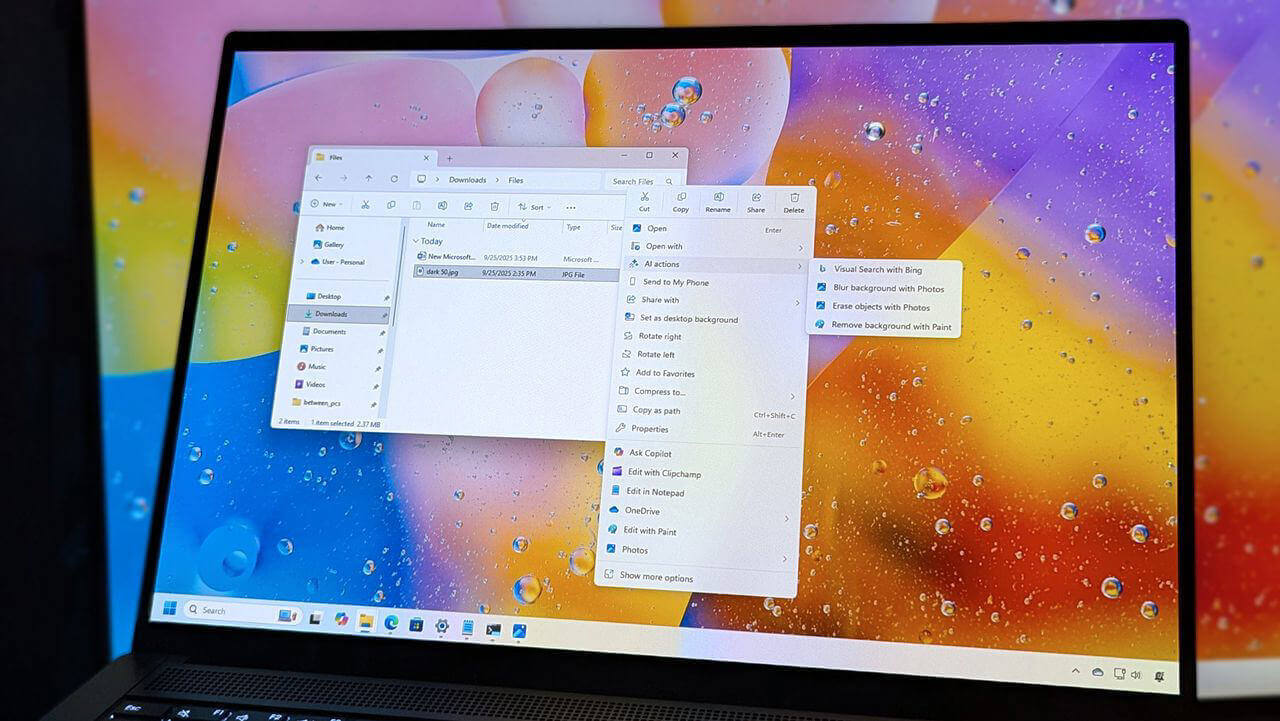
Windows 11 version 25H2 brings impressive system performance upgrades. However, recent cumulative patches have introduced frustrating File Explorer issues. Many users report frequent File Explorer hanging. Others encounter incorrect file size display bugs across local and cloud directories.
These bugs disrupt daily file management. Fortunately, you can fix them using proven administrative tweaks. In this article, we will guide you step-by-step to restore stability to your Windows 11 desktop experience.
Understanding the Windows 11 25H2 File Explorer Glitches
Microsoft overhauled the File Explorer UI framework in recent updates. Consequently, these architectural changes introduced unexpected background conflicts. The new WinUI 3 interface elements sometimes fail to synchronize properly with system process threads.
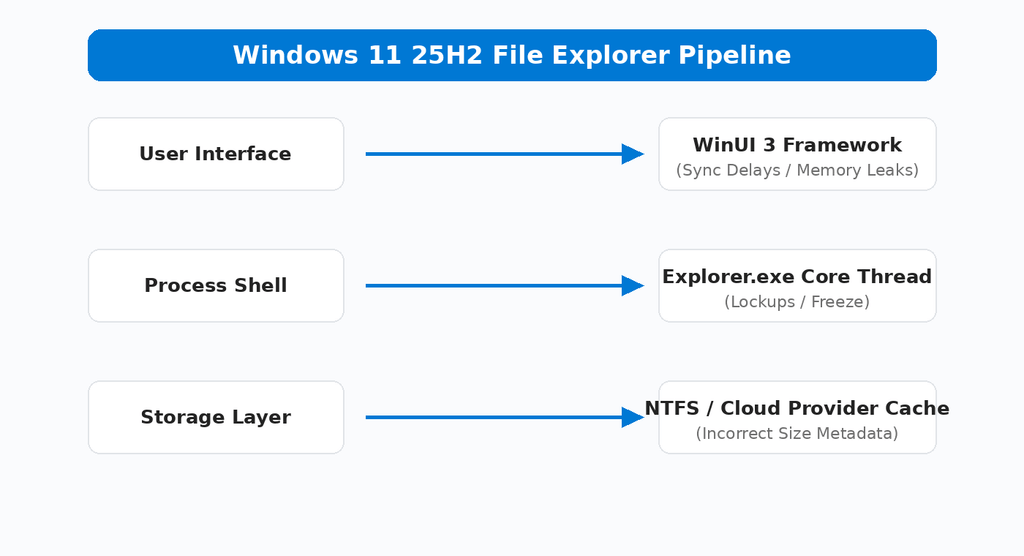
Understanding the root cause helps you choose the right repair path. Let us examine why these specific glitches happen on Windows 11 25H2.
Causes of System Hanging and Performance Freezes
File Explorer hangs primarily because background thumbnail generation encounters memory leaks. When you open large folders, the shell process attempts to cache file previews immediately. Furthermore, third-party shell extensions often lock up explorer.exe threads during context menu rendering.
Corrupted shell bag registries also trigger continuous indexing loops. As a result, the entire taskbar and desktop environment freeze temporarily.
Causes of Incorrect File Size Display Bugs
The file size display bug occurs due to metadata caching discrepancies. Windows 11 25H2 updated how storage sizes parse across hybrid storage environments. Therefore, cloud-synced files or sparse files can report zero bytes incorrectly.
Sometimes, the system fails to convert raw byte values into human-readable megabyte units. Consequently, users see inaccurate folder sizes in the details view.
Quick Workarounds to Unfreeze File Explorer Instantly
When File Explorer freezes completely, you do not need to restart your entire computer. You can apply quick remedies to terminate stalled threads immediately.
Restarting the Windows Explorer Process
- Right-click the Start Button and select Task Manager.
- Locate Windows Explorer under the Processes tab.
- Right-click Windows Explorer and click Restart.
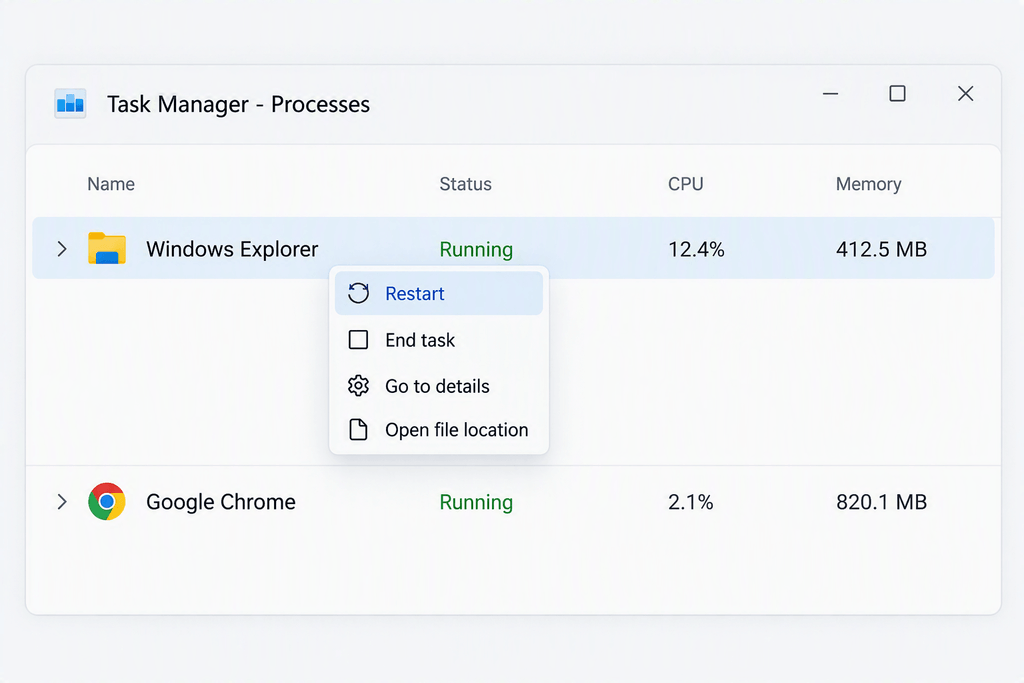
Alternatively, run an elevated command prompt to force a restart:
taskkill /f /im explorer.exe && start explorer.exeThis command terminates all active shell tasks instantly. Then, it restarts the graphic user interface cleanly.
Clearing File Explorer Cache History
Accumulated navigation history frequently causes shell instability over time. Clearing this cache solves immediate lag issues:
- Press
Win + Rto open the Run dialog box. - Type
control.exe foldersand press Enter. - Under the General tab, locate the Privacy section.
- Click the Clear button next to Clear File Explorer history.
- Click Apply, then select OK.
💡 Pro-Tip: Disabling Show recently used files and Show frequently used folders in File Explorer Options prevents recurring background indexing lag.
Fixing File Explorer Hanging in Windows 11 25H2
If temporary restarts fail to resolve the hanging issue, you must repair underlying system components. Follow these advanced solutions sequentially.
Solution 1: Disable Automatic Folder Type Discovery
Windows automatically scans folder contents to apply specialized templates like Music or Pictures. However, this legacy feature triggers severe folder loading delay in version 25H2.
Disabling automatic discovery forces Windows to treat all directories as general items:
- Press
Win + R, typeregedit, and press Enter. - Navigate to the following path:
HKEY_CURRENT_USER\Software\Classes\Local Settings\Software\Microsoft\Windows\Shell\Bags\AllFolders\Shell - Right-click on the right pane and choose New > String Value.
- Name the new value
FolderType. - Double-click
FolderTypeand set its value data toNotSpecified. - Restart your computer.
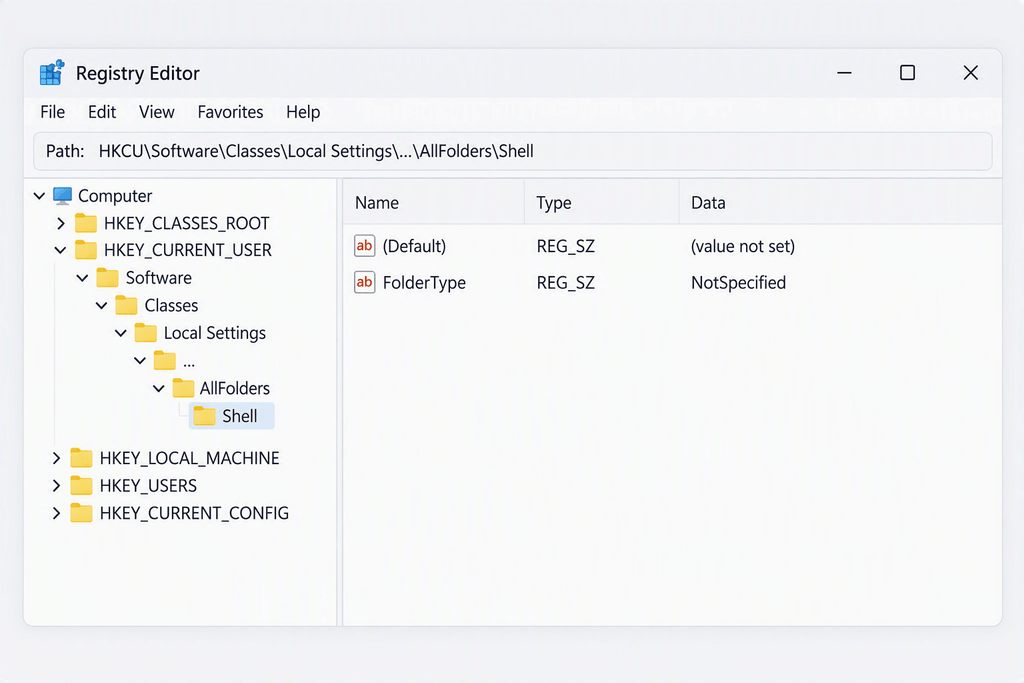
⚠️ Warning: Modifying the Windows Registry incorrectly can destabilize your operating system. Always export a registry backup before applying key changes.
Solution 2: Run SFC and DISM System Repair Commands
Corrupted system binaries frequently cause shell crashes. Use official administrative repair tools via Microsoft System File Checker to replace damaged files.
Open PowerShell as Administrator and execute these commands in order:
# Scan image for corruption
DISM.exe /Online /Cleanup-Image /ScanHealth

# Restore system health image
DISM.exe /Online /Cleanup-Image /RestoreHealth

# System file integrity check
sfc /scannow
Restart your system after the verification reaches 100 percent completion.
Resolving File Size Display and Metadata Bugs
Incorrect file sizes create confusion during storage management. The following steps fix calculation errors across local drives.
Solution 1: Rebuild the Windows Search Indexer
The search indexing service provides size metadata to folder columns. Rebuilding the index resolves incorrect folder reporting effectively.
- Open the Start Menu and search for Indexing Options.
- Click Advanced in the Indexing Options window.
- Under Troubleshooting, click the Rebuild button.
- Confirm your selection by clicking OK.
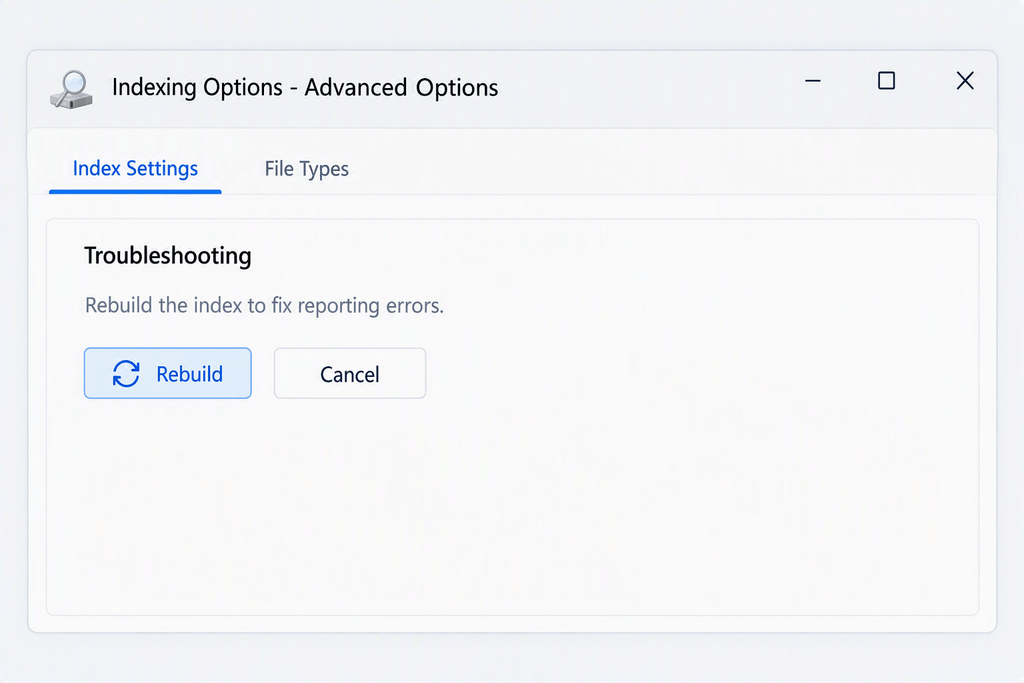
Allow the process to complete entirely in the background. Indexing times vary depending on drive size and hardware speed.
Solution 2: Reset Folder View Defaults
Corrupted layout templates often cause misaligned metadata columns. Resetting all views restores native calculation rules:
- Open File Explorer and click the three dots (…) menu icon.
- Select Options to launch Folder Options.
- Navigate to the View tab.
- Click Reset Folders, then click Restore Defaults.
- Click Apply, then hit OK.
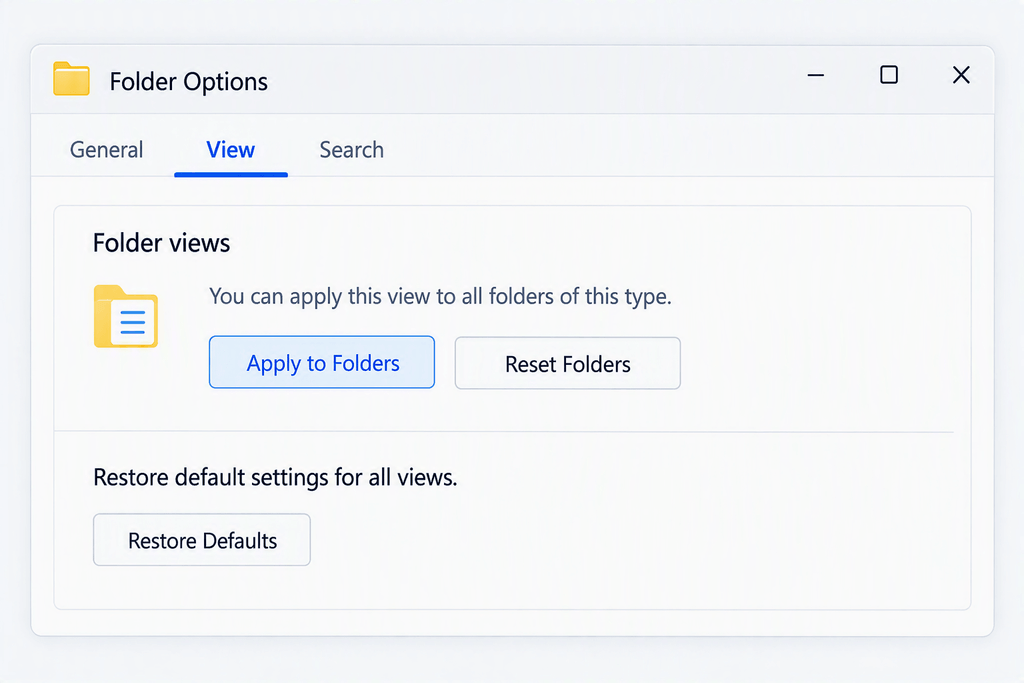
Check your file details pane to verify correct size reporting.
Installing Latest Windows Updates and Out-of-Band Patches
Microsoft regularly releases cumulative updates to patch OS bugs. Ensure your system runs the latest cumulative builds to receive hotfixes directly from Microsoft engineers.
How to Check for Updates
- Open Settings by pressing
Win + I. - Click Windows Update from the left navigation panel.
- Select Check for updates.
- Download and install all available updates, including optional preview releases.
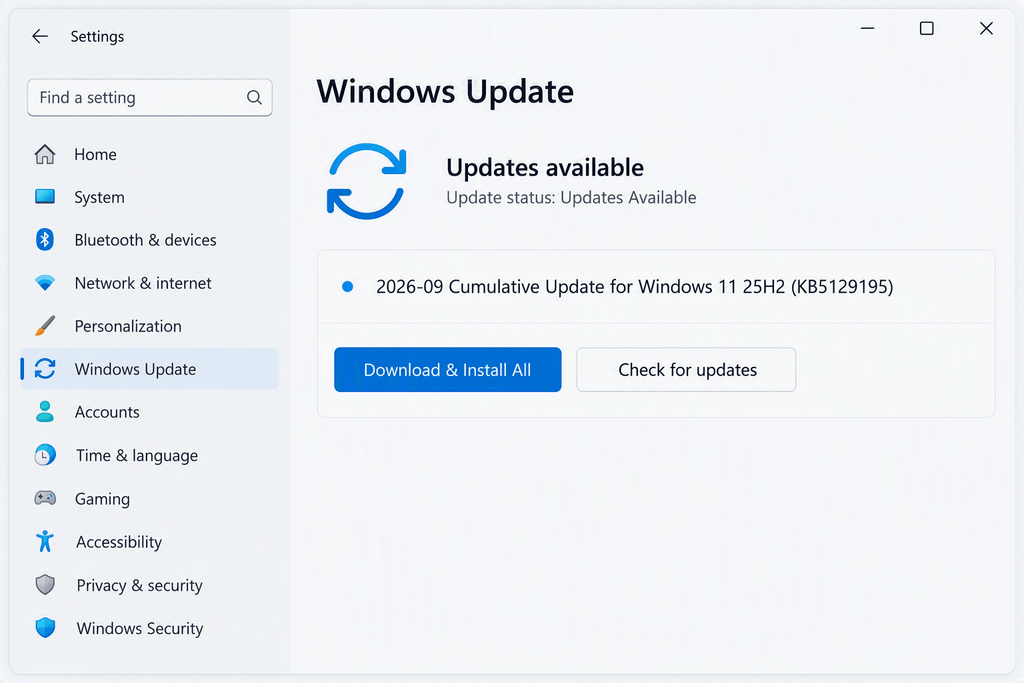
Check official release documentation on the Microsoft Windows Release Health Dashboard for ongoing status updates on build 26200 issues.
Summary of Fixes for File Explorer Bugs
| Bug / Symptom | Primary Cause | Best Fix Action |
| System Hanging / Freezing | Folder Type Auto-Discovery | Set FolderType to NotSpecified in Registry |
| Complete Shell Lockup | Stalled explorer.exe Process | Restart process via Task Manager or Command Prompt |
| Zero-Byte File Size Bug | Metadata Sync / Cache Errors | Rebuild Search Index & Reset Folder Views |
| System File Corruption | Damaged Windows Binaries | Run sfc /scannow and DISM /RestoreHealth |
| Intermittent Slowdowns | Accumulated History Cache | Clear File Explorer History via Folder Options |
Final Thoughts
File Explorer bugs in Windows 11 25H2 severely hamper system usability. However, applying these configuration fixes resolves most hanging issues and file size display errors without clean OS reinstalls. Keep your Windows installation updated regularly to ensure persistent stability.
Have you encountered these File Explorer bugs on your PC? Share your thoughts and experience in the comments section below!