System administrators face significant operational disruptions when Windows 11 systems suddenly lose connection with domain controllers. The recent Windows 11 security update designated as KB5124008 triggers severe Active Directory error symptoms across enterprise networks. Furthermore, affected devices display a trust relationship failed error during interactive user login attempts. Consequently, employees lose access to core corporate infrastructure, cloud endpoints, and essential network shares.
Understanding the underlying cause helps IT teams restore device connectivity without compromising overall environment security. This comprehensive guide breaks down why update KB5124008 breaks the secure channel, how virtualization security features interact with machine credentials, and how administrators can quickly repair domain trust across affected endpoints.
Why KB5124008 Breaks Active Directory Domain Trust
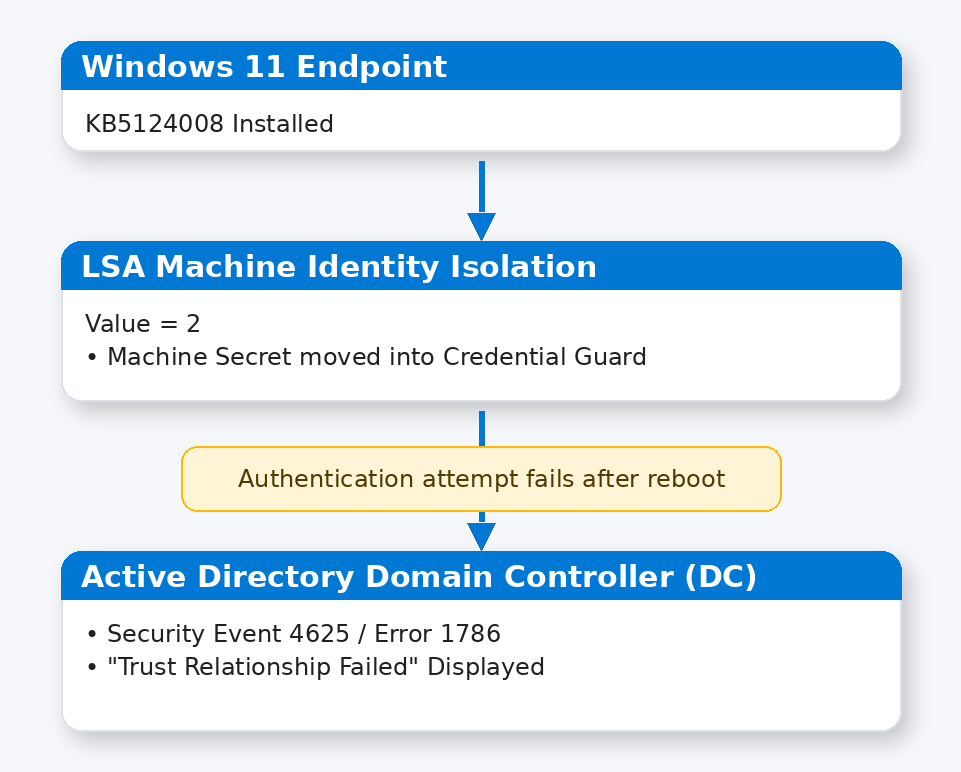
The cumulative update KB5124008 introduces critical security patches for modern Windows builds. However, the update alters how the Local Security Authority (LSA) interacts with Virtualization-Based Security (VBS). In particular, the update strictly enforces Machine Identity Isolation settings previously configured via Group Policy or Microsoft Intune.
When Machine Identity Isolation operates in enforcement mode, Windows moves machine account credentials out of standard LSA memory into an isolated container. If domain controllers cannot validate these isolated machine credentials, the secure channel breaks. As a result, the workstation rejects domain credentials and throws a trust relationship failed warning at sign-in.
Step-by-Step Guide to Fix the KB5124008 Trust Error
Administrators can repair broken trust relationships by adjusting isolation policies and re-establishing local machine secrets. You should execute these procedures using local administrative accounts on affected devices.
Step 1: Verify the Secure Channel Status
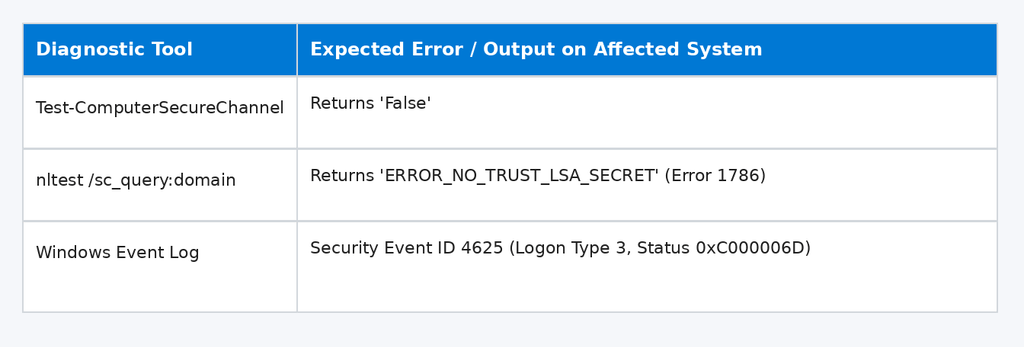
First, open an elevated PowerShell window on the affected system. Run the diagnostic command to confirm whether the secure channel has broken:
Test-ComputerSecureChannelIf the console returns False, the computer account lost its secure connection to the domain controller. Next, run Microsoft’s Nltest command-line tool to verify the exact Local Security Authority status:
nltest /sc_query:yourdomain.comLook for error code 1786 or ERROR_NO_TRUST_LSA_SECRET in the output. This code confirms that LSA cannot access the machine account secret.
Step 2: Disable Machine Identity Isolation in the Registry
To prevent Windows from isolating and discarding the machine secret, modify the LSA registry value directly. Alternatively, you can manage these settings through Microsoft Intune Device Configuration Policies.
Navigate to the following path inside the Registry Editor (regedit):
HKLM\SYSTEM\CurrentControlSet\Control\Lsa
Locate the DWORD value named MachineIdentityIsolation. Change its value data from 2 (Enforcement) or 1 (Audit) to 0 (Disabled).
💡 Pro-Tip: You can also deploy this registry change remotely using an elevated PowerShell command across multiple workstations: Set-ItemProperty -Path "HKLM:\SYSTEM\CurrentControlSet\Control\Lsa" -Name "MachineIdentityIsolation" -Value 0 -Type DWord
Step 3: Repair the Secure Channel with PowerShell
After disabling Machine Identity Isolation, restart the endpoint. Once rebooted, log in using a local administrator account. Open PowerShell with elevated privileges to repair the computer secret against the domain controller:
Reset-ComputerMachinePassword -Server "DC-01.yourdomain.com" -Credential (Get-Credential)Next, force PowerShell to repair the secure channel link:
Test-ComputerSecureChannel -Server "DC-01.yourdomain.com" -Credential (Get-Credential) -RepairProvide valid domain administrator credentials when prompted by the system. If successful, PowerShell will output True.
⚠️ Warning: Do not force-unjoin devices from Active Directory without securing local admin credentials first. If you remove an endpoint without local admin access, you will lock yourself out completely. Review Microsoft’s guidance on Local Administrator Password Solution (LAPS) before attempting domain rejoins.
Step 4: Uninstall KB5124008 as a Last Resort
If resetting the machine password fails to restore access, uninstalling the problematic update will temporarily resolve the issue. Open an elevated Command Prompt and execute the following servicing command:
wusa /uninstall /kb:5124008 /quiet /norestartReboot the workstation immediately after the uninstallation finishes. Once restarted, run Test-ComputerSecureChannel -Repair again to re-establish normal domain operations.
Preventing Domain Trust Failures Across Your Organization
Enterprise environments should take proactive steps to prevent widespread authentication outages during monthly patching cycles.
- Pause Broad Deployment: Temporarily delay KB5124008 rollout in WSUS or Windows Update for Business.
- Audit Registry Keys: Review GPO configurations targeting
HKLM\SYSTEM\CurrentControlSet\Control\Lsa. - Validate Domain Controller Logs: Monitor Security Event 4625 entries using Active Directory Administrative Center.
- Maintain LAPS: Ensure Windows LAPS updates local account passwords continuously across all endpoints.
Final Thoughts & Conclusion
The KB5124008 update highlights how tight integration between Virtualization-Based Security and Active Directory can inadvertently trigger authentication errors. By auditing the MachineIdentityIsolation registry key and repairing the machine secure channel, system administrators can efficiently restore system access without performing disruptive operating system reinstalls.
How did your team handle the latest Windows 11 update issues? Have you encountered similar secure channel failures in your environment? Share your thoughts and troubleshooting experiences in the comments below! If this guide helped you resolve your Active Directory errors, please share it with your fellow IT professionals and system administrators.