Can You Buy a Good Laptop for Under ₱30,000 in 2026?
Finding the best budget laptops under ₱30,000 in the Philippines doesn’t have to be difficult. However, choosing the wrong laptop can leave you frustrated with sluggish performance within months. Fortunately, several affordable laptops in the Philippines now offer decent processors, fast SSD storage, and Full HD displays. The challenge is knowing which specifications actually matter.
If you’re a student, office worker, freelancer, or home user, ₱30,000 can cover your everyday computing needs. You can comfortably run Microsoft Office, Google Workspace, Zoom, and common productivity applications. Some models can even handle basic photo editing and light gaming. However, demanding workloads still require stronger hardware.
The Philippine market offers numerous options from Acer, ASUS, Lenovo, and HP. Nevertheless, similarly priced laptops can deliver surprisingly different experiences. One might offer a capable processor but only 8GB of non-upgradeable RAM. Another could provide better processing power but compromise display quality.
That’s why I don’t recommend choosing laptops based on brand reputation alone. Instead, examine the processor, memory configuration, storage, display technology, and warranty coverage. Also, check whether the package includes legitimate Windows and Microsoft Office licenses. These details affect both your experience and long-term ownership costs.
In this 2026 budget laptop buying guide, we’ll compare six practical laptop configurations available to Filipino buyers. We’ll examine their strengths, limitations, and suitable workloads. More importantly, you’ll learn where spending extra money makes sense and where you can safely save.
1. Best Budget Laptops Under ₱30,000: Top Picks at a Glance
Before discussing individual brands, let’s compare the most promising models within our budget. These laptops target different needs, including online learning, office productivity, portability, and everyday multitasking.
For Windows 11, I recommend starting with at least 8GB RAM and a 512GB NVMe SSD. Ideally, choose 16GB RAM when your budget allows. A Full HD display should also be a priority.
Best Budget Laptop Comparison Table for 2026
| Laptop Model | Processor | RAM / Storage | Display | Listed Price |
|---|---|---|---|---|
| Acer Aspire Lite 14 AL14-32P-C5PN | Intel N150 | 8GB / 512GB SSD | 14″ WUXGA | ₱24,999 |
| ASUS Vivobook Go 15 E1504FA-NJ1527W | Ryzen 3 7320U | 8GB / 512GB SSD | 15.6″ FHD | ₱25,995 |
| Lenovo IdeaPad Slim 3i 15IAU7 | Core i3-1215U | 8GB / 512GB SSD | 15.6″ FHD | ₱25,995 |
| HP 15s-EQ2085AU / EQ2086AU | Ryzen 5 5500U | 16GB / 512GB SSD | 15.6″ FHD | ₱27,995 |
| Acer Aspire Lite AL14-32P-37PL | Intel Core 3 N355 | 8GB / 512GB SSD | 14″ WUXGA | ₱28,995 |
| Lenovo IdeaPad Slim 3 15AMN8 | Ryzen 3 7320U | 8GB / 512GB SSD | 15.6″ FHD | ₱28,995 |
Prices reflect Asianic Distributors’ published Philippine listings checked on November 3, 2026. Confirm current prices, stock, exact model numbers, and bundled software before purchasing.
You can compare available configurations through Asianic Distributors’ laptop catalog. However, don’t assume that every listed model remains available at its advertised price. Promotional offers and installment arrangements can change without notice.
Which Budget Laptop Should You Choose?
- Best overall specifications: HP 15s with Ryzen 5 5500U and 16GB RAM.
- Best for students: ASUS Vivobook Go 15 with Ryzen 3 7320U.
- Best Intel office laptop: Lenovo IdeaPad Slim 3i with Core i3-1215U.
- Best compact basic laptop: Acer Aspire Lite 14 with Intel N150.
- Best Acer multitasking alternative: Aspire Lite with Intel Core 3 N355.
- Best Lenovo AMD alternative: IdeaPad Slim 3 with Ryzen 3 7320U.
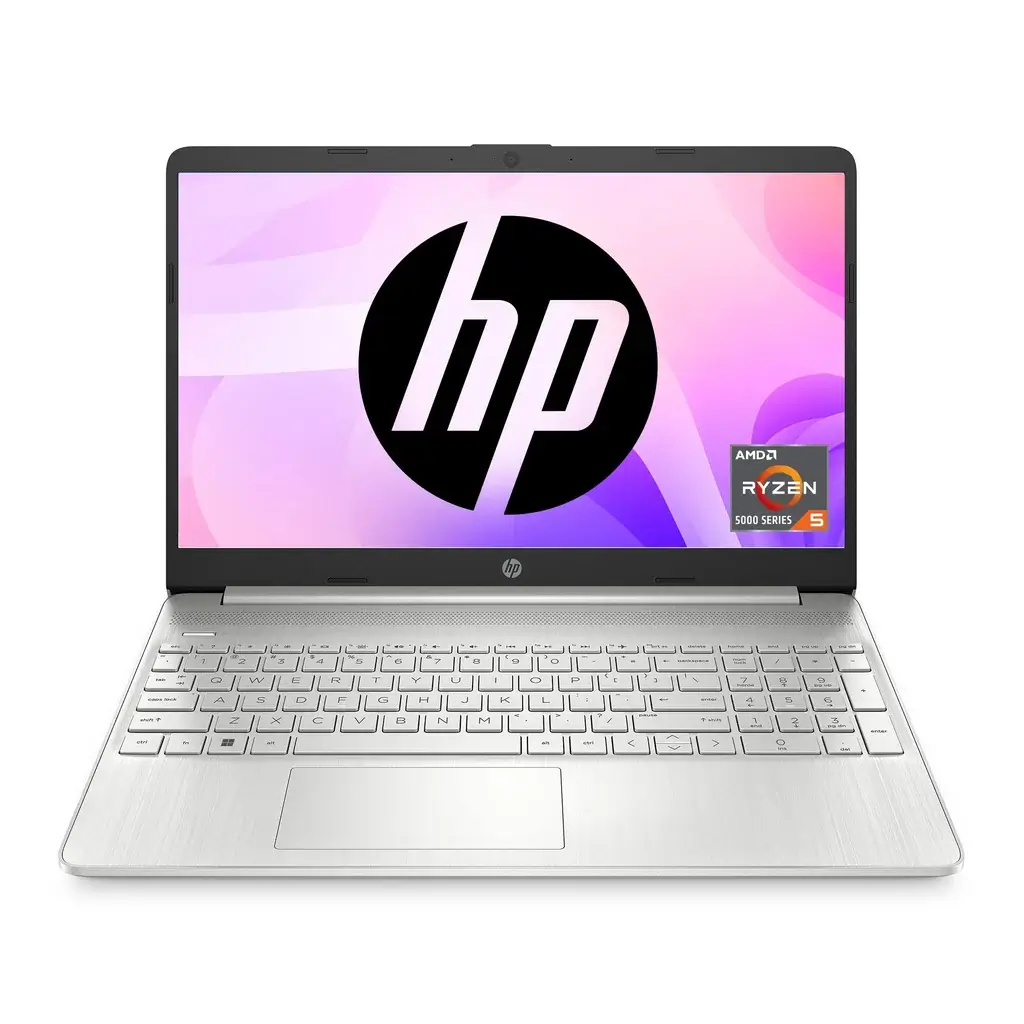
The HP 15s stands out because its 16GB memory provides more room for demanding productivity workloads. Its six-core Ryzen 5 processor also offers substantial multitasking capability. However, the processor belongs to an older generation.
Meanwhile, Lenovo’s Core i3-1215U configuration offers a practical alternative for office workers. Its hybrid processor architecture handles everyday productivity applications efficiently. Additionally, its memory expansion slot provides flexibility for future upgrades.
The ASUS Vivobook Go 15 remains attractive for students who prioritize affordability and a larger display. However, its soldered memory limits future upgrades. That limitation deserves attention if you expect to use the laptop for several years.
The Acer Aspire Lite N150 serves buyers with lighter computing requirements. Its WUXGA display offers additional vertical screen space for documents and browsing. Nevertheless, demanding multitasking requires more processing capability.
🎯 My recommendation: Focus on the applications you’ll actually use. The most expensive laptop isn’t automatically the best choice. A balanced configuration usually provides better long-term value than one impressive specification.
2. Best Acer Laptops Under ₱30,000: Aspire Lite and Aspire 3
Acer remains a familiar choice among Filipino students, households, and small businesses. Its Aspire family includes affordable models suitable for everyday Windows computing. However, Acer uses similar product names across several hardware configurations.
For buyers with limited budgets, the Acer Aspire Lite 14 deserves particular attention. The Aspire 3 family also offers alternatives worth examining. Nevertheless, exact processor and memory specifications matter more than the Aspire branding.
Acer Aspire Lite 14: Affordable Everyday Computing
The Acer Aspire Lite AL14-32P-C5PN uses Intel’s N150 processor. This four-core chip targets efficient everyday computing rather than demanding workloads. It handles document editing, web browsing, online classes, and email reasonably well.
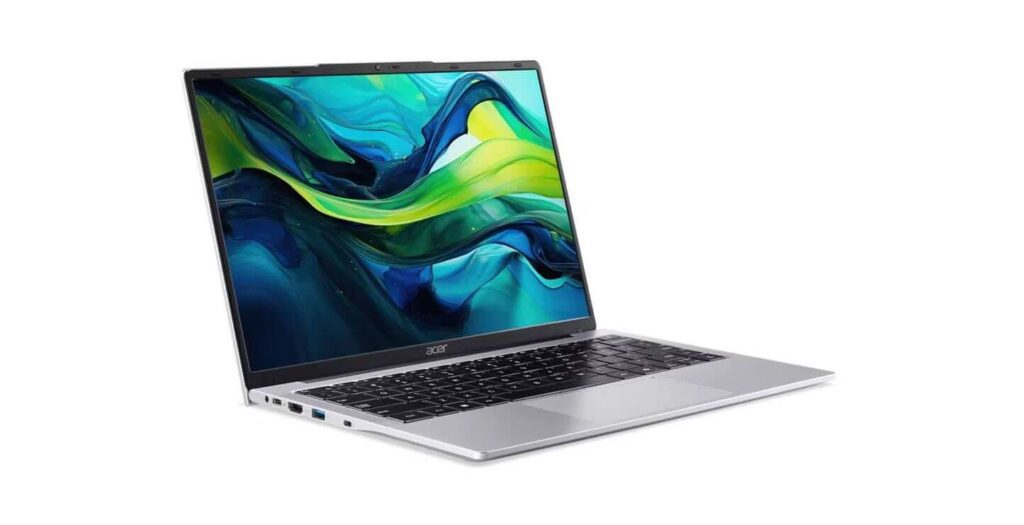
Its configuration includes 8GB DDR5 memory and a 512GB NVMe SSD. Additionally, the 14-inch WUXGA display provides a 1920×1200 resolution. This gives users more vertical workspace than conventional 1920×1080 displays.
According to Intel’s official N150 specifications, the processor contains four cores and four threads. Its architecture emphasizes low power consumption. Therefore, it’s better suited to basic productivity than processor-intensive applications.
For students preparing assignments and joining video conferences, the N150 may be sufficient. However, large spreadsheets, complex browser sessions, and heavier applications can expose its limitations. I wouldn’t choose this processor for demanding creative work.
At the referenced ₱24,999 price, the Aspire Lite offers practical features for budget-conscious buyers. Its display resolution and SSD capacity are particularly appealing. However, examine its memory upgrade options before committing.
Acer Aspire Lite With Intel Core 3 N355
Another interesting configuration is the Acer Aspire Lite AL14-32P-37PL. It features Intel’s Core 3 N355 processor, 8GB LPDDR5 memory, and a 512GB NVMe SSD. Its advertised price places it just below our ₱30,000 ceiling.
Unlike the N150, the N355 features eight efficiency cores. These additional cores can help when several lightweight applications run simultaneously. However, they don’t automatically guarantee better performance than processors with dedicated performance cores.
Intel’s N-series processor comparison explains these architectural differences. The N355 supports eight threads, compared with the N150’s four. Nevertheless, laptop cooling and power limits still affect actual performance.
The AL14-32P-37PL also advertises a WUXGA display and Microsoft Office Home 2024. These extras can increase its overall value. However, its 8GB LPDDR5 configuration deserves scrutiny because memory expansion may not be available.
If you mainly prepare documents and browse websites, the cheaper N150 model may suffice. Conversely, the N355 provides additional processing resources for multitasking. Compare both configurations carefully before paying the premium.
What About the Acer Aspire 3?
The Aspire 3 lineup includes models with different Intel and AMD processors. Some versions offer stronger processing performance than entry-level Aspire Lite laptops. However, specifications vary considerably between configurations.
For example, an Aspire 3 with a Core i3-1215U could outperform an N150 model in demanding applications. Nevertheless, memory capacity, display quality, and cooling also influence overall performance.
Before purchasing an Aspire 3, verify its exact Philippine model number and current selling price. Check whether the display uses IPS technology and whether the RAM supports upgrades. Most importantly, confirm that the specific configuration costs less than ₱30,000.
💡 My assessment: Acer offers sensible options for students and everyday users. However, don’t pay more solely for a newer-looking model. Prioritize the processor, RAM, display, and upgrade flexibility.
3. Best ASUS Vivobook Laptops for Students and Home Users
ASUS offers several attractive laptops for students and home users. Its Vivobook series combines practical features with relatively lightweight designs. However, not every Vivobook offers the same upgrade options or performance capabilities.
Within our budget, the ASUS Vivobook Go 15 deserves particular attention. It provides a large Full HD display and a capable entry-level AMD processor. Nevertheless, buyers should understand its memory limitations.
ASUS Vivobook Go 15: A Practical Student Laptop
The ASUS Vivobook Go 15 E1504FA-NJ1527W uses AMD’s Ryzen 3 7320U processor. It features four CPU cores and eight processing threads. The Philippine configuration also includes 8GB LPDDR5 memory and a 512GB NVMe SSD.
For students, this hardware combination makes sense. It can handle presentations, research, video conferencing, and everyday school assignments. Additionally, its 15.6-inch Full HD screen provides comfortable workspace for documents.
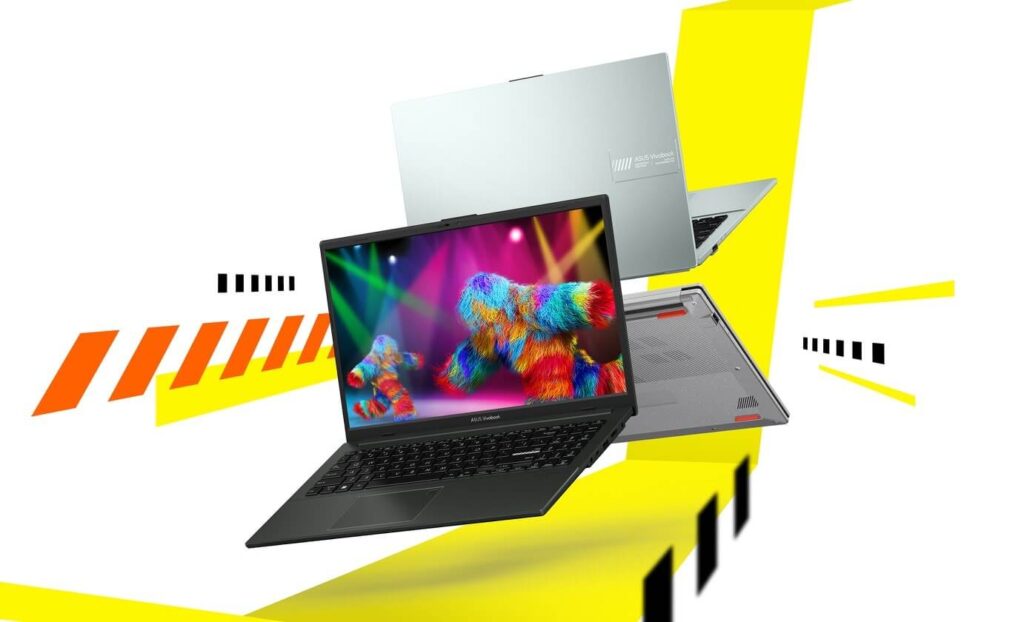
The Ryzen 3 7320U uses AMD’s Zen 2 architecture. Although it belongs to the Ryzen 7000 family, it doesn’t use the newer Zen 4 design. Therefore, buyers shouldn’t assume every Ryzen 7000 processor provides identical architectural improvements.
The laptop also includes integrated Radeon graphics. These support video playback, everyday graphics acceleration, and selected lightweight games. However, demanding 3D games remain outside its intended capabilities.
The Biggest Limitation: Soldered RAM
One important weakness involves the Vivobook Go’s memory configuration. ASUS lists onboard LPDDR5 memory for its E1504FA family. Therefore, buyers cannot simply install another conventional memory module.
The manufacturer’s Vivobook Go 15 technical specifications confirm onboard memory configurations. However, other specifications vary between individual versions.
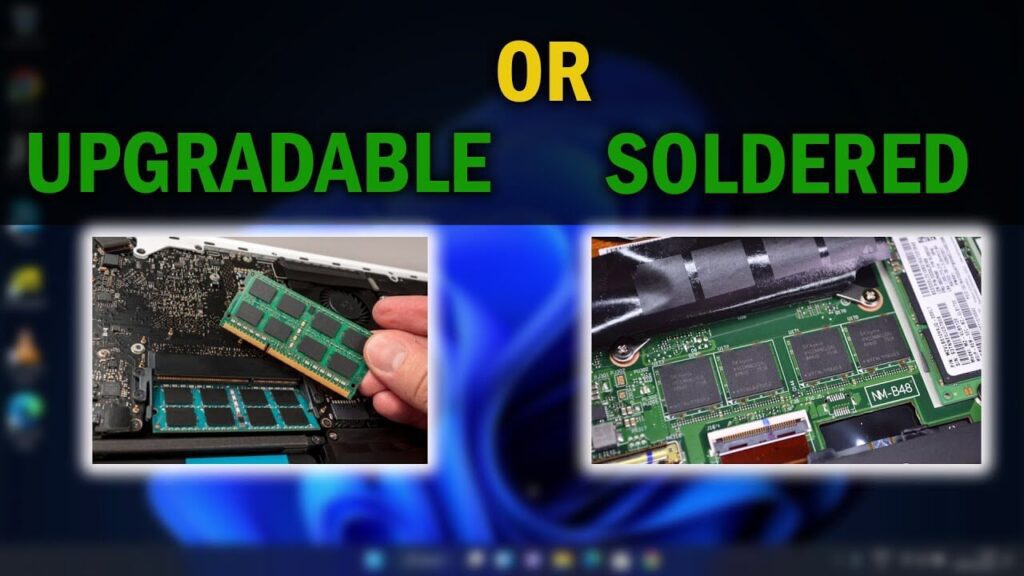
For light computing, 8GB RAM remains usable. However, Windows 11, browser tabs, and background applications can consume memory quickly. Frequent multitasking makes 16GB considerably more attractive.
If your work regularly involves large spreadsheets or demanding browser sessions, consider another configuration. A laptop with expandable memory may provide better long-term flexibility.
ASUS Vivobook Go 14: Portability Matters
The Vivobook Go 14 targets users who prefer smaller laptops. Its compact form suits students carrying computers between classrooms, libraries, and home. Meanwhile, a 14-inch display requires less desk space.
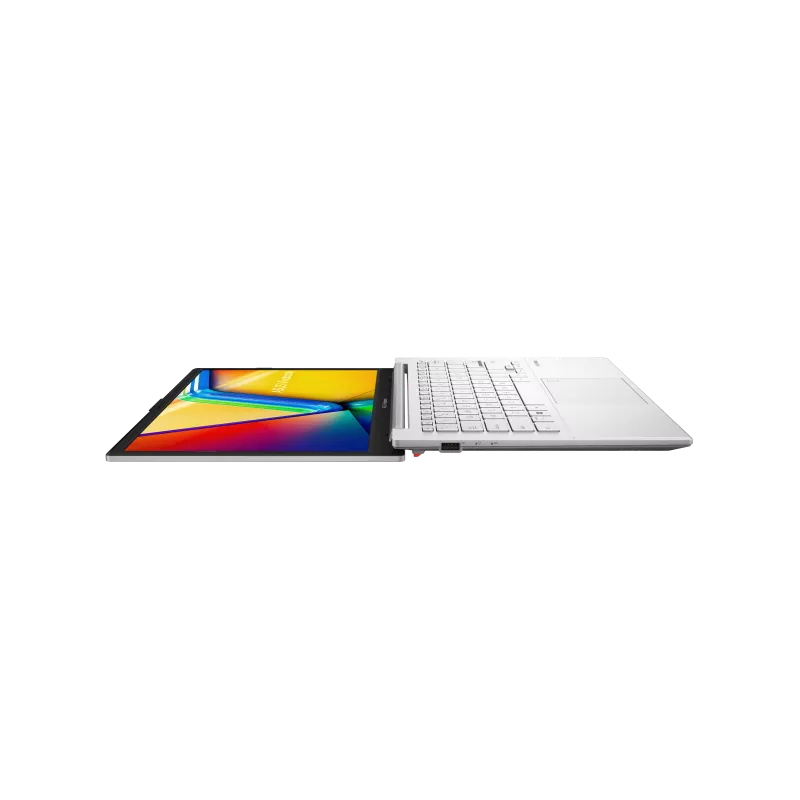
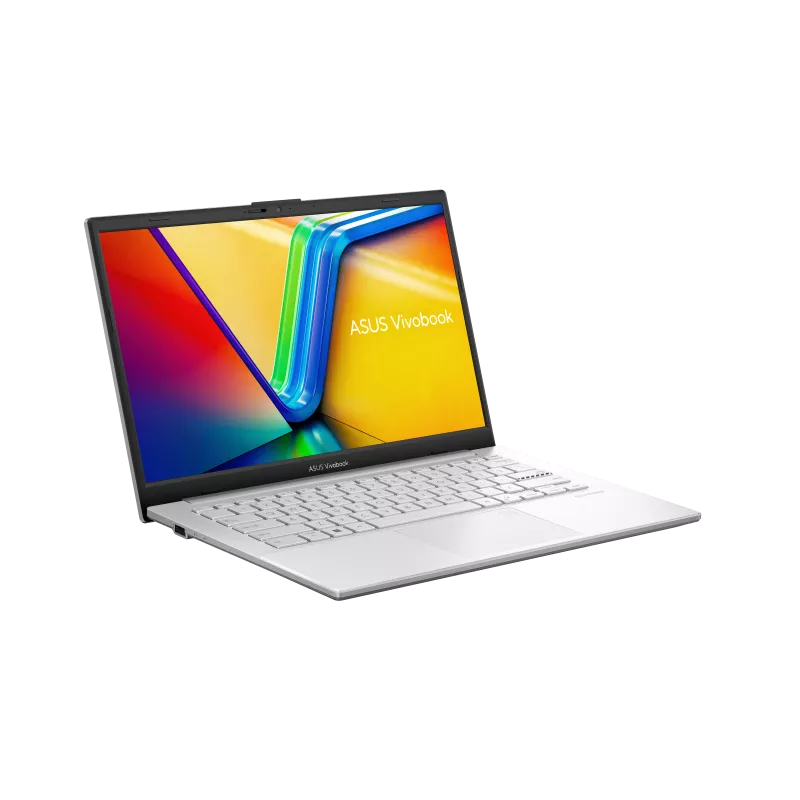
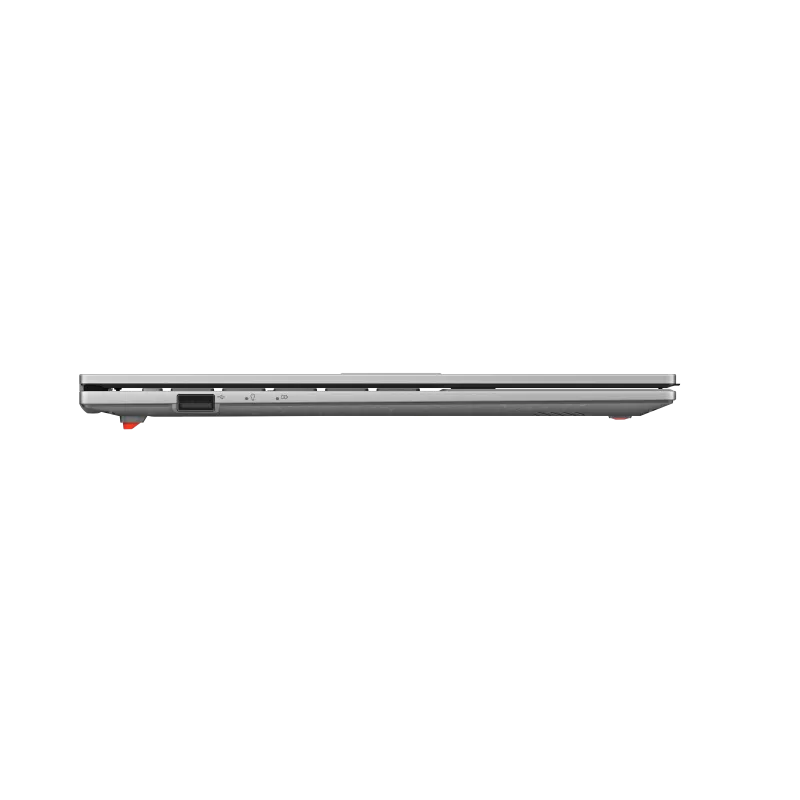
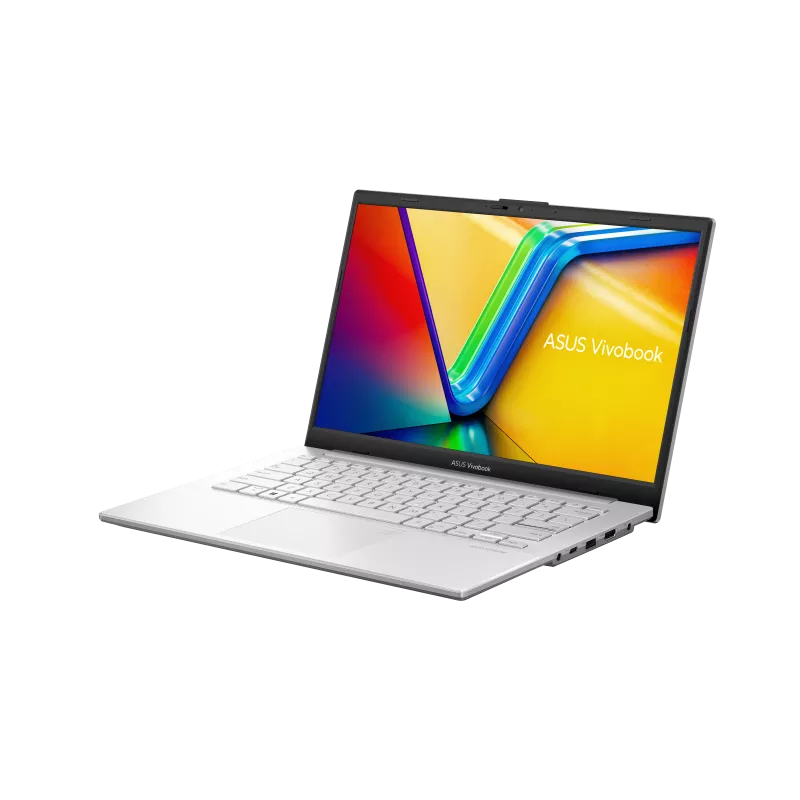
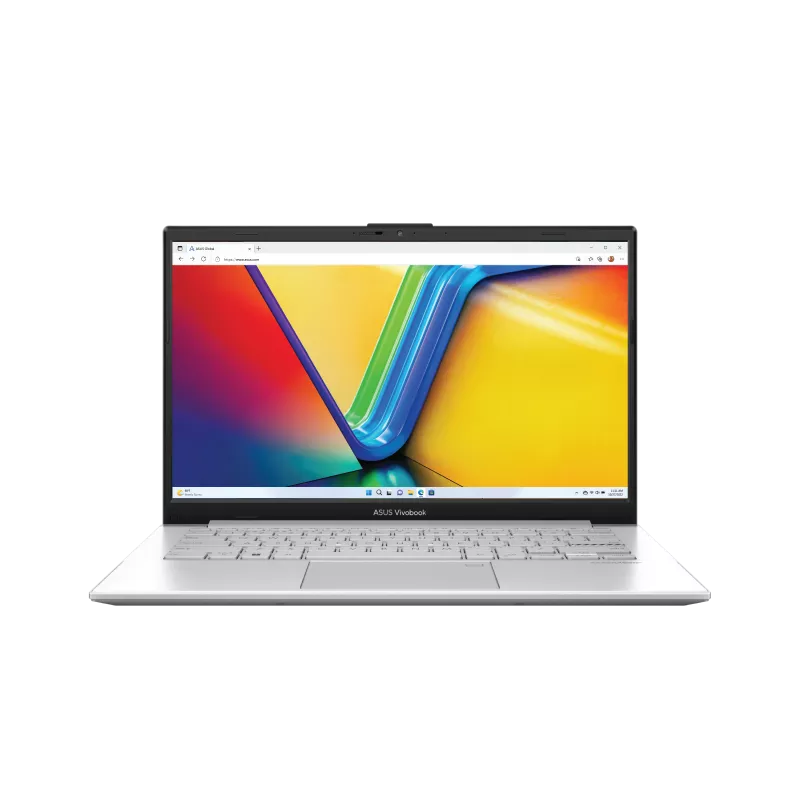
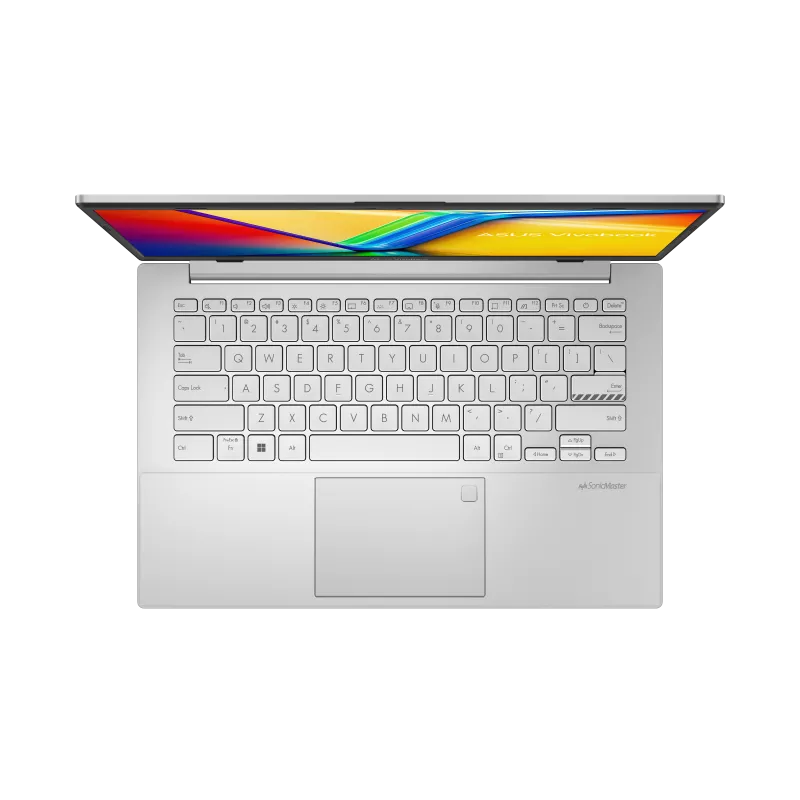

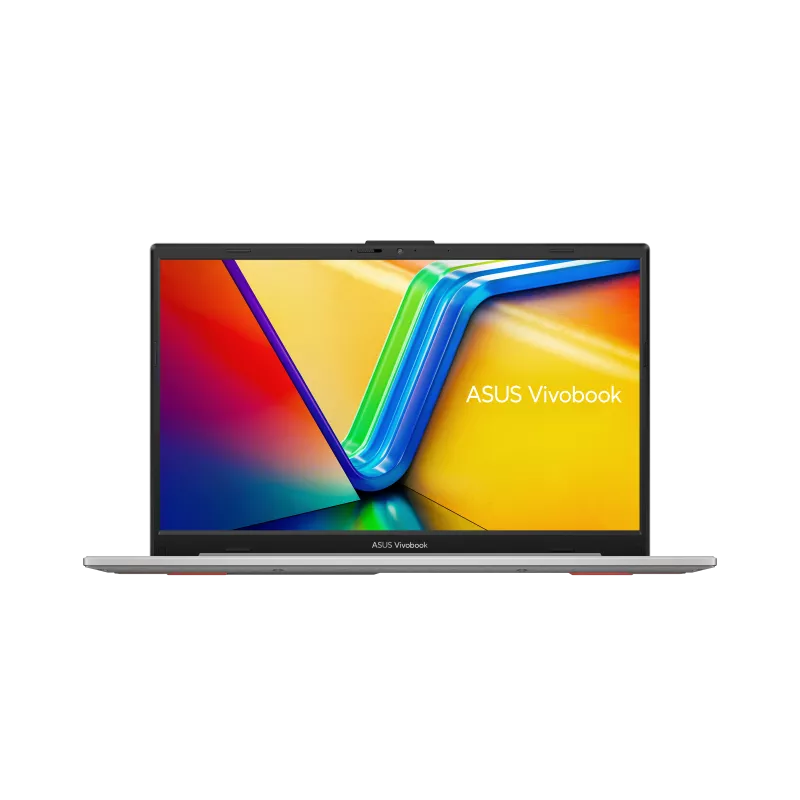
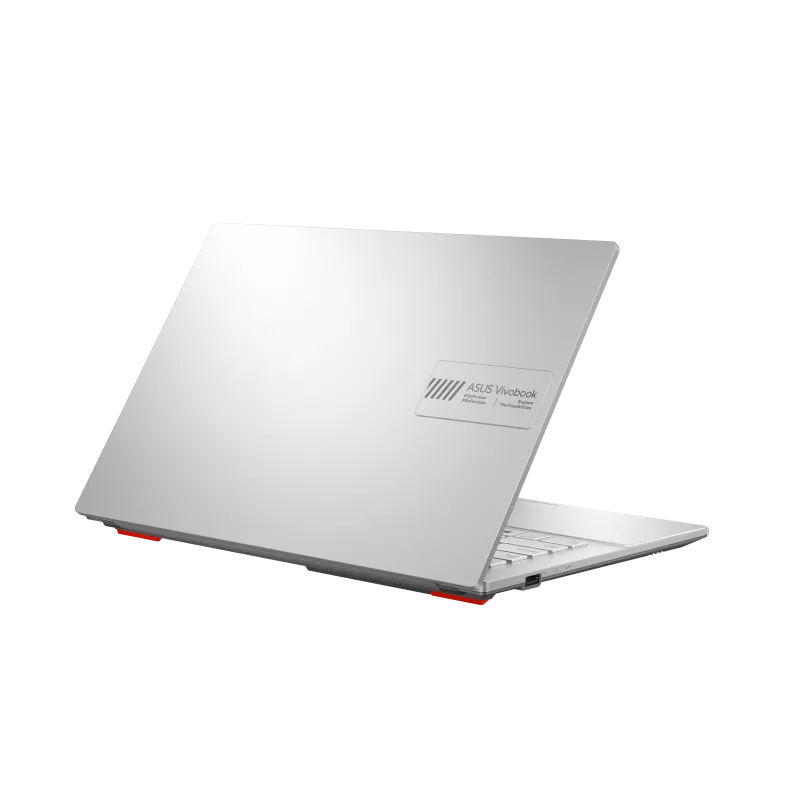
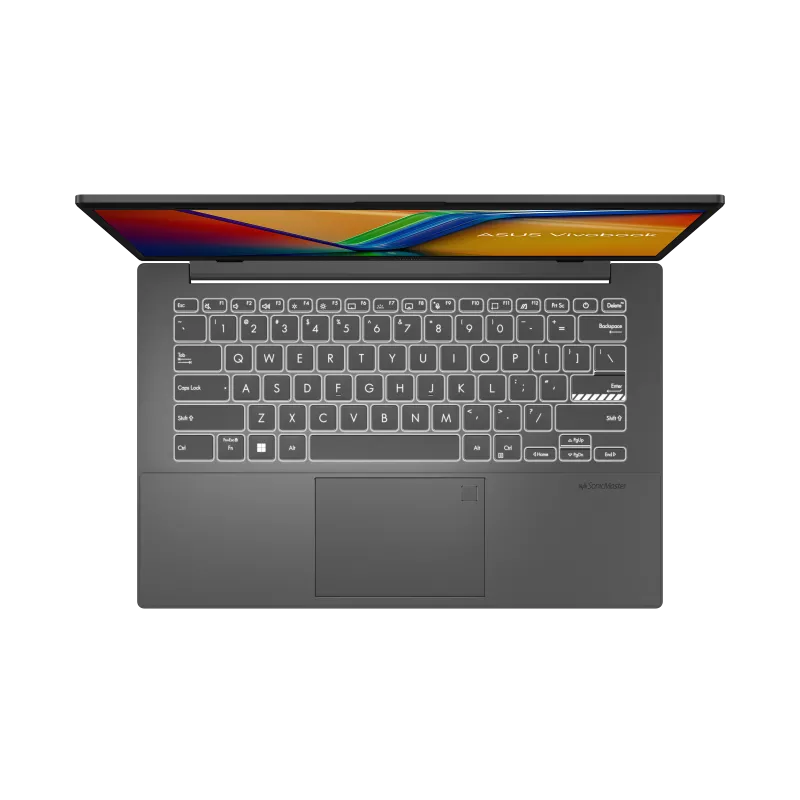
However, a smaller laptop doesn’t automatically provide better battery life. Actual runtime depends on battery capacity, display characteristics, and processor efficiency. Therefore, compare independent battery reviews whenever possible.
A larger 15.6-inch screen offers more workspace for spreadsheets and presentations. Conversely, a 14-inch laptop generally fits more comfortably inside smaller bags. Choose according to your daily routine.
Display and Connectivity Considerations
The Vivobook Go 15 family includes different display configurations. Some use IPS-level LCD panels, while other versions feature OLED displays. Consequently, the product family name alone doesn’t identify the exact screen.
For everyday productivity, Full HD resolution provides a comfortable starting point. However, color accuracy and brightness also matter. Buyers planning regular photo editing should examine these specifications carefully.
The laptop includes common connectivity options, including USB and HDMI ports. However, ASUS lists data-transfer functionality for the E1504F family’s USB-C port. Don’t assume USB-C charging or video output support without verifying the exact SKU.
💡 My assessment: The Vivobook Go 15 offers practical everyday performance at a reasonable price. However, its non-upgradeable 8GB memory deserves serious consideration. Choose it for basic productivity rather than demanding long-term workloads.
4. Best Lenovo and HP Budget Laptops for Office Productivity
Office workers need more than a laptop that simply starts quickly. They regularly switch between spreadsheets, presentations, browsers, and communication applications. Consequently, processor responsiveness and available memory can affect daily productivity.
Lenovo and HP offer interesting options within the ₱30,000 price range. Two configurations deserve particular attention: the Lenovo IdeaPad Slim 3i and HP 15s.
Lenovo IdeaPad Slim 3i: A Capable Intel Productivity Laptop
The Lenovo IdeaPad Slim 3i 15IAU7 features Intel’s Core i3-1215U processor. It combines two performance cores with four efficiency cores. Together, these provide six cores and eight processing threads.
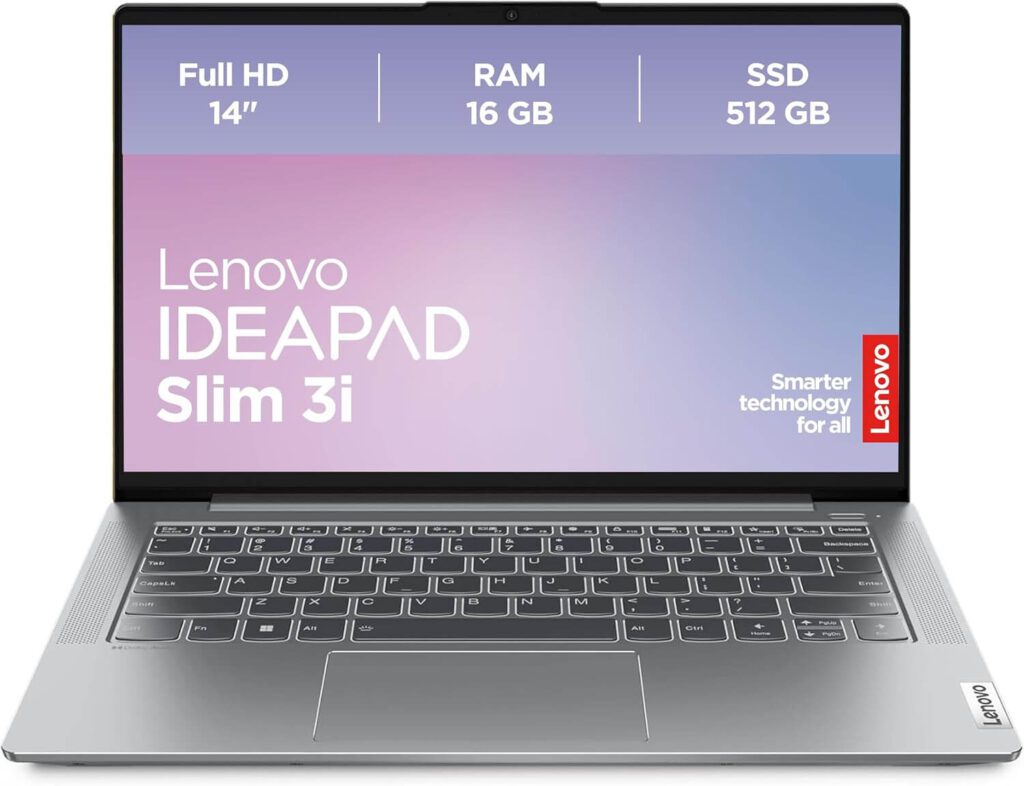
This architecture makes the processor suitable for everyday office applications. Microsoft Excel, Word, PowerPoint, and browser-based tools can benefit from its performance cores. Additionally, the efficiency cores help handle background tasks.
Intel’s Core i3-1215U specifications confirm its hybrid design and processing capabilities.
The Philippine model 82RK011XPH includes 8GB soldered DDR4 memory and a 512GB NVMe SSD. Importantly, Lenovo provides an additional SO-DIMM memory slot. The manufacturer documents configurations supporting 16GB total memory.
You can verify these details through Lenovo’s official product specifications.
However, this particular model uses a Full HD TN display rated at 250 nits. That’s a compromise compared with a good IPS panel. Therefore, inspect the screen before deciding whether its processor and upgradeability justify the purchase.
For office workers who prioritize performance and memory expansion, this Lenovo configuration remains attractive. Its advertised ₱25,995 price also leaves room for accessories or a possible memory upgrade.
Lenovo IdeaPad Slim 3 With AMD Ryzen 3
Lenovo also offers the IdeaPad Slim 3 15AMN8 with AMD’s Ryzen 3 7320U. This model includes 8GB LPDDR5 memory and a 512GB NVMe SSD. The referenced Philippine configuration also advertises Microsoft Office Home 2024.
Its processor handles common office applications and everyday multitasking. However, the onboard memory limits expansion options. This may become frustrating if your workload grows.
At the referenced ₱28,995 price, it costs more than the Intel configuration discussed earlier. Therefore, consider the software bundle and overall specifications before paying the difference.
HP 15s: Strong Specifications for the Price
The HP 15s-EQ2085AU/EQ2086AU deserves serious consideration among budget productivity laptops. Its Ryzen 5 5500U processor offers six cores and twelve threads. More importantly, the advertised configuration includes 16GB DDR4 RAM and a 512GB NVMe SSD.
For demanding office work, this combination is attractive. Large spreadsheets, multiple browser windows, and simultaneous productivity applications can benefit from additional memory. Moreover, the processor offers more parallel-processing resources than many entry-level alternatives.
According to AMD’s Ryzen 5 5500U specifications, the processor launched in 2021. Therefore, it isn’t a recent design. Nevertheless, it remains useful for many productivity workloads.
Asianic lists this HP configuration at ₱27,995. However, the retailer’s detailed display description contains inconsistent wording. Confirm the actual panel resolution and technology before purchasing.
The HP’s 16GB memory makes it particularly interesting for buyers who multitask regularly. However, remember that memory capacity doesn’t compensate for every hardware limitation. Display quality, cooling, battery life, and warranty support still matter.
Lenovo vs. HP: Which Should You Buy?
For office productivity, I would prioritize memory capacity and processor performance. However, screen quality and keyboard comfort can make an equally important difference.
The HP 15s offers more RAM and additional CPU threads. Meanwhile, Lenovo’s Core i3 model costs less and provides memory expansion options. Both can handle typical office workloads.
If you regularly manage large spreadsheets, the HP’s 16GB configuration is especially appealing. Conversely, Lenovo offers flexibility for buyers who prefer upgrading later.
💡 My preference: The HP 15s offers stronger overall productivity specifications at its listed price. However, Lenovo becomes attractive if you prioritize lower upfront cost and upgrade flexibility.
5. Intel vs. AMD: Which Budget Laptop Processor Should You Choose?
The processor plays a major role in laptop performance. However, many buyers focus on Intel or AMD branding without checking the actual chip. That’s a mistake because different processor families target different workloads.
An older Ryzen 5 may outperform a newer entry-level processor in some tasks. Likewise, a Core i3 with performance cores may handle demanding applications better than a processor with more efficiency cores.
Therefore, compare the architecture, core count, power characteristics, and actual laptop configuration.
Budget Laptop Processor Comparison
| Processor | Cores / Threads | Architecture | Suitable Workloads |
|---|---|---|---|
| Intel N150 | 4 / 4 | Twin Lake | Browsing, documents, online classes |
| Intel Core i3-N305 | 8 / 8 | Alder Lake-N | General multitasking |
| Intel Core 3 N355 | 8 / 8 | Twin Lake | Everyday multitasking |
| Intel Core i3-1215U | 6 / 8 | Alder Lake | Office productivity |
| AMD Ryzen 3 7320U | 4 / 8 | Zen 2 | Students and home computing |
| AMD Ryzen 5 5500U | 6 / 12 | Zen 2 | Heavier productivity workloads |
These classifications describe suitable applications, not controlled benchmark rankings. Cooling and memory configurations affect actual performance.
Intel N150: Basic Computing Without Unnecessary Expense
Intel’s N150 contains four efficiency cores and supports four threads. It targets affordable systems where power efficiency matters. Consequently, manufacturers often use it in entry-level laptops.
For basic schoolwork and browsing, it provides sufficient capability. However, heavier multitasking can expose its limitations. I would avoid choosing it for demanding image editing or complex spreadsheet workloads.
Intel Core i3-N305 and Core 3 N355: More Cores
Both processors feature eight efficiency cores and eight processing threads. This gives them greater parallel-processing potential than the four-core N150.
However, additional cores don’t guarantee superior single-threaded performance. Laptop cooling and processor power limits also influence results. Therefore, compare independent laptop benchmarks whenever possible.
The newer Core 3 N355 appears in some 2026 Acer Aspire Lite listings. Meanwhile, older i3-N305 configurations remain relevant when retailers offer competitive prices.
Intel Core i3-1215U: A Strong Office Choice
The Core i3-1215U includes two performance cores and four efficiency cores. This hybrid architecture gives it an advantage in certain demanding productivity workloads.
Applications such as Excel and PowerPoint often benefit from responsive CPU performance. Therefore, this processor makes sense for office workers and students handling more complex assignments.
However, memory capacity remains important. A Core i3 laptop with insufficient RAM can still struggle when multitasking heavily.
AMD Ryzen 3 7320U: Practical Everyday Performance
The Ryzen 3 7320U includes four Zen 2 cores and eight threads. It offers a sensible balance for ordinary Windows applications. Its integrated Radeon 610M graphics support everyday display and video workloads.
However, the Radeon 610M isn’t suitable for demanding modern gaming. Likewise, the processor doesn’t provide the same multicore resources as the Ryzen 5 5500U.
For students and home users, the Ryzen 3 remains a reasonable choice. Just examine the laptop’s memory limitations before purchasing.
AMD Ryzen 5 5500U: More Processing Resources
The Ryzen 5 5500U features six cores and twelve threads. This makes it attractive for multitasking and selected creative applications.
It also includes integrated Radeon graphics with seven graphics cores. However, it remains an older processor rather than a modern gaming solution.
For buyers comparing the HP 15s against basic entry-level laptops, the Ryzen 5 configuration offers meaningful hardware advantages. Its 16GB RAM further strengthens its productivity appeal.
Which Processor Would I Choose?
For basic browsing and schoolwork, the Intel N150 can provide sufficient performance. For everyday multitasking, the Ryzen 3 7320U and Intel N-series alternatives remain practical.
However, I would favor the Core i3-1215U for demanding everyday office applications. For heavier multitasking, the Ryzen 5 5500U deserves attention.
Ultimately, choose a balanced laptop rather than the processor with the most impressive name. Memory, storage, cooling, and display quality all affect your experience.
6. How Much RAM and SSD Storage Do You Really Need in 2026?
When shopping for affordable laptops, don’t focus entirely on processor speed. Memory and storage have considerable influence on everyday performance. Insufficient RAM can make a capable processor feel unnecessarily slow.
For Windows 11, I recommend 8GB RAM as the practical minimum and 16GB as the preferred configuration. Meanwhile, a 512GB NVMe SSD provides a sensible balance between performance and capacity.
8GB vs. 16GB RAM
An 8GB laptop can handle ordinary schoolwork and basic office applications. Microsoft Word, PowerPoint, and Google Docs generally work comfortably within this capacity. However, memory usage increases when you open numerous browser tabs and video conferencing applications.
Windows also uses RAM for background services, security software, and system processes. Consequently, applications cannot access the entire installed capacity. When memory becomes scarce, Windows increasingly relies on storage-based virtual memory.
Virtual memory helps prevent applications from exhausting available RAM. However, SSD storage operates more slowly than physical memory for active workloads. Excessive paging can cause delays and reduced responsiveness.
With 16GB RAM, you gain additional flexibility. You can run Excel, Microsoft Teams, and browser applications more comfortably. Additionally, light photo editing and larger workloads benefit from the extra memory.
For freelancers and office workers, I consider 16GB a worthwhile investment. However, occasional users may find 8GB sufficient.
Why Soldered RAM Matters
Many inexpensive laptops use memory soldered directly to the motherboard. This design can improve efficiency and reduce manufacturing complexity. Unfortunately, it prevents conventional RAM upgrades.
The ASUS Vivobook Go 15 illustrates this limitation. Its common 8GB configuration offers no removable memory module for expansion.
Other laptops provide SO-DIMM slots for additional RAM. Lenovo’s IdeaPad 3 15IAU7 model 82RK011XPH, for example, includes an expansion slot. However, similar model names don’t guarantee identical upgrade options.
Before purchasing, ask whether the laptop uses soldered memory. Also, confirm the number of available slots and supported maximum capacity.
256GB vs. 512GB SSD
A 256GB SSD can accommodate Windows, Office applications, and ordinary documents. However, updates and installed software gradually reduce available space.
A 512GB SSD offers considerably more flexibility. It provides storage for applications, project files, photographs, and downloaded content. Therefore, I recommend it for most new laptop purchases.
Video editors and photographers may need larger drives. In that case, consider external SSD storage or internal expansion options.
NVMe SSD vs. SATA SSD vs. eMMC
NVMe SSDs generally offer faster sequential transfer speeds than SATA SSDs. Meanwhile, SATA SSDs still provide good everyday responsiveness.
However, inexpensive eMMC storage may deliver lower performance and fewer upgrade options. Therefore, I would prioritize a conventional NVMe SSD whenever possible.
Microsoft’s Windows 11 hardware requirements establish minimum installation specifications. However, those minimums shouldn’t determine your ideal buying configuration.
🎯 My recommendation: Choose 16GB RAM and a 512GB NVMe SSD when your budget allows. Otherwise, prioritize 8GB RAM with an upgrade path and sufficient SSD capacity.
7. Display, Battery Life, and Build Quality: Features That Matter
Processors and memory receive most of the attention in laptop advertisements. However, you interact with the display, keyboard, and touchpad throughout the day.
Poor screen quality can cause unnecessary frustration during extended work sessions. Likewise, uncomfortable keyboards and weak hinges can undermine an otherwise capable laptop.
Why Full HD Should Be Your Minimum Resolution
Older budget laptops frequently used 1366×768 displays. These screens provide limited workspace for modern applications.
A Full HD display offers 1920×1080 resolution. Consequently, text appears sharper, while spreadsheets and websites display more information.
Some laptops provide WUXGA resolution at 1920×1200. This 16:10 format offers additional vertical workspace. For reading documents and editing text, the extra screen height can be useful.
However, resolution alone doesn’t guarantee excellent image quality.
IPS vs. TN Panels
Two laptops can share the same resolution while providing very different viewing experiences. Panel technology influences viewing angles, contrast, and color consistency.
IPS panels generally provide better viewing angles and more consistent colors than conventional TN panels. Therefore, I recommend IPS when available at a comparable price.
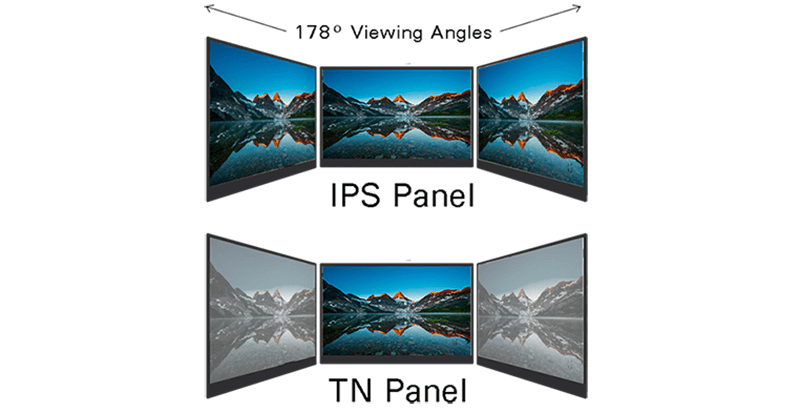
TN displays remain usable for basic office work. However, colors and contrast may shift when you change your viewing position.
Brightness also matters. A 250-nit display may work adequately indoors but struggle under strong lighting. For brighter environments, consider higher brightness ratings and effective anti-glare coatings.
Battery Life: Don’t Trust Advertising Alone
Manufacturers frequently advertise impressive battery endurance. However, laboratory testing doesn’t always reflect everyday usage.
Actual runtime depends on screen brightness, processor efficiency, battery capacity, and background applications. Video conferencing often consumes more power than reading documents.
Check battery capacity in watt-hours. A larger battery stores more energy, but efficiency still determines actual endurance.
For students, I would look for at least six hours of realistic light productivity. However, verify that expectation through independent battery testing.
Connectivity and USB-C Features
USB-C ports appear on many affordable laptops. However, their capabilities vary considerably.
Some support data transfer only. Others also handle charging, external displays, or higher-speed connections.
Before purchasing, check for these essential features:
- USB-A ports for common accessories.
- HDMI output for external displays.
- USB-C functionality appropriate for your needs.
- A headphone and microphone connection.
- Reliable Wi-Fi and Bluetooth support.
- A compatible charging adapter.
Don’t assume every USB-C connector supports charging. Confirm its capabilities through the exact laptop specifications.
Keyboard Comfort and Chassis Durability
A comfortable keyboard makes a noticeable difference during extended typing sessions. Look for stable keys, adequate spacing, and consistent feedback.
For Excel users, a numeric keypad can simplify data entry. Many larger laptops include one, while compact models usually prioritize portability.
Most affordable laptops use plastic chassis designs. Plastic isn’t automatically a problem, but excessive flex deserves attention.
Inspect hinges, keyboard rigidity, cooling vents, and overall construction. If possible, examine the actual unit before purchasing.
💡 My advice: Don’t sacrifice display quality or keyboard comfort for a minor processor improvement. You’ll notice these physical features every day.
8. Can Budget Laptops Under ₱30,000 Handle Gaming and Creative Work?
Many buyers want one laptop for schoolwork, office applications, gaming, and occasional editing. That’s understandable when working with a limited budget.
However, most laptops below ₱30,000 rely on integrated graphics. These share system resources instead of using dedicated graphics memory.
Fortunately, selected games and creative applications remain possible. The important thing is setting realistic expectations.
Gaming Performance: What Can You Actually Play?
Entry-level laptops can handle lightweight games under suitable conditions. However, performance varies between processors, memory configurations, and graphics settings.
The Intel N150 suits casual gaming better than demanding 3D applications. Meanwhile, the Ryzen 5 5500U offers stronger integrated graphics potential.
Here’s what buyers can reasonably investigate:
| Game | Practical Expectation |
|---|---|
| Roblox | Generally suitable; performance varies by experience |
| Minecraft Bedrock | Suitable for basic gameplay at modest settings |
| Valorant | Better suited to stronger integrated graphics |
| League of Legends | Often manageable at reduced settings |
| Dota 2 | May require lower resolution and graphics settings |
| Modern AAA games | Generally unsuitable for budget integrated graphics |
These are qualitative expectations, not measured FPS results. Actual performance depends on the laptop, game version, memory, cooling, and settings.
For demanding games, lowering resolution and visual effects can improve responsiveness. However, some modern titles remain impractical even at minimum settings.
Basic Photo Editing
Most budget laptops can handle simple image editing. Cropping photographs, resizing images, and adjusting brightness require relatively modest resources.
Applications such as GIMP and Canva can work on suitable entry-level systems. However, large images and complex layers increase memory requirements.
For occasional photo editing, a Ryzen 3 or Core i3 laptop may be sufficient. Nevertheless, 16GB RAM provides greater flexibility.
Display quality also matters. Budget laptop screens often offer limited color coverage. Therefore, professional color-sensitive work may require a better external monitor.
Video Editing on a Budget Laptop
Basic 1080p video editing is possible on suitable configurations. Short clips with simple cuts, captions, and transitions are reasonable starting points.
However, effects, multiple video tracks, and high-resolution footage increase hardware requirements. Export times may also become lengthy on entry-level processors.
For occasional video editing, I would favor the Ryzen 5 5500U with 16GB RAM. Its additional CPU threads provide more resources for supported workloads.
However, professional 4K editing requires considerably stronger hardware. A dedicated GPU and modern processor would be preferable.
CAD, 3D Work, and Local AI
Basic 2D CAD work may be possible on certain budget laptops. However, complex 3D models and rendering workloads quickly expose hardware limitations.
Locally running large AI models presents similar challenges. These applications often require substantial RAM and graphics processing resources.
Cloud-based applications provide a more practical alternative for some workloads. Their remote servers handle much of the processing.
However, these services depend on internet connectivity and may involve subscription costs.
🎯 My recommendation: Buy a budget laptop for productivity first and occasional gaming second. If demanding games or professional editing are priorities, consider a stronger system.
9. Where to Buy Affordable Laptops in the Philippines Safely
Finding the right laptop is only half the challenge. You also need a trustworthy seller who provides genuine products and reliable support.
Some online listings advertise unusually low prices without explaining the product’s condition. Others offer imported configurations with uncertain local warranty coverage.
Therefore, evaluate the seller just as carefully as the laptop.
Established Computer Retailers
Several Philippine retailers offer laptop listings and physical shopping options.
- PC Express — A useful starting point for comparing laptops, accessories, and promotional offers.
- Octagon Computer Superstore — Offers computers and related equipment through retail channels.
- Asianic Distributors — Publishes laptop configurations and Philippine peso pricing.
These stores provide convenient starting points for researching available models. However, verify branch inventory and exact specifications before traveling.
I recommend comparing at least two retailers before purchasing. Also, consider software bundles, warranty coverage, and installment charges.
Buying Through Lazada and Shopee
Online marketplaces can offer competitive prices during major sales. However, the cheapest listing isn’t automatically the safest purchase. Prioritize official brand stores or established authorized dealers. Nevertheless, verify the seller’s identity and warranty arrangements independently.
Read recent customer reviews carefully. Pay particular attention to defective units, incorrect specifications, and after-sales service.Also, save screenshots of the product description and payment confirmation. These records can help resolve disputes.
How to Verify Laptop Warranty Coverage
Manufacturer warranty support can save considerable repair expenses. However, warranty duration and service arrangements vary between models.
Before purchasing, obtain the laptop’s exact model number and serial number. Ask whether the manufacturer recognizes its warranty in the Philippines.
For ASUS laptops, consult the official ASUS Philippines warranty information. Acer also publishes official limited warranty information.
Keep your original sales receipt and warranty documents. Additionally, ask whether installing RAM or replacing the SSD affects service procedures.
Never assume every imported laptop receives the same support as locally distributed products.
Beware of Gray-Market and Refurbished Laptops
Gray-market products may originate from distribution channels intended for other countries. These units aren’t automatically defective. However, local warranty support and accessories may differ.
Refurbished laptops can also offer good value when reputable sellers provide accurate condition reports. Nevertheless, battery wear and replacement parts deserve attention.
Be especially cautious when sellers advertise older Core i7 laptops as superior to newer mainstream processors. Processor generation and architecture matter more than the Core i7 label alone.
Windows and Microsoft Office Licensing
Some laptops include genuine Windows and Microsoft Office licenses. Others provide trial versions or subscription offers.
Before purchasing, identify the exact software package. Office Home 2024, Office Home and Student 2021, and Microsoft 365 subscriptions have different licensing arrangements.
Avoid suspiciously cheap activation offers. Genuine software helps reduce security and licensing problems.
Know Your Consumer Rights
Philippine consumers have protections against defective products and misleading transactions. However, return and refund rights depend on the circumstances.
The Department of Trade and Industry’s e-commerce guidance explains important online shopping precautions. It also provides information about filing complaints against sellers.
For additional protection, use traceable payment methods. Avoid sending money to unverified personal accounts.
💡 My advice: A slightly higher price from a reliable seller can be worth the additional protection. Saving a few hundred pesos means little if warranty support becomes impossible.
10. Final Buying Checklist: How to Choose the Best Laptop Under ₱30,000
After comparing processors, memory, displays, and prices, it’s time to narrow your options.
A good laptop should handle your regular workload without exceeding your budget. However, attractive specifications don’t always guarantee a satisfying experience.
Before purchasing, use this checklist.
Essential Budget Laptop Buying Checklist
- Verify the exact model number and processor.
- Choose at least 8GB RAM, preferably 16GB.
- Check whether memory supports future upgrades.
- Prioritize a 512GB NVMe SSD.
- Choose a Full HD or WUXGA display.
- Verify IPS or TN panel technology.
- Check battery capacity and independent reviews.
- Inspect keyboard quality, hinges, and ports.
- Confirm genuine Windows and Office licensing.
- Verify local manufacturer warranty coverage.
- Compare final prices and installment charges.
- Keep your official receipt and warranty documents.
Recommended Configurations by User Type
| User Type | Processor Recommendation | RAM | Storage |
|---|---|---|---|
| High school student | Intel N150 / Ryzen 3 | 8GB | 512GB SSD |
| College student | Core i3 / Ryzen 3 | 8GB–16GB | 512GB SSD |
| Office worker | Core i3-1215U / Ryzen 5 | 16GB preferred | 512GB SSD |
| Freelancer | Core i3 / Ryzen 5 | 16GB | 512GB SSD |
| Home user | Intel N150 / Ryzen 3 | 8GB | 256GB–512GB SSD |
| Casual gamer | Ryzen 5 5500U or better | 16GB preferred | 512GB SSD |
These recommendations reflect general workloads rather than guaranteed performance. Always consider your applications before selecting a configuration.
Common Laptop Buying Mistakes
The first mistake involves choosing laptops based on processor branding alone. An older Core i7 doesn’t automatically outperform a newer Core i3.
Another mistake involves ignoring soldered RAM. An inexpensive 8GB laptop may become restrictive when your workload grows.
Buyers also overlook display quality. A capable processor cannot compensate for a screen that causes unnecessary frustration.
Finally, avoid treating promotional prices as permanent offers. Retailers frequently adjust discounts, software bundles, and financing arrangements.
💡 Pro-Tip: Spend Your Last ₱3,000 Wisely
Suppose you’re comparing a ₱26,000 laptop with a ₱29,000 alternative.
Both have similar processors and 512GB SSDs. However, the more expensive model includes 16GB RAM instead of 8GB.
For frequent multitasking, that additional memory may justify the difference. Conversely, paying ₱3,000 more for cosmetic improvements rarely provides comparable productivity benefits.
Before purchasing, compare the complete cost of ownership. Include potential RAM upgrades, accessories, software licenses, and warranty extensions.
The best deal isn’t always the cheapest laptop. It’s the configuration that meets your requirements without unnecessary compromises.
Final Thoughts: Which Budget Laptop Offers the Best Value in 2026?
The best budget laptops under ₱30,000 in the Philippines can handle considerably more than basic web browsing. With the right specifications, they can serve students, office workers, freelancers, and everyday home users.
However, buyers must balance processing power, memory, storage, and display quality. Choosing one impressive feature while ignoring everything else rarely works.
Among our selections, the HP 15s with Ryzen 5 5500U and 16GB RAM offers particularly strong productivity specifications. Its processor and memory capacity make it attractive for multitasking. At the referenced ₱27,995 price, it’s a compelling choice if stock remains available.
Meanwhile, the Lenovo IdeaPad Slim 3i with Core i3-1215U provides an affordable Intel alternative. Its upgradeable memory offers additional flexibility. However, its TN display deserves consideration.
For students, the ASUS Vivobook Go 15 remains a practical everyday option. Meanwhile, Acer’s Aspire Lite models serve buyers prioritizing affordability and basic productivity.
If I had ₱30,000 to spend, I would prioritize 16GB RAM, a capable processor, and a 512GB NVMe SSD. I’d also look for a quality display and reliable Philippine warranty coverage.
Remember, buying the wrong laptop can become expensive. Poor performance, limited memory, and inadequate support may force an earlier replacement.
Now it’s your turn!
Are you considering an Acer, ASUS, Lenovo, or HP laptop? Share your budget, preferred model, and intended applications in the comments below. Let’s help you find a laptop that delivers real value.
And if this guide helped you, share it with friends, classmates, or colleagues planning to buy a laptop. A few minutes of research could save them thousands of pesos.