
A slow internet connection can show up as buffering, delayed downloads, or a Zoom call that keeps freezing. Each symptom can have a different cause. Weak Wi-Fi may affect one room, while a busy upload can slow down the whole household.
Start with a baseline speed test while the connection feels slow. Record download speed, upload speed, and latency. If the test reports loaded latency, record it too. That figure shows how responsive your connection stays during a transfer. You can use Speedtest by Ookla or select Show more info on Fast.com by Netflix.
- Check another device in the same spot. If only one struggles, start with its apps and settings.
- Move the original device near the router. If performance improves there, investigate Wi-Fi coverage.
- Pause large transfers and repeat the test. If several devices still struggle, compare Wi-Fi with Ethernet.
Use the same test service and server, where selectable, after each change. If only one website or streaming service struggles, check whether other services work before changing your network settings.
Quick Hardware & Signal Checks
Check 1. Power-cycle the modem and router
- Unplug power from the router, then from the modem or optical network terminal (ONT). Leave the fiber cable connected. Wait 30–60 seconds.
- Power up the modem or ONT first. Wait for its Online or PON indicator to return to its normal state. Then power up the router and retest. If you have an all-in-one gateway, restart that single unit.
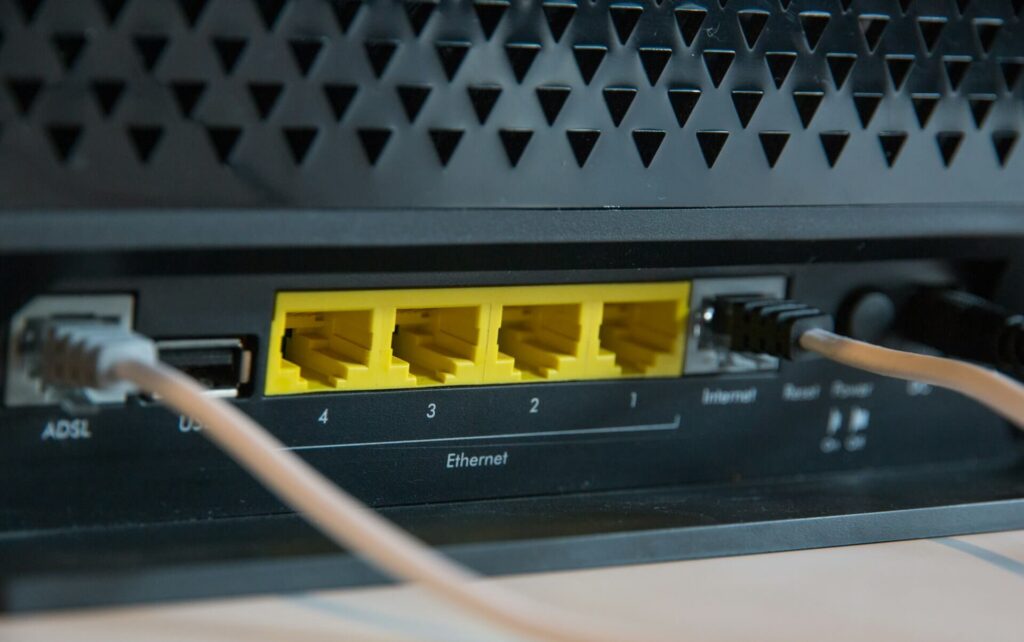
⚠️ Warning: NEVER press the recessed “Reset” pinhole during a routine reboot. A factory reset erases saved settings, which can include PPPoE credentials, VLAN IDs, and Wi-Fi configurations. You could lose internet access entirely until an ISP technician reconfigures the device.
Check 2. Compare Ethernet with Wi-Fi
- Connect the same computer directly to a LAN port on the main router using a known-good Cat5e or Cat6 cable. Turn off Wi-Fi on the computer and repeat the speed test.
- If Ethernet is fast and Wi-Fi is slow, focus on wireless coverage or interference. If both are slow, check cabling, shared traffic, and your ISP.
- In Windows PowerShell, run the command below to check the negotiated link speed. If gigabit-capable equipment connects at 100 Mbps, try another cable and LAN port.
Get-NetAdapter | Format-Table Name, Status, LinkSpeedCheck 3. Check your Wi-Fi band and router placement
- Try 2.4 GHz farther from the router. It generally reaches farther through walls, but competing devices can crowd the band.
- Try 5 GHz near the router. Test 6 GHz at short range if both the router and your device support it.
- Place the router in an open, elevated spot. Keep it clear of reinforced concrete walls, large mirrors, metal cabinets, and microwave ovens. Retest where the slowdown usually happens.
Check 4. Inspect Ethernet and fiber cables
- Check Ethernet cables for crushed sections, sharp bends, and loose plugs. Swap in a known-good Cat5e or Cat6 cable if an older Cat5 cable connects at only 100 Mbps. A damaged wire pair or a port limited to 100 Mbps can produce the same result.
- Inspect the fiber patch cord for pinches or tight loops. Follow the cable maker’s minimum bend radius. Leave the connector seated and report visible damage or a persistent red LOS light to your ISP. Review Corning’s fiber handling and laser safety guidance.
⚠️Warning: Never unplug a fiber cable to inspect its tip or look into an optical port. The light may be invisible and can damage your eyes.
Bandwidth Hogs & Device-Level Fixes
Check 5. Find apps and devices using the connection
- Press
Ctrl+Shift+Escand sort Task Manager by Network. Check Windows Update, Steam, console downloads, and cloud backups. Pause large transfers briefly, retest, then resume them. - Check the router’s Connected Devices list for unfamiliar entries. Verify them against household devices before blocking anything. Some phones use private Wi-Fi addresses that make them harder to recognize.
💡 Pro-Tip: One phone backing up 4K videos to Google Photos or iCloud can saturate your upload. On an asymmetric connection, upload capacity is lower than download capacity. When the upload fills, outgoing Zoom audio and browsing requests can get stuck behind the backup. Your download speed test can still look normal. Pause the upload and see whether the call or browser responds immediately.
Check 6. Test your VPN or proxy
- If you use a personal VPN, compare speeds and latency with it on and off. If performance improves with it disconnected, reconnect through a nearer server and retest.
- In Windows 11, open Settings > Network & internet > Proxy and check for an active proxy. Keep work or school VPNs and proxies enabled unless IT authorizes the comparison.
Check 7. Flush the DNS cache or reset the Windows network stack
If websites fail to resolve on one PC, open Command Prompt as Administrator. Clear the local DNS cache, then retry the affected sites.
ipconfig /flushdnsIf several apps on that PC still cannot connect while other devices work, reset Winsock and TCP/IP. Record any manually configured IP and DNS settings first. Run these commands in the same administrator window, then restart Windows.
netsh winsock reset
netsh int ip reset
On a managed PC, check with IT first because VPN or security software may need repair afterward. See Microsoft’s guide to fixing Wi-Fi connection issues in Windows for more Windows troubleshooting steps.
Check 8. Update network drivers and check power settings
- In Windows 11, open Settings > Windows Update > Advanced options > Optional updates. Check for a network driver, or get one for your exact model from the manufacturer. If trouble began after an update, try Device Manager > Network adapters > Properties > Driver > Roll Back Driver.
- If Wi-Fi drops after sleep, open the adapter’s Power Management tab, if available. Clear Allow the computer to turn off this device to save power, then retest.
- If syncing or updates stall, check Metered connection in the active network’s settings. Turn it off only on an unmetered plan. This restores restricted background activity without increasing raw link speed.
Router Optimization & ISP Checks
If the slowdown affects several devices, focus on the router and the internet connection they share.
Check 9. Change congested Wi-Fi channels
Start with Auto. If performance stays poor, use the router’s channel scan or run this command in Windows Command Prompt.
netsh wlan show networks mode=bssid- On 2.4 GHz, use 20 MHz channel width and test the least congested of channels 1, 6, or 11.
- On 5 GHz, try a clear non-DFS channel block first. If neighboring networks crowd an 80 MHz block, try 40 MHz. DFS offers more channel options, but radar detection can force a channel change and briefly disconnect devices.
Check 10. Try a different DNS resolver
If websites hesitate before loading or show lookup errors, test a public DNS resolver on one device first. Save your current settings and enter one provider’s IPv4 pair. Follow the setup instructions for Cloudflare’s 1.1.1.1 DNS resolver or Google Public DNS.
| Provider | Primary IPv4 | Secondary IPv4 |
|---|---|---|
| Cloudflare | 1.1.1.1 | 1.0.0.1 |
| Google Public DNS | 8.8.8.8 | 8.8.4.4 |
Retry the affected sites. A faster resolver can shorten name lookups. Sustained download speed still depends on the connection. Keep any DNS settings required by your workplace or school.
Check 11. Configure QoS and check router firmware
If calls or games lag during transfers, look for Quality of Service (QoS) or Smart Queue Management (SQM) in your router settings. If SQM asks for rates, start at roughly 90% of your measured wired upload and download speeds. Retest loaded latency and throughput.
Check for firmware that matches your exact router model and hardware revision. Use the ISP’s update process for managed equipment.
⚠️ Warning: Before a manual firmware update, export your current router configuration so you can restore your settings if needed. NEVER power off or unplug the router mid-flash. Interrupting the update can brick the router, even if you have a configuration backup.
Check 12. Check outages, plan restrictions, and port speeds
Check your ISP’s official status channel for outages or maintenance. Review your account usage for data caps or fair-use policy (FUP) throttling. Compare wired tests at peak and off-peak hours.
An older router’s 10/100 Fast Ethernet WAN or LAN port has a hard 100 Mbps link limit. Protocol overhead leaves roughly 94 Mbps of usable throughput, even over a wired cable on a 300 Mbps or faster fiber plan. That ceiling persists as long as traffic passes through the 100 Mbps port.
Check the port specifications and negotiated speeds on both the router’s WAN side and your computer’s LAN connection. If a gigabit port negotiates at 100 Mbps, swap the cable and try another gigabit port before replacing hardware.
Diagnostic Quick-Reference Table
| Symptom pattern | Most likely culprit | Jump to check # |
|---|---|---|
| Slow on only one PC or phone | Background traffic, VPN, or device settings | 5–8 |
| Slow only in far bedrooms | Weak Wi-Fi coverage | 3 |
| Fast wired speed but slow Wi-Fi everywhere | Wireless interference or congested channels | 3, 9 |
| Both wired and Wi-Fi slow on all devices | Shared traffic, a port limit, or an ISP issue | 4, 5, 12 |
| Wired speed repeatedly tops out near 94 Mbps | A 100 Mbps port or a link negotiating at 100 Mbps | 4, 12 |
| Calls lag only during uploads | Upload saturation | 5, 11 |
| Websites fail to resolve, but downloads already in progress run normally | Local DNS cache or resolver trouble | 7, 10 |
Conclusion
Change one thing at a time, repeat the baseline, and check whether the original symptom is gone. A stable video call during a backup can matter more than a higher download score. If wired tests stay slow across devices, send your ISP the test times, negotiated link speeds, and modem or ONT light status.
Which check fixed your connection? Share the symptom and whether it affected Ethernet, Wi-Fi, or both in the comments.