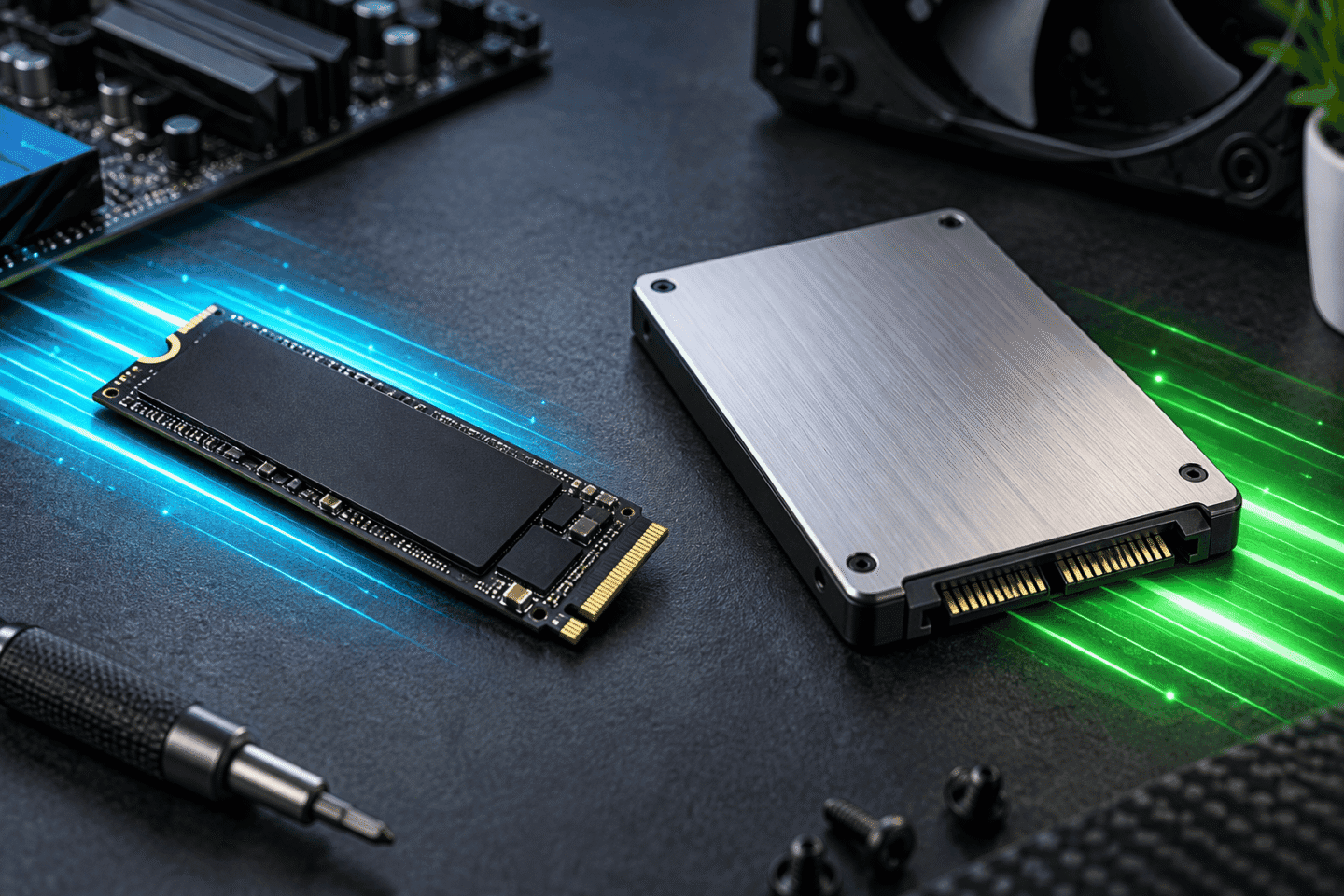
A good SATA SSD can read large files at around 550 MB/s. A high-end PCIe Gen 4 NVMe SSD can exceed 7,000 MB/s. That gap matters when you move a large file between two fast drives. Windows startup, browser multitasking, and game loading each put different demands on storage. Kingston’s NVMe vs. SATA comparison explains how the two interfaces differ.
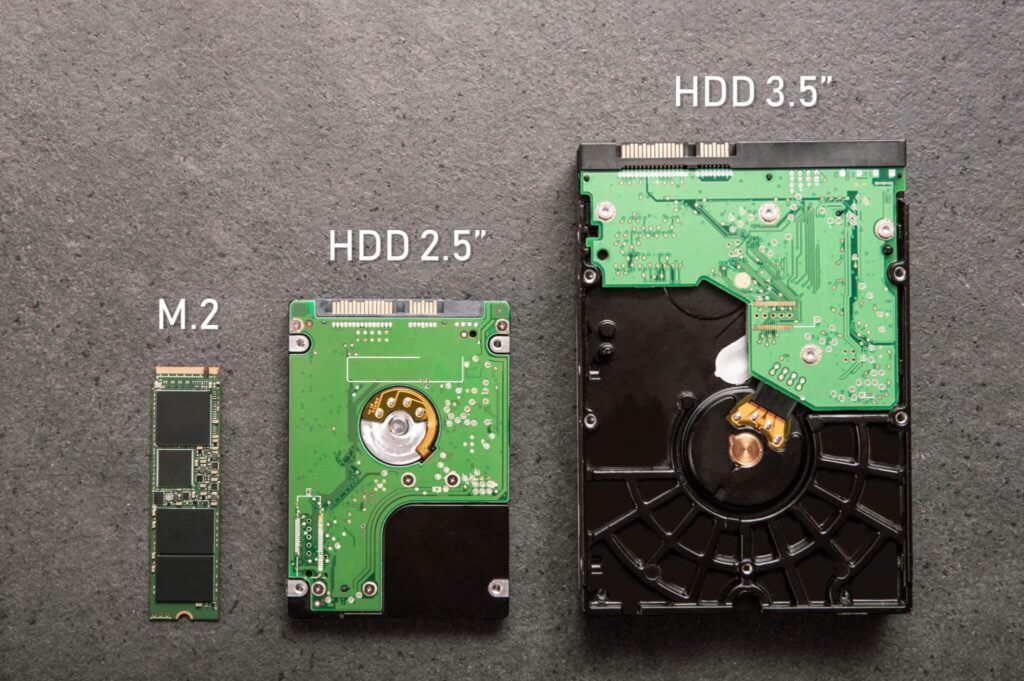
The biggest everyday improvement usually comes from replacing a mechanical hard drive. An HDD moves a read head across spinning platters to find scattered data. A SATA SSD eliminates that mechanical delay, so Windows and your apps can retrieve small files much faster. Moving from SATA to NVMe adds bandwidth and improves how the drive handles simultaneous requests. How much you feel that upgrade depends on how often storage makes you wait.
1. Interface & Protocol Differences
SATA III and AHCI
SATA III connects the drive to the storage controller at 6 Gb/s. After line encoding, the link carries up to 600 MB/s before protocol overhead. Fast consumer SATA SSDs typically reach 550–560 MB/s in sequential reads. A PC typically manages its SATA controller through AHCI, while SATA Native Command Queuing allows up to 32 outstanding commands per drive.
NVMe over PCIe
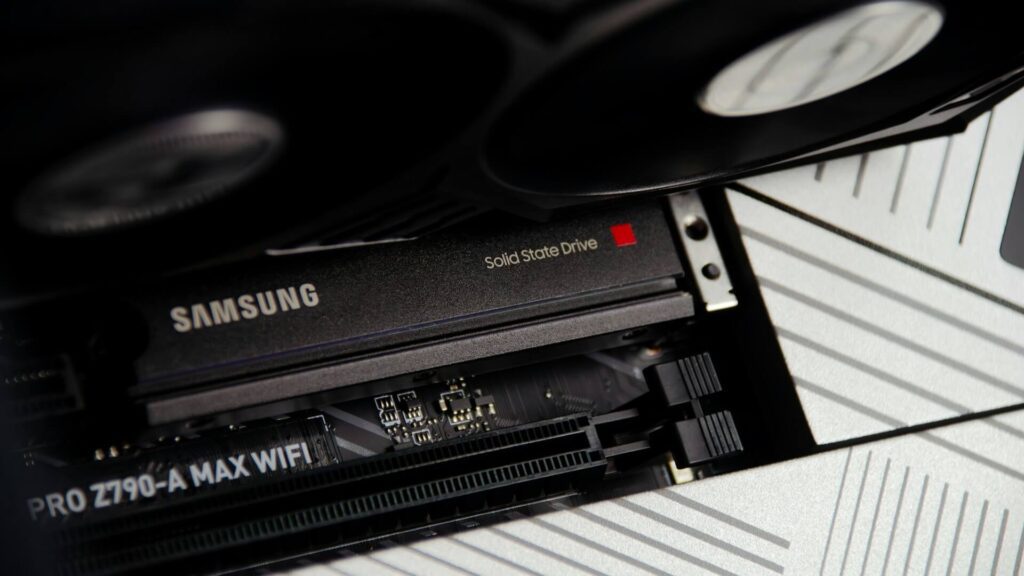
NVMe is a storage protocol that uses PCIe lanes. Its parallel command queues let the system handle requests from several applications or virtual machines at once. The official NVM Express specifications document how the protocol works. The PCIe generation and lane count determine the link’s theoretical bandwidth per direction.
- PCIe Gen 3 x4 — 3.94 GB/s
- PCIe Gen 4 x4 — 7.88 GB/s
- PCIe Gen 5 x4 — 15.75 GB/s
2.5-inch SATA vs. M.2 2280
A 2.5-inch SATA SSD typically needs separate data and power cables in a desktop. In a laptop, it may need a model-specific cable and caddy. An M.2 2280 SSD plugs into a board socket and measures 22 × 80 mm. The SATA and M.2 compatibility FAQ shows how two drives with the same dimensions can use different interfaces.
⚠️ Warning: M.2 describes the physical form factor only. Older M.2 SATA SSDs, often B+M keyed, still top out around 550 MB/s. They won’t work in an NVMe-only M.2 slot, even if they fit. An M.2 NVMe SSD won’t work in a SATA-only slot either. Verify that the exact slot supports your drive’s interface. A slot must explicitly support both interfaces to accept both drive types.
2. Real-World Speed in Windows, Apps, and File Transfers
Windows 11 boot times and app launches
On a fast system, either SSD might reach the Windows 11 sign-in screen in roughly 10–13 seconds. Treat that as an illustrative range. Firmware checks, Fast Startup, and background services can all shift the result. When comparing drives, time power-on to sign-in separately from sign-in to a usable desktop. App launches also involve CPU work and many small reads, so they rarely scale with peak sequential bandwidth.
💡 Pro-Tip: For everyday Windows responsiveness and browser multitasking, give low-queue-depth random 4K read and write IOPS more weight than headline sequential MB/s. IOPS counts how many operations the drive completes per second. Browser profiles, cached files, and session updates generate small, scattered requests. In the official CrystalDiskMark benchmark tool, look for the RND4K Q1T1 result. If your review includes latency, check how quickly the drive completes a single request.
Where NVMe can save time
- Multi-gigabyte copies. A 50 GB file can transfer much faster between two capable NVMe drives. A SATA destination can limit the entire copy to SATA speeds. For frequent transfers, check sustained write performance after the destination’s write cache fills.
- Large ZIP extractions. NVMe can help when the drive reads an archive while writing thousands of extracted files. If decompression already keeps the CPU fully occupied, faster storage may save little time.
- 4K video editing. A SATA SSD can handle many single-stream compressed projects. High-bitrate multicam footage and simultaneous media reads and cache writes are more likely to benefit from NVMe.
- Databases and virtual machines. Several active VMs can generate concurrent reads and writes on the same drive. Compare sustained random I/O and latency under load. When a database’s active data already fits in RAM, faster storage may do little for cached queries.
3. Gaming Performance & DirectStorage
Older games often load within a second or two
Older games often load assets in stages. The CPU may need to unpack files, initialize the level, or prepare game objects before play begins. A faster drive can finish reading sooner while those other steps take the same time. In an earlier TechSpot test, six of nine titles showed a gap of about two seconds between an entry-level SATA SSD and a high-end Gen 4 NVMe drive. Compare first loads, save reloads, and fast travel separately when reading game benchmarks.
DirectStorage can widen the gap
The Microsoft DirectStorage developer overview describes an API that helps games submit batches of storage requests with less overhead. Games that implement GPU decompression can also shift asset decompression from the CPU to a compatible GPU. NVMe bandwidth helps when a game must load or stream large batches of assets quickly. The benefit depends on the game, the scene, and where the system spends its time.
In TechSpot’s SSD gaming benchmarks, PCIe SSDs loaded Ratchet & Clank: Rift Apart in about 1.3 seconds, while SATA SSDs took nearly five times as long. Yet a Gen 3 drive and a Gen 5 drive performed almost identically in the tested portal sequence. If you’re upgrading for a particular game, check how it loads and streams assets on each drive class before paying for a higher PCIe generation.
4. Upgrade Compatibility, Thermals & Buying Guide
Verify the exact slot before buying
- Check the protocol and physical fit. Confirm support for SATA or PCIe/NVMe, the mounting length, and clearance for single- or double-sided drives. An M-key drive commonly uses PCIe x4, while B+M-key drives may use SATA or PCIe x2. Use the manual to confirm what the slot supports.
- Check the generation and lane count. A Gen 4 x4 NVMe SSD works in a compatible Gen 3 x4 M.2 slot. A fast drive in that configuration can reach roughly 3,500 MB/s. A Gen 3 drive also works in a Gen 4 slot at Gen 3 speeds. The drive and slot negotiate a generation and lane count both support.
- Check boot support and lane sharing. Older systems may need explicit firmware support to boot from NVMe. On a desktop, populating an M.2 slot can disable a SATA port or change how the board allocates PCIe lanes. Check the slot notes for your exact motherboard and CPU.
Onboard DRAM, HMB, and sustained writes
An SSD with onboard DRAM gives its controller local memory for tasks such as mapping host addresses to flash. Many budget NVMe drives use Host Memory Buffer (HMB) to keep some mapping data in system RAM. HMB can work well for Windows and gaming. For VM storage or frequent large writes, review sustained performance for the exact model and capacity after its pseudo-SLC write cache fills. That cache uses flash to absorb bursts of writes.
⚠️ Warning: High-speed Gen 4 and Gen 5 NVMe controllers can generate significant heat during sustained writes. Limited airflow in a slim laptop or compact PC can trigger thermal throttling, which reduces transfer speeds. A tall desktop heatsink can also prevent the chassis cover from closing. Check physical clearance and follow the drive manufacturer’s cooling requirements before buying.
Before replacing or cloning a Windows boot drive, back up your files and save the BitLocker recovery key if encryption is enabled. Follow the service manual’s power and battery-disconnect procedure before opening the system. Verify that Windows boots from the new SSD and that your files open before erasing the old drive.
SATA and NVMe comparison at a glance
The speeds below are example peak sequential reads for fast models. Heat and value vary by drive, capacity, workload, and cooling.
| Drive type | Max sequential read | Common form factor | Heat output under load | Price-to-value | Best use case |
|---|---|---|---|---|---|
| SATA III SSD | 550–560 MB/s | 2.5-inch or M.2 SATA | Usually low | Good for SATA-only systems | HDD replacement or secondary storage |
| PCIe Gen 3 x4 NVMe | ~3,500 MB/s | M.2, commonly 2280 | Usually low to moderate | Good when discounted | Older NVMe systems and game libraries |
| PCIe Gen 4 x4 NVMe | ~7,450 MB/s | M.2, commonly 2280 | Varies by controller and workload | Strong all-around value | New builds, gaming, and content creation |
| PCIe Gen 5 x4 NVMe | ~14,800 MB/s | M.2, commonly 2280 | Can be high during sustained writes | Best when the extra bandwidth saves time | Large transfers and demanding scratch workloads |
Conclusion
Choose SATA for a SATA-only system and consider Gen 4 NVMe for most new builds. Keep a healthy Gen 3 NVMe drive if it already meets your needs. Pay for Gen 5 when your workload can use the extra sustained bandwidth and your system can cool the drive. If you’ve upgraded, share your old and new drive models in the comments and tell us where you felt the biggest difference.