Random Blue Screens of Death (BSOD), unexpected application crashes, and silent file corruption often stem from a single faulty component: your system memory. Because bad RAM can simulate malware infections or operating system corruption, testing your RAM is an essential diagnostic step. In this comprehensive guide, we will walk you through diagnosing RAM errors using both built-in tools and advanced third-party solutions.
Unexplained system crashes often frustrate computer users. Blue Screen of Death errors, sudden reboots, and corrupted files frequently point directly to failing system memory. Furthermore, memory issues can corrupt critical operating system files over time. Diagnosing faulty RAM early prevents data loss and saves valuable troubleshooting time.
Fortunately, memory testing tools make finding bad memory sticks straightforward. You can use native tools built into Windows for quick surface scans. Alternatively, you can run rigorous, bootable testing utilities for thorough diagnostics. In this tutorial, you will learn how to test RAM and effectively diagnose RAM errors using both Windows Memory Diagnostic and PassMark MemTest86.
Common Symptoms of RAM Failure
Before running diagnostic tests, you should recognize the signs of failing memory modules. RAM issues manifest in several distinct ways during daily computer use:
- Frequent Blue Screen of Death (BSOD) Errors: Errors like
MEMORY_MANAGEMENT,PAGE_FAULT_IN_NONPAGED_AREA, orSYSTEM_SERVICE_EXCEPTIONfrequently indicate defective memory modules. - Random System Freezes and Lockups: Your computer hangs unexpectedly during normal tasks or heavy loads.
- Application Crashes: Programs close unexpectedly without showing error messages or warning windows.
- Corrupted Files and Data: Files you save regularly become unreadable or damaged.
- Failed Windows Updates or Software Installations: Installers fail repeatedly due to memory bit corruption during extraction.
- System Beep Codes on Startup: The motherboard emits continuous long or short beeps during power-on self-tests.
⚠️ Warning: Operating a system with faulty memory can corrupt critical personal files and system registry files. Backup your important data immediately if you suspect severe memory instability.
Step 1: Prepare Your Computer for Memory Testing
Proper preparation ensures accurate test results and prevents false positives during diagnostic runs.
First, close all open programs and save your active work. Both testing tools require dedicated system access to analyze memory chips.
Second, disable any custom RAM overclocking or active XMP/EXPO profiles in your BIOS settings. Overclocked settings can cause stability errors that appear identical to physical hardware defects. Returning memory timings to default stock speeds isolates hardware defects from configuration instability.
Third, ensure your desktop computer or laptop has continuous, reliable power. Running out of power during a bootable test can interrupt the diagnostic cycle.
Step 2: Test RAM Using Windows Memory Diagnostic
Microsoft provides a built-in utility that scans system memory without requiring extra software downloads.
Launching Windows Memory Diagnostic
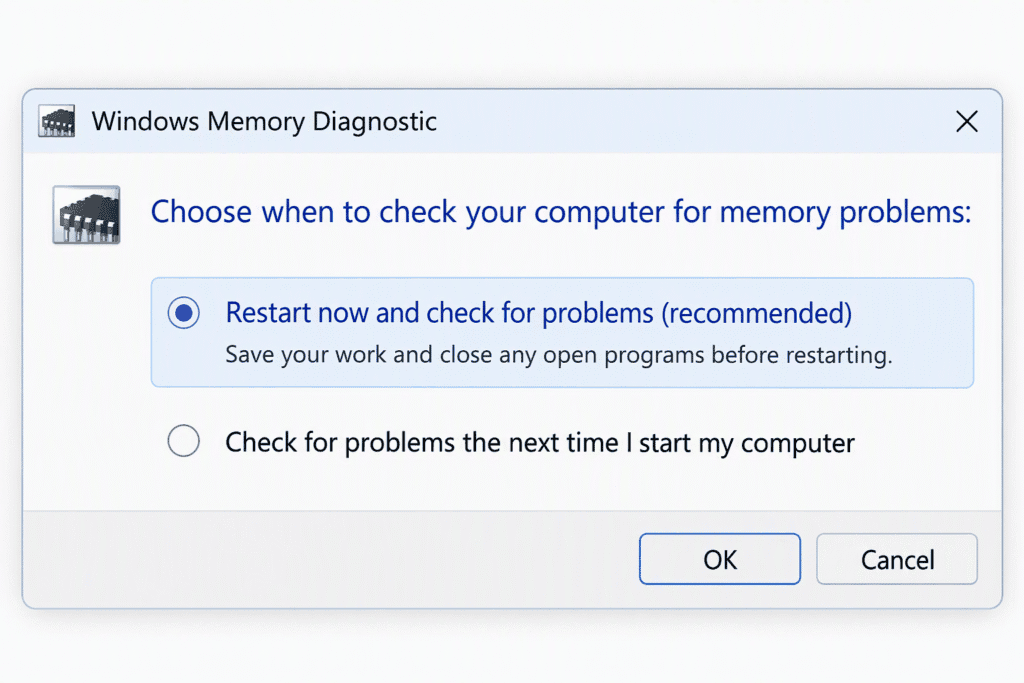
- Press
Windows Key + Rto open the Run dialog box. - Type
mdsched.exeinto the box and pressEnter. - Select Restart now and check for problems (recommended) to start immediately. Alternatively, choose to check for problems on the next restart.
Running the Diagnostic Tool
Your computer will restart automatically and boot into the blue test environment. The tool begins scanning your memory using standard pass settings automatically.
To access advanced options during the test:
- Press
F1to open settings options. - Select the Extended test mix for deeper scan coverage.
- Adjust cache settings to Off to test physical RAM chips directly.
- Press
F10to apply your custom settings and resume scanning.
Viewing Test Results
After the test finishes, Windows automatically reboots into your desktop environment. Windows displays a notification summary on screen shortly after logging in.
If the notification popup does not appear automatically, check the details using Event Viewer:
- Right-click the Start Menu button and choose Event Viewer.
- Expand Windows Logs and select System.
- Click Find in the right menu pane.
- Type
MemoryDiagnostics-Resultsand click Find Next. - Read the detailed summary in the lower event pane.
💡 Pro-Tip: If Windows Memory Diagnostic reports zero errors but your PC still crashes, do not stop there. Run PassMark MemTest86 for a more rigorous, low-level physical memory examination.
Step 3: Advanced Diagnostics with MemTest86
PassMark MemTest86 remains the industry standard tool for identifying obscure hardware memory defects. Unlike software running inside Windows, MemTest86 runs from a bootable USB drive, bypassing the operating system entirely.
Creating a Bootable MemTest86 USB Drive
- Insert a clean USB drive with at least 512MB capacity into your PC.
- Download the free edition of MemTest86 directly from the official PassMark MemTest86 Download Page.
- Extract the downloaded zip file onto your desktop.
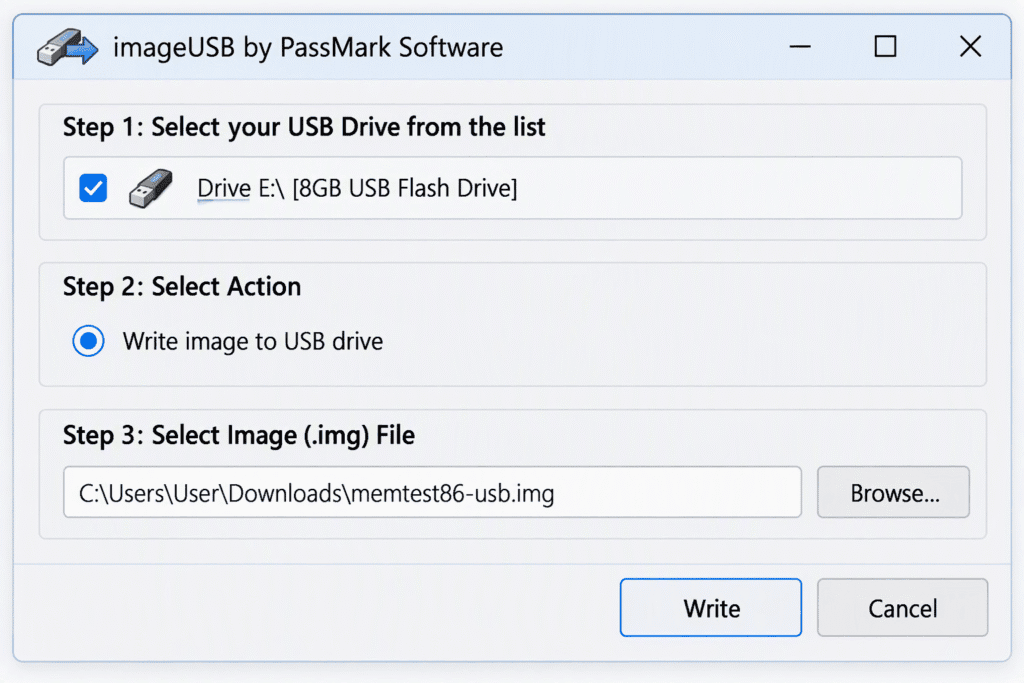
- Run the
imageUSB.exeutility provided in the extracted folder. - Select your target USB drive from the top list.
- Click Write to write the bootable image to your flash drive.
Booting into MemTest86
- Keep the prepared USB drive inserted into your target computer.
- Restart your computer and press your boot menu key repeatedly during bootup. Common keys include
F12,F11,F8, orDel. Refer to your motherboard manufacturer guide at ASUS Support or Gigabyte Support if needed. - Select your USB drive from the boot selection menu.
- Select the UEFI boot option for modern motherboards.
Executing the Test Suite
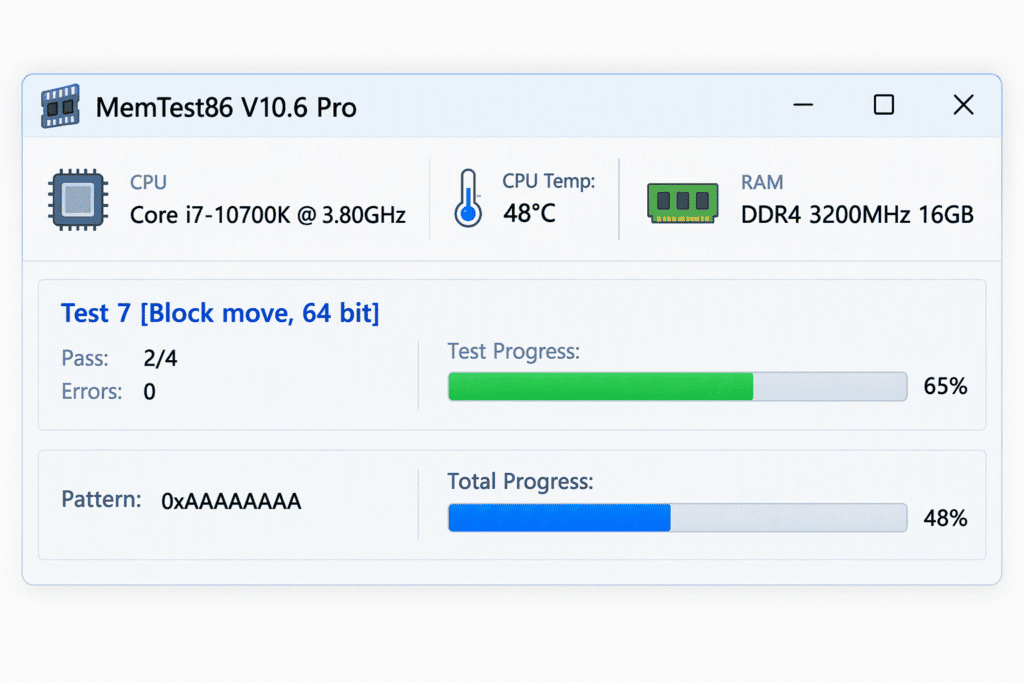
Once loaded, MemTest86 displays a graphical configuration menu. Click Start Test or let the automatic countdown timer finish.
MemTest86 runs 13 distinct algorithmic tests during each pass cycle. These tests search for addressing errors, bit flips, pattern retention faults, and noise sensitivity. Allow the utility to complete at least four full passes for accurate confirmation.
Interpreting Test Results and Error Patterns
Understanding your test results helps you take proper action quickly.
| Diagnostic Tool | Test Result | Indicated Condition | Recommended Action |
| Windows Memory Diagnostic | “No memory errors were found.” | Basic tests passed cleanly. | Run MemTest86 if crashes persist. |
| Windows Memory Diagnostic | “Hardware problems were detected.” | Defective memory detected. | Isolate individual RAM sticks. |
| PassMark MemTest86 | 0 Errors after 4 Passes | Physical memory is fully functional. | Inspect GPU drivers or storage drives. |
| PassMark MemTest86 | 1+ Errors reported (Red lines) | Physical hardware failure confirmed. | Replace failing RAM modules. |
If MemTest86 displays red error lines, your RAM hardware is physically failing. Even a single error indicates unstable memory hardware that requires immediate attention.
How to Isolate and Identify a Bad RAM Stick
When you have multiple memory modules installed, you must isolate which specific module failed.
- Turn off your desktop or laptop completely.
- Unplug the power cable from the wall or power supply.
- Open your computer case carefully to access the motherboard.
- Remove all RAM sticks except one single module.
- Rerun MemTest86 on that individual RAM module.
- Test every remaining RAM stick individually in the same slot.
- Repeat the test using different motherboard DIMM slots to rule out damaged slot connectors.
If one specific stick triggers errors while others pass cleanly, you have isolated your defective hardware. Check memory warranty policies through manufacturers like Corsair Customer Support or Crucial Tech Support for free replacements under lifetime warranty terms.
Final Thoughts
Diagnosing stability issues efficiently requires systematic hardware testing. By utilizing both Windows Memory Diagnostic and PassMark MemTest86, you can quickly verify RAM health. Isolating failing memory sticks early protects your valuable data and restores desktop stability.
Have you encountered memory errors on your PC recently? Which diagnostic tool helped you locate the problem? Share your experience in the comments below, and don’t forget to share this article with fellow builders!