Fast fiber does not automatically deliver fast Wi-Fi throughout your home. Your PLDT Home Fiber, Converge FiberX, or Globe GFiber connection might perform well downstairs while upstairs video calls repeatedly disconnect. Choosing the best Wi-Fi routers for Philippine homes therefore starts with identifying where—and why—your connection struggles.
Concrete walls, hollow blocks, reinforced floors, and neighboring networks all influence wireless performance. Meanwhile, phones, laptops, cameras, televisions, and consoles compete for the same airtime. A useful upgrade must address these conditions alongside your internet speed and budget.
This guide compares affordable Wi-Fi 6 routers, mesh systems, and premium Wi-Fi 7 hardware. It also explains how to connect your purchase correctly behind an ISP-supplied fiber gateway.
1. Key Factors When Choosing a Router for Philippine Homes
Understand Why Concrete Creates Dead Zones
Philippine construction presents a difficult environment for wireless networking. Concrete and hollow-block walls weaken radio signals, while steel reinforcement introduces additional obstruction. A reinforced floor slab can severely reduce the connection between an upstairs bedroom and a downstairs router.
5 GHz generally experiences greater signal loss through these obstacles than 2.4 GHz. However, 2.4 GHz usually offers less usable capacity and faces more interference. Its longer reach does not necessarily produce a faster connection.
Place your router centrally, above floor level, and away from enclosed cabinets or large metal objects. Before purchasing anything, test whether repositioning your existing equipment improves coverage.
Make Wi-Fi 6 Your Practical Baseline
For a new purchase in 2026, Wi-Fi 6 remains a sensible baseline for value. Its advantages extend beyond headline speed, particularly when compatible devices share a busy network. Two important technologies improve how routers use wireless resources:
- OFDMA: Divides channel resources among multiple compatible devices.
- MU-MIMO: Supports simultaneous transmissions involving multiple compatible clients.
These features can improve efficiency, but results depend on client support, traffic patterns, and implementation. They cannot compensate for an extremely weak signal through several concrete walls.
Wi-Fi 7 adds capabilities such as Multi-Link Operation and wider channels on suitable models. However, those benefits require compatible devices and supported firmware. Also, do not assume every Wi-Fi 7 router includes a 6 GHz radio.
Separate Advertised Rates From Actual Speed
Labels such as AX1500, AX1800, and AX3000 describe aggregate theoretical wireless rates. They combine the capabilities of different bands rather than promising that speed to one laptop. Most ordinary client connections use one band at a time.
Actual throughput depends on distance, interference, channel width, antenna configuration, and protocol overhead. A budget router advertising a 1,201 Mbps link might deliver several hundred Mbps nearby under favorable conditions. That is a planning expectation, rather than a measured result for every shortlisted model.
Internet performance also depends on your subscription. A faster router cannot increase the speed of a slower fiber plan.
Choose Ports and Coverage Before Extra Features
Look for Gigabit WAN and LAN ports when upgrading a modern fiber connection. A 100 Mbps Ethernet port can bottleneck an otherwise capable network. For internet service above 1 Gbps, you need a suitable multi-gigabit connection throughout the relevant path.
Coverage requires a separate decision. A centrally positioned standalone router can suit a compact condo or smaller single-storey home. A two-storey concrete house may benefit more from additional access points or mesh.
Finally, consider band steering, which encourages compatible clients toward an appropriate band under one network name. It simplifies everyday use, although clients still influence connection and roaming decisions.
2. Best Budget Wi-Fi 6 Routers Under ₱3,500
These models provide useful starting points for smaller homes and affordable ISP Wi-Fi upgrades. Prices below reflect retrieved Philippine retailer listings and can change with promotions or stock. Check the exact model, hardware revision, local warranty, and delivery charges before ordering.
TP-Link Archer AX12: A Straightforward AX1500 Upgrade
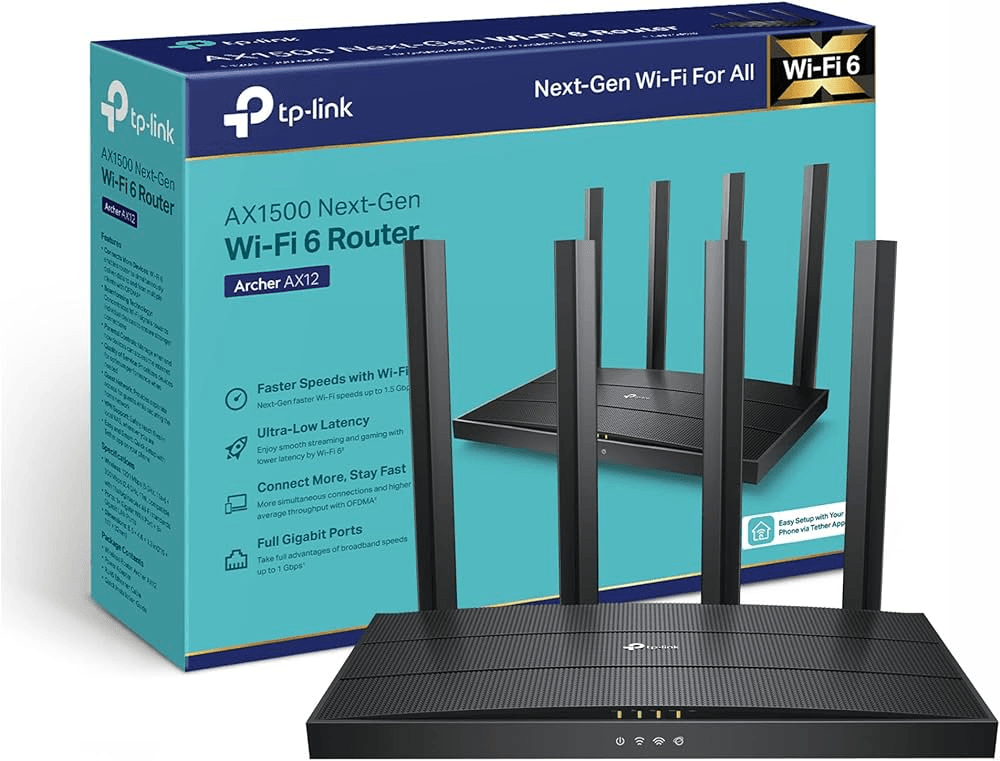
The TP-Link Archer AX12 was listed at approximately ₱2,399 by a Philippine retailer. It suits buyers seeking an affordable dual-band router with Gigabit connectivity. Remember that AX1500 describes its speed class; AX12 identifies the model.
According to the official TP-Link Philippines Archer AX12 specifications, its key features include:
- 5 GHz: Up to 1,201 Mbps using Wi-Fi 6.
- 2.4 GHz: Up to 300 Mbps using Wi-Fi 4.
- Ethernet: One Gigabit WAN and three Gigabit LAN ports.
- Wireless efficiency: OFDMA and MU-MIMO support on its Wi-Fi 6 radio.
The older 2.4 GHz radio is an important compromise. Devices using that band do not receive the same Wi-Fi 6 capabilities available on 5 GHz. Nevertheless, it remains a reasonable candidate for a modest floor plan where primary devices can maintain strong 5 GHz connections.
Mercusys MR70X: Strong Budget Specifications
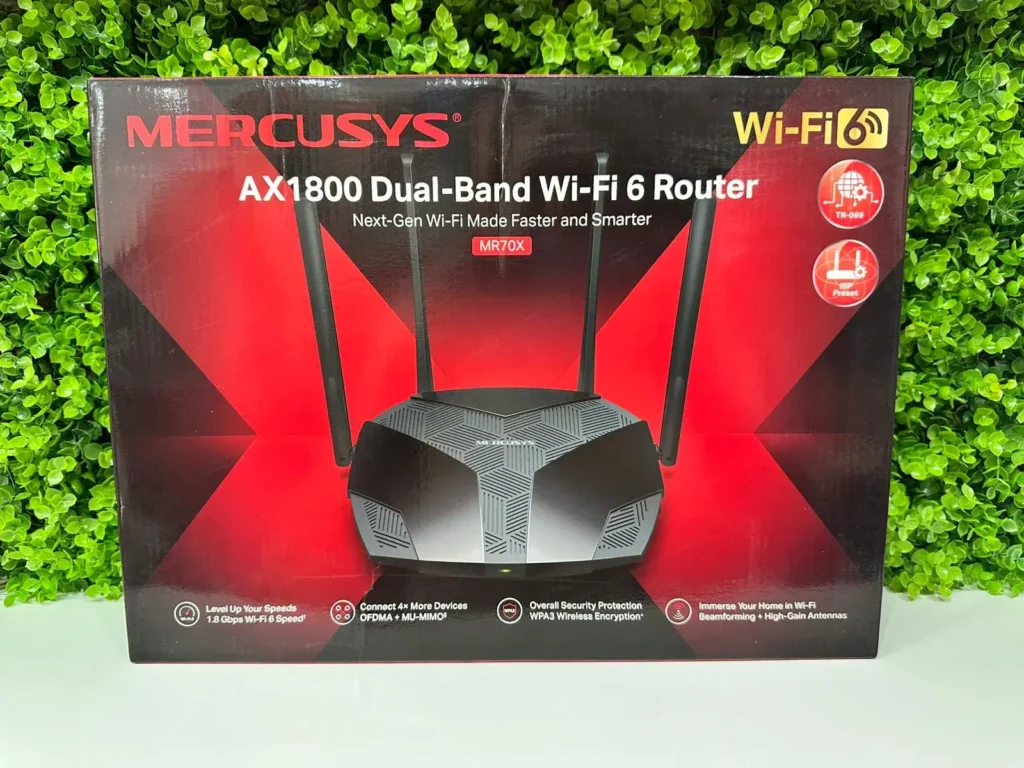
The Mercusys MR70X offers an attractive specification sheet at retrieved retailer prices around ₱1,800–₱1,900. Other sellers may charge more, so compare equivalent units and warranty coverage. Its AX1800 classification includes Wi-Fi 6 operation on both bands.
The official Mercusys Philippines MR70X product page details its core hardware:
- 5 GHz: Up to 1,201 Mbps.
- 2.4 GHz: Up to 574 Mbps.
- Ethernet: One Gigabit WAN and three Gigabit LAN ports.
- Efficiency: OFDMA and MU-MIMO support.
Its higher aggregate rating does not establish faster 5 GHz performance than the AX12. Both advertise the same maximum 5 GHz link rate. The MR70X’s more capable 2.4 GHz specification is the clearer distinction.
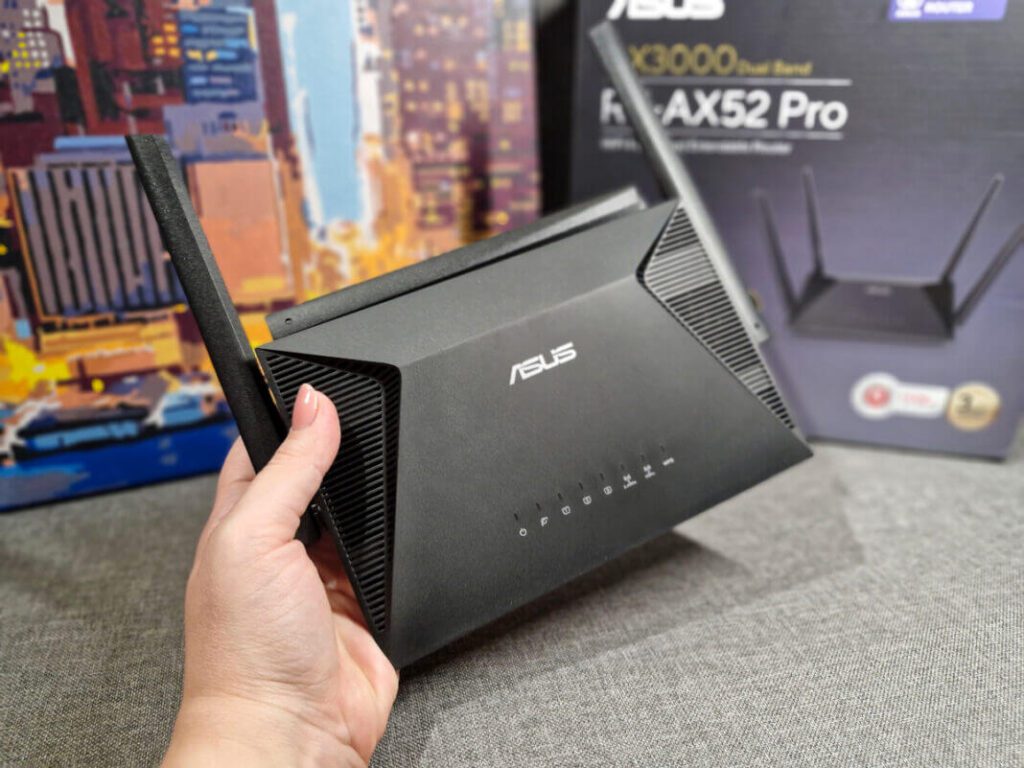
ASUS RT-AX52: Another Affordable Alternative
The ASUS RT-AX52, listed at approximately ₱1,899, also deserves consideration. It combines AX1800 wireless specifications with ASUS management options. Confirm supported expansion features for the exact firmware and hardware version you purchase.
The ASUS Philippines RT-AX52 specifications list:
- Wireless: Up to 1,201 Mbps at 5 GHz and 574 Mbps at 2.4 GHz.
- Channel width: Up to 80 MHz.
- Ethernet: One Gigabit WAN and three Gigabit LAN ports.
- Operation: Router and access-point modes, alongside other supported modes.
Choose among these budget models using price, controls, warranty, and placement requirements. If your main problem involves an upstairs dead zone, reserve money for additional coverage. A different standalone router may still face the same concrete barrier.
3. Mid-Range and Mesh Systems for Multi-Storey Homes
Why Two Nodes Can Work Better Than One Expensive Router
A two-pack mesh system places wireless access closer to devices on each floor. This reduces the distance and obstructions between clients and their serving node. However, the connection between nodes—called backhaul—must also perform reliably.
Ethernet backhaul is the most dependable option across reinforced floors. It carries inter-node traffic through cable instead of an obstructed wireless link. TP-Link’s Ethernet backhaul setup guidance explains connection layouts and wiring requirements.
Without cabling, position the second node where it still receives a strong upstream signal, potentially near an open stairwell. Placing it inside the existing dead zone usually preserves the underlying problem. Two nodes can solve many coverage gaps, but no package guarantees complete coverage in every layout.
TP-Link Deco X55: Practical Dual-Band Mesh
The TP-Link Deco X55 provides an AX3000 platform for households prioritizing distributed coverage. Its main specifications include:
- 5 GHz: Up to 2,402 Mbps with compatible 160 MHz clients.
- 2.4 GHz: Up to 574 Mbps.
- Ethernet: Three Gigabit auto-sensing WAN/LAN ports per node.
- Backhaul: Ethernet or wireless connections.
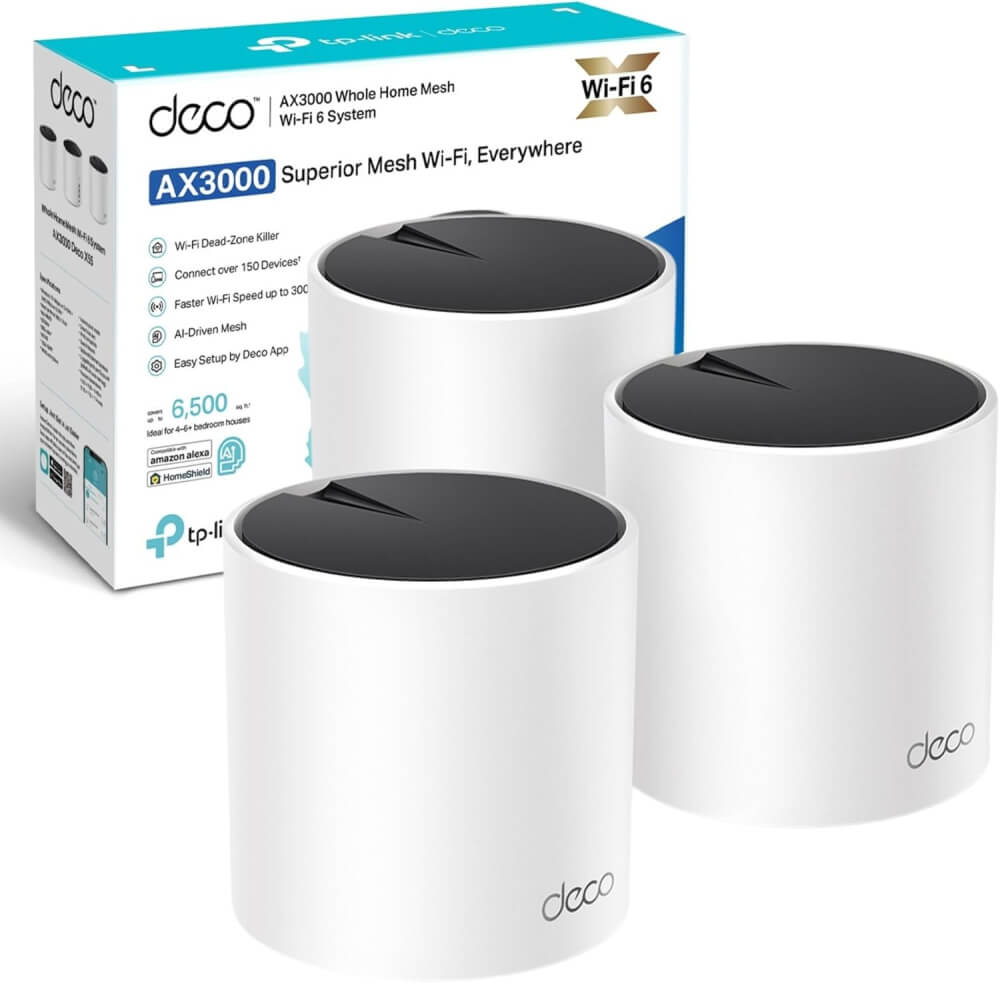
The official Deco X55 specifications distinguish its wireless rates from its wired interfaces. Despite the AX3000 label, its Gigabit ports limit traffic crossing those interfaces. Wireless satellite throughput also depends on backhaul quality and shared airtime.
Check complete package pricing carefully. Although the original mid-range target was ₱4,500–₱8,500, a verified imported two-pack example approached ₱12,150 including listed shipping. A low advertised price may represent one node rather than two.
TP-Link Deco XE75: A Premium Wi-Fi 6E Alternative
The TP-Link Deco XE75 adds a 6 GHz radio to its 2.4 GHz and 5 GHz bands. This creates additional backhaul options, but does not improve concrete penetration. Ethernet remains preferable between floors when practical.
The standard XE75 provides three Gigabit ports per unit. Avoid confusing it with differently equipped Pro variants. A retrieved Philippine two-pack listing showed approximately ₱21,000, although it was unavailable, placing that example firmly above the original mid-range budget.
4. Flagship Wi-Fi 7 and Gaming Routers
TP-Link Archer BE550: Multi-Gigabit Connectivity
The TP-Link Archer BE550 targets households with compatible Wi-Fi 7 clients and faster wired devices. Retrieved Philippine listings ranged approximately ₱12,500–₱15,600, including unavailable offers. Its main appeal is the combination of wireless capabilities and multi-gigabit ports.
The official TP-Link Philippines Archer BE550 specifications include:
- Ethernet: One 2.5GbE WAN and four 2.5GbE LAN ports.
- Wireless: Tri-band Wi-Fi 7.
- Features: Multi-Link Operation and 320 MHz channels where supported.
- Expansion: EasyMesh compatibility, subject to applicable support.
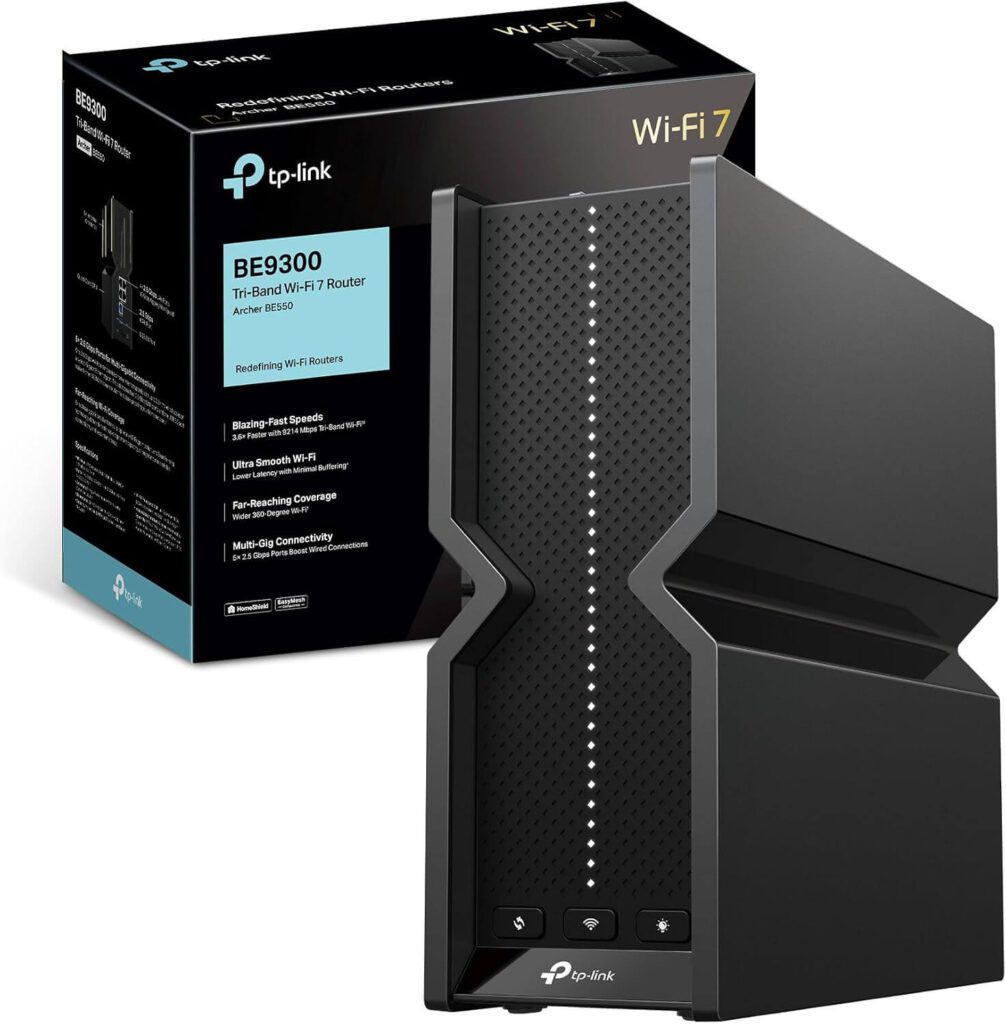
For a 500 Mbps subscription, 2.5GbE ports provide headroom rather than an automatic internet improvement. Above 1 Gbps, the ONU, WAN connection, router, and receiving device must support the faster path. Local NAS transfers may benefit independently of your internet plan.
ASUS ROG Rapture GT-BE98: Enthusiast Gaming Hardware
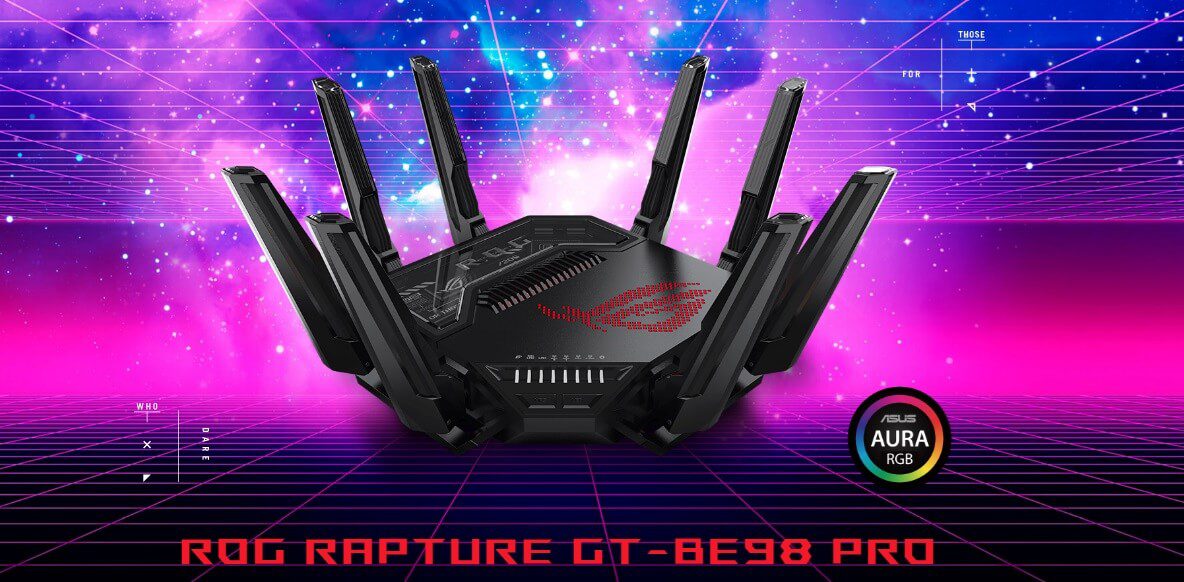
The ASUS ROG Rapture GT-BE98 occupies a substantially higher price tier, around ₱40,000–₱42,000 in retrieved listings. It offers Wi-Fi 7, dual 10G connectivity, multiple 2.5G ports, and gaming traffic controls. It makes most sense for demanding networks that can use those capabilities.
However, gaming performance depends on latency, jitter, packet loss, and congestion. Traffic prioritization can help when household downloads saturate a connection. It cannot guarantee a shorter route to an overseas game server.
For stationary gaming PCs and consoles, Ethernet remains a practical first upgrade.
Router Comparison
Prices are approximate reference listings, including unavailable offers. Confirm stock, package quantity, warranty, and final delivery costs.
| Router Pick | Standard | Best Home Type | Approx PH Price (₱) | Standout Feature |
|---|---|---|---|---|
| Archer AX12 | Wi-Fi 6 on 5 GHz | Small condo or single-storey home | ₱2,399 | Affordable Gigabit connectivity |
| Mercusys MR70X | Wi-Fi 6 | Budget household with mixed-band devices | ₱1,800–₱1,900 | AX1800 specifications |
| ASUS RT-AX52 | Wi-Fi 6 | Smaller home wanting ASUS controls | ₱1,899 | Multiple operating modes |
| Deco X55 two-pack | Wi-Fi 6 | Two-storey home with Ethernet backhaul | ₱12,150, imported example delivered | Distributed coverage |
| Deco XE75 two-pack | Wi-Fi 6E | Home needing tri-band mesh | ₱21,000, unavailable listing | Additional 6 GHz radio |
| Archer BE550 | Wi-Fi 7 | Home with multi-gigabit devices | ₱12,500–₱15,600 | Five 2.5GbE ports |
| ROG GT-BE98 | Wi-Fi 7 | Enthusiast network with demanding clients | ₱40,000–₱42,000 | Dual 10G connectivity |
5. ISP Setup and Bridge Mode Guide
Choose Who Handles Routing
Once you select the hardware, decide which device manages your network. An ISP fiber ONU or ONT often combines optical termination, routing, Wi-Fi, and telephone functions. Adding another router in router mode commonly creates double NAT.
Double NAT may work adequately for ordinary browsing and streaming. However, it can complicate inbound connections, port forwarding, and certain gaming or VPN arrangements. Two straightforward configurations avoid the extra household routing layer.
Use bridge mode when the new router should handle routing. Alternatively, retain the ISP gateway’s routing and configure the new equipment in access-point mode. TP-Link’s guide to using Deco with an existing router explains these arrangements and their differences.
Set Up Bridge Mode Step by Step
For PLDT, Converge, or Globe, confirm the procedure with your ISP. ONU models, account provisioning, and available controls differ. Avoid applying another subscriber’s credentials or VLAN settings without verification.
- Record your baseline. Save existing settings and measure wired speed before making changes.
- Contact your ISP. Request internet bridge mode and confirm whether your account supports it.
- Confirm requirements. Obtain the designated LAN port and any required PPPoE credentials, DHCP/IPoE instructions, or VLAN settings.
- Check bundled services. Confirm how the change affects telephone or IPTV services.
- Connect the hardware. Run Ethernet from the designated ONU port to your new router’s WAN port.
- Configure the router. Enter the ISP-required WAN settings and enable its firewall and DHCP server.
- Verify operation. Test internet access, wired speed, Wi-Fi coverage, and bundled services.
Bridge mode removes the ONU’s routing layer for the bridged internet connection. However, it does not remove ISP CGNAT. Receiving inbound connections may still require an appropriate public IP service.
Use Access-Point Mode for a Simpler Coverage Upgrade
If you primarily want better Wi-Fi, access-point mode is often sufficient. Leave the ISP gateway responsible for routing, DHCP, and the internet connection. Configure your new router or mesh system using its documented AP-mode procedure.
Some routing-dependent features may become unavailable in AP mode. Check parental controls, traffic management, VPN features, and guest isolation before choosing this arrangement. Disable redundant ISP Wi-Fi if appropriate for your coverage plan.
Understand What DMZ Can and Cannot Fix
When bridging is unavailable but you need the new router’s routing features, DMZ can simplify some inbound forwarding. However, DMZ does not eliminate double NAT. It also cannot bypass ISP CGNAT.
To configure this arrangement:
- Connect the new router’s WAN port to an ISP gateway LAN port.
- Use different LAN subnets, such as
192.168.1.0/24and192.168.50.0/24. - Reserve the downstream router’s WAN address on the ISP gateway.
- Set that reserved address as the gateway’s DMZ host.
- Keep the downstream router’s firewall enabled and remote administration disabled unless specifically required.
- Test the application that needs inbound connectivity.
If your goal is simply avoiding double NAT, choose supported bridge mode or access-point mode instead.
Final Thoughts: Buy for Your Layout and Actual Workload
The best router upgrade addresses your home’s specific bottleneck. A budget Wi-Fi 6 router may adequately serve a compact condo, while a concrete two-storey home may need wired mesh. Premium Wi-Fi 7 hardware becomes more compelling when compatible clients and multi-gigabit connections can use it.
Measure your existing connection, plan placement, and verify the full installation cost before purchasing. Then configure routing correctly and retest the rooms where performance matters.
Which ISP, fiber speed, and home layout are you working with? Share your budget and coverage problems in the comments, and pass this guide to someone planning a home-network upgrade.