Windows 10 After End of Support: Security Risks and Upgrade Options in 2026
Your Windows 10 computer may still run business applications, manage accounts, and handle everyday browsing. However, Windows 10 end of support changes how you must protect it. Keeping legacy hardware operational in 2026 requires a deliberate patch strategy.
Microsoft ended standard Windows 10 support on October 14, 2025. For affected editions, ongoing operating-system security updates now require eligible Extended Security Updates (ESU) coverage. Certain LTSC and IoT editions follow separate lifecycle schedules.
For technicians and business managers, the immediate task is identifying machines without security coverage. Those devices can accumulate exploitable vulnerabilities despite appearing healthy. Meanwhile, unsupported software can complicate contractual obligations, security audits, and insurance requirements.
The practical decision involves four paths: maintain temporary ESU coverage, upgrade to Windows 11, change operating systems, or replace hardware.
1. The Technical Security Risks of Unpatched Windows 10
Remote Code Execution and Kernel Exploits
Operating-system vulnerabilities affect networking services, authentication systems, drivers, and the Windows kernel. Depending on the flaw, attackers may exploit exposed services or malicious content to execute code.
A remote code execution (RCE) vulnerability can allow attacker-controlled instructions to run on a vulnerable system. Some attacks require user interaction, while others target reachable services directly. Exposure depends on the specific vulnerability and configuration.
A kernel-level exploit can then elevate privileges beyond the initially compromised application. For example, an attacker might combine browser compromise with kernel privilege escalation. That combination can enable credential theft, persistent access, or ransomware deployment.
Zero-day attacks exploit vulnerabilities before a fix becomes available. However, disclosed vulnerabilities also remain dangerous when administrators cannot install available patches. Without ESU, affected Windows 10 systems lose their normal route to ongoing OS security fixes.
Antivirus and Browser Updates Have Limits
An updated browser helps protect its own components. Likewise, antivirus can detect malicious files and suspicious behavior. Neither replaces patches for vulnerable operating-system code.
Third-party abandonment follows individual vendor schedules. Browsers, antivirus products, VPN clients, and backup agents will not necessarily stop supporting Windows 10 simultaneously. Therefore, verify each supplier’s supported platforms and maintenance commitments.
For each legacy device, record:
- Windows edition, version, and installed cumulative update.
- ESU enrollment and successful update installation.
- Browser, endpoint protection, and business application support status.
- The device owner, business purpose, and planned retirement date.
Meanwhile, restrict administrator privileges, remove unnecessary remote access, and maintain tested backups. Network segmentation can further limit access to sensitive systems. These measures reduce exposure while migration proceeds.
For businesses, document exceptions and applicable security obligations. EOS alone does not automatically establish a compliance violation. However, operating unsupported systems without documented controls can create audit and contractual problems.
2. Extended Security Updates Options in 2026
Consumer ESU: Three Enrollment Routes
According to Microsoft’s consumer ESU enrollment guidance, coverage currently continues through October 12, 2027. Eligible home users can choose:
- $30 USD: A one-time payment, or local equivalent plus applicable tax.
- Settings synchronization: Enroll without additional payment by syncing PC settings through Windows Backup.
- Microsoft Rewards: Redeem 1,000 points.
Devices require Windows 10 version 22H2, an eligible Home/Pro-family edition, current updates, and an adult administrator Microsoft account. Consumer ESU cannot cover commercial scenarios. Domain-joined, Entra-joined, or MDM-managed devices also face enrollment restrictions.
Install the ESU Prerequisites
First, confirm that the computer runs Windows 10 version 22H2. Open the Run dialog and enter:
winverNext, install KB5066791, or a later qualifying security update. Then install the required KB5126256 ESU Licensing Preparation Package, following Microsoft’s documented prerequisite sequence.
Crucially, KB5126256 does not enroll the computer or provide ongoing security updates. It prepares licensing components. Complete consumer enrollment through Settings → Update & Security → Windows Update, then verify subsequent patch installation.
Commercial ESU: Costs Increase Each Year
Standard commercial ESU starts at $61 per device for Year 1. Microsoft doubles that price annually, producing $122 per device for Year 2, beginning in late 2026. These figures follow the pricing structure in Microsoft’s commercial Windows 10 ESU documentation.
Commercial licensing is cumulative. Organizations entering during Year 2 must also purchase Year 1, bringing standard combined licensing to $183 per device. Budget technician time and hardware maintenance alongside those fees.
ESU provides critical and important security updates, without new features or general product support. Consequently, treat it as a migration bridge. Before renewing coverage, determine whether each computer can move to supported Windows 11 or another maintained platform.
3. Upgrading to Windows 11 and Understanding Hardware Bypass Risks
Check Eligibility Before Replacing Hardware
According to Microsoft’s official Windows 11 system requirements, devices need TPM 2.0, UEFI firmware with Secure Boot capability, and a supported processor. Minimum specifications also include 4 GB RAM and a 64 GB storage device. Run Microsoft’s PC Health Check before planning deployment.
For mainstream processors, 8th-generation Intel Core and AMD Ryzen 2000-series or newer provide useful starting points. However, generation labels do not guarantee compatibility; some models have exceptions. Always verify the exact processor against Microsoft’s applicable compatibility list.
To inspect the TPM, open the Run dialog and enter:
tpm.mscCheck that Specification Version shows 2.0. Some computers already contain firmware TPM but disable it by default. Manufacturers may label this feature Intel PTT or AMD fTPM.
Next, inspect the firmware configuration:
msinfo32Review BIOS Mode and Secure Boot State. A computer configured for Legacy BIOS may need additional preparation before using UEFI and Secure Boot.
Before changing firmware settings, save your BitLocker recovery key and verify your backup. Likewise, validate any required MBR-to-GPT conversion before switching boot modes. Enabling TPM alone will not resolve an unsupported processor.
Bypassing Setup Creates an Ongoing Maintenance Risk
Tools such as Rufus, the bootable USB media creation utility, can bypass selected installation checks. Another widely used approach involves this registry location and value:
Registry path:
HKEY_LOCAL_MACHINE\SYSTEM\Setup\MoSetup

Value name:
AllowUpgradesWithUnsupportedTPMOrCPU
These methods depend on the installation path and Windows release. Neither guarantees future compatibility. Additionally, bypassing installer checks cannot supply missing hardware security features or processor instructions.
Major feature updates may repeat compatibility checks, fail installation, or require another manual workaround. Consequently, technicians must budget for additional testing and recovery work. A successful initial installation does not establish a sustainable maintenance plan.
Microsoft explicitly warns that unsupported devices are not guaranteed updates, including security updates. This creates a risk of future patch restrictions, although every unsupported computer will not immediately stop receiving patches. Business-critical systems need a supported migration plan.
4. Alternative Lifelines for Unsupported Hardware
Linux Mint: Keep a Capable Desktop Working
Serviceable hardware can remain useful with a maintained Linux installation. Linux Mint Xfce offers a relatively lightweight desktop, while Cinnamon provides another familiar option. You can obtain either edition through the official Linux Mint download portal.
Mint 22 specifies 2 GB RAM and 20 GB storage, with more recommended for comfortable use. Before installing, boot live media and test networking, audio, graphics, and printers. Also verify replacements for Windows-only applications, particularly accounting software and complex Office macros.
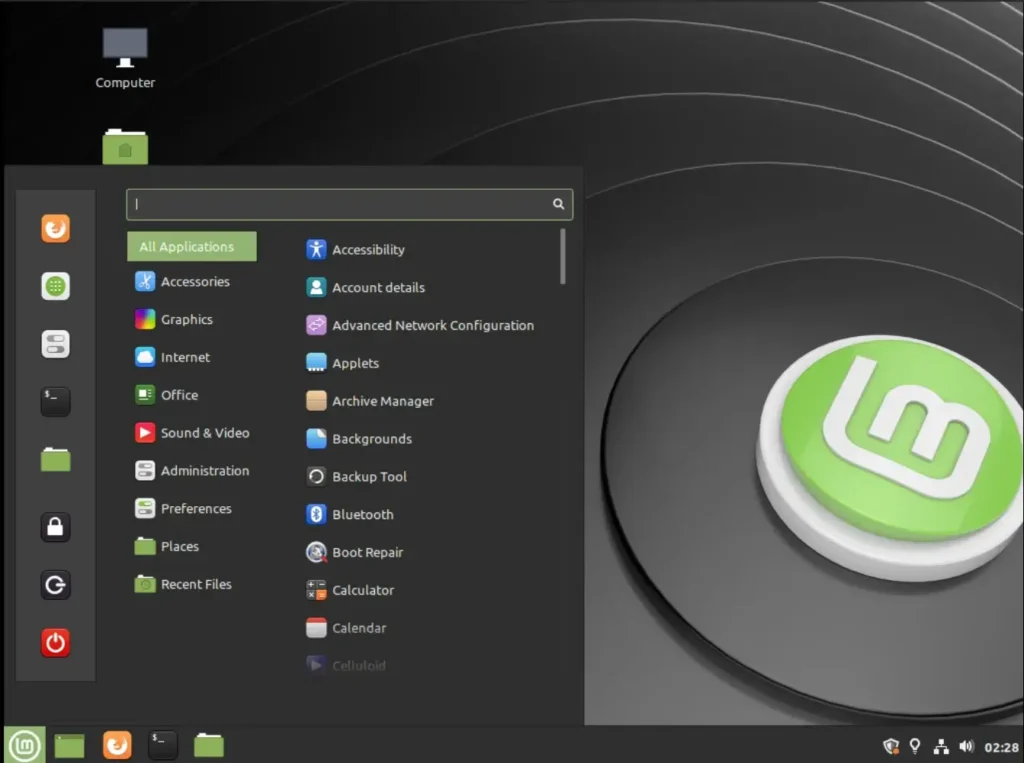
Back up files before replacing Windows. Then establish an update routine and confirm that users can complete their essential tasks. A short pilot can reveal application or peripheral problems before a wider migration.
ChromeOS Flex: Focus on Browser-Based Work
ChromeOS Flex suits computers used mainly for web applications, email, and online documents. Its minimum requirements include Intel or AMD x86-64 hardware, 4 GB RAM, and 16 GB internal storage, as detailed in Google’s ChromeOS Flex installation preparation guide.
Check Google’s certified-model list and certification deadline first. Then test using USB media before committing to installation. Google currently specifies a 16 GB or larger installer USB and does not guarantee uncertified hardware. Back up local files before replacing Windows.
As with Linux, confirm that essential applications fit the platform. A browser-focused operating system works best when the workload already depends on supported web services.
Homelab or NAS: Rebuild for a Defined Role
Alternatively, install a supported server operating system for file storage, backups, or laboratory workloads. Check disk health, memory, network connectivity, and electricity consumption first. An older desktop may remain useful, but its operating costs deserve consideration.
Restrict management access and maintain security updates. Additionally, keep separate backups: RAID does not replace backup. Retaining unpatched Windows 10 as a server preserves the original vulnerability problem.
Choose the Path That Matches the Workload
| Scenario | Recommended path |
|---|---|
| Hardware Eligible | Validate applications, back up, and upgrade to supported Windows 11. |
| Non-Eligible Consumer | Use consumer ESU temporarily; evaluate Linux Mint or certified ChromeOS Flex. |
| Non-Eligible Commercial | Purchase commercial ESU while scheduling supported hardware replacement or workload migration. |
| Budget Constraints | Pilot a free supported OS; compare refurbished Windows 11 hardware if Windows applications remain essential. |
Windows 10 retirement should follow verified application needs, hardware eligibility, and patch coverage. Assign every remaining device an owner and migration deadline. ESU buys transition time, while a supported destination provides a longer-term maintenance path.
Share your hardware specifications and essential applications in the comments to discuss a practical next step. If you manage legacy computers for others, share this guide to help them plan their migration.