Managing digital information often feels overwhelming today. Many professionals struggle to organize thousands of scattered notes across multiple note-taking applications. Building an LLMWiki personal knowledge system creates a centralized, private second brain for your everyday files. Pairing this workflow with local embeddings guarantees complete privacy because your confidential data stays directly on your machine.
Traditional note-taking tools rely on basic keyword matching. Consequently, searching for specific concepts frequently yields incomplete or irrelevant search results. Local artificial intelligence models change this paradigm completely. By running embedding models locally, you retain total data sovereignty without paying monthly subscription fees to third-party cloud vendors.
This technical guide walks you through building your own local knowledge engine. You will learn how to configure vector models, process documents, and query your system efficiently. Let us dive directly into the setup process.
Understanding Local Embeddings and LLMWiki
Before diving into technical configuration, you must understand how local vector models process text. Standard search engines look for exact word matches inside documents. Conversely, vector embeddings convert text into numerical representations called high-dimensional vectors. These vectors map semantic meanings rather than literal phrase strings.
When you search your database, the system compares the mathematical distance between concepts. Therefore, searching for “network security” automatically surface documents discussing firewalls or encryption protocols. Running these models locally ensures your private notes never travel across public internet servers.
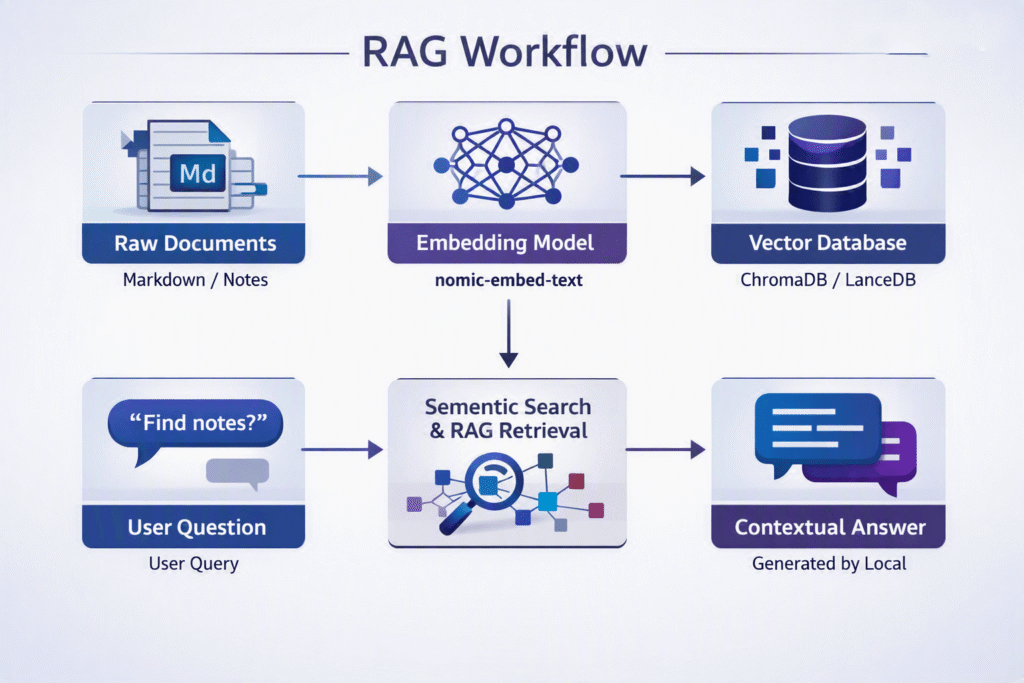
The LLMWiki architecture combines structured markdown files with a local Retrieval-Augmented Generation (RAG) pipeline. Markdown provides human-readable storage, while the vector database handles instant semantic retrieval. Together, they create a robust, future-proof framework for managing personal knowledge.
Prerequisites and Hardware Requirements
Building a performant local AI knowledge base requires adequate hardware components. While lightweight models run on basic consumer laptops, dedicated hardware improves processing speeds significantly.
- Operating System: Windows 11, macOS Sonoma, or Ubuntu 22.04 LTS.
- Processor: Modern multi-core CPU (Intel Core i7/i9 or AMD Ryzen 7/9). Apple Silicon chips (M1/M2/M3) work exceptionally well.
- System Memory: Minimum 16GB RAM. However, 32GB RAM is highly recommended for larger document sets.
- Graphics Processing Unit: NVIDIA GPU with at least 8GB VRAM for rapid vector generation.
- Storage Space: NVMe Solid-State Drive with 20GB of free space.
Next, you must install the foundational software dependencies. Download and install Python 3.11 directly from the official Python website. Additionally, install Git from Git SCM to manage repository code effortlessly.
⚠️ Warning: Avoid installing Python 3.12 or newer for this specific setup. Certain core vector database libraries currently lack full compatibility with the latest Python releases.
Step 1: Installing Ollama for Local Model Execution
To run models offline, you need a local inference engine. Ollama offers the simplest way to run open-source models on local hardware.
First, download the installer for your respective platform from Ollama’s site. Run the installation wizard and verify the installation using your command terminal.
Bash
ollama --versionNext, pull a dedicated embedding model. We strongly recommend using nomic-embed-text because it delivers exceptional semantic accuracy with small memory footprints.
Bash
ollama pull nomic-embed-textAfterward, pull a lightweight language model to process contextual synthesis queries. The llama3.2 model offers excellent performance for text summarization tasks.
Bash
ollama pull llama3.2💡 Pro-Tip: Run ollama list in your terminal to confirm both models loaded successfully into local storage before proceeding.
Step 2: Preparing Your Knowledge Base Directory
Your wiki requires a clean directory structure to organize input files and output databases properly. Open your terminal and create a dedicated workspace folder.
Bash
mkdir llmwiki-system
cd llmwiki-system
python -m venv venv
Activate the virtual environment immediately to isolate project dependencies cleanly. On Windows systems, run venv\Scripts\activate. On macOS and Linux machines, execute source venv/bin/activate.
Now, install the necessary Python packages using pip. We will use LangChain alongside ChromaDB for embedding storage and document handling.
Bash
pip install langchain langchain-community chromadb unstructuredCreate a subfolder named documents inside your main workspace directory. Copy your personal Markdown notes, project plans, and text files into this folder.
Step 3: Generating Embeddings and Ingesting Data
With your documents staged, you must build an ingestion script. This script reads your local files, splits them into manageable chunks, and stores vector representations.
Create a new file named ingest.py inside your root folder and insert the following script:
Python
import os
from langchain_community.document_loaders import DirectoryLoader, TextLoader
from langchain_text_splitters import RecursiveCharacterTextSplitter
from langchain_community.embeddings import OllamaEmbeddings
from langchain_community.vectorstores import Chroma

DOCS_DIR = "./documents"
DB_DIR = "./vector_db"

def process_documents():
    print("Loading local documents...")
    loader = DirectoryLoader(DOCS_DIR, glob="**/*.md", loader_cls=TextLoader)
    documents = loader.load()

    print("Splitting text into chunks...")
    text_splitter = RecursiveCharacterTextSplitter(chunk_size=500, chunk_overlap=50)
    chunks = text_splitter.split_documents(documents)

    print("Generating local embeddings via Ollama...")
    embeddings = OllamaEmbeddings(model="nomic-embed-text")

    print("Storing vectors in ChromaDB...")
    Chroma.from_documents(
        documents=chunks,
        embedding=embeddings,
        persist_directory=DB_DIR
    )
    print("Ingestion complete successfully!")

if __name__ == "__main__":
    process_documents()
Execute the ingestion process by running python ingest.py in your active terminal. The script will generate your vector embeddings tutorial workspace automatically without transmitting external network requests.
Step 4: Building the Query Interface
Now, you need an interactive script to search your knowledge base. Create a file named query.py to handle retrieval and response generation.
Python
import sys
from langchain_community.vectorstores import Chroma
from langchain_community.embeddings import OllamaEmbeddings
from langchain_community.llms import Ollama

DB_DIR = "./vector_db"

def ask_wiki(query_text):
    embeddings = OllamaEmbeddings(model="nomic-embed-text")
    db = Chroma(persist_directory=DB_DIR, embedding_function=embeddings)

    print("Searching local vector database...")
    results = db.similarity_search(query_text, k=3)

    context = "\n\n".join([doc.page_content for doc in results])

    prompt = f"""
    Answer the question based only on the following local context:
    {context}

    Question: {query_text}
    """

    llm = Ollama(model="llama3.2")
    response = llm.invoke(prompt)

    print("\n--- Answer ---")
    print(response)

if __name__ == "__main__":
    if len(sys.argv) > 1:
        ask_wiki(sys.argv[1])
    else:
        print("Please provide a search prompt.")
Test your setup by launching a query against your knowledge store. For example, run python query.py "What are my goals for this quarter?" in your terminal window.
Maintaining Your Private Second Brain
Maintaining an organized knowledge collection requires routine updates. As you write new Markdown notes, run your ingestion script regularly to index fresh content. Alternatively, create a background task that watches your notes folder continuously for changes.
You can also integrate open-source interfaces like Open WebUI for a user-friendly browser dashboard. Visual dashboards streamline interactions while keeping all processing entirely local.
Furthermore, backup your raw Markdown files alongside your vector_db directory consistently. Regular backups protect your organized insights against accidental drive failures or data corruption.
Final Thoughts
Building a local knowledge workspace changes how you interact with personal information. By configuring local vector processing, you combine rapid semantic search with total privacy protection. You no longer need to compromise data security to enjoy modern artificial intelligence capabilities.
Start indexing your notes today using this local pipeline setup. How do you plan to use a private AI knowledge engine in your workflow? Leave a comment below, share this tutorial with fellow tech enthusiasts, and subscribe to technicalforum.org for more practical guides!