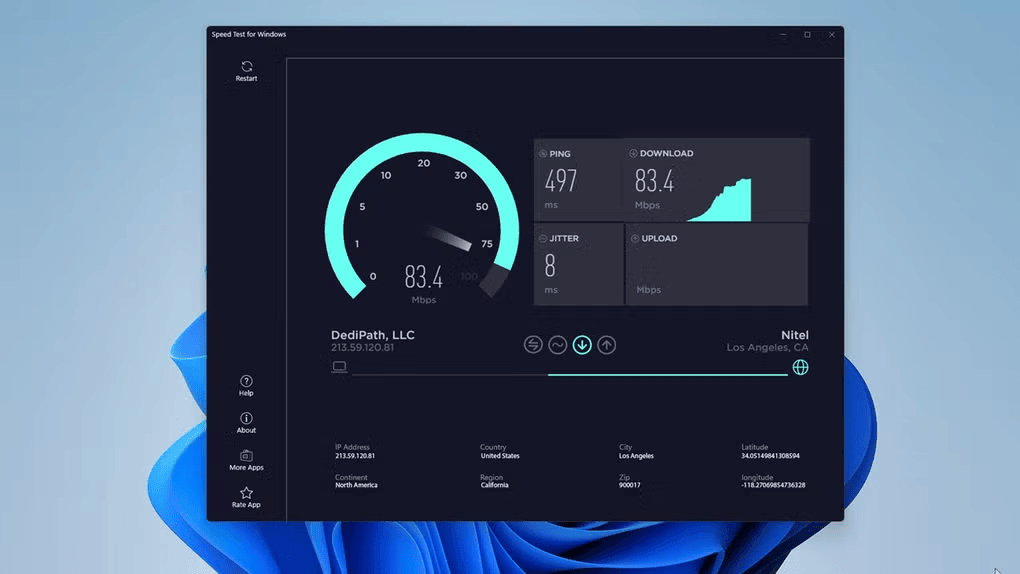
Managing your online connectivity became much easier with recent operating system updates. Microsoft recently introduced a highly convenient, integrated feature that allows you to trigger an internet diagnostic check directly from your desktop. Knowing your precise real-time connection performance can resolve endless streaming headaches and problematic video calls. This guide will walk you through setting up and utilizing the new Windows 11 taskbar network speed test effortlessly.
Evaluating bandwidth performance historically required opening a web browser, navigating to third-party portals, and manually running benchmarks. Fortunately, the latest Windows 11 platform updates consolidate this entire sequence into a sleek, system-level taskbar shortcut. Throughout this comprehensive walkthrough, you will learn exactly how to activate, customize, and properly troubleshoot this brand-new desktop networking addition.
Understanding the New Windows 11 Taskbar Speed Test Feature
Before diving into configurations, you should understand exactly what this updated utility brings to your operating system interface. This feature places a dedicated diagnostic tool right inside your system tray, offering immediate visibility. It is available on Windows 11 devices running the latest March 2026 update (KB5079473) or higher. You no longer need to keep multiple browser tabs open just to monitor changing bandwidth behavior.
Technically, the utility functions as an integrated operating system macro that natively queries a specialized, high-performance web endpoint. Microsoft collaborated with Ookla Speedtest to power the underlying engine infrastructure via the Bing search engine. When you trigger the utility, Windows instantly aggregates latency metrics, active download rates, and standard upload metrics. This gives you a robust baseline snapshot of your immediate local internet gateway health.
Prerequisite System Requirements and Update Verification
To use this convenient network diagnostic upgrade, your PC must meet specific criteria. You cannot view or trigger the native option on outdated, legacy deployments of the platform. Consequently, verifying your exact operating system build version remains an absolute, mandatory first step.
Follow these simple preparatory steps to confirm your machine is ready:
- Press the Windows Key + I shortcut combination to open your core system settings application dashboard.
- Navigate immediately to the Windows Update category located at the bottom left panel section.
- Click the Check for updates button to download any pending security cumulative packages.
- Ensure that cumulative update package KB5079473 or higher installs completely on your system storage.
If you maintain a managed work machine, your enterprise IT administrator might pause these specific feature updates temporarily. You can easily double-check your current standing by typing winver into the Windows search box and hitting Enter. Your system panel should ideally display Windows 11 version 23H2, 24H2, or a newer platform configuration.
⚠️ Warning: Attempting to force these features onto unsupported, older builds via corrupt third-party system registries can crash your shell. Always back up your system state using the native Windows Backup tool before modifying deep operating system properties.
Step-by-Step Activation Guide for the Taskbar Shortcut
Once your operating system updates finish installing, activating the new network benchmarking capability requires very minimal effort. Microsoft designed this modern convenience to live directly inside your taskbar system tray configuration.
Follow these instructions to use the interface control:
- Move your mouse cursor down directly over your active Wi-Fi or Ethernet icon.
- Right-click that connection icon to generate the native context options menu pop-up.
- Locate the new menu entry clearly labeled Perform speed test within the list.
- Click this option to launch the synchronized automated web testing engine interface immediately.
Alternatively, you can access the utility by left-clicking the connection icon to open your Quick Settings menu panel. Inside that simplified overlay, look for a new button labeled Test internet speed directly beside your connection selector. Clicking this option prompts your default web browser to open and run standard latency and throughput checks instantly.
Advanced Management and Customization with ViVeTool
Because Microsoft deploys major features using staged rollouts, some fully updated systems might not see the button immediately. If your machine does not show the option, you can force activation using a reliable open-source tool. A specialized command-line utility called ViVeTool safely enables hidden developer configurations within the standard production shell environment.
First, visit the official GitHub ViVeTool Releases Page to fetch the necessary background utilities. Extract the downloaded archive folder directly onto your system root directory for quick command prompt navigation.
Next, follow this precise command sequence:
- Type cmd into the desktop search bar, then right-click Command Prompt and select Run as administrator.
- Change directories to your extracted files by executing
cd C:\ViVeToolinside the terminal window. - Input the specific activation command string exactly as follows:$$vivetool \text{ /enable /id:57703775}$$
- Press Enter on your keyboard, then restart your personal computer to initialize the configuration.
After your system completes the reboot sequence, the missing context menu entries should appear normally. This simple fallback approach ensures that enthusiasts can skip the random queue periods associated with typical software rollouts.
Utilizing Persistent Live Traffic Monitors Instead
While the built-in Microsoft button acts as a great quick benchmark tool, it does not display persistent, live stats. Users looking for real-time, ongoing numbers should check out high-quality third-party monitoring software alternatives. An excellent open-source tool for this task is NetSpeedTray on GitHub, which integrates beautifully with your taskbar.
Alternatively, you can explore the highly customizable TrafficMonitor Project on GitHub for deep analytical tracking. This lightweight utility places a persistent numerical readout directly next to your standard digital taskbar clock. It tracks upload speeds, download performance, and hardware loads without consuming substantial background system memory pools.
Pro-Tips for Maximizing Your Benchmarking Accuracy
To obtain highly accurate results, you must optimize your background testing environment before starting. Running speed benchmarks during active data transfers or heavy operations creates distorted calculations.
Review this quick performance optimization checklist to guarantee maximum accuracy:
| Diagnostic Metric | Optimal Condition | Action Items |
| Active Downloads | Disabled entirely | Close Steam, torrent applications, and background cloud sync processes. |
| VPN Connections | Disconnected | Bypass active proxy servers to measure raw ISP connection capabilities. |
| Browser Extensions | Paused or white-listed | Disable aggressive script blockers that stall secure network packet routing. |
| Local Hardware | Ethernet preferred | Connect directly via Cat6 cable instead of wireless routers to remove interference. |
💡 Pro-Tip: Always perform at least three independent tests spaced roughly five minutes apart. Averaging these independent readouts paints a realistic picture of your connection, eliminating minor temporary network hiccups.
If you suspect deep configuration issues are stalling your hardware adapter, use the official Microsoft Support Gateway tools. Running the integrated Network Troubleshooter often flushes corrupted Domain Name System caches, instantly restoring your native data throughput speeds.
Final Thoughts
The introduction of the taskbar speed test highlights Microsoft’s renewed focus on practical desktop diagnostics. Having one-click access to connection health data eliminates the hassle of navigating third-party sites during outages. Whether you rely on the built-in Bing shortcut or add a live tracking meter, monitoring your system performance is incredibly simple. Update your operating system today to see this useful addition in action.