Running out of storage space on your Android phone is frustrating. Yet, deleting important files should never be your first solution. Thankfully, in 2025, Android offers smarter ways to reclaim storage without losing your valuable data. Features like smart storage management and cloud backups make freeing up space simple and secure.
Many users don’t realize how much space temporary files, cached data, or unused apps consume. Moreover, duplicated files and offline content can quietly fill up your phone’s memory. The good news is, there are efficient ways to clean up your device without touching personal photos, videos, or documents.
1. Use Android’s Built-In Storage Manager
Modern Android devices include a Storage Manager that identifies what’s taking up space.
This tool can automatically remove backed-up photos and old downloads. It shows categorized storage use such as apps, media, and system files. Activate it by going to Settings > Storage > Smart Storage.
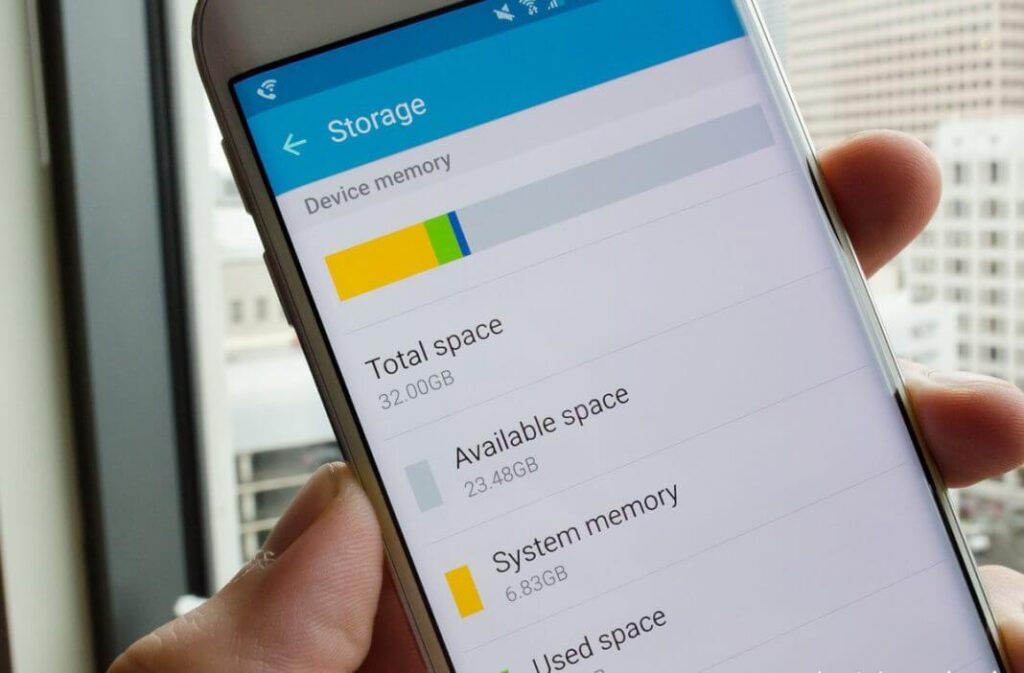
You can even schedule automatic cleanups every 30 days. As a result, your device stays optimized without manual effort.
2. Clear App Cache Without Deleting App Data
Apps like Chrome, Instagram, or Facebook store cache files to load faster. Over time, these caches take up considerable space.
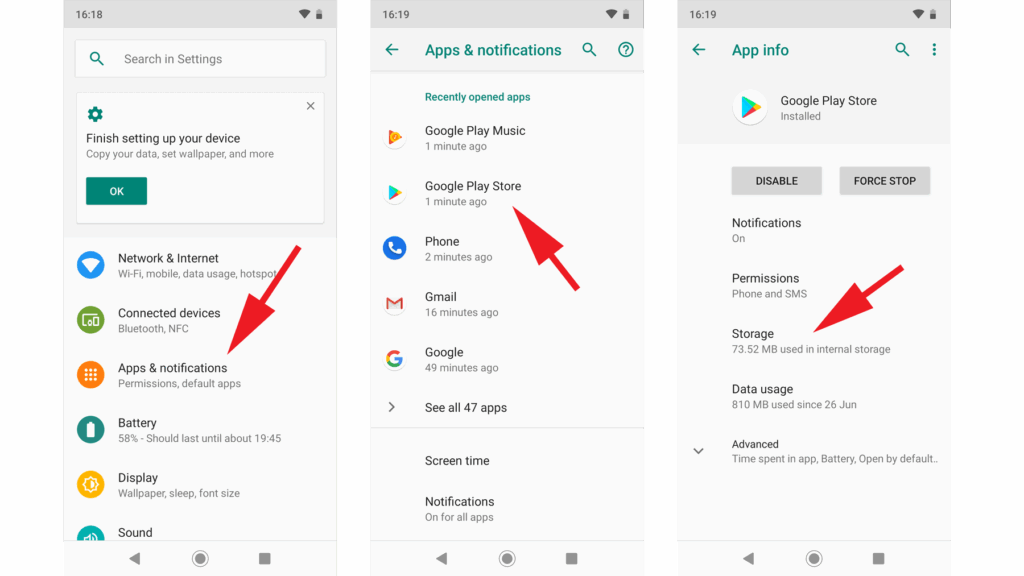
Go to Settings > Apps > [App Name] > Storage > Clear Cache. This removes temporary files while preserving app data.
For deeper cleaning, use trusted apps like CCleaner for Android. It provides advanced options to delete junk while preserving system integrity.
Clearing the cache regularly helps maintain speed and frees space without losing any login data or preferences.
3. Offload Unused Apps but Keep Their Data
Some Android phones now support an offloading feature, which removes the app but retains its data.
You can reinstall the app later and continue from where you left off. This option is great for games or large tools you rarely use.
Alternatively, download Files by Google, which suggests unused apps and offers safe cleanup tips. It also displays duplicate files and unused documents.
This approach saves gigabytes without deleting anything essential.
4. Move Files to Cloud Storage Services
One of the best ways to save space is to upload your files to the cloud. Use services like:
- Google Photos for media files
- Google Drive for documents and PDFs
- Dropbox or OneDrive for broader storage options
Enable auto-backup features so your photos, videos, and files are synced automatically. After confirming the backup, safely delete local copies.

Cloud storage not only saves space but also ensures you won’t lose data if your phone is lost or damaged.
5. Transfer Files to External Storage Devices
If you prefer offline solutions, use an OTG (On-The-Go) USB drive.
Connect it to your phone to copy large files, such as videos, photos, or app backups. Many newer Android phones support USB-C storage, which offers fast data transfer.
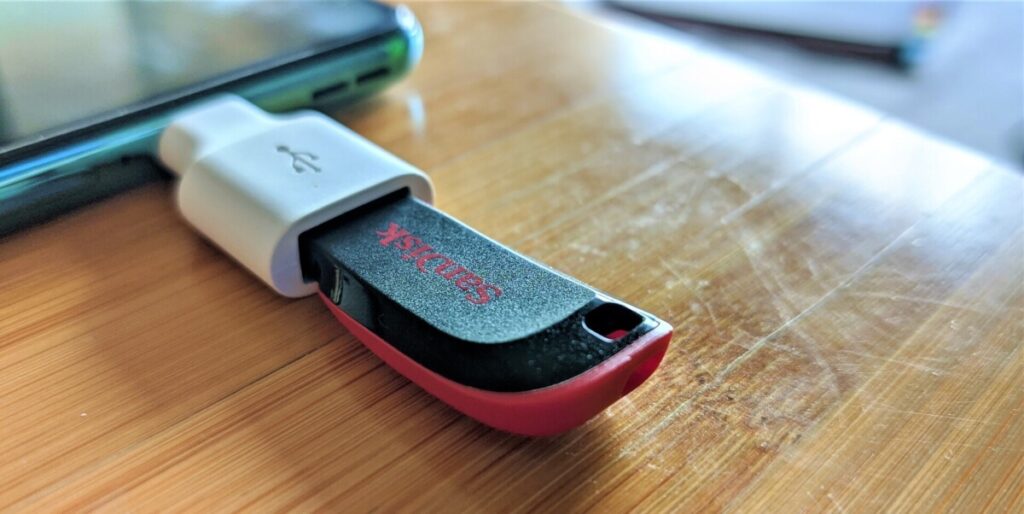
Once transferred, delete the local copy to free space. Always eject the OTG device safely to avoid data corruption.
This method is perfect for users who have limited or unreliable internet access.
6. Disable Auto-Downloads and Offline Syncs
Auto-downloads from apps like WhatsApp, Telegram, or Spotify can quickly fill up your device.
Go to the app settings and disable auto media download or offline playlists. You can still access content when needed but prevent unnecessary storage use.
Regularly review your Downloads folder for outdated files, PDFs, or attachments. You might be surprised at how much space these files consume over time.
7. Use Lite or Web Versions of Heavy Apps
Instead of using space-heavy apps, consider their lighter versions or access via browser.
Use Facebook Lite or Messenger Lite, which require less space and data.
Streaming services like YouTube and Spotify also offer web versions that don’t occupy local storage.
Making the switch keeps your essential functions while cutting down on internal storage usage.
Final Thoughts
Freeing up space on your Android phone doesn’t mean sacrificing important files. In fact, with the right tools and strategies, you can optimize your storage and improve performance. From clearing cache and using cloud storage to offloading apps and transferring files, every step counts.
Have you tried any of these techniques on your Android device? Let us know in the comments which method worked best for you!