Malware infections can slow down your PC, steal your data, and cause system crashes. Luckily, there are powerful free malware removal tools that can help. Whether it’s adware, spyware, or trojans, your computer doesn’t have to stay compromised. You can remove these threats using tools that cost nothing. Even if you’re not tech-savvy, these steps are easy to follow. In this guide, you’ll learn how to eliminate malware using trusted, free software. We’ll also discuss how to prevent future infections with basic cybersecurity tools and best practices.
Before diving into removal tools, let’s understand why malware is dangerous. It can lead to identity theft, data loss, and privacy breaches. Therefore, addressing the issue early is essential to avoid serious damage.
1. Recognize the Signs of Malware Infection
Malware often disguises itself as legitimate software. However, it leaves behind clear signs once inside your system. You might notice frequent pop-ups, slower performance, or your browser redirecting to unknown websites.
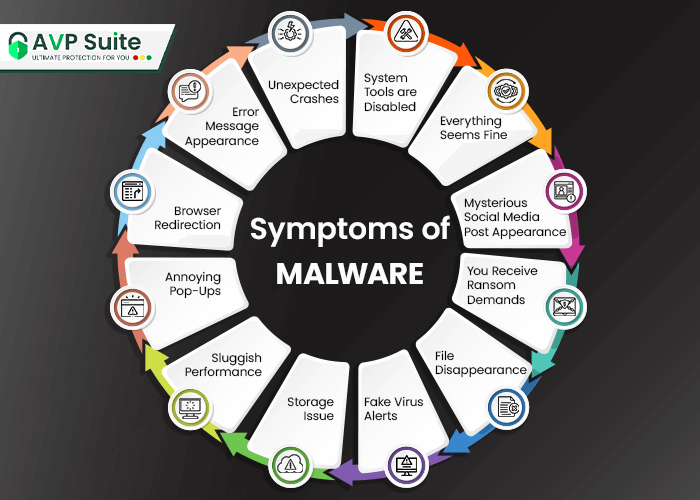
Also, system crashes and unrecognized programs starting on boot-up are major red flags. If you spot any of these signs, your system might be infected.
2. Disconnect From the Internet Immediately
As soon as you suspect malware, disconnect your PC from the internet. This action helps prevent data from being sent to hackers.

It also stops the malware from spreading or downloading more malicious files. This is a critical first step before launching any virus removal software.
3. Enter Safe Mode Before Scanning
To block malware from running in the background, reboot your PC in Safe Mode.
Safe Mode disables non-essential programs, allowing you to perform clean scans. Here’s a guide on how to enter Safe Mode from Microsoft’s official site.
4. Use Malwarebytes to Detect and Remove Threats
Malwarebytes offers one of the best free malware removal tools. It scans thoroughly and catches both known and new threats.
Download and install the free version, then perform a full system scan. Quarantine or delete any detected malware. Afterward, restart your PC.
5. Try Microsoft Defender as a Backup
Microsoft Defender comes built into Windows 10 and 11. It’s a solid backup scanner to confirm Malwarebytes removed all infections.
Make sure it’s up to date before scanning. It works quietly in the background and adds a second layer of protection.
6. Use AdwCleaner for Adware and Browser Hijackers
Adware and toolbars often come bundled with free apps. These can redirect your searches and clutter your browser.
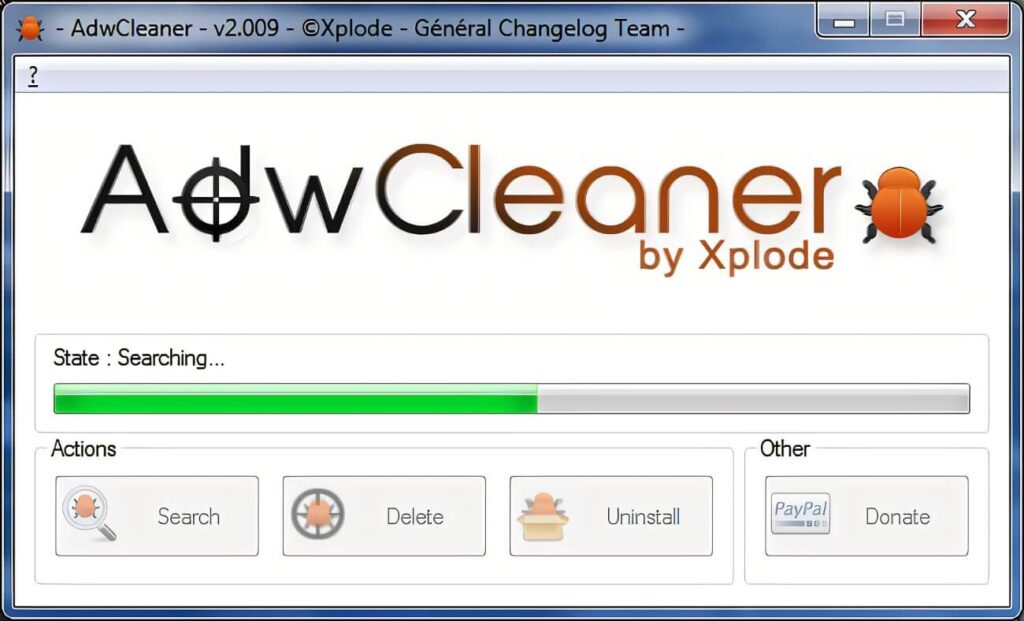
AdwCleaner, another tool from Malwarebytes, specializes in removing these annoyances. After running it, reset your browser settings for added protection.
7. Run a Second Opinion Scanner Like ESET Online Scanner
ESET Online Scanner is another reliable free scanner. It doesn’t require installation and is great for a second opinion.
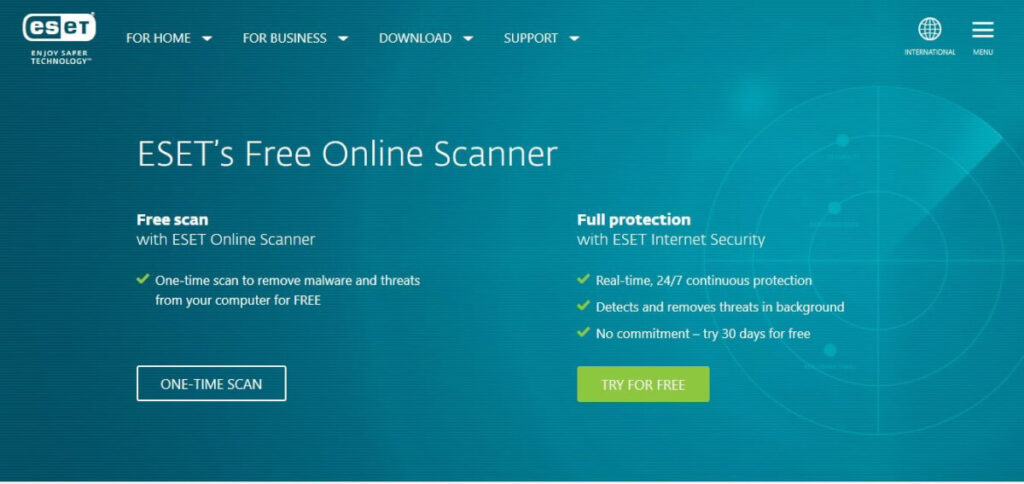
It catches threats that other scanners might miss. Simply run it once a month as part of your routine checks.
8. Clear Temporary Files and Restore System Health
After removing malware, clean up your system using CCleaner. It removes leftover files and frees up disk space.
You can also use Windows’ built-in Disk Cleanup and check for system file errors using the sfc /scannow command.
9. Strengthen Your PC’s Future Malware Protection
Now that your system is clean, don’t stop there. Install a reliable free antivirus program like Avast Free Antivirus or Bitdefender Free.

Keep your Windows system and apps updated regularly. Also, avoid suspicious emails and websites, and always download from official sources.
Conclusion
Removing malware doesn’t always require expensive software. With the right free virus removal tools, you can secure your PC efficiently.
Taking action early and staying informed is the key to long-term protection. With tools like Malwarebytes, AdwCleaner, and Microsoft Defender, you’ll be back in control.
Remember, prevention is better than cure. Equip your system with essential security tools and adopt safer browsing habits from now on.