
Windows 11 is a powerful and efficient operating system, but to get the best performance and security, optimization and protection measures are crucial. Whether you’re a casual user or a professional, enhancing speed and safeguarding your system against threats should be a top priority. In this guide, we’ll explore the best ways to optimize your Windows 11 computer while ensuring maximum security against cyber threats.
Why Optimization and Security Matter in Windows 11
Windows 11 comes packed with features designed for productivity and security, but as with any system, improper management can lead to slowdowns and vulnerabilities. Performance optimization ensures a smoother experience with faster boot times and efficient resource usage, while security measures help protect against malware, ransomware, and unauthorized access. By fine-tuning settings and following best practices, you can achieve a more stable, secure, and responsive system.
Step-by-Step Guide to Optimizing Windows 11 Performance
1. Disable Unnecessary Startup Programs
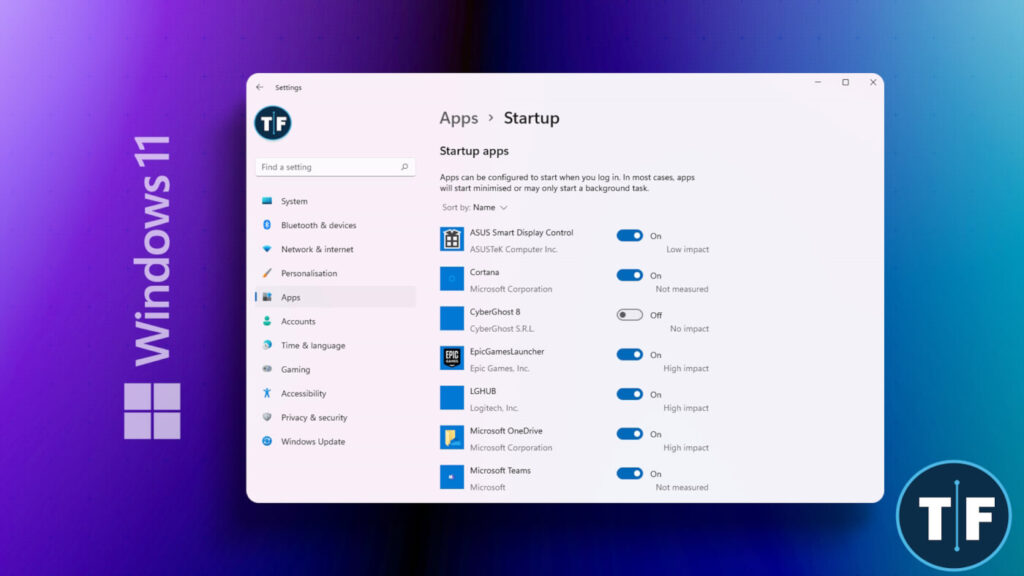
Many applications start automatically when you turn on your computer, consuming valuable system resources. To speed up boot time and free up memory, disable unnecessary startup programs:
- Open Task Manager by pressing
Ctrl + Shift + Esc. - Navigate to the Startup tab.
- Right-click on programs you don’t need at startup and select Disable.
Reducing startup load significantly improves system responsiveness, especially on older devices.
2. Adjust Power Settings for Performance
By default, Windows 11 balances performance and power consumption. However, if you prioritize speed, consider switching to the High Performance plan:
- Open Settings (
Win + I), then go to System > Power & battery. - Click Power mode and select Best performance.
This setting is ideal for desktops and high-performance laptops but may drain battery life faster on portable devices.
3. Clear Temporary and Unnecessary Files
Over time, temporary files and cached data accumulate, reducing available storage and slowing down performance. Use Windows’ built-in cleanup tools:
- Open Settings and go to Storage.
- Click Temporary files and select items you want to remove.
- Use Storage Sense to automate disk cleanup regularly.
Additionally, running Disk Cleanup (cleanmgr) helps remove redundant system files.
4. Update Windows and Drivers Regularly
Microsoft frequently releases updates that improve performance and security. Ensure your system and drivers are up to date:
- Open Settings > Windows Update and install the latest patches.
- Update device drivers via Device Manager (
Win + X > Device Manager). - Visit manufacturer websites for the latest GPU, chipset, and network driver updates.
Keeping your system updated prevents compatibility issues and security vulnerabilities.
Essential Security Measures to Protect Windows 11
1. Enable Windows Defender and Firewall
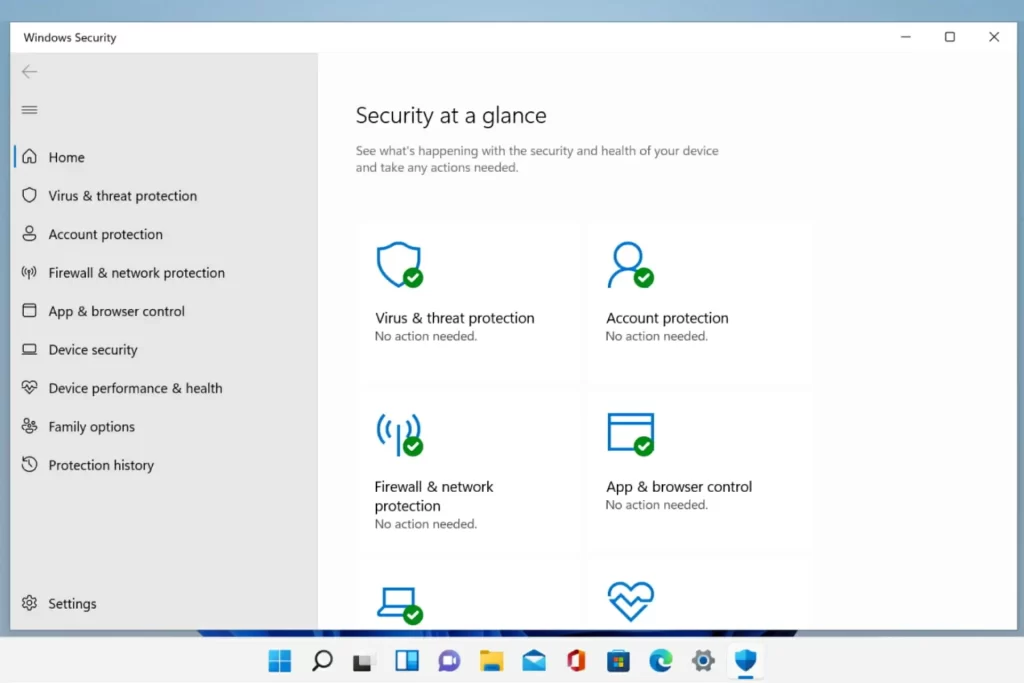
Windows 11 comes with Windows Security, which includes Windows Defender Antivirus and a built-in Firewall. To ensure these are active:
- Go to Settings > Privacy & security > Windows Security.
- Open Virus & threat protection and ensure real-time protection is turned on.
- Navigate to Firewall & network protection and confirm the firewall is enabled.
These features provide robust protection against malware and unauthorized access attempts.
2. Use Strong Passwords and Enable Two-Factor Authentication (2FA)
Protecting your Microsoft account and local login is crucial. Follow these steps:
- Use a password manager to generate and store complex passwords.
- Enable Windows Hello (facial recognition or fingerprint) for secure authentication.
- Activate Two-Factor Authentication (2FA) on your Microsoft account for added security.
Secure passwords and 2FA reduce the risk of unauthorized access significantly.
3. Keep Personal Data Safe with BitLocker Encryption
For users with Windows 11 Pro, enabling BitLocker encrypts your drive, preventing unauthorized access:
- Open Settings > Privacy & security > Device encryption.
- Click Turn on to activate encryption.
For users on Windows 11 Home, use third-party encryption tools like VeraCrypt (source).
4. Be Cautious with Third-Party Software and Downloads
Unverified applications can contain malware or spyware. To stay safe:
- Only download software from official websites or the Microsoft Store.
- Use a reputable antivirus solution like Malwarebytes (source).
- Regularly scan your system for threats.
Avoiding suspicious downloads prevents many security breaches.
Additional Security Tips for Windows 11 Users
Use a Virtual Private Network (VPN) for Secure Browsing
A VPN encrypts your internet connection, protecting your data from hackers and ISPs. Recommended VPNs include NordVPN (source) and ExpressVPN (source).
Enable Automatic Backups to Prevent Data Loss
Use OneDrive or an external drive for regular backups:
- Open Settings > Accounts > Windows Backup.
- Select Manage sync settings and enable important file backups.
Regular backups ensure data recovery in case of malware attacks or system crashes.
Conclusion
Optimizing and securing your Windows 11 computer enhances performance and protects against cyber threats. By following these best practices—disabling unnecessary startup programs, managing power settings, updating drivers, and implementing strong security measures—you can enjoy a smooth, fast, and safe computing experience. Staying proactive with security ensures your personal data remains safe, while regular maintenance keeps your system running at its best.