Microsoft enforces strict hardware rules for Windows 11. They demand TPM 2.0, Secure Boot, and eighth-generation processors. Millions of perfectly functional PCs fall short of these arbitrary boundaries. Your older hardware still has plenty of life left in it. You do not need to discard a fast machine just because Microsoft changed the rulebook.
Enter Rufus. This open-source utility solves the hardware block completely. It flashes installation media while stripping away Microsoft’s rigid checks. I use Rufus daily in my workshop to revive client computers. Let us walk through building a customized bootable USB installer right now.
1. What You Need: Prerequisites & Hardware Checklist
Proper preparation prevents installation failures. Ensure you have the following items ready before starting:
- Blank USB Flash Drive: Minimum 8GB capacity (USB 3.0 recommended for faster read/write speeds).
- Official Windows 11 ISO Image: Sourced directly from Microsoft.
- Rufus Utility: The latest version downloaded to your local host machine.
- Target Computer: Operating on x64-bit architecture with active UEFI firmware support.
Back up any important data on your USB drive immediately. Rufus will wipe the partition table completely clean during the flashing process.
Next, you need the official operating system image. Navigate directly to the official Microsoft Software Download Portal to obtain the official Windows 11 ISO file. Avoid third-party modified ISOs entirely. Clean Microsoft binaries guarantee system stability and official security updates later. Keep your ISO file saved in an easily accessible local folder.
2. Downloading and Preparing Rufus for Installation
Now you need the utility itself. Open your web browser and go to the official Rufus Website. Download the latest portable executable version. Portable builds require zero local installation steps and keep your system clean. Save the small executable file to your primary downloads directory.
Security matters when handling low-level system utilities. Check the digital signature properties to verify software authenticity before running it. Right-click the Rufus executable file and select Run as administrator from the context menu. Administrative privileges grant Rufus low-level disk access. Without admin rights, the software cannot partition your flash drive properly.
3. Connecting Your USB Drive and Launching Rufus
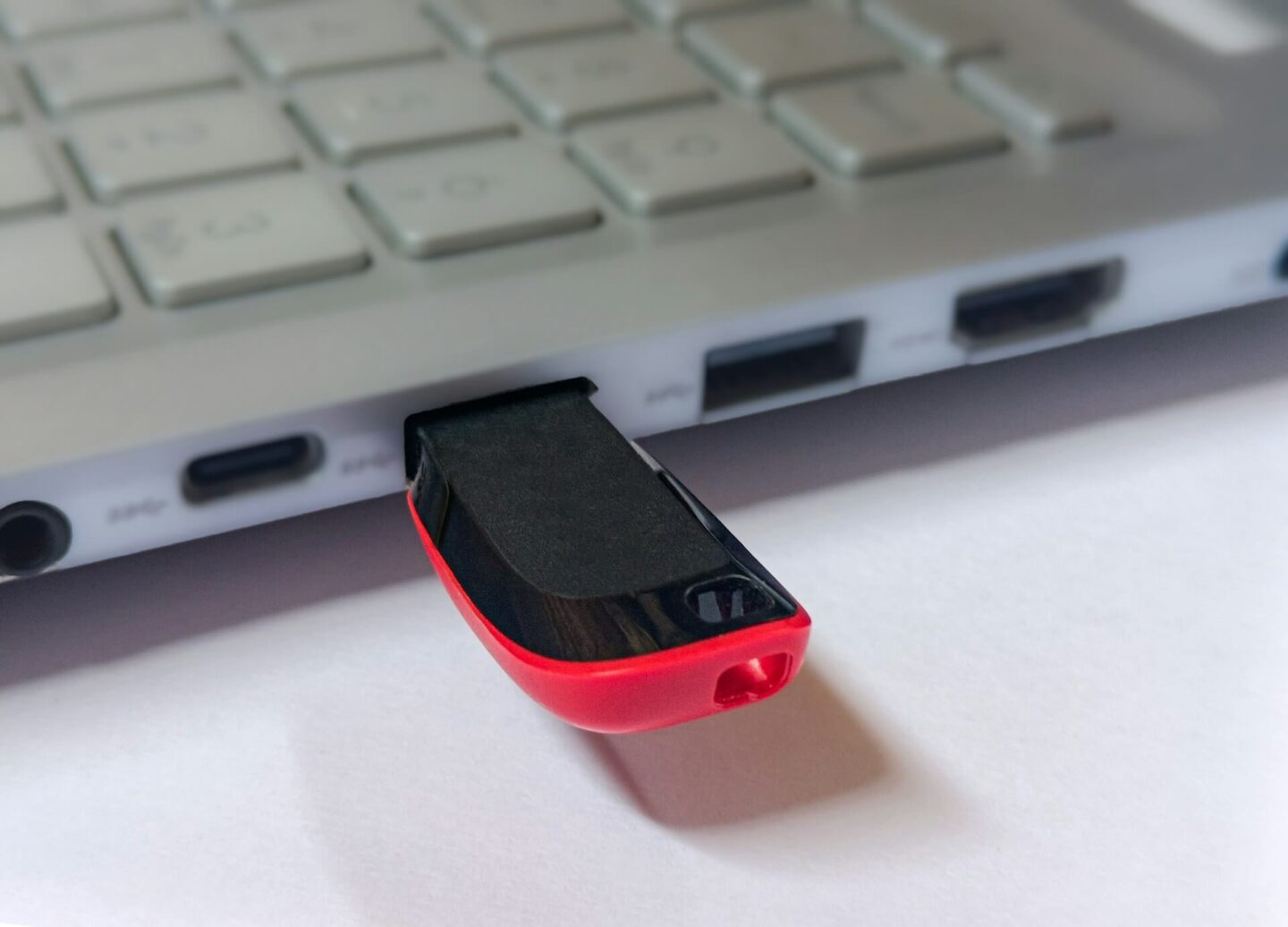
Insert your target USB flash drive into an open port. Launch the Rufus application window. Look at the top Device dropdown menu. Verify that Rufus selected your correct USB flash drive. Double-check the drive letter carefully. Choosing the wrong drive erases data permanently.
Next, click the Select button on the right side. Browse to the folder holding your downloaded Windows 11 ISO file. Highlight the ISO file and click open. Rufus reads the ISO headers instantly. The user interface updates to reflect your chosen operating system image. You are now ready to configure the bypass parameters.
4. Understanding Image Options: Standard vs. Extended Windows 11 Installation
Rufus offers different image options when processing Windows 11 ISO files. Selecting the standard option builds a completely unmodified installation environment. Standard media forces the setup program to run Microsoft’s full system check. It checks for TPM 2.0, Secure Boot, and four gigabytes of RAM. If your hardware lacks those chips, installation stops immediately with an error.
To skip those restrictions, use the custom parameters in Rufus. Modern Rufus releases show a dedicated customization prompt when you hit start. This window lets you disable TPM, Secure Boot, and RAM limits in one click. Rufus modifies the installer setup scripts behind the scenes. This modification allows your old system to run Windows 11 seamlessly.
5. Configuring Partition Scheme and Target System Type
Next, focus on the Partition scheme dropdown menu. You must choose between GPT and MBR:
- GPT (GUID Partition Table): Designed for modern systems using UEFI firmware. Select this option for almost all Windows 11 builds.
- MBR (Master Boot Record): Intended for legacy BIOS configurations. Avoid this setting unless working on legacy hardware.
Selecting GPT sets the target system field to UEFI (non-CSM) automatically. Microsoft strictly built Windows 11 around UEFI architecture. Stick with GPT to prevent boot loop errors during installation. If you feel uncertain about your system capabilities, consult the official Unified Extensible Firmware Interface (UEFI) Specifications to verify board compatibility.
6. Executing the Flash Process and Navigating Warning Prompts
Once you configure all parameters, click the Start button at the bottom. Rufus opens the Windows User Experience dialog box immediately. Check the box labeled “Remove requirement for 4GB+ RAM, Secure Boot and TPM 2.0”. You can also strip out online Microsoft account requirements here to build a local user profile. Click OK after checking your desired bypass options.
A severe warning box appears next on your screen. Rufus warns you that it will erase all data on the USB drive. Double-check your drive selection one last time. Click OK to start the formatting and partitioning phase. Rufus begins cleaning the drive immediately.
7. Monitoring Progress and Ensuring Successful ISO Extraction
The status bar turns green and shows creation progress. Rufus writes bootloader files, builds file structures, and extracts ISO contents. This process takes anywhere from five to fifteen minutes depending on hardware performance. Drive speed and system USB port bandwidth dictate the overall speed. Do not unplug the drive during this critical phase.
💡 Pro-Tip: Workshop Best Practice
When flashing media, always connect your USB 3.0 flash drive directly to the rear I/O motherboard ports of your desktop computer rather than front-panel headers or unpowered hubs. Rear ports supply stable power and maximum bandwidth, preventing random file corruption during block extraction.
Wait until the progress bar reaches one hundred percent. The status message will display the word “READY” in green. Rufus does not show a flashy completion pop-up window. When you see “READY”, the drive is fully bootable. Close the Rufus utility and safely eject your USB flash drive.
8. Booting from the USB Installer on an Unsupported PC
Power down your target computer completely. Plug your freshly created Rufus bootable USB drive into a native USB port directly on the motherboard. Avoid unpowered external USB hubs, as they can cause read drops during early boot initialization.
Power on the machine and immediately start tapping your motherboard’s dedicated boot menu key. Common hotkeys include:
- Dell & Lenovo:
F12 - HP:
F9orEsc - ASUS & MSI:
F11orF8 - Gigabyte:
F12
Select the option displaying “UEFI:” alongside your USB drive name. Selecting the UEFI entry bypasses legacy BIOS startup routines and launches the modified Windows Setup environment directly.
9. Running the Windows 11 Setup on Legacy Hardware
Once the Windows installation environment loads, choose your preferred language, time zone, and keyboard layout, then click Next. Click “Install Now” to trigger the primary setup routine. When prompted for a product key, click “I don’t have a product key” to defer activation until after setup completes.
Select your target Windows 11 edition and proceed. The installer reads the internal configuration files created by Rufus behind the scenes. Instead of halting with the dreaded “This PC can’t run Windows 11” message, the installer bypasses hardware validation and takes you straight to the license terms screen. Accept the terms, choose “Custom: Install Windows only”, select your target drive partition, and let setup extract system files.
10. Post-Installation Tips: Drivers, Updates, and System Stability
Once Windows 11 reaches the desktop, your first priority is driver management. Windows Update will automatically fetch generic drivers for basic functionality, but older chipsets and display adapters often require manual attention. Open Device Manager and check for yellow exclamation marks indicating unconfigured devices.
Download missing graphics, audio, or chipset drivers directly from your component manufacturer’s support portal, running them in compatibility mode if necessary. If you encounter display driver anomalies on legacy hardware, consult the NVIDIA Driver Support Documentation or AMD support archives to locate legacy WHQL-certified drivers.
Regarding long-term operation, Microsoft still delivers standard cumulative security updates to unsupported devices running modified installations. For further reading on update policies and system integrity, review Microsoft’s official Windows IT Pro Documentation. However, major annual feature updates may require you to run an in-place upgrade using a fresh Rufus USB drive rather than relying on automatic feature updates. Keep system restore points active and maintain regular backups to guard against future system changes.
Final Thoughts
Bypassing Microsoft’s hardware enforcement allows you to extract years of additional performance from reliable desktop and laptop hardware. Rufus turns a complex process involving custom registry edits into a straightforward, automated workflow.
By taking control of your deployment media, you reduce e-waste and preserve fully functional computers without sacrificing system modernizations. As long as your hardware supports basic x64 architecture and required CPU instructions, Rufus remains the most effective tool for keeping legacy machines productive.
💬 What’s Your Experience with Windows 11 on Legacy Hardware?
Have you converted your unsupported PCs using Rufus, or did you hit a roadblock during installation? Drop your thoughts, questions, or troubleshooting tips in the comments section below! If this guide helped you revive an older computer, hit those share buttons to help others in the tech community bypass arbitrary hardware limits!