Educational institutions heavily rely on Microsoft 365 tools inside their learning management systems. However, Microsoft recently retired legacy M365 LTI apps and old Teams Assignment integrations. Consequently, IT administrators must execute a smooth Teams Assignments migration to avoid workflow breaks. Furthermore, updating your legacy M365 LTI suite ensures uninterrupted classroom instruction. In this article, I will walk you through the complete transition process step by step.
Navigating Microsoft ecosystem shifts often creates severe headaches for system administrators. Fortunately, the updated LTI 1.3 standard offers better security and cleaner LMS connections. Therefore, replacing your outdated integrations actually improves your institution’s digital environment. Let us dive into the technical details and step-by-step actions required today.
Understanding the Retirement of Legacy M365 LTI Tools
Microsoft officially deprecated the older LTI 1.1 framework for all Microsoft 365 services. Specifically, older versions of Teams Classes, OneDrive, and Teams Assignments no longer sync reliably. Instead, Microsoft now enforces LTI 1.3 standard compliance across all external educational applications.
This architectural change modernizes security through dynamic client registration and OAuth2 authentication. Moreover, it provides fine-grained permissions control for user data privacy. Understanding these structural changes helps administrators configure new tools correctly from the start.
Why Microsoft Made the Shift
Legacy LTI configurations relied on static consumer keys and shared secrets. Unfortunately, this old framework vulnerable systems to security exploit risks. In contrast, the newer LTI 1.3 standard uses strict LTI Advantage protocols. Consequently, user data remains much safer during transmission between platforms.
Additionally, old connectors struggled with real-time gradebook syncing across large enterprise tenants. Therefore, Microsoft rebuilt the underlying API structure from scratch. The new system leverages Microsoft Graph APIs for faster data transfers and greater stability.
The Impact on Canvas, Blackboard, and Schoology
Every major LMS vendor must transition users to the modern LTI 1.3 framework. If you delay this upgrade, teachers will lose access to integrated assignment workflows. Furthermore, students will face errors when submitting files through embedded OneDrive pickers.
To prevent sudden outages, you must audit your current integration landscape immediately. Identifying active legacy instances allows you to plan migration windows without disrupting active classes.
⚠️ Warning: Ignoring legacy deprecation dates will cause immediate loss of function for embedded assignment tools. Consequently, students will fail to submit coursework through the LMS interface.
Step 1: Pre-Migration Audit and Inventory
Before touching any admin panels, you must catalog your current integrations. First, map out every active course using legacy Microsoft LTI tools. Next, check your current tenant permission settings in the Azure portal.
Thorough preparation saves hours of troubleshooting during the actual rollout phase. Therefore, treat this discovery phase as the foundation of your entire migration project.
- Identify active LMS platforms (e.g., Canvas LMS, Blackboard Learn, Schoology).
- List all active course templates using older Teams tools.
- Document custom API endpoints and existing developer keys.
- Backup current assignment configuration records for reference.
Verifying Admin Permissions
You need specific administrative credentials across both environments to complete this setup. Specifically, gather your global Microsoft 365 admin account details beforehand. Additionally, secure root administrator access within your target LMS platform.
Without dual administrative rights, app registration procedures will quickly stall out. Thus, coordinate with your institutional enterprise security team early in the process.
Step 2: Registering New Tools in Microsoft Entra ID
Modern Microsoft LTI transition procedures require dynamic application registration. To begin, open the Microsoft Entra Admin Center using your admin credentials. Navigate directly to the enterprise applications section to establish the new trust relation.
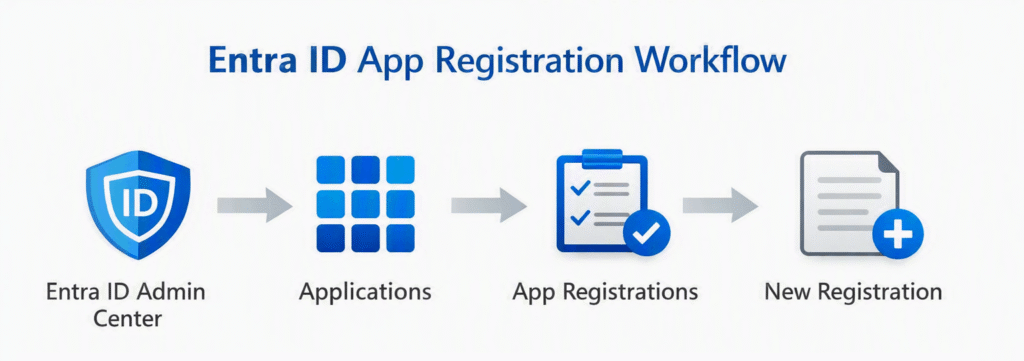
This step grants your LMS permission to query Microsoft Graph endpoints securely. Follow these precise registration steps to ensure proper connectivity:
- Select New Registration under the App Registrations blade.
- Name the application clearly (e.g., “M365 LTI 1.3 – Production”).
- Set the supported account type to Multitenant.
- Leave the Redirect URI blank for now, as your LMS will generate it.
Configuring API Permissions
After registering the application, you must grant explicit API permissions. Specifically, add delegated access for Microsoft Graph services. These permissions allow the LMS to fetch user profiles, manage teams, and sync grade data.
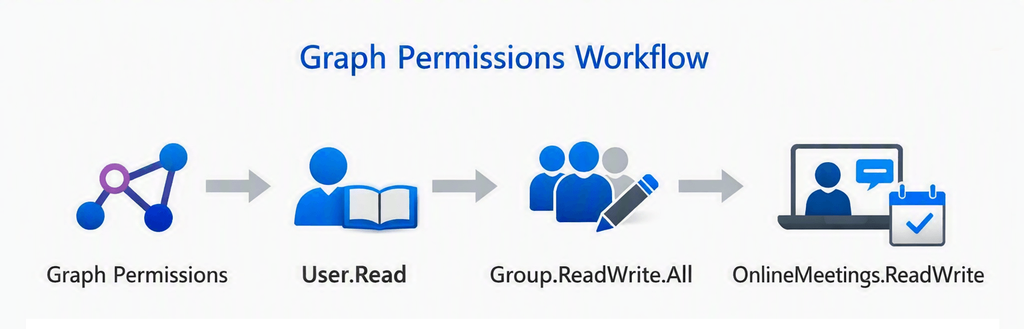
Always remember to grant admin consent for your organization after assigning permissions. Otherwise, end users will encounter authorization blocks during their initial login attempts.
💡 Pro-Tip: Always create separate Entra ID app registrations for your test and production LMS environments. Consequently, testing updates later will never break live classroom activities.
Step 3: Installing the Updated LMS Tools
Now, navigate to your institutional LMS administration dashboard. You must replace outdated plugins with the official M365 LTI tool update packages. Most modern platforms offer native app store installers for Microsoft LTI 1.3 services.
For detailed deployment guidance, review the official Microsoft LTI Documentation. This documentation outlines platform-specific deployment scripts for complex server topologies.
Execution Blueprint for LMS Integration
| Setup Stage | LMS Admin Action | Microsoft Admin Action |
| Phase 1: Registration | Copy Client ID & Deployment IDs | Approve Application Permissions in Entra ID |
| Phase 2: Configuration | Paste Keys into Teams LTI setup Panel | Generate Secret Keys & Auth Endpoints |
| Phase 3: Validation | Embed Test App in Canvas/Blackboard | Review Sign-in Logs in Azure Monitor |
Configuring the Canvas LTI Integration
If you run Canvas, navigate to the Developer Keys section under Root Settings. Next, select the inherit button for official Canvas LTI integration configurations. Enter your Microsoft tenant ID to link the systems automatically.
Finally, enable the newly created developer key across all sub-accounts. Afterwards, add the application to your global course navigation menu for easy teacher access.
Step 4: Data Migration and Assignment Porting
Once you establish the connection, you must address existing course content. Unfortunately, legacy assignments do not automatically convert to the new format. Therefore, you must execute a controlled migration strategy for active coursework.
Instructors can re-link historical assignment files using the updated OneDrive picker tool. Furthermore, export active gradebooks to local spreadsheets before removing older LTI shortcuts.
- Export legacy grade records to external CSV files.
- Notify faculty about specific migration cutoff deadlines.
- Update course master templates with new LTI links.
- Remove legacy app links from global navigation menus.
Supporting Faculty Through the Change
Technical changes often confuse non-technical educators during the academic semester. Therefore, create concise visual guides demonstrating the new assignment submission interface. Clear communication minimizes support ticket volume following system upgrades.
Host brief virtual training sessions highlighting key interface differences. Focus specifically on how the new OneDrive picker simplifies file distribution for students.
Final Thoughts & Conclusion
Transitioning away from retired Microsoft tools requires careful planning and methodical execution. However, completing this LMS tool migration unlocks significant security, speed, and reliability improvements. By moving to modern LTI 1.3 standards, you safeguard your institutional data effectively. Additionally, you provide a seamless digital learning environment for both faculty and students.
Take control of your educational technology stack today. Begin your pre-migration audit now to guarantee uninterrupted classroom learning.
What challenges have you faced while updating your institutional LTI tools? Please share your thoughts and tips in the comments section below! Do not forget to share this guide with your IT colleagues on social media!