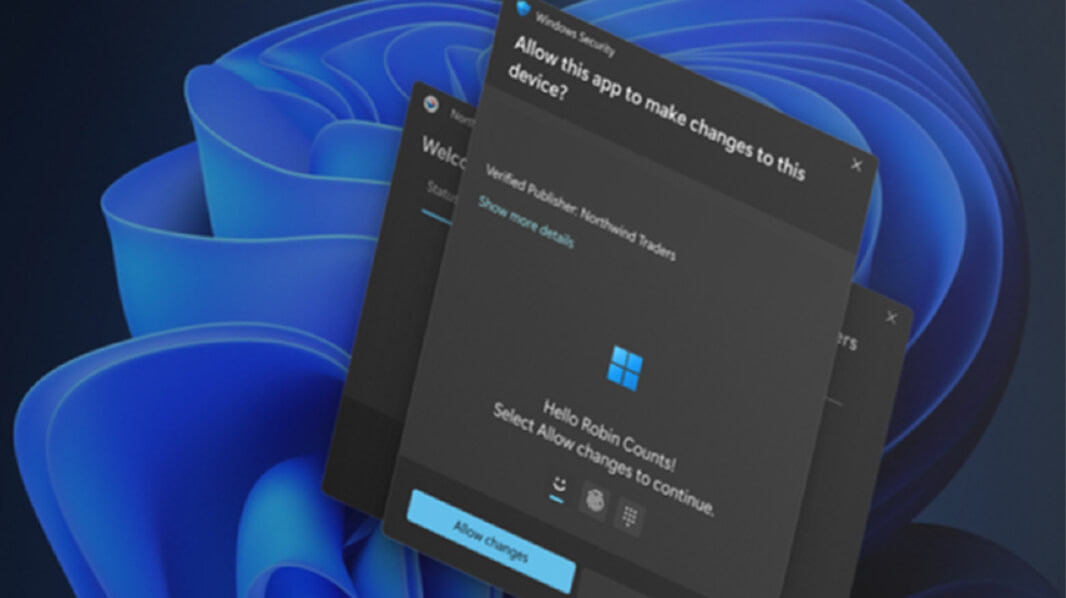
In today’s threat environment, traditional administrative prompts no longer offer sufficient security for modern endpoints. Consequently, Microsoft introduced a new security paradigm to strengthen local system permissions. Specifically, you can now Enable Administrator Protection Windows 11 to harden your system against credential theft. Moreover, updating your Windows 11 security settings gives you granular control over administrative actions. In this guide, we will explore how this feature replaces legacy prompts with biometrics.
For nearly two decades, User Account Control served as the primary defense against unauthorized software changes. However, legacy UAC relies on a split-token architecture that attackers frequently exploit. When an administrator logs on, Windows assigns both a restricted token and an elevated token. Unfortunately, both tokens share the same user profile directory and registry hive. As a result, sophisticated malware can steal active access tokens without triggering user alerts.
Therefore, Microsoft created an advanced solution to eliminate persistent administrator rights. You can now Replace UAC with Windows Hello authentication to authorize every high-privilege task. This architectural overhaul ensures that elevated privileges exist only when actively needed. Furthermore, the system destroys administrative tokens immediately after the task finishes. In the following sections, we will walk through the core architecture and setup steps.
What is Administrator Protection in Windows 11?
Understanding the Core Architecture
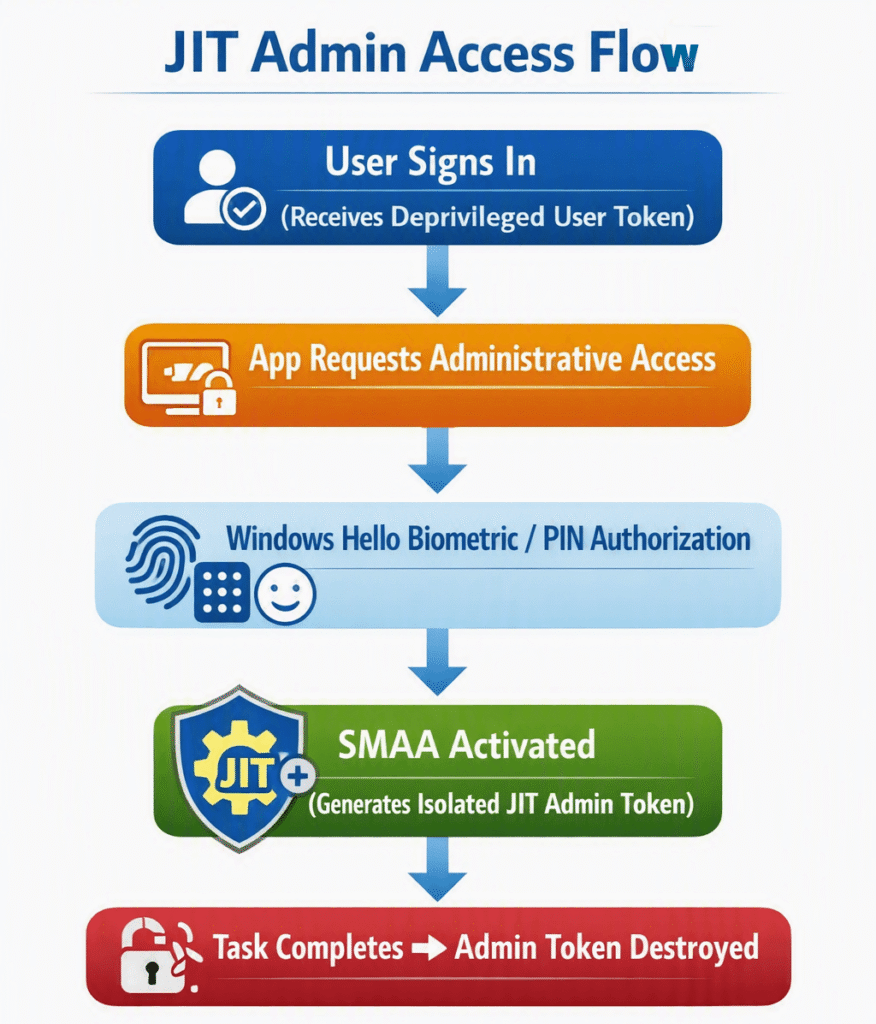
To appreciate this improvement, you must understand how administrative rights operate under the hood. Under legacy UAC, standard admin accounts maintain elevated capabilities in a sleeping state. In contrast, Windows 11 Administrator Protection enforces a strict principle of least privilege. When you sign in, Windows grants you only a standard, deprivileged user token.
Additionally, the operating system isolates administrative credentials inside a dedicated system container. According to the official Microsoft Learn documentation, this mechanism changes how Windows processes elevation requests. Instead of simply granting full rights to your active profile, Windows creates a temporary security context. Consequently, malicious applications cannot hijack existing token handles.
The Role of Just-in-Time Elevation and Profile Separation
First, this new security feature implements true Just in time elevation Windows 11 workflows. When an application demands administrative access, Windows prompts you for biometric confirmation. Once you scan your face or finger, Windows invokes a System Managed Administrator Account. This special system account generates a unique, isolated admin token.
Second, the feature creates complete profile separation between standard and elevated processes. In fact, detailed analysis on the Microsoft Tech Community blog highlights this structural boundary. Standard user processes cannot inspect or alter the memory space of elevated applications. Therefore, user-level malware cannot inject malicious code into elevated installation routines.
Finally, the temporary admin token vanishes as soon as the elevated application closes. As a result, no standing administrative privileges remain on your device. This dynamic protection drastically reduces your system’s overall attack surface.
Prerequisites and System Requirements
Pre-Flight Checklist Before Enabling
Before configuring this setting, you must verify several system requirements. First, ensure your PC runs Windows 11 build 24H2 or later. Microsoft actively deploys this platform update across Home, Pro, Enterprise, and Education editions. You can verify your OS build in Settings > System > About.
Second, you must configure Windows Hello authentication on your device beforehand. Administrator Protection requires Windows Hello to verify your physical identity. For further details on setup options, visit the Official Microsoft Support page. You can use any of the following authentication methods:
- Facial Recognition: Windows Hello compatible infrared camera.
- Fingerprint Reader: Windows Hello certified biometric sensor.
- PIN Authentication: Secure companion PIN linked to the TPM module.
Furthermore, you need local administrative access to turn on this feature. Standard non-admin user accounts cannot modify global security policies. Lastly, back up your critical files before making structural security changes.
⚠️ Warning: Enabling Administrator Protection creates distinct profile paths for elevated applications. Consequently, elevated apps will not access your standard user desktop or custom registry entries.
Method 1: Enabling Administrator Protection via Windows Security Settings
For most users, the simplest activation path exists directly inside the Windows Security application. Microsoft designed this interface for fast toggling and clear status tracking.
To enable the feature through the settings app, follow these steps:
- Click the Start button and type Windows Security.
- Open the Windows Security app from the search results.
- Select Account protection from the main dashboard menu.
- Locate the Administrator protection section near the bottom.
- Switch the toggle switch to the On position.
- Confirm the Windows Hello prompt to authorize the change.
- Restart your computer immediately to finalize system changes.
After your computer restarts, the new elevation framework takes effect automatically. From now on, any setup file or system setting will launch a Windows Hello prompt.
Method 2: Enabling Administrator Protection via Local Security Policy
System administrators and enterprise users often prefer configuring settings through central policy tools. You can utilize the Local Security Policy Windows 11 console to deploy this feature across Pro and Enterprise editions.
To configure the policy manually, perform the following procedure:
- Press Win + R to open the Run command box.
- Type secpol.msc and press Enter to open Local Security Policy.
- Navigate to
Computer Configuration > Windows Settings > Security Settings > Local Policies > Security Options. - Locate the policy named User Account Control: Configure type of Admin Approval Mode.
- Double-click the policy to open its properties window.
- Select Admin Approval Mode with Administrator protection from the dropdown list.
- Click Apply and then click OK.
- Next, locate User Account Control: Behavior of the elevation prompt for administrators running with Administrator protection.
- Set this prompt behavior to require Windows Hello biometrics.
- Close the console and restart your machine.
In addition, IT departments can deploy these policies across entire domains using Microsoft Intune. Review guidance on the Windows Developer Center for managing enterprise software compatibility.
💡 Pro-Tip: You can verify whether Administrator Protection works by opening an elevated Command Prompt. Type whoami in the terminal. If active, the system displays your user identity as ADMIN_ followed by your username.
Practical Impact and Developer Considerations
While this feature boosts endpoint protection, it alters how administrative applications interact with user profiles. Because elevated processes run under a System Managed Administrator Account, they do not inherit standard user environment variables.
| Architectural Aspect | Legacy UAC Model | Windows 11 Administrator Protection |
| Authentication Type | Yes/No Consent or Password Prompt | Windows Hello Biometric / PIN |
| Elevation Token Lifetime | Persists throughout session | Just-in-Time (Destroyed on close) |
| User Profile Mapping | Shared standard user profile | Separated System Managed Admin profile |
| Malware Isolation | Low (Susceptible to token theft) | High (Token isolated in system container) |
| Auto-Elevation Support | Allowed for trusted binaries | Strictly prohibited (Requires interaction) |
For instance, installers that write configurations to %APPDATA% while elevated will store files inside the temporary admin profile instead. Therefore, software vendors must design installers to run in standard user context whenever possible. You can learn more about securing enterprise software at the Windows Security hub.
Moreover, desktop shortcuts placed in standard user folders will not automatically appear during elevated browsing sessions. However, this small operational change provides immense resilience against ransomware and zero-day exploits.
Final Thoughts & Conclusion
Microsoft’s new protection framework represents the most significant update to Windows permission handling since Windows Vista. By replacing silent elevation paths with biometrics, Windows 11 effectively neutralizes token theft tactics. Furthermore, isolated admin accounts guarantee that malicious software cannot hijack administrative sessions. Enabling this feature takes only a few minutes, but it delivers enterprise-grade endpoint security to your personal PC.
Have you enabled Administrator Protection on your Windows 11 computer yet? Did you encounter any app compatibility issues during testing? Share your thoughts and experiences in the comments section below! Do not forget to share this guide with fellow tech enthusiasts to help them secure their systems!