
Command-line AI coding assistants transform modern software development pipelines. Tools like Aider, OpenInterpreter, and custom terminal agents process thousands of code lines directly inside your terminal environment. However, long interactive sessions frequently suffer from severe response delays. You might notice your CLI AI coding agent lag spike or face an unhelpful context window freeze right in the middle of a crucial refactoring task.
Terminal-based AI tools rely heavily on rapid token exchanges across local or cloud-based Large Language Models (LLMs). As session history expands, processing power demands grow exponentially. Resolving high token lag requires understanding how CLI engines construct, submit, and trim prompts before execution. This comprehensive guide outlines proven strategies to optimize AI context window usage and keep your CLI AI developer tools running at peak performance.
Understanding Context Window Bloat and Token Latency
Terminal coding agents maintain conversation memory by appending every command, code snippet, and error log into a persistent buffer. Large files and lengthy system responses rapidly saturate available memory limits. Consequently, API endpoints take significantly longer to process incoming payloads.
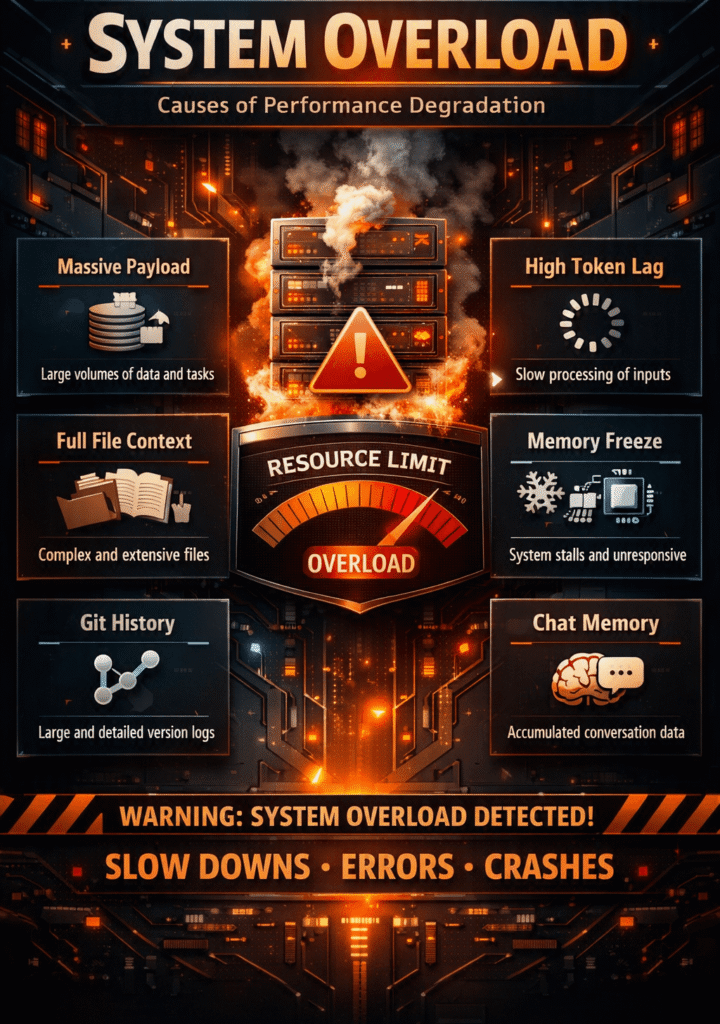
When prompt size approaches maximum model capacity, response latency increases dramatically. Furthermore, the system spends valuable compute resources reading historical interactions that no longer serve your active task. Fix AI coding terminal freezes by targeting the underlying memory bottlenecks first.
The Mechanics of Token Processing in Terminals
Every character sent to an LLM converts into sub-word tokens before evaluation. CLI tools continuously resubmit earlier context alongside new user prompts to preserve operational awareness.
Because context accumulates continuously, cost and latency scale upward with every turn. Large context windows also degrade model reasoning capabilities, a phenomenon known as the “lost in the middle” effect.
Key Symptoms of Pending Context Failure
Recognizing early warning signs prevents lost work during crucial coding sessions:
- Progressive Delay: Initial prompts return instantly, but later queries take minutes to start streaming.
- Terminal Stalling: The cursor blinks indefinitely without throwing explicit timeout errors.
- Repetitive Outputs: The agent repeats previous code modifications or ignores recent explicit instructions.
- API Timeout Errors: HTTP 504 or rate-limit warnings appear frequently during simple file edits.
Primary Causes of High Token Lag in CLI Environments
Several hidden factors contribute directly to terminal responsiveness drops. Identifying these core issues helps you apply precise remedies quickly.
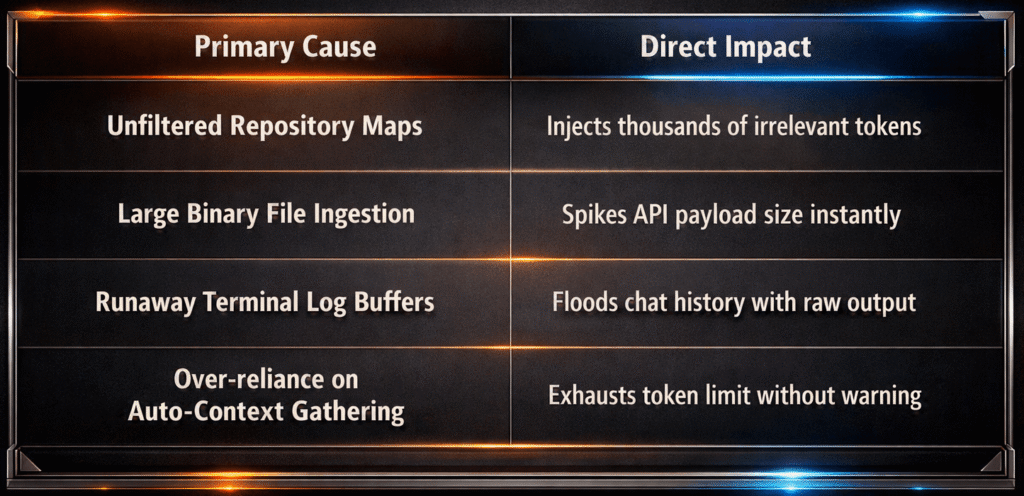
Unfiltered Repository Maps
Many advanced terminal tools scan your git directory to generate structural repository maps. While helpful for broad project understanding, unoptimized tree generation adds thousands of unnecessary tokens to every single query.
⚠️ Warning: Adding root-level dependency directories like node_modules or Python venv folders to your agent’s watch list will instantly crash session performance.
Ingestion of Binary and Generated Files
Accidentally adding compiled binaries, minified JavaScript, or compressed assets floods the token stream with garbage data. Tokenizers process binary strings efficiently, but the sheer volume creates massive processing delays.
Infinite Terminal Output Logs
Running test suites directly through your AI CLI agent often dumps hundreds of lines of stack traces into chat history. Storing verbose logs inside active memory degrades performance faster than adding source code files.
Practical Solutions to Restore Terminal Speed
Fixing performance issues requires combination of tool configuration, prompt discipline, and active memory management. Implementing these adjustments restores lightning-fast execution speeds.
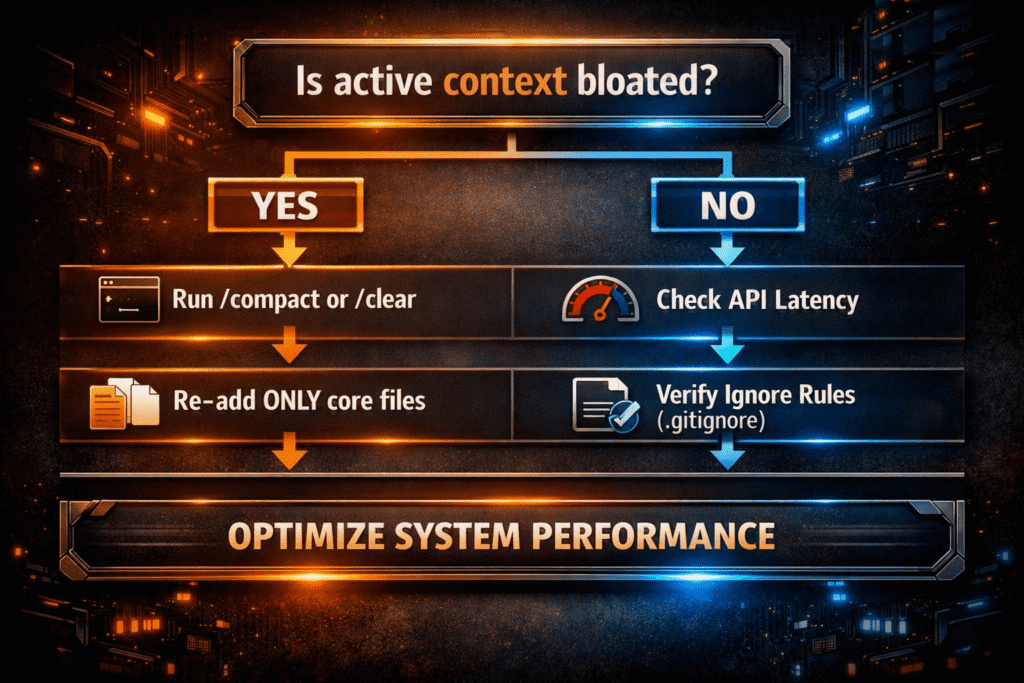
1. Optimize Repository Ignoring and Context Rules
Configure your agent to ignore non-essential files aggressively. Most tools honor standard .gitignore rules, but creating dedicated agent configuration files provides precise control.
Create an explicit ignore file in your project root to exclude bulk data:
- Exclude build artifacts like
dist/,build/, andout/. - Block package manager lock files like
package-lock.jsonoryarn.lock. - Exclude large static media assets and database dumps.
- Hide log files and temporary coverage reports.
Refer to official documentation like the Git Ignore Documentation to structure pattern-matching rules correctly.
2. Implement Strategic Chat Memory Pruning
Instead of keeping single chat session open for days, prune context regularly. Modern CLI frameworks provide built-in commands to manage active history without restarting the application.
💡 Pro-Tip: Run the /compact command in Aider or equivalent terminal tools every 30 minutes to summarize chat history while retaining vital structural decisions.
Use explicit commands to maintain light context footprints:
- Clear History: Use
/clearwhen transitioning from one feature implementation to another. - Drop Unused Files: Use
/dropcommands to remove files you are no longer actively editing. - Summarize Memory: Trigger explicit compaction before launching complex multi-file refactoring passes.
3. Fine-Tune Token Limits and Model Parameters
Adjusting model parameters directly impacts response latency. Lowering maximum response limits prevents agents from generating unnecessarily verbose responses.
Review guidelines on OpenAI API Context Management to better understand how request limits shape streaming speed.
# Example environment settings for optimized CLI agent execution
export AGENT_MAX_INPUT_TOKENS=8000
export AGENT_RESPONSE_LIMIT=2000
export DISABLE_AUTO_REPO_MAP=true
Disabling automatic repository mapping forces the agent to rely only on files you explicitly grant access to. This single change often reduces initial latency by over 60 percent.
4. Direct Manual File Inclusion
Allowing agents to automatically crawl project structures causes unpredictable memory spikes. Selectively feed files into context manually using targeted commands.
- Add only the interface file and the active implementation file.
- Avoid loading entire module folders when fixing single function errors.
- Provide targeted compiler error lines instead of full build logs.
Explore the Aider AI CLI Documentation for deeper insights into manual file scoping techniques.
5. Utilize Local Caching Proxies and Model Routing
Routing queries through local API proxies enables aggressive response caching and prompt truncation. Tools like LiteLLM allow developers to control payload sizes before requests leave local machines.
Check out the LiteLLM Proxy Framework to set up local token management, cost tracking, and automatic payload trimming.
Furthermore, switching to smaller, faster models for simple edits saves high-capacity context windows for architecture planning. Use lightweight models for test generation and reserve heavy flagship models for complex algorithms.
Consult the Anthropic Claude Context Guide to learn best practices for structuring large prompt payloads efficiently.
Advanced Maintenance Workflow for Developers
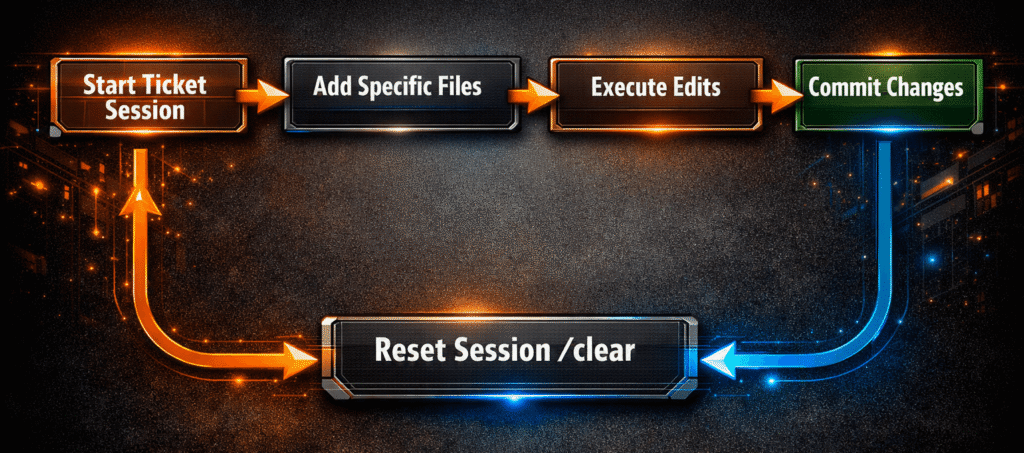
Maintaining fast terminal AI responses requires daily operational hygiene. Follow this simple workflow during long development sessions:
- Start Clean: Open dedicated CLI agent sessions for individual git branches or specific tickets.
- Scrape Noise: Clean project directories before launching interactive prompts.
- Monitor Usage: Track cumulative token consumption throughout active coding sessions.
- Commit Often: Save working code states using git before asking agents to execute broad changes.
- Reset Context: Terminate and restart the CLI session as soon as major milestones complete.
Final Thoughts
Managing LLM token management inside command-line tools is crucial for modern developer productivity. Context freezing and response lag are not inevitable limits, but rather manageability issues with straightforward solutions. By refining ignore rules, managing file inclusion manually, and summarizing session memory regularly, you eliminate processing bottlenecks completely. Implement these token optimization steps today to restore instant streaming speeds and maximize software output.
What Are Your Thoughts?
Have you encountered severe terminal freezing while using CLI AI agents on your codebase? What techniques do you use to keep your context window lean and fast? Let us know in the comments below, share this guide with your developer team, and subscribe to technicalforum.org for more deep-dive IT guides!