Why Is Your PLDT Internet Slow or Not Working?
Nothing disrupts your day faster than a slow or unreliable internet connection. You’re attending a Zoom meeting when your connection suddenly drops. Perhaps Netflix keeps buffering, or websites take forever to load. Worse, your laptop displays “Connected, No Internet,” even though your Wi-Fi signal looks perfectly normal.
If your PLDT internet is slow, don’t immediately assume your internet service provider has a network problem. Your modem, Wi-Fi coverage, connected devices, or background downloads could be responsible. Sometimes, one laptop experiences connection problems while every other device works perfectly. That usually points toward a device-specific issue rather than a complete PLDT outage.
On the other hand, PLDT no internet problems can result from damaged fiber cables or service interruptions. A blinking red LOS light often indicates an optical signal problem. Meanwhile, normal modem indicators with slow browsing might suggest wireless interference or network congestion. Understanding these differences helps you troubleshoot the correct problem.
As an IT consultant, I recommend checking the simplest possible causes before changing advanced router settings. Many connectivity problems can be isolated through basic equipment checks and controlled internet speed tests. More importantly, these checks help identify whether the problem originates inside your home or within PLDT’s network.
This PLDT troubleshooting guide covers eight practical ways to diagnose slow speeds, connection drops, and complete internet loss. You’ll learn what your modem indicators mean and how to test your connection correctly. We’ll also discuss when you should contact PLDT instead of attempting further repairs.
1. Check If PLDT Is Experiencing a Network Outage in Your Area
Before restarting your modem repeatedly, check whether PLDT is experiencing a service interruption. Network outages can affect individual streets, subdivisions, barangays, or entire service areas. Common causes include fiber cable damage, equipment failures, and scheduled network maintenance. If the problem originates outside your home, changing your router settings won’t restore service.
Check Official PLDT Service Announcements
Start by visiting the official PLDT Home Support website using your smartphone’s mobile data connection. Look for service advisories, troubleshooting options, or available outage-checking tools. PLDT also provides account-based support for subscribers experiencing service interruptions. These official channels offer a more reliable starting point than random social media posts.
You can also use the PLDT Tracker to check your service status. The service helps subscribers determine whether their accounts belong to an affected area. It also provides repair-ticket tracking for existing technical reports. You’ll typically need your landline number with its area code.
Follow these steps:
- Disable Wi-Fi on your smartphone and enable mobile data.
- Open the official PLDT Home Support website.
- Select the service interruption or repair-tracking option.
- Enter the required account or telephone details.
- Review any available service advisory or ticket status.
- Contact PLDT Cares if the tracking service cannot confirm your connection status.
Ask Nearby PLDT Subscribers
Another useful approach involves checking with neighbors who also use PLDT Fibr. If several households lose connectivity simultaneously, a shared network problem becomes more likely. However, nearby homes may connect through different distribution ports or equipment. Therefore, one working connection doesn’t automatically rule out a localized outage.
Also, test at least two devices inside your home. If every device loses internet access, examine the modem indicators next. Conversely, if only one laptop has problems, investigate its network settings. This quick comparison can prevent hours of unnecessary troubleshooting.
💡 Pro-Tip: Don’t rely entirely on user-generated outage reports. These reports can reveal possible service disruptions, but they cannot verify your specific connection status. Always confirm suspected outages through PLDT’s official channels.
2. Restart Your PLDT Modem and Router Properly
Restarting your modem sounds basic, but it remains an important troubleshooting step. Home networking equipment often operates continuously for weeks without interruption. Occasionally, temporary software faults or stalled network processes can affect connectivity. A controlled restart allows the equipment to initialize its connections again.
However, restarting won’t repair damaged fiber cables or resolve an area-wide outage. It primarily helps eliminate temporary equipment and connection problems. The key is following a proper power-cycle procedure rather than repeatedly switching the modem on and off.
How to Power Cycle Your PLDT Modem
PLDT’s official Home Internet Troubleshooting Guide recommends turning off the modem for five minutes. After restarting, allow time for the connection to synchronize. This procedure helps distinguish temporary equipment problems from persistent connectivity failures.
Follow these steps:
- Save your work and pause active downloads.
- Locate your PLDT modem or optical network terminal (ONT).
- Switch off the modem using its power button.
- Disconnect the power adapter if necessary.
- Leave the equipment powered off for approximately five minutes.
- Reconnect the power adapter and switch the modem back on.
- Wait several minutes for the connection to initialize.
- Check the modem indicators before testing your internet connection.
If you use a separate router or mesh system, restart that equipment after the PLDT modem reconnects. Power on the modem first and allow its connection to stabilize. Then restart your additional networking equipment. Finally, reconnect your devices and test several websites.
Restarting Is Different From Factory Resetting
Never press your modem’s factory Reset button unless PLDT specifically instructs you to do so. That small recessed button usually restores the equipment’s default configuration. Depending on the model, this action can erase customized Wi-Fi settings and other network configurations. Some installations might require additional support to restore service.
A normal restart simply turns the modem off and back on. It generally preserves your Wi-Fi password and existing settings. Meanwhile, a factory reset can remove configurations your household depends on. For everyday connection problems, always try a controlled restart first.
If the problem continues, examine your modem’s indicator lights. These indicators often reveal whether the next troubleshooting step should focus on Wi-Fi or the fiber connection.
3. Check Your PLDT Modem Lights: LOS, PON, Internet, and WLAN
Your PLDT modem’s indicator lights provide useful clues about connection problems. Instead of guessing why the internet stopped working, examine the lights on the equipment. Most PLDT fiber modems include indicators for electrical power, optical connectivity, Ethernet, and wireless networking. However, labels and expected behavior vary between manufacturers and models.
Here’s a quick reference for common PLDT fiber modem indicators:
| Indicator | Typical behavior | Possible problem |
|---|---|---|
| POWER | Steady green | No light may indicate a power problem |
| PON | Steady green | Off or prolonged blinking may indicate registration issues |
| LOS | Normally off | Blinking or steady red may indicate optical signal loss |
| INTERNET | Steady or blinking, depending on model | Inactive status may indicate an internet connection problem |
| WLAN / Wi-Fi | Steady or blinking | Off may indicate disabled wireless service |
| LAN | Illuminates or blinks during Ethernet connectivity | Off may indicate no physical Ethernet link |
These are common indicator patterns, not universal standards. Always consult your modem’s documentation when its behavior differs.
POWER Light: Is Your Modem Receiving Electricity?
The POWER indicator normally remains illuminated while your modem receives electricity. If the light stays off, check the power adapter and electrical outlet. Make sure the adapter connects securely to the modem’s power socket. You can also test another working outlet before suspecting hardware failure.
Avoid using an incompatible replacement adapter. Incorrect voltage, polarity, or electrical specifications can damage networking equipment. If the original adapter appears defective, contact PLDT for appropriate replacement guidance.
LOS Light: Why Is Your PLDT Modem Blinking Red?
The LOS (Loss of Signal) indicator helps identify problems involving the incoming optical signal. On many PLDT fiber modems, this light normally stays off when optical connectivity is healthy. A blinking or steady red LOS light can indicate that the modem cannot detect an acceptable optical signal. This condition frequently requires investigation of the fiber connection or upstream infrastructure.
Common causes of a PLDT LOS red light include:
- Damaged or sharply bent fiber-optic cables.
- Disconnected or improperly seated fiber connections.
- Problems affecting neighborhood fiber distribution equipment.
- Upstream optical network failures.
- Service interruptions involving PLDT infrastructure.
Start by visually inspecting the thin fiber cable entering your modem. Look for obvious cuts, crushing, severe bends, or accidental disconnection. However, don’t pull the connector or open fiber termination equipment. Never look directly into an exposed fiber connector because invisible optical emissions can harm your eyes.
If the LOS light remains red after a proper restart, contact PLDT support. Explain that your modem reports an optical signal problem. This information helps support personnel investigate potential line-related faults. Qualified technicians should handle fiber cable repairs.
PON Light: Is Your Modem Connected to PLDT’s Fiber Network?
The PON (Passive Optical Network) indicator provides information about the modem’s optical network registration. On many PLDT fiber modems, a steady green PON light indicates successful registration. If the light remains off or keeps blinking, registration may be incomplete. Exact behavior depends on your ONT model.
Always check the PON and LOS lights together. A steady PON indicator with LOS off generally suggests an established optical connection. However, this doesn’t guarantee functioning internet access, correct routing, or account authorization. Additional tests may still be necessary.
Avoid changing advanced optical or WAN configuration settings when the PON indicator behaves abnormally. PLDT may manage these settings through its provisioning system. Instead, record the indicator behavior and report it to support.
INTERNET Light: Is Your Connection Active?
Some PLDT modem models include an INTERNET or INT indicator. This light typically reflects the state or activity of the internet-facing connection. Depending on the equipment, it may remain steady or blink during normal operation. Other modem models don’t include a dedicated internet indicator.
If this light remains inactive, investigate the connection alongside your PON and LOS indicators. However, don’t assume the modem has failed based on one light alone. Combine the indicator status with actual browsing and Ethernet tests.
WLAN and LAN Lights: Is Your Home Network Working?
The WLAN indicator reflects wireless networking activity on compatible modem models. A steady or blinking light commonly indicates that Wi-Fi is enabled or transmitting data. If the indicator remains off, wireless functionality might be disabled. Some routers provide separate lights for 2.4 GHz and 5 GHz connections.
Meanwhile, LAN indicators reflect Ethernet connections and activity. When you connect a working computer through Ethernet, the corresponding port indicator should typically activate. If it remains off, inspect the cable, Ethernet port, and network adapter. A faulty cable can create symptoms resembling an internet outage.
💡 Pro-Tip: Photograph your modem indicators while the connection problem occurs. This provides useful evidence when reporting intermittent or persistent connectivity issues.
4. Test Your PLDT Internet Speed and Compare It With Your Plan
Sometimes, your internet works, but everything feels unusually slow. YouTube videos buffer, downloads crawl, and online meetings become unstable. Before blaming PLDT’s network, measure your actual connection speed under controlled conditions. A proper speed test helps determine whether your connection performs reasonably against your subscribed plan.
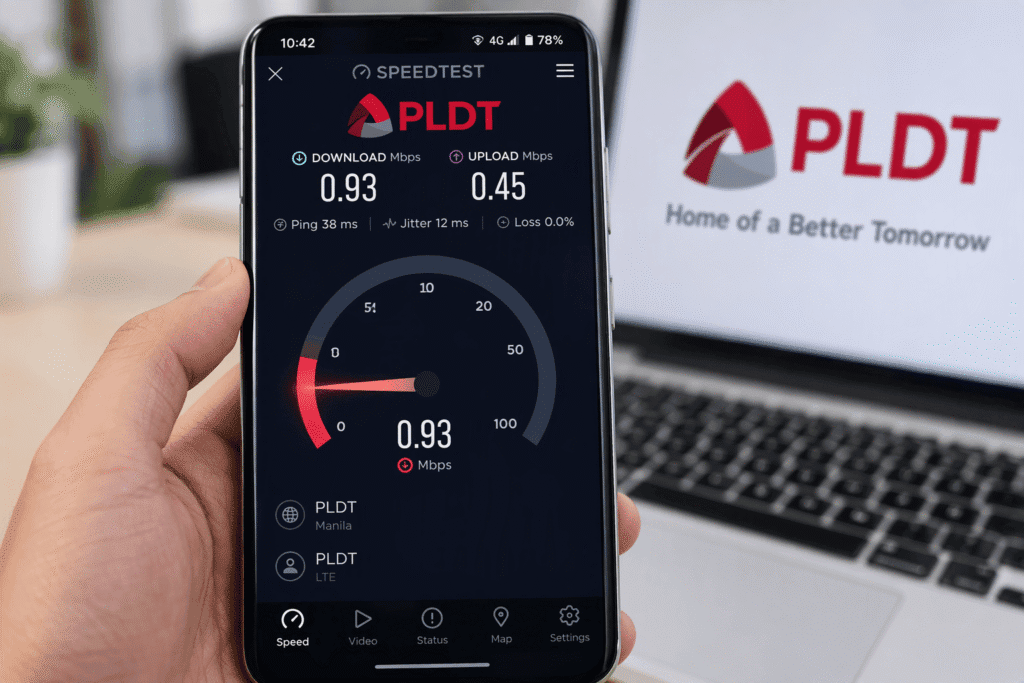
However, speed-test results depend on the testing method, device capabilities, and network conditions. Testing through weak Wi-Fi can produce misleading measurements. Therefore, start with a direct Ethernet connection whenever possible.
Run a Reliable PLDT Internet Speed Test
You can use Speedtest by Ookla to measure download speed, upload speed, and latency. For more reliable results, connect a computer directly to your modem through Ethernet. Use a Gigabit Ethernet adapter and suitable cable when testing plans above 100 Mbps. Also, pause unnecessary downloads and streaming activity.
Follow these steps:
- Connect your laptop or desktop to an appropriate LAN port.
- Disable Wi-Fi to ensure the test uses Ethernet.
- Pause cloud backups, downloads, and streaming applications.
- Open Speedtest.net in your browser.
- Select a nearby PLDT test server when available.
- Run the test and record its results.
- Repeat the test several times to check consistency.
Next, run another test through Wi-Fi using the same computer. Compare the wired and wireless results under similar conditions. If Ethernet performs substantially better, investigate wireless coverage or interference. If both perform poorly, investigate the modem, plan, and PLDT connection.
Understand Download Speed, Upload Speed, and Latency
Internet speed tests measure several important performance indicators. Each measurement describes a different part of your connection. Understanding them helps explain why certain applications struggle while others work normally.
- Download speed (Mbps): Measures how quickly your device receives data. It affects downloads, browsing, and video streaming.
- Upload speed (Mbps): Measures how quickly your device sends data. It matters during video conferences, cloud backups, and file uploads.
- Latency (ms): Measures round-trip delay between your device and a server. Lower latency generally improves responsiveness.
- Jitter: Describes variations in latency. High jitter can affect video calls and other real-time activities.
- Packet loss: Occurs when network packets fail to reach their destination. Excessive packet loss can cause delays, interruptions, and retransmissions.
For example, excellent download speeds don’t always guarantee smooth Zoom meetings. Poor upload performance, high jitter, or packet loss can disrupt real-time communication. That’s why speed alone doesn’t describe your connection’s overall reliability.
Compare Your Actual Speed With Your PLDT Plan
Check the advertised speed associated with your current PLDT subscription. Review your plan details through your account or billing information. Remember that advertised speeds aren’t necessarily constant guaranteed measurements. Actual throughput can vary because of network overhead, equipment limitations, and traffic conditions.
Consider a hypothetical household subscribed to a 300 Mbps internet plan. A compatible Gigabit Ethernet connection can support testing above 100 Mbps. However, an older 100 Mbps Ethernet port cannot deliver the plan’s full speed. The hardware creates a bottleneck before the test can measure the available broadband capacity.
Wi-Fi capabilities can create similar limitations. Older wireless adapters may struggle to deliver high throughput, especially over longer distances. Therefore, weak wireless results don’t automatically prove that PLDT provides insufficient bandwidth.
What If Your PLDT Internet Speed Is Much Lower Than Expected?
Suppose your 300 Mbps plan consistently delivers only 20 Mbps through Ethernet. That difference deserves investigation, especially when other network activity remains minimal. First, verify your Ethernet link speed and cable condition. Then repeat the test using another compatible device.
Document these details:
- Your subscribed PLDT plan.
- Download and upload speed results.
- Test dates and times.
- Whether you used Ethernet or Wi-Fi.
- Your modem indicator status.
- Any recurring disconnections or unusual latency.
Run tests during different periods, including morning and evening. Significant differences between peak and off-peak periods may suggest network congestion. However, additional testing is necessary to identify the actual cause.
If repeated wired tests show consistently poor performance, contact PLDT with your measurements. Accurate results give support personnel a better starting point than general complaints about slow browsing.
5. Fix Slow PLDT Wi-Fi by Improving Router Placement and Signal Strength
Sometimes, your PLDT internet connection works properly, but Wi-Fi performs poorly inside certain rooms. Your smartphone might show excellent speeds near the modem yet struggle inside your bedroom. This usually indicates a wireless coverage problem rather than insufficient broadband capacity. Before upgrading your plan, check how your home distributes its Wi-Fi signal.
Wi-Fi performance depends heavily on distance, obstacles, and interference. Concrete walls, metal cabinets, and electrical equipment can weaken wireless signals. Even the router’s position can significantly affect coverage. Fortunately, a few practical adjustments may improve performance without additional monthly expenses.
Place Your PLDT Router in the Right Location
Router placement remains one of the most overlooked causes of slow home Wi-Fi. Many households keep their modems behind televisions or inside cabinets. Unfortunately, these locations can restrict signal propagation and reduce wireless performance. Moving the equipment to a better position can improve coverage.
According to TP-Link’s router placement recommendations, central positioning and reduced physical interference can improve household Wi-Fi coverage.
Consider these adjustments:
- Choose a central location: Place the router near the middle of your home when possible.
- Elevate the router: Use an open shelf rather than the floor.
- Avoid thick obstacles: Keep it away from concrete walls and metal cabinets.
- Reduce interference: Maintain distance from microwave ovens and other potential interference sources.
- Keep ventilation clear: Avoid covering the equipment or placing it inside enclosed furniture.
However, don’t relocate your PLDT fiber modem by pulling its optical cable. Excessive bending, crushing, or tension can damage fiber connections. If the installation limits your modem’s location, consider adding a separate wireless access point.
Understand 2.4 GHz and 5 GHz Wi-Fi
Many modern PLDT home routers support both 2.4 GHz and 5 GHz wireless frequencies. Each band provides different advantages depending on your device and home layout. Choosing the appropriate band can improve connection quality. However, the fastest option isn’t always the most reliable.
2.4 GHz Wi-Fi generally provides broader coverage and better obstacle penetration. However, this band often experiences more interference from neighboring networks and household devices. Consequently, performance may decline in crowded environments.
Meanwhile, 5 GHz Wi-Fi generally supports higher wireless throughput under suitable conditions. It works particularly well when your device stays relatively close to the router. However, walls and distance can weaken its signal more quickly.
For everyday home use:
- Choose 2.4 GHz for distant rooms and compatible smart-home devices.
- Choose 5 GHz for nearby laptops, streaming, and large downloads.
- Test both frequencies before deciding which performs better.
- Remember that some older devices support only 2.4 GHz.
Some PLDT routers combine both frequencies under one network name. Others broadcast separate names for each band. Your available settings depend on the modem model.
Consider Mesh Wi-Fi or a Wired Access Point
If your home has multiple floors or thick concrete walls, router placement might not solve everything. A single router cannot guarantee consistent coverage across every room. Additional networking equipment may improve wireless coverage.
A mesh Wi-Fi system uses multiple nodes to extend your wireless network. Compatible systems coordinate connections as you move around the house. However, weak wireless connections between nodes can reduce throughput. Ethernet backhaul generally provides more consistent performance when supported.

Alternatively, install a wired wireless access point in the area needing better coverage. Connect it to your main router using Ethernet. This creates additional wireless coverage without depending on a weak wireless backhaul connection.
Before purchasing equipment, compare speeds near your modem and inside problem areas. If nearby speeds are good, focus on wireless coverage rather than upgrading your PLDT subscription.
6. Troubleshoot PLDT Wi-Fi Connected but No Internet
Seeing “Connected, No Internet” on your computer can be confusing. Your device recognizes the wireless network, but websites refuse to load. This happens because connecting to Wi-Fi and reaching the internet involve different network processes. A successful wireless connection doesn’t guarantee working internet access.
Your device needs valid network settings and a functioning route to the internet. Problems involving DHCP, DNS, routing, or PLDT’s upstream service can interrupt connectivity. Therefore, troubleshooting should identify where communication fails.
Microsoft’s official Windows Wi-Fi troubleshooting guide provides additional diagnostic procedures for Windows 11.
Check Whether One Device or Every Device Has Problems
Start by connecting another smartphone, laptop, or tablet to your PLDT Wi-Fi. Open several websites and check whether they load normally. If the second device works, investigate the original device’s settings. If every device fails, examine your modem and upstream connection.
Next, connect a computer directly to the modem using Ethernet. This removes Wi-Fi interference from your initial diagnosis. If Ethernet works while wireless devices fail, focus on your router’s Wi-Fi functionality. However, if both connections fail, investigate the modem and PLDT service.
When testing with your smartphone, temporarily disable mobile data. This ensures the phone actually uses PLDT Wi-Fi. Otherwise, mobile data could hide an existing broadband problem.
Forget and Reconnect to Your PLDT Wi-Fi Network
Sometimes, a device retains incorrect or outdated wireless connection settings. Forgetting the network removes its saved connection profile. You can then reconnect using the correct password. This procedure can resolve certain authentication and configuration problems.
On Windows 11:
- Open Settings.
- Select Network & internet.
- Click Wi-Fi.
- Open Manage known networks.
- Find your PLDT wireless network.
- Select Forget.
- Reconnect using your Wi-Fi password.
After reconnecting, test several websites. If the connection still fails, inspect your computer’s IP configuration.
Check Your IP Address and Refresh Network Settings
Windows normally obtains network settings automatically through DHCP. If DHCP fails, Windows might assign an automatic private IPv4 address. Addresses beginning with 169.254 commonly indicate this condition. Such addresses often point toward local configuration or DHCP communication problems.
Open Command Prompt and enter:
ipconfig /allExamine your active network adapter’s IPv4 address, Default Gateway, and DNS Server entries. These values help determine whether your device received usable network settings. Don’t assume every private IP address indicates a problem.
For DHCP-related issues, run these commands separately:
ipconfig /releaseipconfig /renewThe first command releases your current DHCP-assigned IPv4 configuration. The second requests a new configuration from your network’s DHCP server. Your connection may temporarily disconnect during this process.
Avoid these commands on manually configured static-IP connections unless you understand their effects.
Flush the DNS Cache When Websites Won’t Load
Sometimes, the connection works, but your computer cannot resolve website names correctly. DNS (Domain Name System) translates domain names into IP addresses. Cloudflare’s DNS explanation describes how this resolution process works.
Incorrect or outdated DNS cache entries can occasionally cause website-loading problems. However, flushing DNS won’t repair damaged fiber cables or active PLDT outages.
Open Command Prompt and enter:
ipconfig /flushdnsAfterward, reopen your browser and test several websites. If problems continue, investigate your configured DNS servers and router settings.
Changing DNS providers may help with certain resolution problems. However, it won’t increase your physical broadband capacity or repair an optical signal failure.
💡 Pro-Tip: Change one networking setting at a time. Test the connection after each change before proceeding. This makes troubleshooting more reliable and helps identify which adjustment actually resolved the issue.
7. Reduce Network Congestion and Stop Unauthorized Wi-Fi Users
Your PLDT connection might perform well during the morning but slow considerably at night. Sometimes, household activity creates the problem. Multiple devices compete for available bandwidth during streaming, downloads, gaming, and cloud backups. When demand increases, certain applications may experience noticeable delays.
For example, someone might download a large game while another family member attends a video meeting. Meanwhile, smartphones may upload photos or synchronize files in the background. These activities consume bandwidth without drawing much attention. Consequently, everyone may experience slower response times.
Identify Devices Consuming Too Much Bandwidth
Start by checking which household devices actively use your connection. Look for computers downloading updates, televisions streaming high-resolution videos, and gaming consoles downloading large files. Cloud storage applications can also consume substantial upload bandwidth.
Consider these adjustments:
- Pause large downloads during online meetings.
- Schedule game downloads outside busy hours.
- Reduce streaming resolution when bandwidth becomes limited.
- Stop unnecessary cloud backups during important activities.
- Disconnect devices that aren’t currently needed.
After reducing background activity, perform another speed test. Compare the results with your earlier measurements. If performance improves, household congestion likely contributed to the slowdown. However, these tests cannot completely rule out simultaneous ISP-side congestion.
Check Your PLDT Router for Unknown Connected Devices
Unauthorized Wi-Fi connections can consume bandwidth and create security concerns. Someone with your wireless password might connect additional devices without permission. However, unfamiliar device names don’t automatically indicate intruders. Some smartphones use randomized MAC addresses, while other devices display generic names.
Many routers provide a connected-device list within their administration interface. Depending on your modem, this feature might appear under WLAN, LAN, DHCP, or Device Management. Some PLDT-supplied devices restrict access to advanced administration functions.
To review your network:
- Connect a trusted computer to your PLDT network.
- Check your Default Gateway using
ipconfig. - Open the gateway address in your browser.
- Sign in using your authorized administration credentials.
- Locate the connected-device or client list.
- Compare those entries against your household devices.
- Investigate unfamiliar connections before taking action.
Avoid using unauthorized administrator credentials or configuration methods from random websites. Modifying restricted settings can disrupt your service. If your modem doesn’t expose connected-device information, request guidance from PLDT.
Change Your Wi-Fi Password and Improve Security
If you suspect unauthorized access, change your Wi-Fi password. Choose a long, unique password that outsiders cannot easily guess. Avoid birthdays, family names, phone numbers, and predictable combinations. Don’t reuse passwords from email or financial accounts.
Use WPA2-AES or WPA3-Personal when your router and connected devices support them. Avoid outdated WEP and legacy WPA configurations. Disable WPS when unnecessary and when your equipment permits the change.
For additional guidance, review CISA’s home network security recommendations.
Remember that changing your Wi-Fi password disconnects devices using the previous credentials. You’ll need to reconnect your smartphones, laptops, televisions, and smart-home equipment.
Use Quality of Service Settings When Available
Some routers include Quality of Service (QoS) functionality. This feature manages how the router handles competing network traffic. Proper configuration can help protect video-call responsiveness during large downloads.
However, not every PLDT modem exposes QoS settings to subscribers. Some devices provide only limited configuration controls. If you use a separate router, consult its documentation for supported traffic-management options.
Remember that QoS manages available bandwidth. It doesn’t increase your subscribed PLDT internet speed.
8. Contact PLDT Support and Report an Unresolved Internet Problem
Basic troubleshooting can resolve many home networking problems, but some issues require professional assistance. Persistent optical signal failures, damaged fiber cables, and upstream equipment faults need PLDT’s attention. Repeated disconnections may also require network testing or equipment inspection.
Before contacting support, review the troubleshooting steps you’ve already completed. Check your modem indicators, test multiple devices, and document your internet speeds. Also, verify whether PLDT has announced a service interruption affecting your area.
These details help support personnel understand the problem more accurately.
When Should You Contact PLDT?
Consider requesting technical assistance when you encounter these conditions:
- Persistent red LOS light: Your modem continues reporting an optical signal problem.
- Abnormal PON indicator: Your modem cannot establish its expected optical network connection.
- Complete internet loss: Multiple devices cannot access the internet, including through Ethernet.
- Repeated disconnections: Your connection drops frequently despite basic troubleshooting.
- Consistently poor wired speeds: Multiple tests show unusually low throughput.
- Visible fiber damage: Your fiber cable requires professional inspection.
Also, check your account’s billing status before assuming a technical fault. Account restrictions or unresolved billing concerns may affect service availability.
How to Contact PLDT Customer Support
PLDT offers official support options for residential subscribers. The appropriate channel depends on your concern and available communication methods.
You can use:
- PLDT Home Support: Troubleshooting guidance, service concerns, and account assistance.
- PLDT Cares Messenger: Access the official support channel through PLDT Home Support.
- PLDT Hotline 171: Contact customer service through supported telephone services.
- PLDT Tracker: Check repair tickets and account-specific service interruptions.
- PLDTTRACK SMS: Review PLDT’s official instructions for SMS-based tracking.
PLDT’s published SMS guidance provides options for checking service interruptions and repair tickets. However, available channels and procedures may change. Always confirm current instructions through the official PLDT website.
Prepare These Details Before Filing a Repair Ticket
Support personnel can investigate more effectively when you provide specific information. Simply saying “our internet is slow” doesn’t explain the actual behavior. Instead, describe what happens, when it started, and which devices experience the problem.
Prepare the following:
- Your PLDT account or service reference details.
- Your service address and registered contact information.
- The approximate date and time the issue started.
- Your modem’s POWER, PON, LOS, and INTERNET indicator status.
- Your wired and wireless speed-test results.
- The troubleshooting steps you’ve completed.
- Any error messages or recurring disconnection patterns.
Avoid sharing complete account details publicly on social media. Provide sensitive information only through verified support channels. If PLDT creates a repair ticket, save the reference number for future follow-ups.
Track Your PLDT Repair Ticket and Technician Visit
After reporting the issue, ask PLDT for a repair ticket or reference number. This allows you to follow the case without repeatedly explaining the original problem. PLDT’s tracking tools may display repair progress and service interruption information.
If PLDT schedules a technician, confirm the appointment through an official channel. Explain whether the problem involves optical signal loss, unstable connectivity, or poor internet performance. Keep your modem accessible so the technician can inspect the connection safely.
After repairs, test your connection again. Check several websites and run a controlled speed test. If the original problem involved intermittent disconnections, monitor stability before considering the issue fully resolved.
Final Thoughts: Restore Your PLDT Internet Before Calling a Technician
A slow or unreliable PLDT internet connection doesn’t always require an immediate technician visit. Sometimes, restarting the modem or improving router placement resolves the problem. Other times, weak Wi-Fi coverage, background downloads, or incorrect device settings cause the slowdown.
Start by checking for a possible PLDT outage. Next, inspect your modem indicators and restart the equipment properly. Test your connection through Ethernet, then compare the results with your Wi-Fi performance. These checks often reveal whether the problem involves your home network or PLDT’s infrastructure.
If your modem shows a persistent red LOS light, avoid attempting fiber repairs yourself. Likewise, contact PLDT when repeated wired tests show serious performance problems. Provide accurate troubleshooting details and request a repair reference when necessary.
Remember that faster Wi-Fi and faster internet aren’t necessarily the same thing. Improving router placement can strengthen wireless coverage without changing your PLDT plan. Meanwhile, upgrading your subscription won’t automatically eliminate dead spots or interference. Fixing the actual cause usually delivers better results than purchasing unnecessary equipment.
Did these troubleshooting steps fix your PLDT internet problem?
Share your experience in the comments below. Tell us whether you encountered a red LOS light, slow Wi-Fi, frequent disconnections, or complete internet loss. Include the troubleshooting step that worked for you.
If this guide helped, share it with friends and family using PLDT Home Fibr. Your experience might save another subscriber hours of frustration.