
Mac users frequently choose Microsoft 365 for their daily productivity needs. However, a frustrating roadblock known as Microsoft 365 activation error 0x0 can abruptly halt your workflow. This specific error prevents Word, Excel, and Outlook from verifying your paid subscription. Consequently, you are left with read-only documents and an annoying activation prompt.
Fortunately, you can resolve this digital headache without calling IT support. This comprehensive guide will walk you through the exact steps to vanish this error code forever. We will examine why your macOS environment rejects the valid Microsoft credentials. Furthermore, you will learn how to purge corrupt license fragments that trigger the loop. Let us dive in and restore your office suite to full functionality.
Understanding Error 0x0: Why It Happens
To fix the problem effectively, we must first understand the root cause. Error 0x0 typically signals a deep communication breakdown between your Mac and the Microsoft licensing servers. Therefore, your local apps fail to validate the active subscription token.
Several underlying issues trigger this digital miscommunication:
- Corrupt License Files: Old Office credentials from older versions conflict with your new Microsoft 365 license.
- Keychain Access Glitches: The macOS secure storage system fails to release expired encryption keys.
- Network Restrictions: Aggressive firewall settings block the outbound activation requests to validation endpoints.
- Outdated Application Software: An unpatched Office suite cannot parse modern authentication protocols.
When these factors align, the activation process loops endlessly. Consequently, the software defaults to an unlicensed state despite your active payment plan.
Step-by-Step Troubleshooting Framework
Follow these diagnostic steps sequentially to clear the error. We will start with the easiest fixes before moving to advanced system tools.
Step 1: Perform a Clean Sign-Out and Reboot
First, you must break the active loop by completely disconnecting your account. Open any Office application, such as Microsoft Word, and click on the app name in the top menu bar. Next, select the sign-out option and close all running office programs completely.
Open Word -> Click "Word" in Menu Bar -> Select Sign Out -> Restart Mac
After signing out, you must restart your Mac immediately. This action clears temporary system memory caches that hold stubborn licensing data. Once your Mac reboots, open Word again and attempt a fresh sign-in procedure.
Step 2: Clear Corrupt Licensing Files
If the simple reboot fails, you must remove the underlying licensing files manually. Microsoft provides a dedicated tool called the Office License Removal Tool for this exact purpose. This official utility safely script-deletes the cached activation files without touching your personal documents.
Alternatively, you can delete these files manually via the Finder application. Navigate to the Library folder by holding the Option key while clicking the Finder “Go” menu. Inside the Library, open the Group Containers folder and locate the following three specific directories:
UBF8T346G9.msUBF8T346G9.OfficeUBF8T346G9.OfficeOsfWebHost
Move these three folders directly into the Trash basket. Afterward, empty your Trash and launch Excel to initiate the activation process from scratch.
⚠️ Warning: Modifying the system Library folder can disrupt other applications if you delete the wrong directory. Therefore, ensure you only target the specific Microsoft group containers listed above.
Step 3: Repair macOS Keychain Access
The macOS Keychain Access application stores your sensitive login tokens securely. However, corrupted entries can force Microsoft 365 to throw the activation error 0x0 code. You must clear these entries to allow the creation of fresh security certificates.
First, open the Spotlight search bar by pressing Command and Spacebar together. Type “Keychain Access” into the search field and launch the utility utility program. Next, type “Microsoft” into the top-right search box within the Keychain window.
Spotlight Search -> Keychain Access -> Search "Microsoft" -> Delete All Entries
Select all the filtered results, which usually include items like “Microsoft Office Credentials”. Right-click the selected bundle and choose the delete option to wipe them out. Finally, restart your Mac and launch PowerPoint to trigger a clean authentication window.
Network and System Configurations
Sometimes the issue stems from external barriers rather than internal file corruption. Your network architecture might actively prevent the activation wizard from reaching the web.
Step 4: Check Proxy and VPN Settings
Virtual Private Networks (VPNs) frequently alter your digital location and routing protocols. Consequently, the Microsoft security servers might flag your activation request as a suspicious threat. To rule this out, temporarily disable your VPN provider via the Mac menu bar.
Similarly, corporate proxy servers can intercept the SSL certificates required for Office authentication. You can inspect your configuration by opening System Settings and clicking on the Network tab. From there, select your active connection, click Advanced, and open the Proxies menu. Ensure that all proxy toggles are turned off during the initial activation phase.
Step 5: Verify Subscription Status Online
You must confirm that your subscription remains completely valid on the cloud side. Open your preferred web browser and navigate directly to the official Microsoft Account Portal. Sign in using the exact email credentials associated with your Office purchase.
Once inside the dashboard, click on the Services & Subscriptions tab to audit your account status. Ensure your expiry date has not passed unexpectedly due to a failed billing transaction. If your account shows an active status online, the problem resides entirely inside your local macOS configuration.
💡 Pro-Tip: If you obtained your license through an employer or university, verify your access privileges via theMicrosoft 365 Portal. The administrator might have modified your active software assignment.
Advanced Recovery Techniques
When standard methods yield no results, you must deploy advanced recovery strategies. These steps ensure a completely pristine environment for the software deployment.
Step 6: Create a Clean macOS User Profile
A deeply corrupted local user profile can continuously corrupt the Office activation sequence. You can easily test this theory by creating a temporary administrative user account. Open your System Settings app and navigate directly to the Users & Groups panel.
System Settings -> Users & Groups -> Add Account -> Set as Administrator
Click the Add Account button and configure a fresh user profile with administrative privileges. Log out of your primary account and log into this newly created user space. Next, launch Word and check if the activation error 0x0 persists in this pristine environment. If the software activates successfully here, your primary user profile suffers from deep underlying permissions issues.
Step 7: Complete Reinstallation of Office Suite
If all else fails, you must execute a total uninstallation of the Microsoft apps. First, open your Applications folder inside the Finder tool. Select all Microsoft applications, including Word, Excel, PowerPoint, Outlook, and OneNote. Right-click the collection and move the items directly to the Trash.
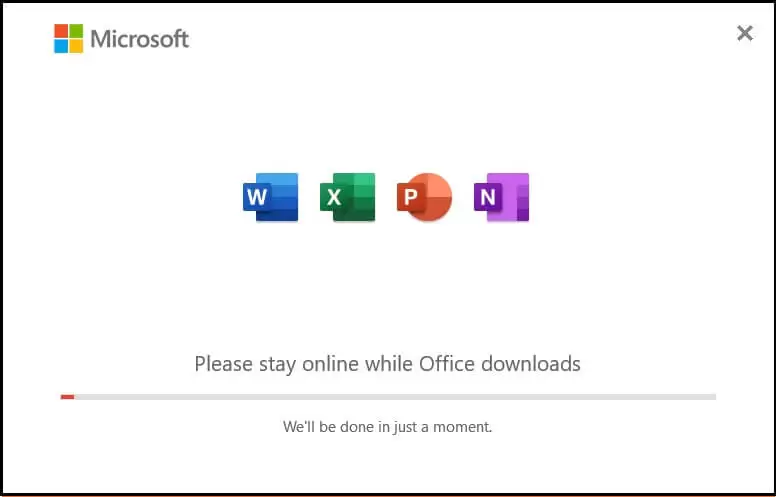
Next, you must remove the residual system files hidden inside your Library. Navigate to the following path to delete the main application support cache:
~/Library/Containers/
Delete all folders starting with com.microsoft from this directory immediately. Afterward, download the latest standalone installation package from the Office Release History Page. Run the fresh installer package and sign in to complete the setup process smoothly.
Final Thoughts & Conclusion
Resolving the Microsoft 365 activation error 0x0 on Mac requires a methodical debugging approach. By clearing out stale license files and repairing the macOS Keychain, you can easily restore your productivity suite. Most users find success by simply utilizing the official license removal tool or wiping the group containers.
Did this guide help you banish the activation error 0x0 loop from your Mac? We want to hear your troubleshooting experiences in the comment section below! Please share this article on your favorite tech forums to help other struggling Mac users today.