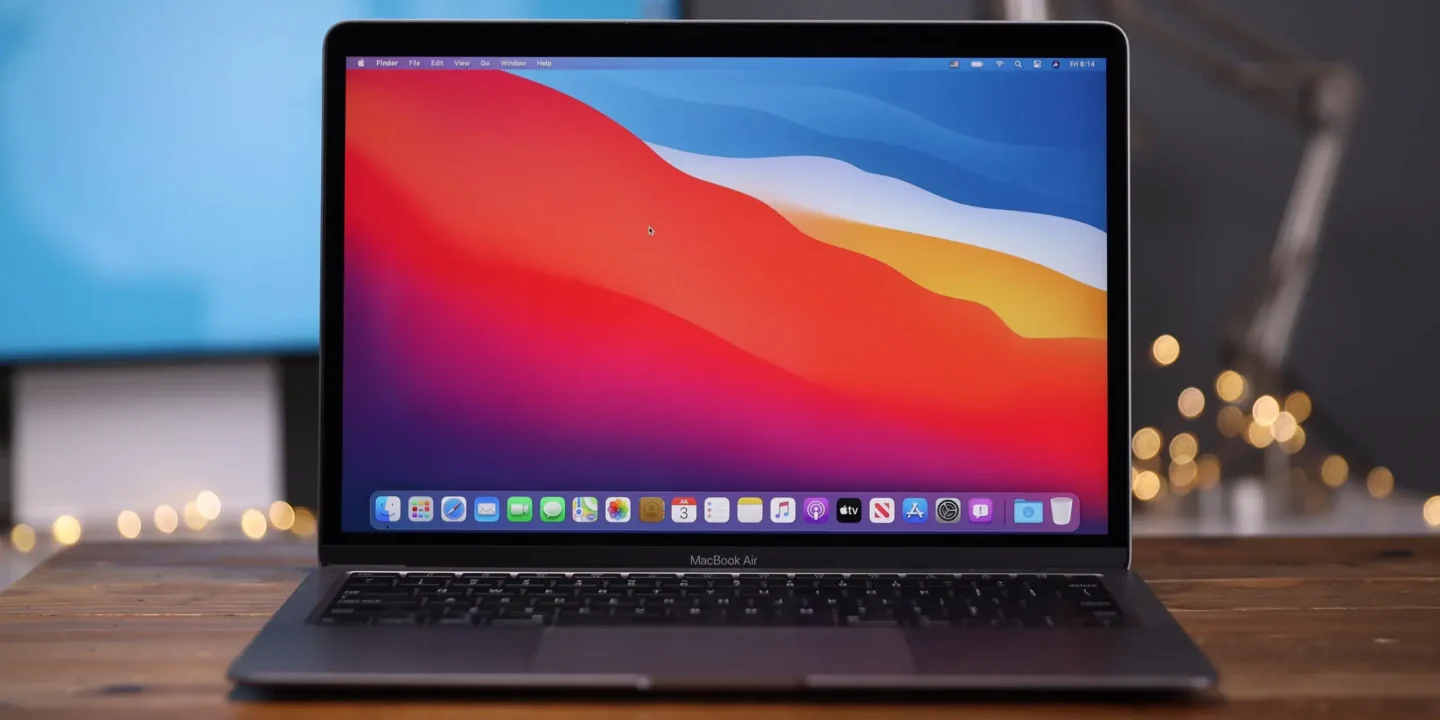
Technology constants include change, evolution, and the unfortunate reality of software deprecation. Recently, a major Microsoft 365 update caused a massive wave of disruptions for Apple users globally. Suddenly, reliable Office apps stop working on machines running an unsupported macOS. Users across the globe opened their laptops only to find themselves locked out of critical work documents.
This sudden shift stems from a mandatory security certificate renewal rolled out by Microsoft. Consequently, older operating systems can no longer validate your software licenses properly. If your Mac runs an obsolete operating system, your apps will enter a restrictive reduced functionality mode. You can still view or print your files, but the software completely blocks editing and saving.
The Root Cause: Expiring Certificates and Forced Upgrades
The entire crisis revolves around digital security infrastructure rather than a random software bug. Microsoft recently updated its cryptographic validation system to secure its cloud ecosystem. However, older versions of Apple operating systems lack the underlying architecture to process these modern certificates. Therefore, the latest suite updates immediately trigger activation failures, frequently displaying a cryptic 0x0 error code on Mac devices.
[Older macOS Platform] ---> [Fails to Verify New Certificate] ---> [Triggers 0x0 Error] ---> [Enters Reduced Functionality Mode]
To maintain an active, editing-enabled subscription, Microsoft now strictly enforces a higher baseline requirement. Specifically, your machine must run macOS Monterey (version 12) or later to successfully execute build 16.83 of the Office suite. Sadly, this leaves owners of older hardware stranded without their core productivity tools.
⚠️ Warning: If you currently rely on Office 2019 for Mac, your software has officially reached its final destination. Microsoft ended support for this perpetual license version back in October 2023, meaning no modern upgrade path exists for this specific software edition.
Step-by-Step Solutions to Restore Your Office Apps
If you face this disruptive block, you can take immediate action to regain control of your workflow. Depending on your specific Mac hardware model, choose one of the proven pathways outlined below.
1.Check Your Current System Specifications:Identify your exact macOS and hardware generation before changing software settings..
Navigate to the top-left corner of your desktop screen. Click the Apple menu icon and select About This Mac. Note your current operating system version and the exact year your computer was manufactured.
2.Attempt an Official Operating System Upgrade:Always upgrade the underlying platform before updating any individual applications..
Open your System Settings app, select General, and click on Software Update. If your Mac natively supports macOS Monterey or a newer release, download and install the operating system upgrade immediately.
3.Update Your Microsoft 365 Applications:Refreshing the app binaries ensures your system receives the latest platform certificates..
Launch an application like Word, click the Help menu at the top, and select Check for Updates. Alternatively, open the Mac App Store, click the Updates tab in the sidebar, and select Update All to pull the modern 16.83 build.
4.Clear Old Activation Data and Re-authenticate:Lingering local license credentials frequently cause persistent 0x0 validation errors..
Close all productivity programs completely. Download the official Microsoft Office License Removal Tool to scrub old tokens, restart your computer, relaunch Word, and log back into your primary account.
Alternative Solutions for Vintage Mac Hardware
Many users own perfectly functional Intel-based Macs that Apple officially cut off from modern OS upgrades. If your vintage machine cannot natively transition past macOS Big Sur or Catalina, you still possess viable workarounds.
Shift to the Browser-Based Web Ecosystem
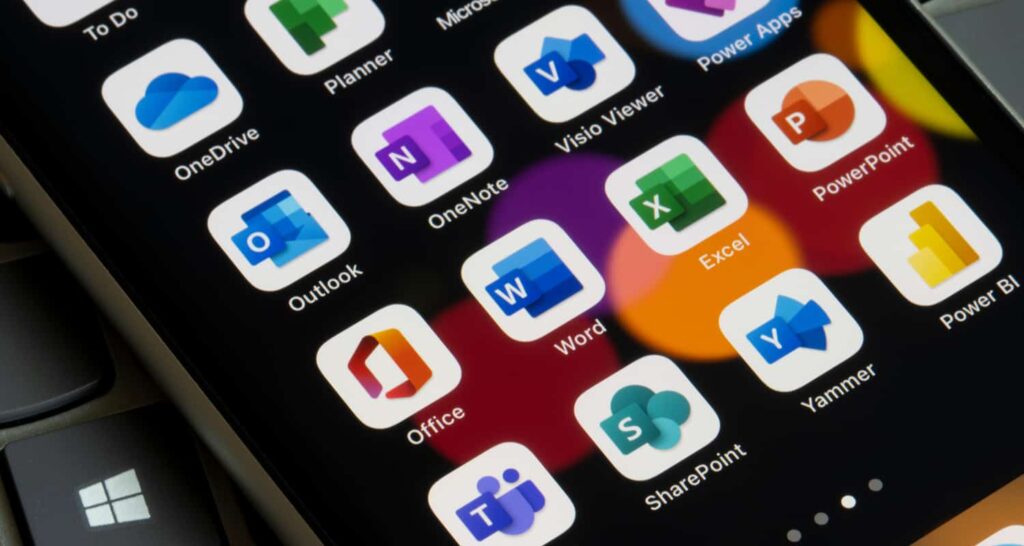
First, you can easily pivot to the cloud-based iteration of the platform. Microsoft offers its entire core lineup completely free of charge inside any standard internet browser. Simply visit the official portal at Microsoft 365 on the Web and log in with your normal credentials. The online web apps effortlessly open, edit, and save files directly to your cloud storage space.
Deploy Open-Source Community Tools
Second, tech-savvy users can bypass Apple’s hardware restrictions entirely by utilizing third-party open-source patchers. The community-driven OpenCore Legacy Patcher (OCLP) project allows vintage computers to install modern versions of macOS. By safely installing an updated operating system via OCLP, your older machine can easily run the latest update Microsoft 365 packages natively.
[Vintage Mac] ---> [Install OpenCore Legacy Patcher] ---> [Boot macOS Monterey+] ---> [Run Updated Office Apps]
💡 Pro-Tip: If you decide to remain on an unsupported operating system permanently, open the Microsoft AutoUpdate utility and uncheck the box labeled “Automatically keep Microsoft apps up to date”. This critical adjustment prevents the system from automatically installing software versions that your machine cannot validate.
Final Thoughts
Encountering a sudden block on your daily production apps can feel incredibly frustrating, especially when your computer hardware still works flawlessly. However, software ecosystems must continually march forward to defend against evolving global security threats. By identifying your system specifications, executing platform upgrades, or utilizing the cloud interface, you can quickly minimize downtime and restore your editing capabilities.
Are your productivity apps currently locked up in a frustrating reduced functionality mode? Did an official software update or a third-party community patcher solve the problem for your workflow? Let us know down in the comments section below, share this quick guide with your colleagues, and join our active technical community discussion!