
Missing email can interrupt client work, delay approvals, and leave important conversations unanswered. However, an empty Inbox does not always mean Outlook failed to receive a message. Storage restrictions, hidden rules, filtering, and synchronization problems can produce similar symptoms.
The most effective approach starts with one question: Did the message reach your online mailbox? Answer that first, then follow the appropriate troubleshooting steps. This guide covers personal Outlook.com accounts and Microsoft 365 work mailboxes across webmail, New Outlook, and Classic Outlook.
Start With the Outlook on the Web Test
Open a browser and sign in directly to your mailbox:
- Personal Outlook.com, Hotmail, or Live accounts: Enter
outlook.live.com. - Microsoft 365 work or school accounts: Enter
outlook.office.com. - Company-hosted Exchange: Use your organization’s supplied webmail address.
Confirm you selected the correct account, especially when you manage several mailboxes. Send a fresh test message from a separate external account. Use a unique subject and record when you sent it.
Check your Inbox, then search other folders for that subject. Interpret the result carefully:
- The message appears online: Investigate the affected desktop or mobile app.
- The message is missing online too: Check storage, rules, forwarding, and mail delivery.
- Webmail will not open: Try a private browser window and another connection before assuming an outage.
Opening an old message does not prove current delivery works. Always use a fresh test message. Microsoft’s guidance for Outlook.com sending and receiving problems provides additional account-specific checks.
Check Microsoft Service Health
Before changing Outlook settings, check whether Microsoft reports a relevant incident. Microsoft 365 administrators should open Admin center → Health → Service health → Exchange Online.
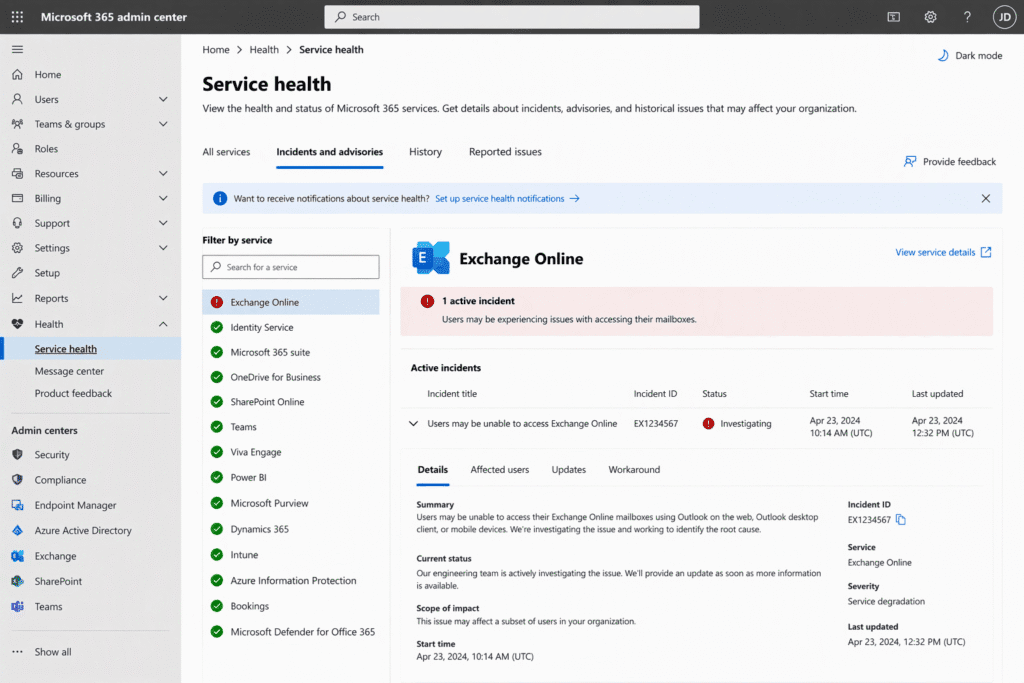
Tenant-specific advisories may reveal problems absent from the public dashboard. If several colleagues experience the same symptoms, investigate service availability and organizational mail flow early. Record any incident reference and follow its updates.
Quick Inbox & Storage Checks
Check Focused, Other, and Junk Email
Outlook may have received the message but displayed it outside your usual view. Check Focused, Other, Junk Email, Deleted Items, and Archive before attempting repairs.
The Focused and Other tabs organize the same Inbox. They do not represent separate mailboxes.
To correct misplaced messages:
- Open Other and locate the message.
- Right-click it and select Move to Focused, where available.
- Choose Always Move to Focused if future messages from that sender belong there.
In Classic Outlook, View → Show Focused Inbox toggles the feature. In webmail and New Outlook, look under Settings → Mail → Message list or Layout, depending on your interface.
For legitimate messages in Junk Email, select Not junk or Report → Not junk. Verify the sender before opening links or attachments.
Review Blocked Senders and Safe Senders
A mistaken blocked-sender entry can repeatedly move legitimate messages into Junk. Review both individual addresses and blocked domains.
Use the appropriate path:
- Web/New Outlook: Settings → Mail → Junk email.
- Classic Outlook: Home → Junk/Block → Junk E-mail Options.
Remove incorrect entries from Blocked Senders. Add verified addresses to Safe Senders when necessary, then send another test.
Safe Senders settings do not override every organizational security control. Work messages may still require an administrator to investigate quarantine or mail-flow policies.
Check Both Personal Storage Meters
For personal Outlook.com accounts, open Settings → Accounts → Storage. Some layouts show Settings → General → Storage instead.
Inspect both Email storage and Microsoft storage. Your mailbox has its own quota, while personal Microsoft cloud storage includes OneDrive files and Outlook.com attachments. Microsoft explains these allocations in its guide to how Microsoft cloud storage works.
⚠️ Warning: For personal Outlook.com accounts, Microsoft’s unified cloud storage policy links cloud capacity to email availability. When OneDrive/Microsoft cloud storage or mailbox storage becomes full and triggers an over-quota restriction, Outlook.com stops receiving incoming email. Messages rejected during this period bounce back to their senders. They cannot be recovered from your mailbox after you free space because they were never delivered. Senders must resend them. support.microsoft.com
Preserve important content before removing unnecessary large messages or files. Empty the relevant deleted-item locations to reclaim capacity.
Moving messages into Archive within the same mailbox does not reduce total mailbox usage. Similarly, moving attachments into the same full OneDrive allocation does not solve cloud capacity.
Distinguish Work Mailbox Quotas
OneDrive for Business and Exchange Online mailbox quotas are separate. A full business OneDrive does not automatically block incoming Exchange email.
For work accounts, check mailbox storage in webmail or ask IT to review it. Administrators can inspect Exchange admin center → Recipients → Mailboxes → select mailbox → Mailbox usage.
The administrator should verify actual usage, licensing, and receive-prohibition limits. Avoid assuming every Microsoft 365 subscription provides the same mailbox capacity.
Hidden Rules & Forwarding Audits
Inspect Rules That Move or Delete Messages
Inbox Rules can quietly move messages before you notice them. Server-side rules continue operating even when desktop Outlook is closed.
Review rules through these paths:
- Web/New Outlook: Settings → Mail → Rules.
- Classic Outlook: File → Manage Rules & Alerts → E-mail Rules.
Inspect each rule’s conditions and actions. Pay particular attention to Move, Delete, Forward, and Redirect.
Check destination folders, exceptions, rule order, and Stop processing more rules. Also review Sweep settings if you use them.
Document questionable settings, disable the affected rule, and send a fresh test. Disabling a rule does not restore messages it previously moved or deleted.
⚠️ Warning: Unexpected Inbox Rules moving messages into RSS Feeds or Deleted Items, or unknown forwarding addresses, are classic indicators of account compromise. Reset your password immediately through Microsoft’s official account portal. Check that multifactor authentication (MFA) is enabled and its registered methods belong to you. Work users should notify IT immediately. Review recent sign-ins and revoke unfamiliar sessions. learn.microsoft.com
Check Automatic Forwarding
Open Settings → Mail → Forwarding in webmail or New Outlook. Some accounts display Forwarding and IMAP instead.
Verify the forwarding destination and Keep a copy of forwarded messages setting. Disable unauthorized forwarding, save the change, and inspect Inbox Rules again.
Forwarding can exist in either location. Microsoft’s instructions for turning automatic forwarding on or off explain the available controls.
For work accounts, ask the administrator to check mailbox-level forwarding too. User-visible rules do not expose every possible redirection setting.
Reset Filters and Message Sorting
A filtered message list can make delivered messages appear missing. Clear the search box before checking your Inbox again.
In webmail or New Outlook:
- Select Filter → All.
- Sort by Date, with newest messages first.
- Expand conversations that might contain the expected message.
In Classic Outlook:
- Press Esc to leave an active search.
- Open View → View Settings → Filter → Clear All.
- If necessary, select View → Reset View.
Reset View removes view customizations, so record important settings first. If search finds the message, inspect its actual folder before diagnosing a delivery failure.
Fixing Outlook Desktop Sync & Connection Issues
If fresh messages arrive online but remain missing from Windows Outlook, concentrate on the local app. Start with connection and authentication checks before rebuilding files.
💡 Pro-Tip: Before reinstalling Office or recreating profiles, check the Microsoft Service Health Status portal. Microsoft 365 administrators should also review tenant-specific Exchange Online advisories. During widespread cloud outages, local repairs cannot restore server-side delivery. Follow incident updates before making disruptive changes.
Turn Off Work Offline in Classic Outlook
Classic Outlook displays connection information along the bottom of its window. Look for Working Offline, Disconnected, or Trying to connect.
Follow these steps:
- Open the Send/Receive tab.
- If Work Offline is highlighted, click it to turn offline mode off.
- Press F9, or select Send/Receive All Folders.
- Open Send/Receive → Show Progress to inspect errors.
The button’s wording stays unchanged; its highlighted state indicates offline mode. A Disconnected status can also indicate authentication, network, or server trouble.
In New Outlook, select View → Sync, or press F9. Its Settings → General → Offline controls local offline availability rather than Classic Outlook’s Work Offline toggle.
Resolve Sign-In and Authentication Prompts
Complete any Sign in, Need Password, or Fix account notification. Password changes and expired sessions can require fresh authentication.
In Classic Outlook, check the status prompt and File → Office Account. In New Outlook, inspect Settings → Accounts → Email accounts → Manage for the affected account.
Complete Microsoft’s interactive sign-in and MFA approval. If authentication repeatedly fails, record the exact error and contact IT.
Do not disable MFA or enable outdated authentication methods as a workaround. Work-account failures may involve Conditional Access, device compliance, or licensing.
Test Classic Outlook in Safe Mode
Faulty COM add-ins can interfere with Outlook’s operation. Safe Mode helps isolate their involvement without immediately removing them.
Close Classic Outlook, press Windows + R, enter outlook.exe /safe, and press Enter. Microsoft documents this procedure in its guide to opening Outlook in Safe Mode.
Send a fresh test message. If synchronization works:
- Open File → Options → Add-ins.
- Select Manage: COM Add-ins → Go.
- Record enabled add-ins, then clear their checkboxes.
- Restart Outlook normally.
- Re-enable add-ins individually and retest.
This command and COM add-in procedure apply to Classic Outlook. New Outlook uses a different extension architecture.
Repair or Reset New Outlook
Close New Outlook before repairing its installation. On Windows 11:
- Open Settings → Apps → Installed apps.
- Find the New Outlook listing.
- Select … → Advanced options → Repair, if available.
- Reopen Outlook and test synchronization.
If Repair fails, consider Reset from the same page. Reset clears local app data and settings, so account setup may be required again.
First verify important messages and drafts exist online. Preserve any unsynchronized content before resetting the app.
For persistent Classic Outlook installation problems, follow Microsoft’s guide to repairing an Office application. Start with Quick Repair, then consider Online Repair if necessary. Office suite repair and New Outlook app repair are separate procedures.
Rebuild a Corrupted Classic Outlook .ost Cache
Classic Outlook caches Exchange mailbox content in an offline data file, usually an .ost. Rebuilding a damaged cache can resolve persistent synchronization failures.
First, verify that webmail contains your expected messages, calendars, and contacts. Preserve unsynchronized drafts, Outbox messages, and local-only content before proceeding.
- Open File → Account Settings → Account Settings → Data Files.
- Select the affected
.ostand choose Open File Location. - Close Outlook completely.
- Rename the file by adding
.oldto its existing filename. - Restart Outlook and allow the mailbox to synchronize again.
Large mailboxes can take considerable time to download. Keep the original file until verification is complete.
Never apply this procedure to .pst archives or POP data files. An .ost is not a backup. This cache-rebuild procedure does not apply to New Outlook.
If problems persist, test a separate Classic Outlook profile while retaining the original. Confirm mailbox content and archive access before removing any previous configuration.
Section 4: Diagnostic Quick-Reference Table
| Symptom | Likely Cause | Immediate Fix |
|---|---|---|
| Emails arrive in webmail but not desktop Outlook | Local connection, authentication, or cache problem | Complete sign-in, reconnect, and press F9 |
| Classic Outlook shows Working Offline | Offline mode enabled | Turn off Send/Receive → Work Offline |
| Sender receives “Mailbox Full” bounce | Mailbox receive quota exceeded | Free capacity; request a resend |
| Outlook.com stops receiving despite available mailbox space | Personal Microsoft cloud storage exceeded | Inspect both storage meters |
| Messages from one specific contact disappear | Junk filtering, blocked sender, rule, or sender-side rejection | Check folders and sender lists; obtain any bounce details |
| Messages move into unexpected folders | Inbox rule or possible compromise | Audit rules and forwarding; secure the account |
| Classic Outlook works only in Safe Mode | COM add-in involvement | Disable and isolate add-ins |
| New Outlook fails while webmail works | Local app state or installation problem | Restart, update, repair, then consider Reset |
| Older messages appear online but not locally | Limited offline synchronization window | Review cache settings before rebuilding |
| Several users fail across webmail and apps | Service incident or organizational mail-flow problem | Check Service Health and escalate to the administrator |
Know When to Escalate
For Microsoft 365 delivery failures, administrators should use Exchange admin center → Mail flow → Message trace. Provide the sender, recipient, timestamp with timezone, and message ID when available.
Ask IT to inspect quarantine if expected messages remain missing. For widespread external delivery failures, investigate mail-flow rules, connectors, and domain configuration.
A trace marked Delivered does not prove a message remains visible in the Inbox. Read its details, then inspect folders, rules, and subsequent mailbox actions.
Prevent the Problem From Returning
A few routine checks reduce repeat incidents:
- Monitor mailbox storage and personal cloud storage separately.
- Review forwarding, Inbox Rules, and blocked senders regularly.
- Keep Outlook, Windows, and necessary add-ins updated.
- Enable MFA and investigate unfamiliar sign-ins.
- Preserve local archives and unsynchronized content before repairs.
- Verify each fix with a fresh external test message.
Conclusion: Diagnose First, Repair Second
Start with webmail to determine whether the problem affects delivery or one app. Then check storage, message placement, rules, and forwarding. Use desktop repairs when the evidence points to a local fault.
Change one thing at a time and verify the result. This approach protects your data and gives IT useful evidence when escalation becomes necessary.
Which Outlook version caused your problem, and did the test message appear online? Share your findings in the comments without posting private account details. Share this guide with someone troubleshooting missing Outlook email.