When you find your Converge internet not working, checking the modem lights can save time and frustration. A Converge no internet problem can originate inside your home or along the provider’s network. Fortunately, a few careful checks can help narrow down the cause.
Your fiber connection depends on an uninterrupted optical path between your home and Converge’s equipment. A damaged drop cable, crushed indoor patch cord, or faulty connection can interrupt that path. Meanwhile, equipment failures, local node problems, or regional outages can disconnect several households simultaneously.
The device commonly called your “fiber modem” is an optical network unit (ONU) or optical network terminal (ONT). Huawei, ZTE, and FiberHome models may also provide routing and Wi-Fi. Consequently, your phone can remain connected to Wi-Fi even when the fiber connection fails.
Start with the indicators, then inspect the accessible hardware. Afterward, test your computer and compare wired access with Wi-Fi. This sequence helps distinguish problems you can address from faults requiring Converge’s technicians.
Phase 1: Read Your Fiber Modem’s LED Status Indicators
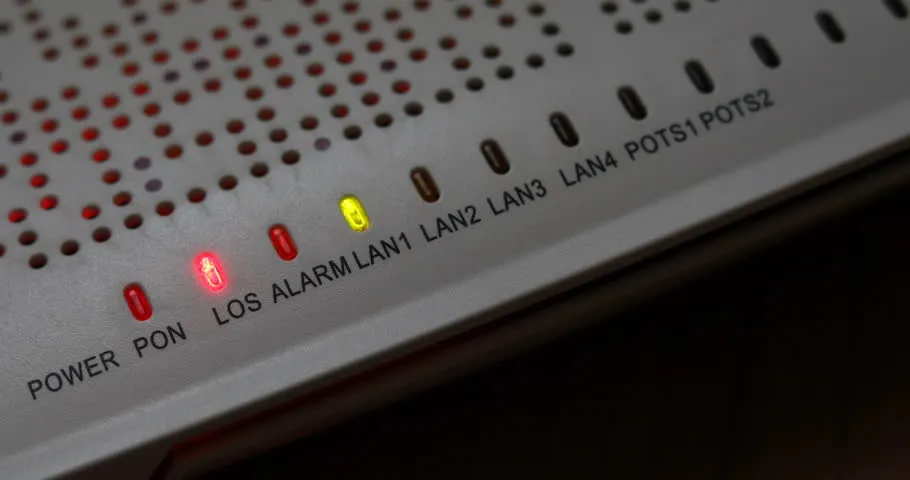
Blinking Red LOS: An Optical Signal Problem
LOS means Loss of Signal. A blinking red LOS light typically indicates missing or insufficient incoming optical signal. However, it does not identify exactly where the fault occurred.
Possible causes include:
- A broken outdoor fiber drop cable connecting your home to the distribution network.
- A sharply bent, crushed, or damaged indoor fiber patch cord.
- A loose connector or damaged splice along the optical path.
- A provider equipment failure or regional outage that interrupts optical transmission.
A regional outage does not always produce red LOS. Some outages affect routing or internet services while the optical connection remains established. Therefore, treat the light as evidence of an optical problem, rather than proof of a particular outage.
Stable Green PON: Optical Connection Established
PON means Passive Optical Network. On many Huawei, ZTE, and FiberHome ONUs, steady green PON with LOS off indicates an established optical connection. Nevertheless, check your model’s documentation because indicator combinations and flashing patterns vary.
This is encouraging, but it does not guarantee working internet access. Account restrictions, provisioning faults, routing problems, or local network issues can still prevent browsing. If PON remains steady, continue checking the hardware before investigating your computer and network settings.
Check the Remaining Indicators
Other lights help identify power, Ethernet, and wireless problems:
- Power off: Check the electrical outlet, adapter, and power switch.
- PON blinking: Allow startup to finish; persistent blinking may indicate incomplete registration.
- LAN off: Check the Ethernet cable and connected device if you expect a wired connection.
- WLAN illuminated: Wi-Fi is enabled; this alone does not confirm internet access.
Photograph the indicators before restarting. Record whether each light stays steady, flashes, or remains off. These details will also help support assess the problem.
Phase 2: Check Power, Cables, and Physical Hardware
Perform One Controlled Power Cycle
A restart can clear a temporary device fault. However, repeated restarting will not repair broken fiber.
- Switch off the ONU and any separate Wi-Fi router.
- Disconnect their power supplies for approximately 30 seconds.
- Reconnect the ONU’s power first.
- Allow several minutes for startup and optical registration.
- Once the ONU stabilizes, switch on your separate router.
- Check PON, LOS, and internet access again.
⚠️Warning: Restart using the power switch or adapter. Avoid the recessed Reset button, which can erase provider configuration.
Inspect the Accessible Fiber Patch Cord
Follow the thin fiber cord between your ONU and wall termination. Look for pinching beneath furniture, tight bends, pet damage, or recent disturbance. Gently relieve external pressure without pulling, twisting, or sharply straightening the cord.
Avoid disconnecting optical connectors unnecessarily. Never look into a fiber connector or touch its end face. Leave outdoor cables, distribution boxes, and fiber repairs to technicians.
Check Power and Ethernet Connections
Ensure the supplied power adapter sits securely in a working outlet. Also, keep the ONU ventilated and remove objects covering its vents. Repeated restarts or loss of power may indicate an adapter or hardware problem.
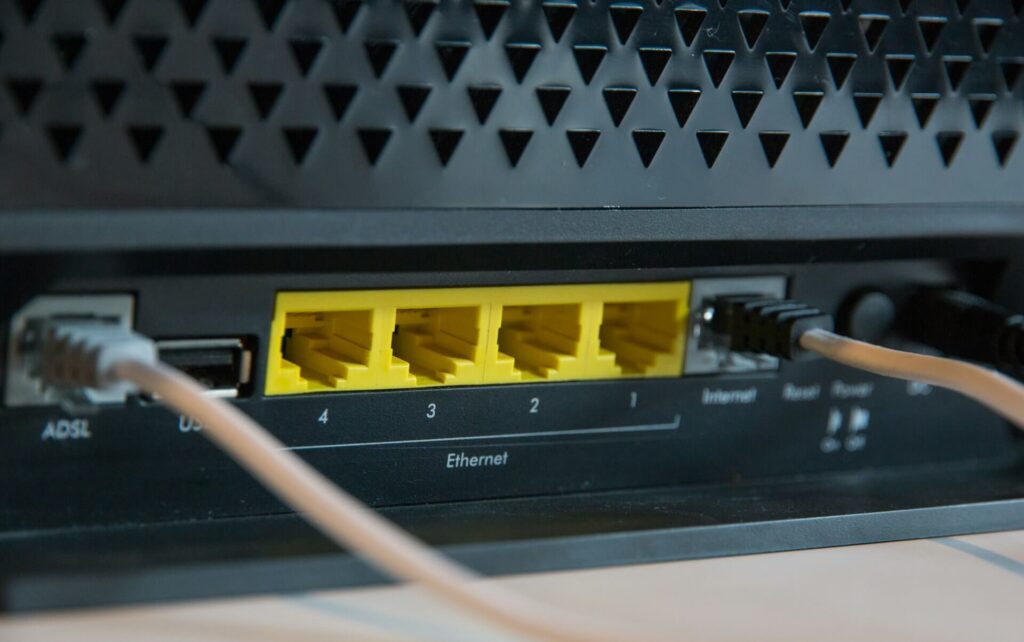
For wired connections, reseat the Ethernet cable at both ends. If available, try a known-good cable using the LAN port designated for internet service. Other LAN ports may not have the same service configuration.
💡 Pro-Tip: Compare the lights before and after restarting. Persistent red LOS, visible fiber damage, or repeated ONU restarts are useful details for Converge support.
If LOS keeps blinking red, proceed to the support checklist in Phase 4. Windows commands cannot restore a missing optical signal. However, if PON stays green with LOS off, continue with local network diagnostics.
Phase 3: Run Windows and Local Network Diagnostics
Determine Whether One Device or Every Device Is Affected
First, try another device and several websites. If only one computer fails, focus on that device before changing router settings. If every device fails, keep the ONU, account, and provider network under consideration.
Next, open Settings → Network & internet in Windows. Confirm that Wi-Fi or Ethernet is enabled and Airplane mode is off. For Wi-Fi, verify that you joined your own network.
Check Your IP Address and Adapter Settings
Open Command Prompt and enter:
ipconfig /allFind your active adapter and check its IPv4 Address, Default Gateway, and DNS Servers. An unexpected address beginning with 169.254 usually means Windows could not obtain an IPv4 address through DHCP. A missing default gateway can also prevent internet access.
For a typical home network, configure the adapter to obtain its IP address and DNS settings automatically. However, record any intentionally configured static settings before changing them. Avoid replacing working settings with addresses copied from another household.
Clear the Windows DNS Cache
Open Start, type Command Prompt, and select Run as administrator. Then enter:
ipconfig /flushdnsThis clears stored DNS records, which help Windows translate website names into IP addresses. It may resolve browsing problems caused by outdated cached records. Afterward, try opening several websites again.
Release and Renew Your IP Address
If the problem continues and your adapter uses automatic addressing, enter:
ipconfig /releaseThis releases your current DHCP-assigned IPv4 configuration. Your connection will temporarily stop, so avoid running it during remote support sessions.
Next, enter:
ipconfig /renewWindows requests fresh addressing information from the network’s DHCP server, usually your home router. Once the command finishes, check your connection again. If renewal fails, record the error message for further troubleshooting.
These commands address local configuration problems. They cannot repair damaged fiber or resolve a blinking red LOS light.
Phase 4: Isolate Wi-Fi Problems and Escalate Effectively
Compare Wired and Wireless Connections
Connect a computer using a known-good Ethernet cable and the ONU’s designated internet LAN port. If your setup requires a separate router, preserve that arrangement. Avoid changing bridge mode or WAN settings during testing.
For a useful comparison:
- Turn off the computer’s Wi-Fi during the wired test.
- Pause downloads, streaming, cloud backups, and VPN use.
- Test several websites and run a speed test.
- Repeat over Wi-Fi near the ONU, using the same test server.
- Record results and timestamps.
Also, check the computer’s Ethernet link speed. A connection negotiated at 100 Mbps will limit testing of faster plans. The cable, computer adapter, or equipment port may cause that limit.
Interpret the Results
Use the comparison to decide where to focus:
- Wired works well, but Wi-Fi struggles: Investigate distance, interference, wireless coverage, and device capabilities.
- Only one device struggles: Investigate that device’s adapter, software, VPN, or network settings.
- Both connection types fail across devices: The problem may involve the ONU, account, or Converge’s network.
- Both connection types slow down intermittently: Gather repeated results at different times before suggesting congestion.
Where supported, compare 2.4 GHz and 5 GHz near the ONU. The 5 GHz band often provides higher speeds nearby, while 2.4 GHz generally reaches farther. However, interference and device capabilities affect both.
One speed-test result alone cannot establish the cause. Repeated wired tests provide stronger evidence when reporting persistent performance problems.
Prepare Your Details Before Contacting Converge
Contact support when LOS persists, PON never stabilizes, or every device remains offline after basic checks. Also, report visible fiber damage or repeated ONU restarts.
Have these details ready:
- 13-digit Converge account number: Find it on your bill or account records.
- Registered subscriber’s full name: Provide the name exactly as recorded on the account.
- Complete installation address: Include the unit number, street, barangay, and city or municipality.
- Registered contact number: Provide a reachable number for updates or technician coordination.
- ONU brand and model: Check the label on your Huawei, ZTE, or FiberHome unit.
- Specific LED status: Record each relevant light’s color and whether it is steady, blinking, or off.
- Failure start time: Note whether the problem is continuous or intermittent.
- Troubleshooting results: Include restart attempts, affected devices, and wired-versus-Wi-Fi findings.
Describe the indicators precisely. For example: “Power green, PON off, LOS blinking red; all devices lost internet at 8:15 PM.” This gives support more useful information than “the modem looks broken.”
Use Converge Customer Support or Click2Call. Click2Call requires a working connection, such as mobile data. Have your account number ready before starting.
Ask whether your account belongs to a confirmed outage. If necessary, request checks of optical levels, ONU registration, provisioning, and account status. Finally, retain your ticket number for follow-ups.
Conclusion
Start with LOS and PON, inspect accessible hardware, then test Windows and compare wired access with Wi-Fi. This sequence helps you identify useful clues without making unnecessary configuration changes. When the fault requires Converge’s help, clear evidence makes your report easier to assess.
Which LED pattern did you encounter, and what restored your connection? Share your experience below without posting personal account details. Share this guide with another Converge subscriber who needs help troubleshooting.