A slow computer does not always need replacing. Understanding SSD vs HDD performance can help you identify a more practical upgrade. Meanwhile, SSD lifespan matters when choosing storage for work, family photos, and important documents. The right purchase balances responsiveness, capacity, compatibility, and dependable backups.
For most everyday computers, an SSD makes sense for Windows and frequently used applications. However, HDDs remain useful for large media libraries and economical bulk storage. Neither technology wins every buying decision. Your workload determines where speed matters and where extra capacity provides better value.
This guide explains the differences without treating advertised specifications as guaranteed results. You will learn how to compare performance, interpret endurance ratings, and check compatibility. Then you can choose storage around your actual needs. That approach helps you avoid expensive upgrades that deliver little practical benefit.
1. SSD vs HDD: How Each Storage Technology Works
A hard disk drive, or HDD, stores information magnetically on rotating platters. An actuator moves its read/write heads across those platters to access data. Consequently, a request can involve head movement and rotational delay. These mechanical steps make scattered file access particularly demanding.
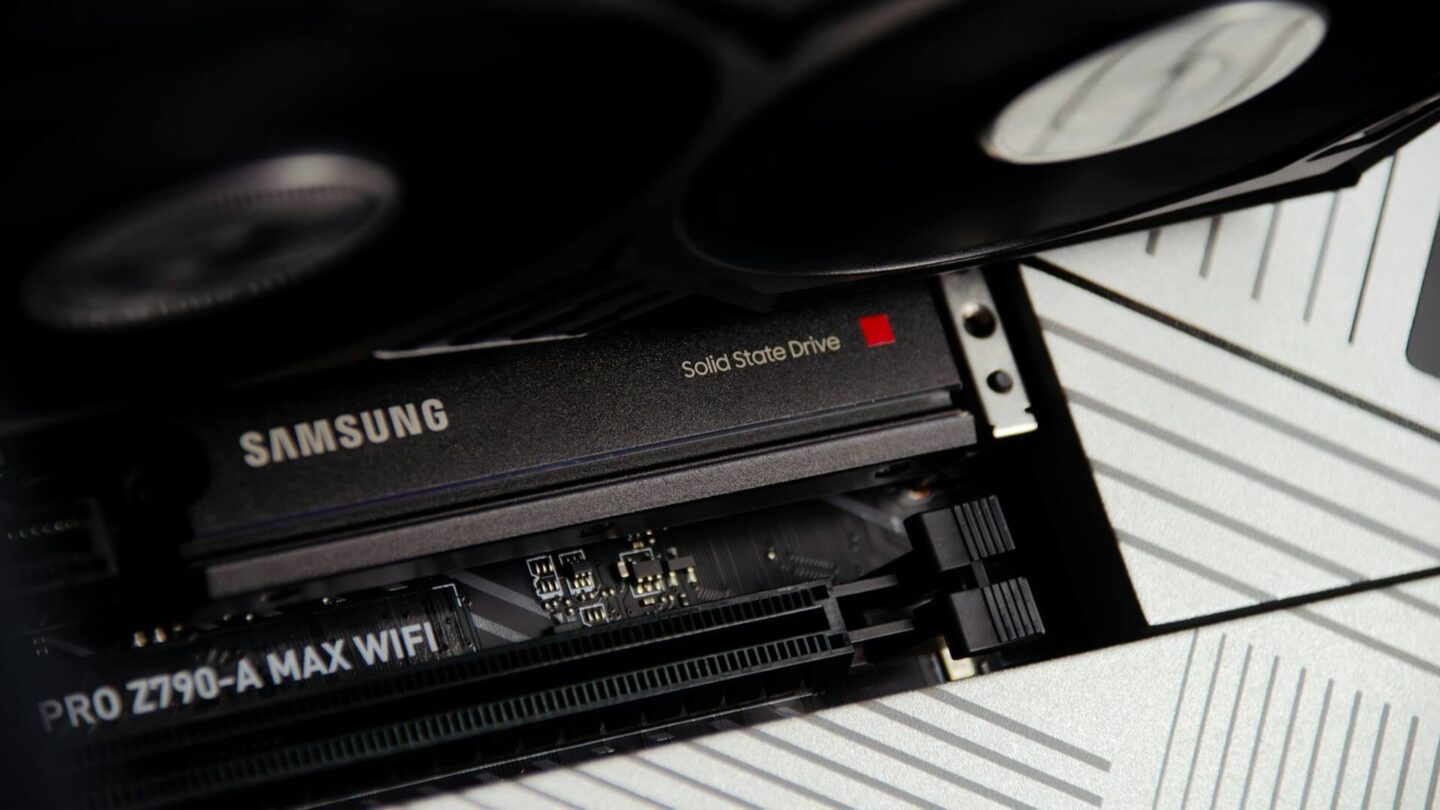
A solid-state drive, or SSD, stores information in NAND flash memory. Its controller manages data placement, error correction, and communication with your computer. Because it lacks moving heads, an SSD avoids mechanical seek delays. That difference helps explain its faster response when applications request many small files.
Imagine Windows starting while your browser, antivirus, and email application load together. Each program requests information from different locations on the drive. An HDD must move between those locations while handling competing requests. An SSD handles this scattered access much more efficiently.
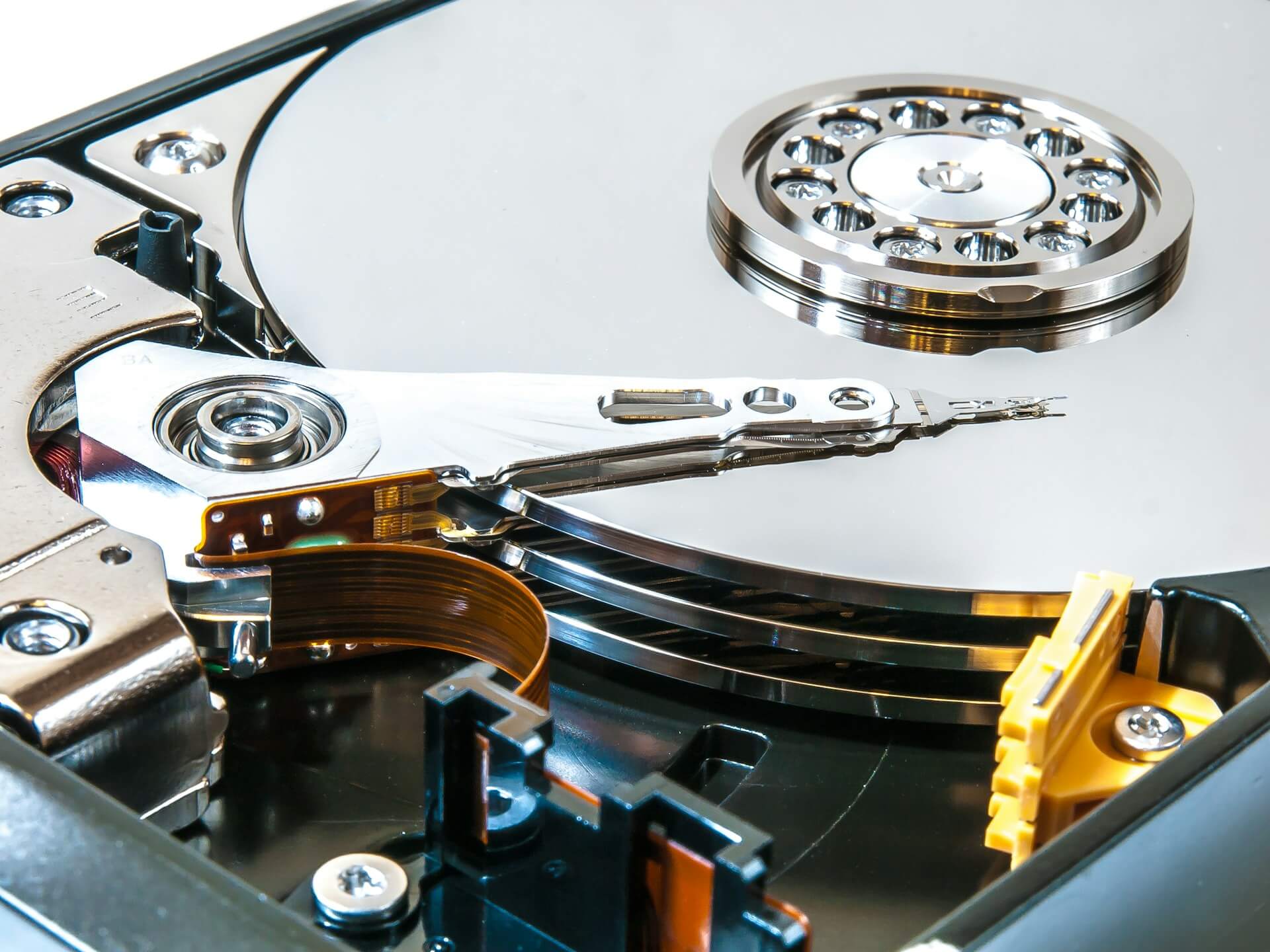
SSDs also avoid the mechanical clicking and spinning sounds associated with HDD operation. Furthermore, their lack of moving parts improves shock resistance during normal handling. That makes them useful in laptops and portable storage. However, damaged connectors, electrical faults, and controller failures can still disable them.
Neither design eliminates the possibility of sudden failure. An SSD depends on its controller, firmware, memory chips, and power circuitry. Meanwhile, an HDD combines electronic components with a mechanical system. Therefore, choose storage technology and backup protection as separate decisions.
2. SSD vs HDD Speed: What Performance Numbers Actually Mean
Storage advertisements usually emphasize sequential read and write speeds. These measurements describe transfers involving large, consecutive blocks of data. Copying a large video file can resemble this workload. However, starting Windows involves many smaller requests across different locations.
For example, Samsung specifies up to 560MB/s reads and 530MB/s writes for its SATA-based 870 EVO. Its 870 EVO specifications describe maximum sequential performance under stated conditions. These figures do not predict every transfer or application launch. Treat them as one comparison point within a broader assessment.
Look Beyond Sequential Throughput
For everyday responsiveness, random access performance and latency also matter. Random access involves reading or writing data across separate locations. Meanwhile, latency describes the delay involved in servicing a request. Lower latency helps when applications repeatedly wait for small pieces of information.
You may also encounter IOPS, meaning input/output operations per second. However, this number needs context, including request size, queue depth, and the read/write mixture. Queue depth describes how many requests remain outstanding. Tests using many simultaneous requests may poorly represent light desktop activity.
When comparing benchmark results, examine these details:
- Sequential throughput: Useful for assessing large, continuous transfers.
- Random performance: Relevant to scattered file access and application activity.
- Latency: Helps explain responsiveness during individual storage requests.
- Test conditions: Include capacity, queue depth, temperature, and workload.
- Sustained writes: Reveal performance during longer transfers.
The practical improvement depends on your computer’s actual bottleneck. An SSD can reduce storage-related waiting during startup and application loading. However, it cannot fully compensate for insufficient RAM or an overloaded processor. Likewise, faster storage will not repair a slow internet connection.
Check the Entire Transfer Path
File transfers depend on both drives and their connection. Copying from an HDD to an SSD still requires reading from the HDD. Similarly, an external enclosure or USB port can restrict a fast SSD. Check the complete transfer path before blaming the destination drive.
Also, distinguish peak write speed from sustained write speed. Many consumer SSDs use a fast write cache to accelerate incoming data. Once a long transfer exhausts that cache, writing can slow substantially. Therefore, examine longer tests when your work involves large media files or frequent backups.
3. SATA SSD vs NVMe SSD: Compatibility Before Speed
Before comparing prices, identify the storage connections your computer supports. SATA provides an interface used by many HDDs and SSDs. Meanwhile, consumer NVMe SSDs commonly communicate through PCIe connections. These differences affect both compatibility and available performance.
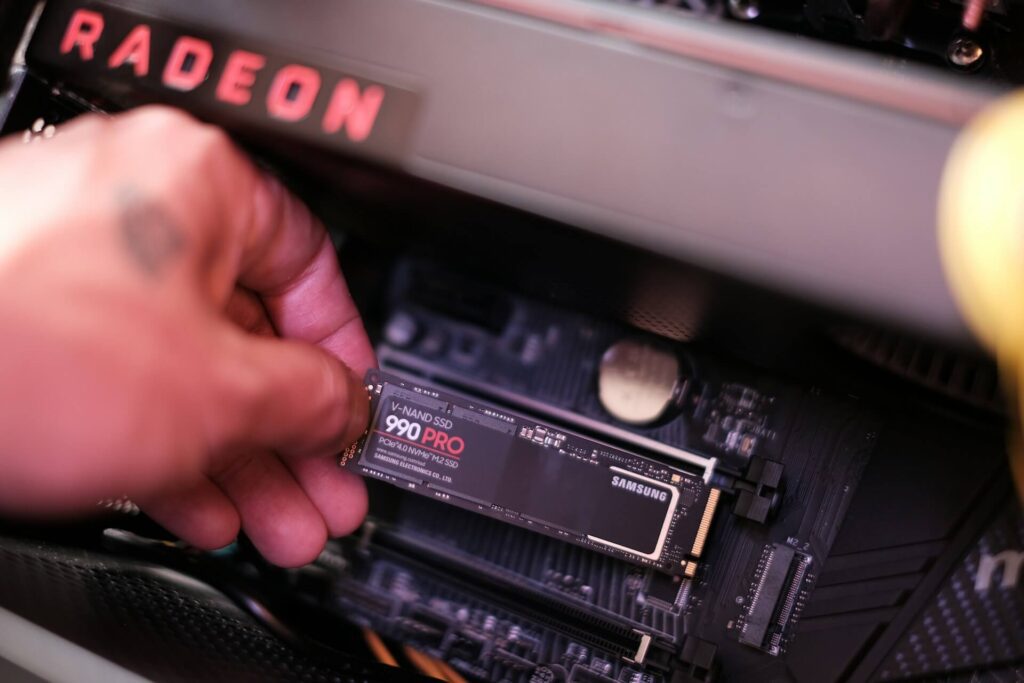
The biggest source of confusion involves M.2. M.2 describes a physical form factor, rather than a guaranteed storage interface. An M.2 SSD may use SATA or PCIe/NVMe, depending on its design. Kingston’s SSD compatibility FAQ explains why protocol support matters alongside physical fit.
Consequently, similar-looking M.2 drives may require different motherboard support. Some slots support SATA, some support PCIe/NVMe, and others support both. Connector notches provide clues, but they cannot replace the system specifications. Check your computer’s service manual before ordering a replacement.
Check Dimensions and Installation Parts
Physical dimensions matter as well. For example, M.2 2280 identifies a module measuring 22 millimeters wide and 80 millimeters long. A laptop designed for shorter modules may lack the necessary space or mounting point. Dell’s M.2 size and interface guide explains these distinctions.
For a 2.5-inch SATA replacement, inspect the drive bay, connector, and supported thickness. Also, check whether your laptop requires a bracket or proprietary adapter cable. Some configurations omit these parts when they lack a factory-installed drive. A compatible SSD alone may therefore leave the installation incomplete.
Next, check the supported PCIe generation and lane configuration. A compatible newer SSD cannot exceed the connection’s available bandwidth. Older computers may also need specific firmware support to boot from NVMe storage. Confirm boot support separately when upgrading an older desktop.
External storage requires similar attention. The enclosure must support the drive’s protocol, dimensions, and cooling requirements. Meanwhile, its USB interface and cable may limit performance. Buying a faster internal SSD cannot remove those connection restrictions.
💡 Pro-Tip: Check compatibility before shopping
Record your computer’s exact model and check its service manual. Confirm the interface, drive dimensions, mounting parts, and boot support. Keep those specifications beside product listings while comparing options.
4. SSD Lifespan vs HDD Lifespan: Understanding Endurance
Claims that every SSD or HDD lasts a fixed number of years oversimplify reliability. Two identical drives can experience very different workloads and operating conditions. Furthermore, electronics can fail before expected wear limits. Treat lifespan estimates as planning guidance, rather than guaranteed replacement schedules.
For SSDs, TBW, or terabytes written, provides an important endurance reference. Manufacturers commonly connect this rating to limited warranty conditions. It concerns cumulative writes, rather than the amount of data currently stored. Repeatedly replacing files adds writes even when available space stays similar.
For example, Samsung lists the 1TB 990 PRO with a five-year or 600TBW limited warranty. Its SSD warranty information explains the applicable conditions and limits. Reaching the write threshold does not mean the drive automatically fails. Likewise, staying below it cannot guarantee uninterrupted operation.
Translate Endurance Into Your Workload
Consider a hypothetical workload averaging 100GB of host writes daily. Using 365 days annually, that equals approximately 182.5TB across five years. However, your actual activity may vary substantially between working days and quiet periods. Use measured writes when assessing whether an endurance rating suits your workload.
NAND flash wears through repeated program/erase cycles. The controller distributes activity through wear leveling and manages spare flash capacity. Internal housekeeping can also create writes beyond those your operating system requests. Therefore, NAND type alone cannot establish the endurance of a complete SSD.
HDDs face different wear mechanisms. Their motors, bearings, heads, and recording surfaces operate within a mechanical system. Temperature, vibration, workload, and handling can influence reliability. However, electronic faults can also cause failure without obvious mechanical warning.
Be careful when interpreting MTBF, or mean time between failures. This statistical measure describes reliability across a population under stated conditions. It does not predict the operating life of your individual drive. An enormous hourly rating cannot promise decades of personal use.
Similarly, an HDD’s annual workload rating differs from an SSD’s TBW warranty threshold. Check whether the manufacturer counts reads, writes, or both within that workload specification. Also, compare products intended for similar operating environments. Desktop, NAS, and enterprise drives can target different usage patterns.
Monitor Health Without Trusting It Completely
Review SMART data and the manufacturer’s health utility when available. Useful indicators may include written data, remaining spare capacity, temperature, and reported errors. However, a healthy status cannot rule out sudden failure. Maintain another recoverable copy of important files regardless of drive age.
Ultimately, choose endurance that fits the work. Ordinary office activity and sustained video production create very different write patterns. Compare the exact model, capacity, endurance rating, and warranty terms. Then build your backup routine around the value of your files.
5. Storage Costs and Capacity: Compare Price per Terabyte
Capacity tells you how much a drive holds. Price per terabyte helps you compare what that capacity costs. Divide the total purchase price by the advertised capacity in terabytes. Then compare products that already meet your compatibility and performance requirements.
The following prices illustrate the calculation only. They do not represent current retail quotations. Actual prices vary by model, seller, warranty, and purchase date.
| Hypothetical drive | Example price | Calculation | Price per TB |
|---|---|---|---|
| 2TB SSD | $150.00 | $150.00 ÷ 2 | $75.00 |
| 4TB HDD | $100.00 | $100.00 ÷ 4 | $25.00 |
In this example, the HDD provides cheaper capacity. However, the SSD offers faster access for applications and active files. Price per terabyte cannot measure that responsiveness benefit. Match the expense to how you actually use the storage.
Also, compare the total installation cost. You might need an enclosure, mounting bracket, adapter, cable, or installation service. Meanwhile, seller reliability and local warranty support affect long-term value. Record the exact model and quotation date when comparing offers.
Why a 1TB Drive Appears Smaller in Windows
Manufacturers advertise capacity using decimal units, where one terabyte equals one trillion bytes. Windows commonly calculates capacity using binary units while displaying labels such as GB. Consequently, a marketed 1TB drive typically appears near 931GB before partitions and filesystem overhead. This difference does not indicate missing storage.
Allow room for Windows, applications, updates, temporary files, and future growth. A drive that barely fits your current files leaves little flexibility. Furthermore, editing projects and game updates can require substantial temporary space. Estimate capacity around your largest routine operations.
Avoid treating one free-space percentage as a universal requirement. Applications, firmware, and workloads create different needs. Instead, monitor available capacity and plan for expected growth. For editing, include footage, cache files, previews, and exports.
6. Gaming, Office Work, and Video Editing: Match the Drive to the Job
The best storage upgrade solves a specific source of waiting. Gaming, office applications, and video production create different demands. Therefore, identify which tasks cause delays before spending money. A balanced configuration usually provides better value than buying the highest advertised speed.
Gaming: Prioritize Loading and Asset Access
For gaming, an SSD primarily improves loading and access to game files. It can shorten startup screens, level transitions, and some update operations. Intel’s gaming storage guide explains these responsiveness benefits. Actual improvements depend on the game and surrounding hardware.
Do not expect an equivalent increase in average frame rates. Your processor and graphics card still handle much of the rendering workload. However, storage can affect stuttering when a game waits for incoming assets. Check each game’s storage requirements before installing it on an HDD.
Keep frequently played games on the SSD when capacity permits. Meanwhile, an HDD can hold recordings, installers, and games that tolerate slower storage. Leave room for patches and temporary installation files. Otherwise, managing limited capacity can become a frequent interruption.
Office Work: Improve Everyday Responsiveness
For office use, keep Windows, productivity applications, and active documents on an SSD. This arrangement reduces storage-related delays during startup and application launches. However, complex spreadsheet calculations may depend more heavily on processor speed and available memory. Diagnose the workload before buying a faster NVMe drive.
A compatible SATA SSD can make sense when replacing an older laptop’s mechanical drive. Likewise, NVMe suits systems that support it and offer competitive pricing. Compare capacity, warranty, and realistic performance before paying extra for peak throughput. Ordinary documents and email rarely justify every available performance upgrade.
Video Editing: Check Bitrate and Sustained Writes
Video editing requires attention to media bitrate, simultaneous streams, and cache activity. Resolution alone cannot determine the storage speed you need. Compressed 4K footage and high-bitrate production formats can create very different demands. Multiple camera angles increase the combined reading requirement further.
For example, a 400Mb/s stream represents approximately 50MB/s of compressed media data. Four simultaneous streams require approximately 200MB/s before overhead and competing activity. This calculation estimates storage traffic, rather than decoding performance. Your processor, graphics hardware, codec, and effects still influence playback.
Adobe recommends a fast internal SSD for Premiere installation and cache. Its Premiere system requirements also recommend additional high-speed storage for media. Evaluate active footage and cache requirements when planning your workstation. An HDD can hold completed projects while faster storage handles current production files.
Finally, inspect sustained write performance for large imports and exports. Brief benchmarks may finish before an SSD exhausts its fast write cache. Also, check cooling requirements and external connection limits. A premium drive cannot overcome an unsuitable enclosure or restricted connection.
7. Backups and Long-Term Storage: Protect Your Files
Reliable storage and reliable backups solve different problems. An expensive drive can still fail, disappear, or suffer accidental deletion. Meanwhile, malware can damage files across connected writable drives. Choose backup protection around the consequences of losing your data.
An external HDD can provide economical capacity for large backup collections. However, protect it from drops, especially while it operates. An external SSD suits frequent travel and faster transfers through suitable connections. Neither option guarantees permanent preservation.
Build Independent Backup Copies
Use the 3-2-1 backup rule as a practical starting point. Keep three copies, including your working copy, across two different media types. Store one copy offsite to reduce shared physical risks. The Canadian Centre for Cyber Security’s backup guidance explains this approach and recommends restoration testing.
Also, maintain an offline or suitably protected copy beyond routine access from your computer. Disconnecting an external backup drive after completion reduces its exposure to malware on that computer. For cloud backups, examine version retention, deletion protection, and account security. Synchronization alone may copy accidental deletions or unwanted changes.
Keep these distinctions clear:
- Another partition: Cannot protect against failure of the same physical drive.
- Another internal drive: Still shares exposure to theft, fire, and some electrical faults.
- RAID: Supports availability after certain failures, but cannot replace independent backups.
- Cloud synchronization: Requires suitable retention and recovery features to protect against unwanted changes.
For long-term storage, avoid treating either drive type as an unattended permanent archive. Keep devices within their specified environmental conditions and protect their connectors. Periodically verify that archived files remain readable. Maintain another independent copy so one failed device cannot erase the collection.
Most importantly, test restoration instead of trusting a successful backup notification. Restore sample documents, photographs, and project files to another location. Then open them using their normal applications. Keep encryption recovery information accessible even after losing your computer.
8. Which One Should You Buy in 2026?
For most everyday computers, I recommend an SSD for Windows, applications, and active files. Choose the supported interface before comparing speed claims. Then buy enough capacity for normal work and foreseeable growth. Consider an HDD when affordable bulk storage matters more than immediate access.
Use the following table as a starting point. Check your device specifications and application requirements before purchasing. Adjust the configuration around your budget and existing equipment.
| Main requirement | Sensible starting choice | Essential checks |
|---|---|---|
| Older SATA laptop upgrade | Compatible 2.5-inch SATA SSD | Bay dimensions, connector, bracket, cable |
| Modern laptop storage | Supported NVMe SSD | M.2 dimensions, interface, cooling |
| Everyday office desktop | SATA or NVMe SSD | Compatibility, capacity, warranty |
| Frequently played games | SSD meeting game requirements | Library size and update space |
| Demanding video projects | Suitable SSD for active media and cache | Sustained speed, bitrate, cooling |
| Large media library | High-capacity HDD where speed permits | Cost per TB and backup coverage |
| Portable working files | External SSD | Connection speed, cable, encryption |
| Economical local backups | External HDD | Capacity, rotation, restoration testing |
Choose an SSD Alone for Simpler Storage
An SSD-only configuration suits computers with one available drive position. It also works when your files fit comfortably within an affordable SSD capacity. You avoid dividing applications and documents between internal drives. However, you still need independent backup storage.
For ordinary laptop use, I would usually prioritize adequate capacity over a premium performance tier. That recommendation assumes comparable quality, warranty, and suitable endurance. Running out of working space creates immediate inconvenience. Meanwhile, higher peak throughput may offer little benefit for routine tasks.
Combine an SSD and HDD for Larger Collections
A combined setup works well when your desktop supports multiple drives. Keep Windows, applications, current projects, and frequently played games on the SSD. Place large, less frequently accessed collections on the HDD. This arrangement assigns faster storage where it provides the most value.
However, moving files does not automatically create a backup. If you delete the original, the destination holds your only remaining copy. Include both drives in your backup plan when they contain unique files. Confirm that backup capacity covers the combined data you need to protect.
Complete These Checks Before Paying
Before checkout, review the full model number and capacity. Versions within one product family can differ in performance and endurance. Check the manufacturer’s specifications and local warranty conditions for that exact version. Choose a seller offering a valid invoice and clear warranty support.
Use this final purchase checklist:
- Compatibility: Interface, dimensions, mounting parts, and boot support.
- Capacity: Current files, temporary operations, and expected growth.
- Performance: Relevant workloads and sustained transfer behavior.
- Endurance: Suitable write ratings and workload specifications.
- Warranty: Exact conditions and local support arrangements.
- Total cost: Drive, accessories, installation, and backup storage.
Back up your files before cloning or replacing the existing drive. After migration, verify startup, applications, and important documents. Keep the original intact until you confirm the replacement works correctly. A successful upgrade includes both improved performance and recoverable data.
Final Thoughts
The SSD vs HDD decision starts with the job you need the drive to perform. Choose an SSD for responsiveness, application loading, and active workloads. Consider an HDD for economical bulk storage when slower access remains acceptable. Combine them when your computer and budget support that arrangement.
Meanwhile, treat SSD lifespan and HDD lifespan as reliability considerations, rather than promises measured in years. Compare endurance, workload suitability, warranty terms, and operating conditions. Then protect important files through independent backups and tested restoration. Your recovery plan matters more than confidence in any single drive.
Before buying, check compatibility, estimate capacity, and calculate the complete upgrade cost. Spend where the improvement will affect your daily work. Share your computer model, budget, and main workload in the comments. Share this guide with someone planning an upgrade before they buy the wrong drive.