Is Your Laptop Battery Losing Its Strength?
Does your laptop battery drain faster than it used to? Perhaps it once lasted six hours but now struggles to reach three. You might even experience unexpected shutdowns despite Windows showing 20% battery remaining. These problems often indicate that your laptop battery needs closer attention.
Fortunately, you can check laptop battery health in Windows 11 without installing additional software. Microsoft includes a built-in diagnostic utility that generates a detailed Windows 11 battery report. This report reveals your battery’s original capacity, current charging capacity, and usage history. It can also display the number of charging cycles your battery has completed.
However, Windows 11 doesn’t universally display a simple battery health percentage in Settings. Instead, you can calculate that percentage using information from the built-in report. The process requires one command and basic knowledge of the results.
In this guide, I’ll show you how to generate and interpret your laptop’s battery report. You’ll also learn how to calculate battery wear, check charging cycles, and identify potential problems. More importantly, you’ll understand when battery deterioration requires attention and when replacement makes sense.
1. What Is Laptop Battery Health, and Why Does It Matter?
Laptop battery health measures how much energy your battery can currently store compared with its original design capacity. Most modern laptops use lithium-ion or lithium-polymer batteries. Although these batteries provide efficient energy storage, they gradually lose capacity through aging and normal use.
Every charging cycle contributes to battery wear. Heat, prolonged exposure to high charge levels, and demanding operating conditions can accelerate this deterioration. Consequently, an older battery may struggle to deliver its original runtime.
However, battery health and battery percentage measure different things. Your laptop might display 100% charge while retaining only 75% of its original storage capacity. That 100% simply indicates the battery has reached its current maximum charge.
Understanding Design Capacity and Full Charge Capacity
Two measurements are essential when evaluating battery health:
- Design Capacity: The original energy capacity specified by the battery manufacturer.
- Full Charge Capacity: The estimated maximum energy your battery can currently store.
Windows typically reports these measurements in milliwatt-hours (mWh). Higher capacity means the battery can store more energy, although actual runtime also depends on power consumption.
For example, imagine your laptop originally shipped with a 60,000 mWh battery. After several years, its full charge capacity drops to 45,000 mWh. Your battery now retains approximately 75% of its original capacity.
This reduction doesn’t necessarily mean you need an immediate replacement. However, it helps explain why your laptop requires more frequent charging.
Common Signs of a Deteriorating Laptop Battery
Battery deterioration often becomes noticeable before you examine its capacity figures. Watch for these warning signs:
- Your laptop runs significantly shorter on battery power.
- The battery percentage decreases unusually quickly.
- Windows shuts down despite showing remaining charge.
- Battery percentage readings jump unexpectedly.
- Your laptop requires increasingly frequent charging.
- Runtime declines despite similar daily workloads.
Nevertheless, these symptoms don’t always indicate battery failure. Background applications, excessive screen brightness, and demanding software can produce similar problems.
That’s why I recommend checking actual battery capacity before considering replacement. Microsoft explains how heat and charging habits affect battery longevity in its official Windows battery care guide.
2. How to Check Laptop Battery Health Using Command Prompt
Windows 11 includes a command-line utility called Powercfg. This tool manages power configurations and generates diagnostic reports about your computer’s energy usage.
One particularly useful command is powercfg /batteryreport.
It creates an HTML document containing battery specifications, capacity measurements, usage history, and runtime estimates. You don’t need third-party utilities or specialized technical knowledge.
Step 1: Open Command Prompt
First, open Command Prompt using these steps:
- Click Start or press the Windows key.
- Type
cmdinto Windows Search. - Right-click Command Prompt.
- Select Run as administrator.
- Click Yes if Windows displays a permission prompt.
An elevated Command Prompt window should appear.
Although this battery report command generally works without administrator privileges, elevated access can simplify certain permission-related situations.
Step 2: Generate Your Windows 11 Battery Report
Inside Command Prompt, type this command and press Enter:
powercfg /batteryreportWindows will generate an HTML battery report using information supplied by your laptop’s battery controller and system firmware. After completing the process, Command Prompt displays the saved report’s location.
For example:
Battery life report saved to file path C:\Windows\System32\battery-report.html.The actual file location depends on your current working directory. Therefore, check the displayed path instead of assuming Windows always uses the same folder.
Step 3: Open the Battery Report
Press Windows + E to open File Explorer. Navigate to the location displayed in Command Prompt. Look for a file named battery-report.html.
Double-click the file to open it in Microsoft Edge, Google Chrome, or another browser. You should now see several sections containing detailed information about your laptop battery.
Step 4: Save the Report to a Specific Location
Sometimes, finding the default report location becomes inconvenient. Fortunately, Powercfg lets you specify where Windows saves the file. Use this command:
powercfg /batteryreport /output "%USERPROFILE%\battery-report.html"Windows will save the report directly inside your user profile folder. For example:
C:\Users\YourUsername\battery-report.htmlReplace YourUsername with your actual Windows account folder name when navigating manually. You can also open the report directly after generating it:
start "" "%USERPROFILE%\battery-report.html"This command opens the HTML file in your default browser. Microsoft documents these commands in its Powercfg command-line reference.
3. How to Read Your Windows 11 Battery Health Report
Generating the report takes only a few seconds. However, understanding the information requires a little more attention. The Windows 11 battery report contains several sections covering battery specifications, power activity, and capacity changes.
For battery health assessment, start with Installed batteries.
Installed Batteries: Your Most Important Starting Point
This section identifies the battery detected by Windows. Depending on your laptop, it may display the following information:
| Report Field | What It Means |
|---|---|
| Name | Battery model or identification |
| Manufacturer | Reported battery manufacturer |
| Serial Number | Battery identification number |
| Chemistry | Battery chemistry information |
| Design Capacity | Original rated battery capacity |
| Full Charge Capacity | Estimated current maximum capacity |
| Cycle Count | Reported accumulated battery cycles |
For example, your report might contain these sample figures:
DESIGN CAPACITY        60,000 mWh
FULL CHARGE CAPACITY   45,000 mWh
CYCLE COUNT            420
These values indicate approximately 75% capacity retention. However, remember that battery capacity alone doesn’t determine overall reliability.
Recent Usage: Review Power Activity
Scroll down to Recent usage. This section records recent laptop activity, including power sources and operating states. Depending on your hardware, you may encounter these entries:
- Active: The computer was running normal workloads.
- Suspended: The computer entered a sleep-related state.
- Connected standby: The system used a supported low-power standby mode.
- AC: The laptop received external power.
- Battery: The laptop operated using battery power.
These records help identify unusual discharge behavior. For example, substantial battery loss during standby may suggest excessive background activity or power-management problems. However, this section alone doesn’t identify the responsible application.
Battery Usage: Examine Discharge Events
The Battery usage section displays historical discharge information. Windows generally presents a chart and supporting records showing battery consumption. Pay attention to significant capacity drops during short periods.
A rapid decline while gaming may be expected. However, a comparable decline during light document editing could justify further investigation. Remember that high power consumption doesn’t automatically mean your battery is defective.
Usage History: Compare Battery and AC Operation
The Usage history section summarizes activity while running on battery and external power. This information helps establish your normal usage patterns.
For example, some users keep their laptops connected throughout the workday. Others frequently disconnect their chargers during meetings or travel. These patterns provide useful context when evaluating battery aging. However, time connected to external power doesn’t directly represent the number of completed battery charging cycles.
Battery Capacity History: Examine Long-Term Changes
The Battery capacity history section compares Full Charge Capacity against Design Capacity over time. A relatively new battery may show figures close to its original design capacity.
Meanwhile, an older battery may display a gradual decline. This information becomes especially useful when diagnosing unusual battery deterioration.
Battery Life Estimates: Understand Expected Runtime
Finally, locate Battery life estimates. Windows estimates runtime using recorded battery discharge behavior. The report may compare estimates based on current capacity against estimates based on original design capacity.
However, these figures aren’t guaranteed runtime measurements. Actual results depend on screen brightness, processor usage, network activity, and background applications.
4. How to Calculate Your Laptop Battery Health Percentage
Windows provides the information needed to calculate battery health. However, the report doesn’t always display a ready-made health percentage.
Fortunately, the calculation is straightforward. You only need two measurements:
- Design Capacity
- Full Charge Capacity
Both measurements must use the same unit, typically milliwatt-hours.
Battery Health Percentage Formula
Use this formula:
Battery Health (%) = (Full Charge Capacity ÷ Design Capacity) × 100
For example, assume your laptop reports:
- Design Capacity: 60,000 mWh
- Full Charge Capacity: 45,000 mWh
Your calculation becomes:
(45,000 ÷ 60,000) × 100 = 75%
Therefore, your battery retains approximately 75% of its original design capacity.
You can also calculate capacity loss:
100% − 75% = 25% battery capacity loss
This means the battery has lost approximately one-quarter of its original storage capacity.
What Is a Good Laptop Battery Health Percentage?
There isn’t one universal percentage that determines whether a battery requires replacement. However, these general ranges provide a useful reference:
| Battery Health | General Interpretation |
|---|---|
| 90–100% | High capacity retention |
| 80–89% | Moderate capacity loss |
| 70–79% | Noticeable deterioration |
| 60–69% | Significant capacity loss |
| Below 60% | Substantial degradation |
Important: These categories are practical guidelines, not official Microsoft replacement thresholds.
For example, a laptop with 78% capacity retention may still provide acceptable runtime. Meanwhile, another laptop showing 85% could experience shutdowns caused by unrelated battery hardware problems. Therefore, consider capacity measurements alongside real-world performance.
Does 100% Battery Health Mean Your Battery Is Perfect?
Not necessarily. A new battery generally reports capacity close to its original design specification. However, battery controllers estimate capacity using electrical measurements and firmware calculations.
As a result, some laptops may report slightly more than 100% capacity retention. Manufacturing tolerances and measurement differences can explain these variations. Likewise, a battery showing 100% capacity isn’t automatically free from electrical or mechanical problems.
5. How to Check Battery Cycle Count in Windows 11
Battery capacity reveals how much energy your laptop can currently store. However, battery cycle count helps explain how extensively you’ve used the battery.
Every rechargeable battery has a limited service life. As charging cycles accumulate, chemical aging gradually affects battery performance. Nevertheless, cycle count alone cannot determine when a battery will fail.
What Is a Battery Charging Cycle?
One battery cycle represents cumulative discharge equivalent to 100% of the battery’s usable capacity. Importantly, this doesn’t necessarily mean charging from 0% to 100% in one session.
Consider this example. You use your laptop until its battery decreases from 100% to 50%. You then recharge it to 100%. Later, you repeat the same process. Together, those two 50% discharges represent approximately one complete battery cycle.
Therefore, plugging your charger in twice doesn’t automatically equal two charging cycles.
Steps to Check Battery Cycle Count
Follow these instructions:
- Open Command Prompt.
- Enter
powercfg /batteryreport. - Press Enter.
- Open the generated HTML report.
- Locate Installed batteries.
- Find the Cycle Count field.
For example:
DESIGN CAPACITY        60,000 mWh
FULL CHARGE CAPACITY   45,000 mWh
CYCLE COUNT            420
Here, Windows reports 420 accumulated cycles. However, that number doesn’t automatically mean your battery requires replacement.
A battery with 420 cycles may retain adequate capacity. Another battery might deteriorate faster because of excessive heat or unfavorable operating conditions.
How Many Battery Cycles Can a Laptop Handle?
Laptop batteries don’t share a universal cycle-life specification. Manufacturers use different battery chemistries, capacities, and testing standards.
Some batteries target approximately 300 cycles before reaching a specified capacity threshold. Others target 500, 1,000, or more cycles under defined conditions.
However, these figures aren’t guaranteed failure points. A battery rated for 500 cycles doesn’t necessarily stop working after cycle 500. Instead, the rating usually describes expected capacity retention under particular testing conditions. Always consult your laptop manufacturer’s specifications for model-specific cycle-life information.
What If Windows Doesn’t Show Cycle Count?
Some laptops display a dash instead of a cycle count. For example:
CYCLE COUNT -This doesn’t mean your battery has completed zero cycles. Instead, the battery controller or system firmware may not provide that information to Windows.
Fortunately, you can still calculate battery health using Design Capacity and Full Charge Capacity. Even without cycle-count information, those measurements remain valuable.
6. How to Analyze Battery Capacity History and Wear
Checking laptop battery health once provides a useful snapshot. However, examining capacity changes over time reveals more about long-term battery deterioration.
Windows records historical capacity measurements when your hardware provides the necessary information. These records can help you identify gradual aging or unusual capacity changes.
Understanding Battery Capacity History
Open your battery report and scroll to Battery capacity history. This section typically contains three important columns:
- Period: The date range associated with the measurement.
- Full Charge Capacity: The estimated maximum capacity during that period.
- Design Capacity: The original battery capacity.
Consider this hypothetical example:
| Period | Full Charge Capacity | Battery Health |
|---|---|---|
| January 2026 | 58,200 mWh | 97% |
| March 2026 | 56,400 mWh | 94% |
| June 2026 | 54,000 mWh | 90% |
| September 2026 | 51,600 mWh | 86% |
| November 2026 | 49,200 mWh | 82% |
Example assumes an original Design Capacity of 60,000 mWh.
These figures show a consistent decline in battery capacity. However, the report alone cannot establish why the deterioration occurred. You should also review temperature exposure, charging habits, and actual runtime.
How to Identify Normal Battery Wear
Normal battery deterioration usually develops gradually. However, Windows doesn’t always report perfectly smooth declines. For example, your battery might report 48,500 mWh one week and 49,000 mWh the next.
This doesn’t necessarily mean the battery physically regained lost chemical capacity. Instead, its battery controller may have adjusted the capacity estimate. Therefore, focus on persistent trends rather than isolated readings.
What Causes Sudden Capacity Drops?
Several conditions can contribute to unusual capacity changes:
- Excessive heat: High temperatures accelerate lithium-ion battery deterioration.
- Natural aging: Older cells may experience increasing chemical degradation.
- Charging conditions: Prolonged exposure to high charge levels can accelerate wear.
- Controller recalculation: Firmware may revise previously estimated capacity figures.
- Hardware problems: Deteriorating cells may produce unstable readings or unexpected shutdowns.
For example, a sudden drop from 85% to 65% deserves investigation. However, don’t immediately assume the battery requires replacement. Generate another report, compare actual runtime, and examine the laptop’s behavior.
How Often Should You Check Battery Health?
For most users, checking every two or three months provides reasonable visibility. However, monthly checks may help when troubleshooting unexplained deterioration. Save your reports with descriptive filenames, such as:
battery-report-2026-11-04.htmlYou can then compare the reports whenever necessary. This simple habit creates a useful record for future troubleshooting.
7. How to Check Battery Usage and Estimated Runtime
Battery health and battery runtime are closely related. However, they measure different things.
A healthy battery can drain rapidly under demanding workloads. Meanwhile, an older battery may still provide acceptable runtime during light activities.
Therefore, examine both capacity retention and actual power consumption.
Analyze Recent Battery Usage
Open your battery report and locate Recent usage. This section records power activity, including battery levels and operating states. For example:
| Time | Power Source | Battery Remaining |
|---|---|---|
| 9:00 AM | Battery | 95% |
| 10:00 AM | Battery | 82% |
| 11:00 AM | Battery | 67% |
| 12:00 PM | Battery | 51% |
These hypothetical readings show a 44-percentage-point decrease over three hours. However, this information doesn’t automatically indicate abnormal consumption. You must consider the applications running during that period. For example, video conferencing consumes more energy than basic document editing.
Examine Battery Discharge Patterns
The Battery usage section displays recorded discharge activity. Look for unusually steep declines during short periods. Common power-intensive activities include:
- Video conferencing and screen sharing.
- Gaming and GPU-intensive software.
- Video editing and rendering.
- Running virtual machines.
- Large downloads and cloud synchronization.
- Heavy browser workloads.
These activities increase power consumption even when the battery remains healthy. Therefore, compare discharge patterns against your actual workload.
Understand Battery Life Estimates
The Battery life estimates section predicts runtime using historical discharge information. For example:
| Measurement | Estimated Runtime |
|---|---|
| At Full Charge | 4 hours, 15 minutes |
| At Design Capacity | 5 hours, 40 minutes |
Illustrative values only.
These estimates suggest that reduced capacity may affect expected runtime. However, actual results depend on workload, screen brightness, and other operating conditions.
Test Your Actual Battery Runtime
For a more practical assessment, perform a controlled runtime test.
- Charge the laptop to its normal maximum level.
- Disconnect the charger.
- Set screen brightness to approximately 50%.
- Select Balanced power mode.
- Perform your usual daily tasks.
- Record the starting time and battery percentage.
- Continue until the battery reaches approximately 20%.
- Record the elapsed time.
Avoid intentionally draining the battery completely. For meaningful comparisons, repeat the test under similar working conditions.
8. How to Check Battery Usage in Windows 11 Settings
You don’t always need Command Prompt to investigate battery drain. Windows 11 also provides built-in power monitoring through the Settings application.
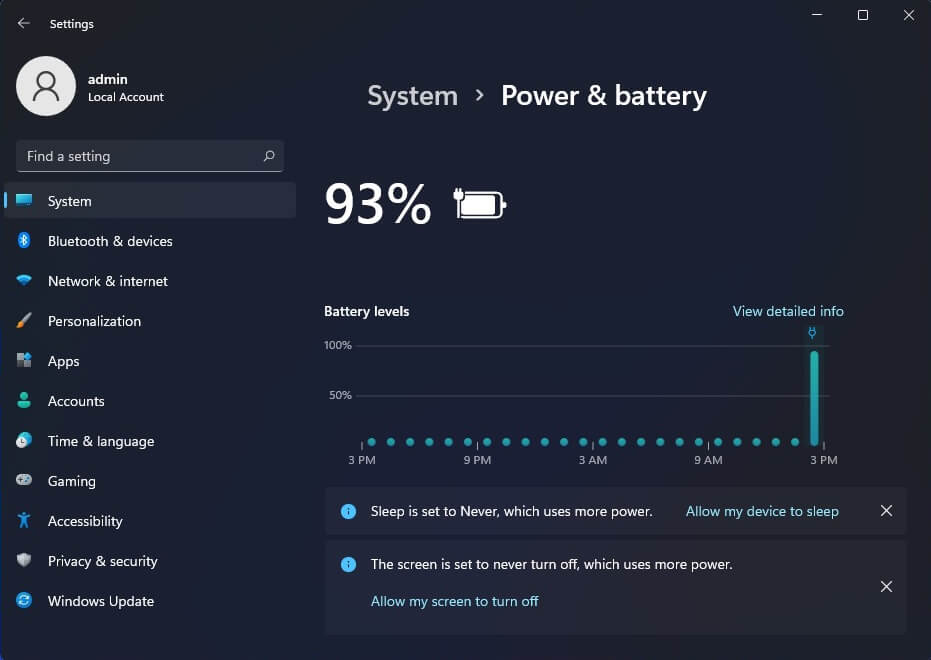
These tools help identify applications consuming significant energy. However, they don’t universally display your battery’s original capacity or calculated health percentage.
Step 1: Open Power and Battery Settings
Follow these steps:
- Press Windows + I.
- Select System.
- Click Power & battery.
- Locate Battery usage, where available.
Depending on your Windows version, you may need to expand the Battery usage section.
Step 2: Review Application Battery Consumption
Windows can display battery consumption for individual applications. Look for applications using unusually large amounts of power. However, don’t judge an application solely by its reported percentage.
For example, your browser may consume considerable energy because you’ve used it throughout the day. Instead, examine whether consumption matches your actual activities.
Step 3: Reduce Unnecessary Background Activity
Some applications continue operating after you close their main windows. They may synchronize files, check notifications, or download updates. To manage supported applications:
- Open Settings → System → Power & battery → Battery usage.
- Locate an application consuming excessive background power.
- Select More options, if available.
- Click Manage background activity.
- Review the available background permission settings.
Depending on the application, Windows may offer:
- Always: Allows background operation.
- Power optimized: Lets Windows manage background activity.
- Never: Prevents supported background activity.
Not every application offers these controls. Also, avoid restricting applications that require continuous notifications or synchronization. Microsoft provides detailed instructions in its Windows background activity management guide.
Step 4: Adjust Your Windows Power Mode
Navigate to Settings → System → Power & battery → Power mode. Depending on your hardware, Windows may provide these options:
| Power Mode | Main Purpose |
|---|---|
| Best power efficiency | Reduces energy consumption |
| Balanced | Balances performance and battery life |
| Best performance | Prioritizes system performance |
For everyday office work, Balanced usually provides a reasonable starting point. However, Best power efficiency may extend runtime when you’re away from a charger. Microsoft explains these options in its Windows 11 power settings guide.
Step 5: Check Windows Security’s Device Health Report
Windows Security provides another useful diagnostic feature. Open Windows Security → Device performance & health.
This section identifies certain conditions affecting your computer’s performance and reliability. Depending on your system, it may offer battery-life recommendations.
However, it doesn’t replace the detailed Powercfg battery report. Microsoft describes these checks in its Device performance and health documentation.
9. How to Fix Common Laptop Battery Health Problems
Sometimes, Windows fails to generate the battery report. Other times, the report contains missing or unexpected information. Before attempting repairs, identify whether you’re facing a reporting problem or an actual battery issue. Fortunately, several built-in Windows tools can help.
Problem 1: The Battery Report Command Doesn’t Work
First, check your command syntax. Enter:
powercfg /batteryreportMake sure you include the space before /batteryreport. If the command fails, try specifying the output location:
powercfg /batteryreport /output "%USERPROFILE%\battery-report.html"If Windows displays an error, record its exact wording. The error message usually provides a better troubleshooting starting point than changing unrelated settings.
Problem 2: Windows Cannot Find the Report
Windows displays the report’s file location after generating it. However, users sometimes search the wrong folder. To avoid confusion, specify the output location directly.
After saving the report inside your user profile folder, run:
start "" "%USERPROFILE%\battery-report.html"This opens the HTML file in your default browser.
Problem 3: Battery Cycle Count Is Missing
Some batteries don’t expose cycle-count information to Windows. Consequently, the report may display a dash instead of a number. This doesn’t necessarily indicate a problem. You can still calculate battery health using the two capacity measurements.
Problem 4: Your Laptop Battery Drains Too Quickly
Rapid battery drain often results from excessive power consumption. Start by reviewing Battery usage in Windows Settings.
Next, open Task Manager using Ctrl + Shift + Esc. Check CPU, memory, and GPU activity where available. Applications maintaining high processor usage can substantially reduce battery runtime.
You can also try these adjustments:
- Reduce screen brightness.
- Close unused applications.
- Disconnect unnecessary USB accessories.
- Limit demanding background tasks.
- Select a more efficient power mode.
- Enable Energy saver when appropriate.
Microsoft provides additional suggestions in its Windows battery-saving tips.
Problem 5: Your Laptop Shuts Down Before Reaching 0%
Unexpected shutdowns can indicate battery problems. However, other hardware or software issues may produce similar symptoms.
First, check Full Charge Capacity in your battery report. Next, determine whether shutdowns occur only when operating on battery power.
If your laptop works normally while plugged in, investigate its battery and power-delivery hardware. Also, check for manufacturer-approved firmware and power-management updates.
Problem 6: Battery Percentages Change Unexpectedly
Sometimes, Windows displays sudden percentage drops. For example, the battery might fall from 45% to 15% within minutes.
This behavior may result from inaccurate capacity estimates or deteriorating cells. Restart Windows and generate a fresh battery report. If the behavior continues, consider professional battery diagnostics.
Avoid repeatedly draining the battery completely to force recalibration. Modern lithium-ion batteries don’t require routine deep discharge cycles.
Problem 7: Windows Doesn’t Detect the Battery
If Windows cannot identify the battery, the report may contain incomplete information. First, restart your laptop.
Next, open Device Manager and expand Batteries. Depending on your hardware, you may see:
- Microsoft AC Adapter
- Microsoft ACPI-Compliant Control Method Battery
Check whether any battery device displays an error. Also, review manufacturer-approved firmware and chipset updates. If Windows still cannot detect the battery, professional hardware inspection may be necessary.
10. How to Extend Laptop Battery Life and Know When to Replace It
You cannot completely prevent lithium-ion battery aging. However, good charging habits can help reduce unnecessary deterioration. The goal isn’t to maintain a perfect battery percentage every day.
Instead, control heat exposure, avoid unnecessary deep discharges, and use supported battery protection features.
Avoid Excessive Heat
Heat is one of the biggest contributors to lithium-ion battery deterioration. High temperatures accelerate chemical aging and can permanently reduce capacity.
For example, gaming while charging may generate considerable internal heat. To reduce heat exposure:
- Keep laptop ventilation openings unobstructed.
- Avoid placing laptops on pillows or thick blankets.
- Clean accessible cooling vents when necessary.
- Avoid leaving laptops inside hot vehicles.
- Follow manufacturer operating temperature recommendations.
These habits also support overall hardware reliability.
Avoid Frequent Deep Discharges
You don’t need to completely drain a modern lithium-ion battery before charging it. Frequent deep discharges can contribute to unnecessary wear. For everyday use, consider maintaining a moderate charge range when practical.
Microsoft recommends keeping battery levels between approximately 20% and 80% several times weekly. However, this isn’t a strict requirement for every charging session. Occasionally charging to 100% remains reasonable when you need maximum runtime.
Enable Smart Charging or Battery Charge Limits
Some laptops include features that prevent prolonged charging at 100%. Depending on the manufacturer, these may include:
- Smart Charging
- Battery Conservation Mode
- Battery Charge Threshold
- Optimized Battery Charging
- Battery Health Charging
These features help manage charging behavior. However, availability and configuration depend on your laptop manufacturer. On supported Windows devices, Smart Charging may display a heart symbol beside the battery icon. Microsoft explains this behavior in its Smart Charging documentation.
Adjust Windows Energy Settings
Windows 11 includes several settings that reduce unnecessary power consumption. Open Settings → System → Power & battery. Review these options:
- Energy saver: Reduces selected background activity and power consumption.
- Power mode: Balances performance against efficiency.
- Screen and sleep: Controls idle display and sleep behavior.
- Energy recommendations: Suggests settings that may improve efficiency.
For example, reducing screen brightness can noticeably extend runtime. Likewise, shorter screen-off timeouts prevent unnecessary energy consumption. Microsoft explains these features in its Energy recommendations guide.
When Should You Replace Your Laptop Battery?
There isn’t one battery health percentage that automatically requires replacement.However, substantial capacity deterioration can make a laptop increasingly inconvenient. Consider battery replacement when:
- Capacity has declined significantly.
- Runtime no longer supports your daily activities.
- The laptop repeatedly shuts down on battery power.
- Charging becomes persistently unreliable.
- The battery shows physical damage.
- Manufacturer diagnostics recommend replacement.
For example, a laptop with 75% capacity retention may remain perfectly usable. However, frequent travelers may require more runtime than that battery provides. Therefore, base your decision on actual usability and hardware condition.
Warning: Never Ignore a Swollen Laptop Battery
A swollen battery presents a safety concern, regardless of its reported health percentage. Warning signs include a bulging laptop case, distorted keyboard, or raised touchpad. If you suspect swelling, stop using and charging the laptop immediately.
Don’t puncture, squeeze, or attempt to flatten the battery. Arrange professional inspection and safe replacement through a qualified technician or manufacturer service center. Microsoft provides additional safety information in its battery care and safety guidance.
PRO-TIP: Track Battery Health Before Problems Become Serious
Generate a fresh Windows 11 battery report every two or three months. Save each report using a date-based filename. Compare Design Capacity, Full Charge Capacity, Cycle Count, and estimated runtime.
For example, a small decline over several months may represent ordinary aging. However, a substantial decline over the same period deserves investigation. This simple routine helps identify unusual deterioration before battery runtime becomes a serious inconvenience.
Bonus: Keep your older HTML reports. They provide useful historical evidence when discussing battery problems with a technician.
Final Thoughts: Check Your Laptop Battery Health Before It Fails
Your laptop battery won’t retain its original capacity forever. However, you don’t need expensive diagnostic utilities to understand its condition. Windows 11 already includes tools that reveal battery capacity, usage history, and estimated runtime.
The most useful starting point is the <strong>powercfg /batteryreport</strong> command. It generates a detailed HTML report without requiring additional software. From there, you can calculate your battery health percentage and monitor capacity changes.
Remember that battery health involves more than one measurement. Cycle count, operating temperature, actual runtime, and charging behavior also matter.
Therefore, don’t rush to replace your battery based solely on a low percentage. Instead, combine the report’s measurements with real-world performance.
If your laptop still provides adequate runtime, immediate replacement may not be necessary. However, unexpected shutdowns, rapid deterioration, or physical damage deserve prompt attention.
Now it’s your turn!
Generate your Windows 11 battery report and calculate your battery health percentage.
What percentage does your laptop show? Is your battery still healthy, or has its capacity dropped significantly? Share your laptop brand, model, battery health percentage, and charging cycle count in the comments below.
Your experience might help another reader identify a similar problem.
Found this guide helpful? Share it with friends, coworkers, and fellow laptop users! A simple battery health check could prevent unnecessary replacement costs.