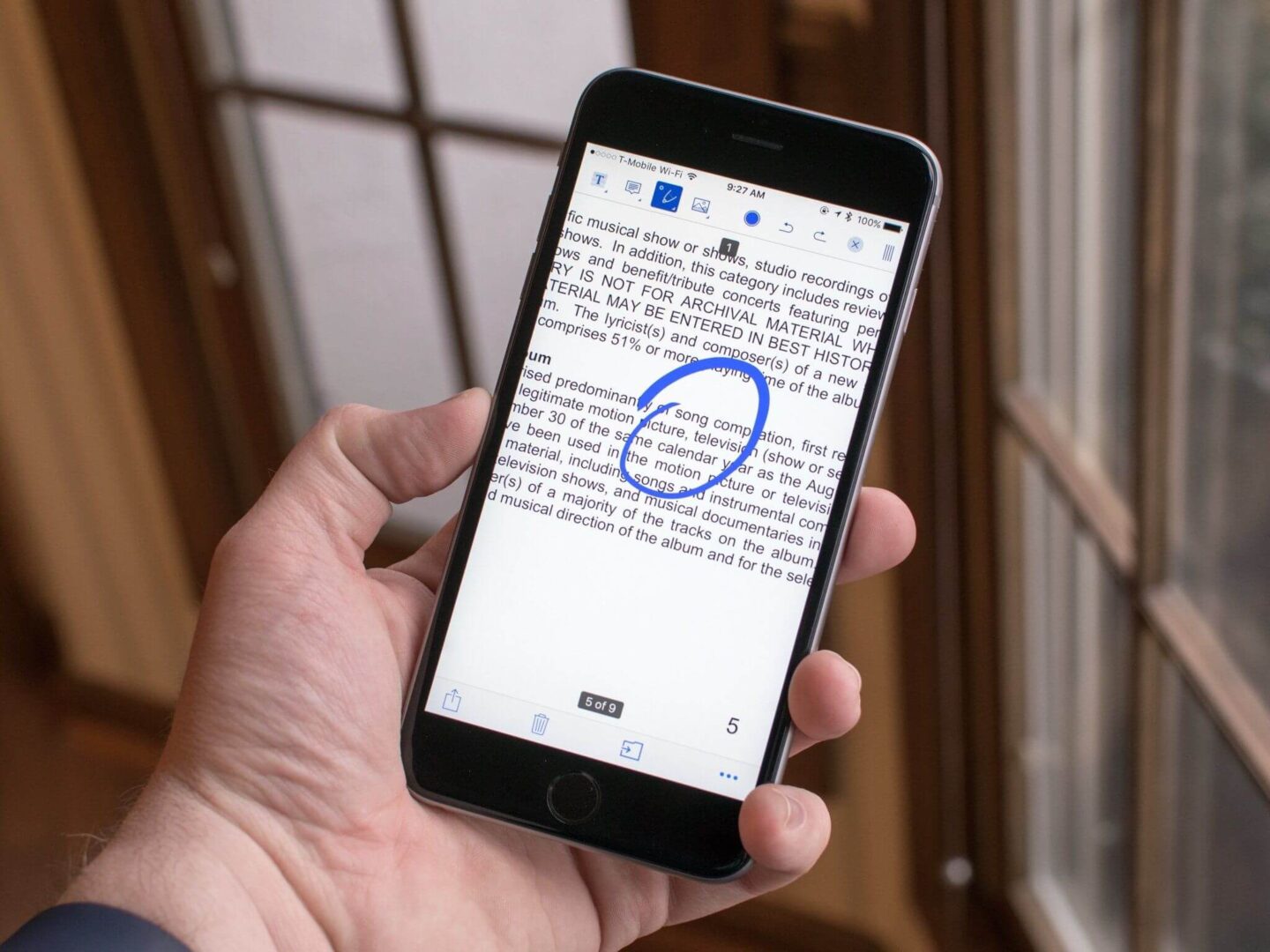
Modern enterprises rely heavily on Microsoft Purview Information Protection to safeguard sensitive corporate documents. Consequently, security teams apply strict sensitivity labels and RMS encryption to confidential PDF files. Mobile executives frequently need to annotate encrypted purview-protected PDFs in OneDrive Mobile while working away from their desks. However, traditional PDF viewer apps often strip metadata or break underlying rights management encryption during editing. Opening a protected document in third-party editors can trigger security policy violations or corrupt file headers completely.
In this comprehensive guide, we demonstrate how to mark up protected documents directly within the native OneDrive Mobile application. You will learn how native decryption works seamlessly on iOS and Android devices without stripping security tags. Additionally, we cover user permission requirements, mobile caching mechanisms, and enterprise compliance protocols. Following this workflow ensures your document feedback remains active, visible, and fully protected across your organization.
Understanding Microsoft Purview Protection on Mobile PDFs
Microsoft Purview Information Protection integrates digital rights management directly into the PDF ISO specification. When an administrator assigns a confidential sensitivity label, the system encrypts the file structure. Furthermore, the file embeds specific access rights that follow the document across storage locations.
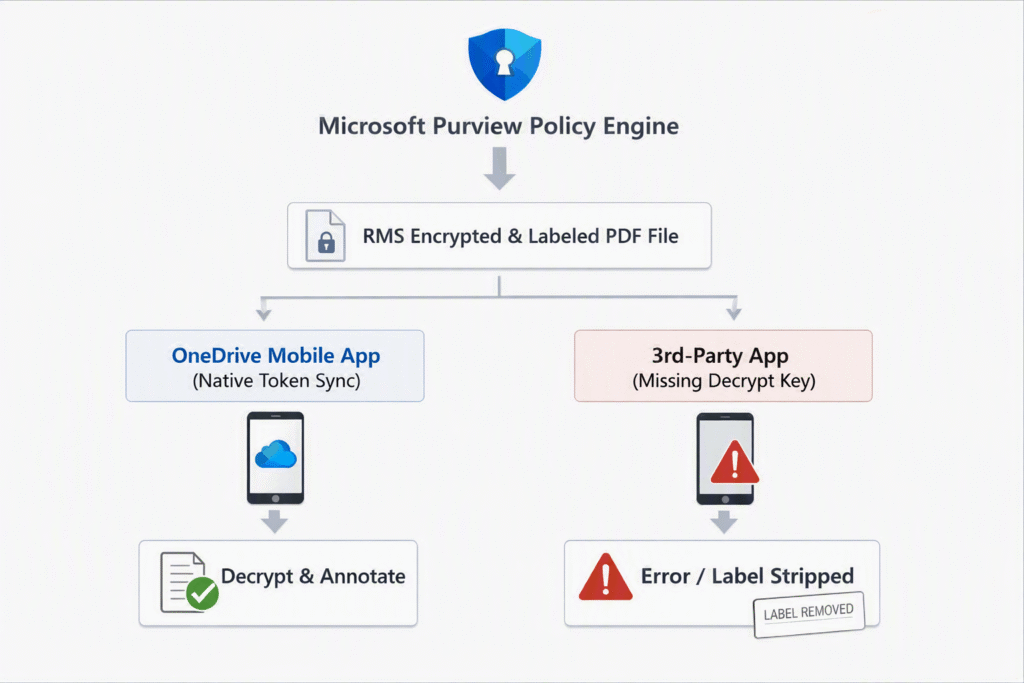
When you open a protected PDF file, the client app verifies your Entra ID (Azure AD) credentials. Next, it requests a decryption key from the Microsoft Rights Management connector. Desktop applications like Adobe Acrobat handle this via specialized plugins. Conversely, mobile operating systems process file sandboxing differently. Opening an encrypted document in a standard third-party PDF reader forces one of two outcomes:
- Access Denied Error: The application fails to parse the encrypted stream, preventing the file from opening.
- Security Label Stripping: The viewer decrypts a local cache copy and saves it as a flat file, stripping Purview metadata and violating policy controls.
To prevent data loss, IT administrators must enforce native viewing workflows inside the managed app ecosystem.
Prerequisites for Mobile PDF Annotation
Before attempting to edit protected documents on smartphones or tablets, ensure your tenant configuration meets Microsoft 365 enterprise requirements:
- OneDrive Mobile App: Version 15.0 or higher installed on iOS or Android.
- Appropriate Licensing: Microsoft 365 E3/E5, Enterprise Mobility + Security (EMS), or Business Premium.
- Purview Rights: Your user account requires EDIT, EXTRACT, or OWNER permissions embedded within the active sensitivity label.
- Intune MAM Policy: Mobile Application Management policies must allow document modification within managed app boundaries.
⚠️ Warning: Having simple “View” rights allows you to read protected PDF files on mobile devices, but the markup toolbar remains grayed out until an administrator upgrades your rights assignment.
| Feature / Capability | Native OneDrive Mobile Viewer | Third-Party Mobile PDF Editors |
| Purview RMS Decryption | Supported natively via Entra ID token | Requires custom MIP SDK integration |
| Label Preservation | 100% Intact upon save | Frequently stripped or corrupted |
| Audit Logging | Logged via Microsoft Purview Portal | Disconnected local activity |
| Inking & Text Markup | Supported natively in-app | Varies by application |
Step-by-Step: Annotating Protected PDFs in OneDrive Mobile
Follow this exact operational sequence to mark up protected documents without compromising security structures.
1. Authenticate and Open the Target File:
Launch the official OneDrive app on your mobile device. Ensure you are signed into your primary corporate Microsoft account. Navigate to your files or shared library and tap the protected PDF document. The system automatically verifies your RMS decryption token in the background.
2. Access the Native Markup Toolbar:
Tap anywhere on the PDF screen to reveal the viewer overlays. Select the Markup icon (represented by a pen or highlighter) located at the bottom menu bar. OneDrive opens the secure annotation suite within the encrypted sandbox.
3. Apply Annotations and Inking:
Use the available markup tools to review the document:
- Pen Tool: Draw freehand notes or diagrams directly on pages.
- Highlighter: Select text blocks to highlight key clauses.
- Text Box & Notes: Insert sticky comments or structured text overlays.
4. Save Changes Directly to Cloud Storage:
Tap Done in the top-left corner after completing your edits. The OneDrive mobile engine commits your additions directly into the original cloud stream. It re-encrypts the file payload while maintaining the original sensitivity label intact.
💡 Pro-Tip: Never use the “Open in External App” feature from your mobile OS share sheet when handling protected PDF files. Doing so risks caching an unencrypted copy outside Intune container boundaries.
Common Troubleshooting Scenarios
Even with proper configuration, mobile users occasionally encounter unexpected behavior when interacting with protected documents.
- Read-Only Mode Enforcement: If the annotation tools do not appear, your Purview label policy likely grants “Viewer” rather than “Co-Author” access. Ask your tenant administrator to adjust your usage rights in the Microsoft Purview compliance portal.
- Offline Access Errors: Microsoft Purview requires periodic online authentication checks. If your device remains offline beyond the label’s offline access threshold, OneDrive blocks file viewing until connectivity resumes.
- Intune Save Restrictions: If tapping “Done” throws an error, your organization’s App Protection Policies may prevent saving files to unauthorized cloud locations. Verify that you are saving directly back to your corporate OneDrive folder.
Final Thoughts
Maintaining enterprise data governance does not mean sacrificing mobile productivity. By utilizing the built-in annotation engine within OneDrive Mobile, remote employees can review, highlight, and comment on sensitive documents seamlessly. This approach ensures that strict sensitivity labels remain active while completely protecting your organization’s encrypted assets.