
Compact computing hardware has evolved rapidly over the past few years. Consequently, tech enthusiasts now deploy a local vision LLM directly on a Mini AI Desktop PC without cloud dependencies. Modern compact systems deliver massive GPU bandwidth and unified memory architecture in a tiny footprint. Therefore, self-hosting privacy-first multimodal models has become surprisingly accessible.
In this comprehensive setup guide, you will learn how to configure Ollama vision models on a mini PC. Furthermore, we will walk through running complex visual queries using terminal tools, Web UIs, and Python scripts.
Why Mini AI Desktop PCs Are Ideal for Local Vision Models
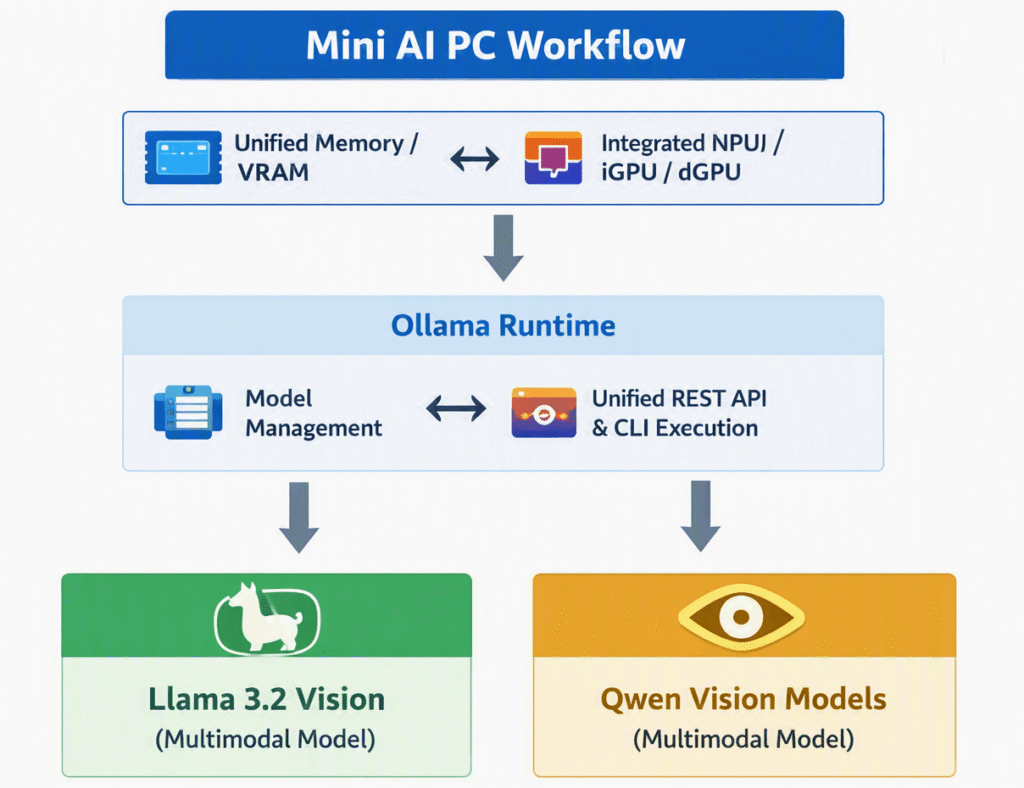
Miniature desktop workstations feature powerful integrated neural processing units (NPUs), discrete graphics options, and high-speed unified memory. Because vision-language models process raw image pixels alongside text tokens, memory throughput remains critical.
The Advantages of Edge Multimodal Processing
Hosting an AI pipeline locally provides several core advantages:
- Complete Data Privacy: Sensitive images never leave your local network.
- Zero Subscription Fees: You eliminate costly monthly API billing.
- Low Latency Performance: Local network connections avoid cloud round-trip delays.
- Offline Capabilities: Your setup functions seamlessly during internet outages.
💡 Pro-Tip: Ensure your Mini PC has at least 32 GB of shared system memory or dedicated VRAM. Vision transformers consume extra memory while processing high-resolution visual inputs.
Setting Up Ollama on Your Mini PC
To host local AI workloads cleanly, Ollama offers the most efficient runtime available today. It packages model weights, configurations, and dependencies into lightweight execution bundles.
Step-by-Step Installation
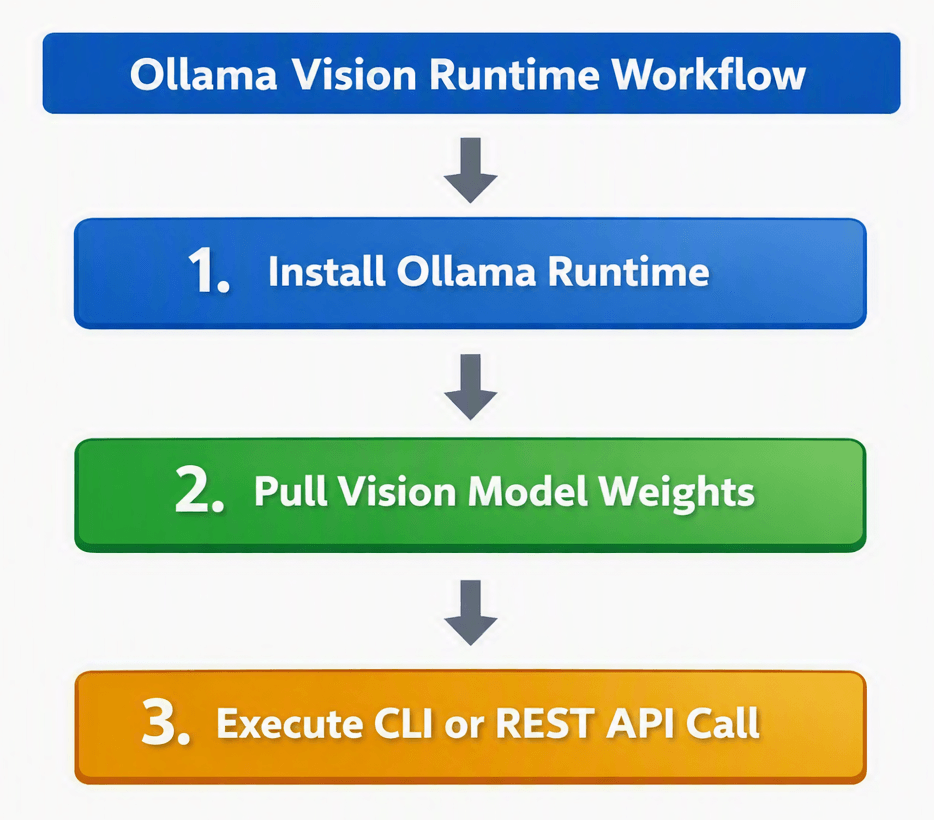
- Download the official installer from Ollama’s official site.
- Run the executable installer for your operating system (Linux, macOS, or Windows).
- Verify your installation by executing the command below in your terminal:
Bash
ollama --versionIf the system returns a version number, your host framework is fully functional.
Selecting and Pulling Local Vision LLMs
To run multimodal LLM locally workloads, you must download a vision-capable checkpoint. Popular open-weight choices include Llama 3.2 Vision and Qwen-VL variants.
Downloading the Model
Execute the following command in your terminal to fetch the 11B vision model checkpoint:
Bash
ollama pull llama3.2-visionOllama automatically retrieves the model weights and optimizes the context window for your host hardware.
⚠️ Warning: Running an 11B vision model on systems with less than 16 GB of VRAM or shared RAM will cause extreme swap thrashing and poor inference speeds.
Querying Vision LLMs via CLI and API
Once the vision model is downloaded, you can send image prompts directly using the command line or code integrations.
Terminal Interface Querying
Pass an image path alongside your text prompt directly inside your terminal:
Bash
ollama run llama3.2-vision "Describe the items in this image in detail: /home/user/desktop/server_rack.jpg"The model analyzes the pixels, constructs a feature map, and streams descriptive text back to your screen.
Querying via Python REST API
You can easily automate visual inspection tasks with Python. First, install the official client library from PyPI:
Bash
pip install ollamaNext, execute this Python script to query your mini PC AI workstation:
Python
import ollama

response = ollama.chat(
    model='llama3.2-vision',
    messages=[{
        'role': 'user',
        'content': 'Extract all text from this image and list key details.',
        'images': ['./receipt.jpg']
    }]
)

print(response['message']['content'])
This simple approach opens endless possibilities for building local document parsers, optical character recognition (OCR) tools, and security camera analyzers. To explore interactive frontends, check out the open-source Open WebUI project on GitHub for a ChatGPT-like graphical interface.
Final Thoughts
Transforming a compact computer into a localized multimodal engine is now remarkably straightforward. By deploying Ollama on modern Mini PCs, you retain complete data sovereignty while benefiting from cutting-edge computer vision intelligence. Whether you are parsing technical schematics, sorting home media libraries, or developing private AI tools, hosting your models locally gives you full control over your infrastructure.
What local AI projects are you currently running on your setup? Drop a comment below, share this guide with fellow self-hosters, and subscribe to technicalforum.org for more deep dives!