Managing data expansion remains a major hurdle for growing enterprises today. Historically, organizations purchased fixed-capacity licenses ahead of time, which frequently resulted in wasted budget on unallocated cloud drive space. To solve this efficiency problem, Microsoft launched a revolutionary elastic scaling option for modern teams. This comprehensive guide will show you how to properly deploy and configure the new OneDrive pay-as-you-go extra storage tiers for business to optimize your operational expenses.
By leveraging this consumption-based architecture, your enterprise eliminates the administrative burden of manual allocation modifications. Instead of guessing your future requirements, you can now configure a dynamic framework that expands organically alongside your actual workflow demands. Let us dive deep into the deployment architecture, cost management mechanics, and step-by-step administrative configuration processes required to activate this cutting-edge feature.
Understanding the Elastic OneDrive Storage Architecture
Before initiating the setup process, administrators must understand how the underlying commercial architecture functions. For most standard subscription options, Microsoft provisions a baseline allocation of 1 TB per user. However, data-heavy operations involving large media files, legal databases, or extensive codebase repositories quickly exhaust these rigid initial boundaries. The traditional approach required manual procurement of fixed-capacity add-on units, but the flexible billing model automates this entire storage scaling pipeline dynamically.
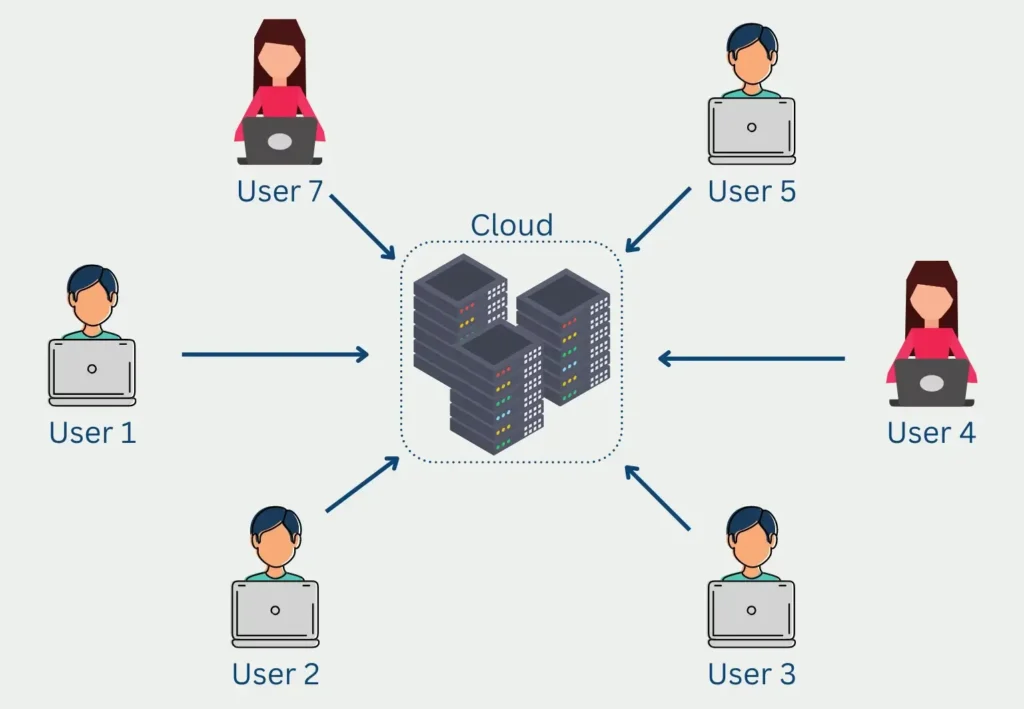
Consequently, this modernization allows organizations to maintain strict budgetary discipline while providing workers with uninterrupted infrastructure access. The subscription system continuously tracks your actual consumption footprint above the standard licensing threshold. The platform only calculates financial charges for the specific gigabytes you utilize, which prevents over-provisioning entirely.
⚠️ Warning: You must closely monitor your user consumption patterns because unconstrained elastic growth can lead to unexpected billing surprises at the end of the monthly cycle.
Prerequisites for Consumption-Based Azure Billing Integration
To successfully bridge your productivity environment with elastic payment structures, you must establish an authenticated connection to an active Microsoft Azure subscription. Because the system routes all consumption-based metrics through standard cloud commerce meters, an Azure subscription acts as the foundational payment engine. You must verify that your global admin account also possesses Owner or Contributor rights within the targeted Azure resource group.
Furthermore, your tenant must operate under a modern billing arrangement, such as the Microsoft Customer Agreement (MCA) or the Microsoft Online Services Agreement (MOSA). If your corporation utilizes legacy contract vehicles, you must execute an environment migration before these specific settings become visible. Once you satisfy these foundational account relationships, the cloud console smoothly handles the automated resource handshakes.
Step-by-Step Configuration in the Microsoft 365 Admin Center
To begin the deployment, open your preferred web browser and navigate directly to the official Microsoft 365 Admin Center. Log in using your global administrator credentials, and then switch your view to the comprehensive Dashboard layout if the simplified view is active. Expand the primary navigation tree on the left panel, click on the Billing category, and select the Marketplace option.
Microsoft 365 Admin Center -> Billing -> Marketplace -> Office 365 -> OneDrive Extra Storage
Next, use the catalog search bar to locate the dedicated storage expansion profiles. Filter the results by selecting the Office 365 product family, which reveals the active OneDrive capacity extension options. Click on the Details link underneath the OneDrive product card to open the provisioning configuration menu.
[Marketplace Catalog]
  └── Office 365
        └── OneDrive Extra Storage (Select "Details")
At this stage, the configuration interface prompts you to select your preferred subscription terms and financial billing frequencies. Carefully define the exact baseline unit quantity that your enterprise requires to meet immediate data demands across the department. Click the Buy button to launch the secure checkout panel, select your verified corporate billing profile, and click Place Order to finalize the foundational transaction.
Establishing the Azure Resource Billing Policy Link
Once you complete the product acquisition phase, you must link the newly provisioned capacity framework to your elastic payment engine. Navigate to the specialized Setup tab within the admin console, scroll down to the core infrastructure settings, and locate the pay-as-you-go services overview section. Click on the Manage Billing Policy action item to create a unified bridge between your office suite and your cloud resources.
Select the specific Azure subscription that you want to hold financially responsible for all storage overages accumulated by your active workforce. Choose the appropriate resource group, select a geographical region that matches your data residency compliance mandates, and click Next. Toggle the activation switch for the storage service to Connected, which allows the environment to scale beyond baseline boundaries safely.
[Azure Billing Linkage]
  ├── Azure Subscription: [Select Corporate Account]
  ├── Resource Group:     [Select Target Group]
  └── Service Status:     [Toggle to CONNECTED]
Adjusting Individual User Multi-Gigabyte Quotas
After activating the global tenant billing policy, you must authorize higher usage limits for individual employees who require massive workspaces. Navigate directly to the active users management screen within the admin dashboard, and select the specific team member who needs immediate space expansion. Click on the dedicated OneDrive tab within their profile overlay panel, and then select the Edit option under the storage used readout.
💡 Pro-Tip: For large-scale corporate deployments, administrators should utilize automated PowerShell management scripts to modify user limits simultaneously instead of clicking through the graphical interface for every employee.
PowerShell
# Example PowerShell command to adjust allocation limit
Set-SPOSite -Identity "https://tenant-my.sharepoint.com/personal/user_domain_com" -StorageQuota 5242880
Inside the allocation configuration panel, select the custom maximum limitation option instead of relying on the standard tenant wide default value. Enter your desired peak boundary in gigabytes, remembering that the maximum allowable value for individual users remains capped at 25,600 GB. Click Save to apply the modifications, which instantly opens up a wider canvas for that specific worker’s desktop sync client.
Monitoring Infrastructure Consumption with Advanced Reporting Tools
To maintain full financial oversight, administrators must routinely check the integrated reporting dashboards to analyze organizational usage trends over time. Navigate to the Reports section of the admin center, choose the Usage catalog, and open the dedicated cloud drive activity breakdown report. This specialized dashboard highlights which individual workers consume the highest volumes of premium capacity across the network.
Additionally, you can configure granular budget thresholds and automated email alerts directly within the connected Azure management portal. By creating proactive alert triggers at 50%, 75%, and 90% of your projected monthly spending targets, you ensure that unexpected file synchronizations never cause fiscal distress. These strict monitoring habits allow your IT department to deliver maximum operational agility while maintaining predictable spending curves.
Final Thoughts
Transitioning to a dynamic infrastructure model represents a massive leap forward for modern cloud workspace management. By deploying the new OneDrive pay-as-you-go extra storage tiers for business, you protect your enterprise from rigid storage limits while eliminating waste. Take control of your corporate environment today by activating elastic provisioning, linking your Azure billing mechanisms, and optimizing your IT budget.
Do you plan to deploy consumption-based cloud storage in your company this quarter? What strategies does your IT department use to keep data overhead under control? Let us know your thoughts in the comments section below, and do not forget to share this guide with fellow network administrators on your preferred professional social feeds!