The clock is ticking loudly for legacy Microsoft environments. If your organization still relies on old workflows, you face an impending IT crisis. Microsoft has officially announced the retirement of SharePoint Designer 2013. Consequently, millions of automated business processes worldwide will soon stop working entirely.
To maintain business continuity, you must migrate to modern solutions immediately. Fortunately, transitioning to cloud-based automation offers incredible new capabilities for your team. This comprehensive guide will walk you through the entire SharePoint migration process smoothly. We will explore how to transition your legacy systems to Power Automate workflows before the final deadline hits.
Why You Must Leave SharePoint Designer 2013 Behind
SharePoint Designer 2013 has served IT professionals reliably for over a decade. However, its underlying architecture is completely outdated. The tool relies on deprecated authentication protocols that pose severe security risks to modern enterprises. Therefore, Microsoft is completely cutting off support to force a shift toward secure cloud alternatives.
If you delay your migration, your existing workflows will eventually fail without warning. Furthermore, you will lose the ability to edit or troubleshoot these critical business processes. Security vulnerabilities will remain unpatched, which exposes your sensitive corporate data to external threats. Upgrading to the cloud is no longer optional; it is an absolute necessity for modern business data security.
Understanding the Power Automate Advantage
Power Automate represents a massive evolutionary leap forward from legacy tools. Unlike its predecessor, this modern platform offers a completely visual, low-code interface for building automation. You no longer need to write complex, nested conditions in a clunky desktop application. Instead, you can design powerful enterprise workflows directly inside your web browser.
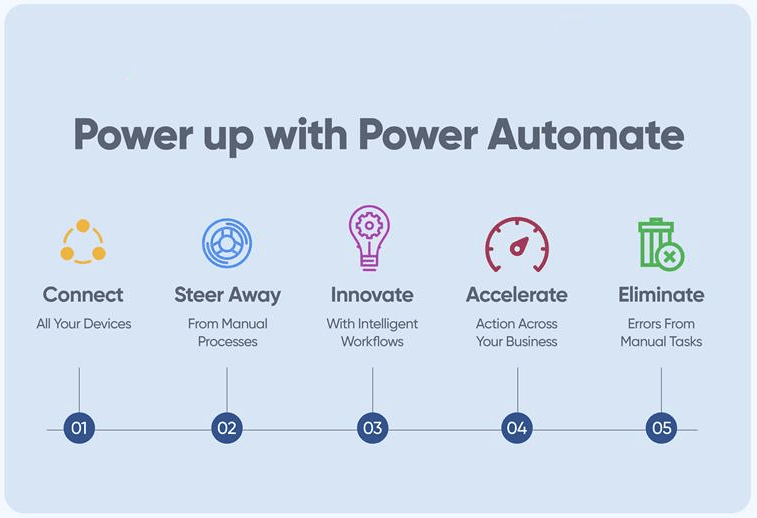
Additionally, the platform integrates seamlessly with hundreds of external applications beyond the Microsoft ecosystem. You can connect your SharePoint lists to tools like Slack, Salesforce, and Google Workspace instantly. This cloud-based engine also handles massive data volumes far more efficiently than older software. By switching, you gain access to advanced features like AI-powered processing and robotic process automation.
Phase 1: Auditing Your Legacy Workflow Inventory
Before moving a single process, you must understand your current environment completely. Start by discovering every active workflow across your entire SharePoint farm. You can utilize the official Microsoft Assessment Tool to generate a detailed inventory automatically. This scanner identifies every legacy sequence and flags potential migration compatibility issues.
+-------------------------------------------------------------+
|                WORKFLOW AUDIT CHECKLIST                     |
+------------------------------+------------------------------+
| Task                         | Status                       |
+------------------------------+------------------------------+
| Run Modernization Scanner    | [ ] Pending / [ ] Complete   |
| Map All Active Data Sources  | [ ] Pending / [ ] Complete   |
| Identify Custom Hardcoding   | [ ] Pending / [ ] Complete   |
| Document User Permissions   | [ ] Pending / [ ] Complete    |
+------------------------------+------------------------------+
Once you have the inventory report, categorize your workflows by their operational complexity. Some processes might be completely obsolete and can be safely deleted right away. Other sequences will require a complete architectural redesign due to modern cloud limitations. Documenting your current state prevents you from wasting time migrating useless or broken code.
⚠️ Warning: Never attempt a blind migration without running a full inventory scan first. Hidden, undocumented workflows can break critical department operations during the transition phase.
Phase 2: Mapping Legacy Logic to Modern Cloud Triggers
Legacy workflows rely heavily on rigid system events like “Item Created” or “Item Changed.” Power Automate utilizes a much more flexible architecture driven by dynamic API triggers. Therefore, you must map your old logic to modern cloud components precisely. Open your old design tool and carefully document every conditional branch inside your existing setup.
Next, find the exact equivalent actions within the cloud-flow designer interface. For example, a legacy “Log to History List” action now translates to a “Send an Email” or “Create Log Item” action. You must also account for changes in data types between the two platforms. Take your time during this mapping stage to ensure your new logic matches your original business requirements.
Phase 3: Rebuilding Workflows via the Power Automate Interface
Now, you are ready to construct your brand-new Power Automate workflows from scratch. Log into the Microsoft 365 portal and navigate directly to the flow creation wizard. Choose the automated cloud flow option to mirror your original SharePoint triggers. Select the specific SharePoint site and list that will launch your new process.
[SharePoint List Trigger] ---> [Condition Check] ---> [Approval Action] ---> [Update Status]
Begin adding your actions sequentially using the intuitive drag-and-drop user interface. For complex multi-stage approvals, utilize the built-in Approvals connector for the best user experience. This connector sends native notifications directly through Microsoft Teams and Outlook automatically. Ensure you use explicit variable names throughout your configuration to keep the design clean and maintainable.
Phase 4: Rigorous Testing and Quality Assurance
You must test your new cloud processes thoroughly before decommissioning your old software tools. Create a isolated SharePoint staging list that mirrors your production data structure exactly. Run multiple test scenarios to verify that every conditional branch executes perfectly. Check how the system handles edge cases, such as empty fields or massive file attachments.
Pro-Tip: Use the built-in “Run History” feature in the cloud portal to debug failed actions quickly. This tool shows you the exact input and output data for every single step in your sequence.
Invite your core business users to participate in user acceptance testing sessions. Their feedback is invaluable for catching practical workflow issues that developers might overlook. Do not rush this phase, because thorough testing prevents costly operational disruptions later. Once verified, you can confidently plan your final production deployment schedule.
Phase 5: Decommissioning SharePoint Designer 2013 Safely
The final phase of your SharePoint migration process involves turning off your old systems forever. Start by disabling the creation of new legacy workflows within your SharePoint central administration. This restriction prevents users from accidentally building new dependencies on deprecated technology. Allow existing legacy instances to finish their current cycles completely over a few weeks.
Once all pending legacy tasks conclude, delete the old definitions from your site collections completely. You can check the Microsoft Lifecycle Policy Page to confirm final deprecation dates for your specific server versions. Finally, uninstall the desktop application from all administrator workstations across your company. Congratulations, you have successfully modernized your enterprise automation stack for the future!
Final Thoughts
Migrating away from legacy Microsoft tools might seem daunting at first glance. However, this transition represents a massive opportunity to upgrade your corporate efficiency significantly. Power Automate eliminates the limitations of the past while opening doors to incredible cloud innovations. Do not wait for your critical business systems to break unexpectedly. Start auditing your legacy environment today, and transition your workflows safely before the fast-approaching end-of-support deadline.
What challenges are you facing with your current system upgrade? Let us know in the comments section below, and share this guide with your IT colleagues!