
Resetting your Comcast email account can seem challenging, especially when you are locked out. However, with the right steps, the process becomes simple. Whether you forgot your password or need to update your login details for security reasons, we have you covered. In this guide, you will learn how to reset Comcast email account quickly and securely. We also cover troubleshooting tips and how to update your recovery options. Whether you use Comcast email for business or personal purposes, keeping your account secure is crucial.

Furthermore, Comcast (also branded as Xfinity) offers many tools like the Xfinity Mobile App and Xfinity ID Recovery Tool that simplify account management. Let’s dive into the simple steps you can follow to reset your Comcast password!
Step 1: Access the Xfinity Password Reset Page
First, you must go to the official Xfinity Password Reset page. It is vital to use the correct page to avoid phishing sites. Once there, you will be asked to enter your Xfinity ID. Your Xfinity ID could be your email address, mobile number, or username.
After you input your ID, click Continue to proceed. Make sure you have access to your recovery email or phone number at this point.
Step 2: Select a Verification Method
Next, choose your preferred verification method. Xfinity will offer options like text message or email to send your security code. Select the option you can access fastest. If you do not see your preferred method, click the “Try another method” link provided.
Receiving the code quickly ensures you won’t get logged out during the reset process. Comcast recommends always keeping your recovery methods updated on your Xfinity Account Settings.
Step 3: Enter the Verification Code
After choosing the method, Xfinity will send you a verification code. Enter this code in the field provided. Be sure to type the code exactly as it appears. Codes typically expire within a few minutes, so act quickly.
If you do not receive the code, you can request a new one by clicking “Resend Code.” For troubleshooting, visit Xfinity Support’s Help Center.
Step 4: Create and Confirm a New Password
Once verified, you can create a new password. Comcast recommends a strong password that is 8–128 characters long. Your password must include at least one letter and either a number or a special character.
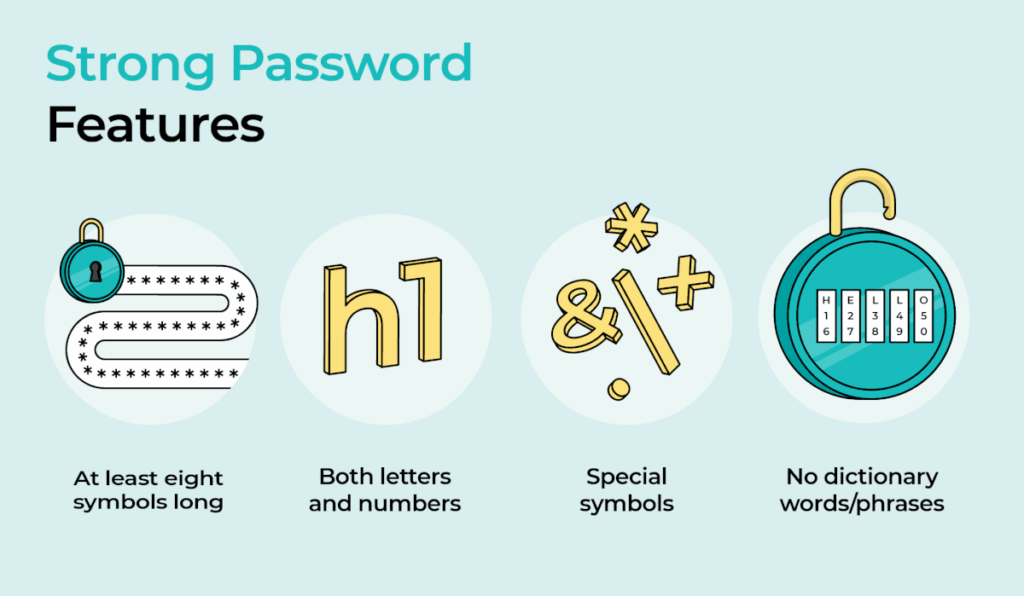
Type your new password carefully and confirm it by entering it again. Avoid using easily guessed information like your name or birthdate. You can use a password manager like LastPass to securely store your new password.
Step 5: Finalize and Confirm the Reset
Click “Continue” after setting your new password. Xfinity will confirm that your password reset was successful. After confirmation, log in to your Comcast email using the new password.
If issues occur, clear your browser’s cache or use a different device to retry. If problems persist, consider reaching out to Xfinity Customer Support.
Common Troubleshooting Tips When Resetting Comcast Password
Sometimes users encounter extra steps, like being asked to connect to home Wi-Fi. If you no longer use Comcast internet, clear your browser’s cookies and cache. This should remove the automatic home network detection.
Moreover, if you lost access to both your email and phone number, you will need to contact support. Comcast support is available 24/7 at 1-800-XFINITY (1-800-934-6489). They can manually verify your identity and reset your password.
Resetting Passwords for Secondary Xfinity Accounts
Managing secondary accounts can sometimes cause confusion. If you need to reset a password for a secondary email, log in with the primary account first. Navigate to Account and Identity > Xfinity ID and Security.
From there, select the secondary account and click “Change Password.” If the secondary account is set as “Manager,” you must change the role to “Viewer” first. Comcast provides a detailed walkthrough for secondary account management.
How to Secure Your Comcast Email After Reset
After resetting your password, update your recovery information immediately. This includes your recovery email and mobile phone number. Always choose recovery options that are accessible and secure.
Additionally, enable two-step verification from your Xfinity security settings. Two-step verification adds another layer of security, making unauthorized access extremely difficult. To learn more, visit Xfinity Two-Step Verification Setup.
Conclusion
Resetting your Comcast email password doesn’t have to be stressful. By following the outlined steps carefully, you can regain access to your account in no time. Always keep your security details updated to avoid future issues.
By using recovery tools like the Xfinity My Account App and staying informed through the Xfinity Status Center, you can maintain full control over your account. Stay secure, stay updated, and enjoy seamless communication with your Comcast email!