Microsoft recently issued a critical notice for personal and enterprise users running legacy Windows 10 builds. Consequently, the company is stopping software updates for the standalone OneDrive sync app on older operating system versions. If your system relies on outdated Windows 10 releases, your cloud file synchronization client will no longer receive new feature patches, bug fixes, or performance enhancements. Microsoft is pushing users toward modern builds, such as Windows 10 22H2 or Windows 11 upgrade paths, to guarantee seamless service continuity.
Navigating cloud storage policy changes often creates confusion for IT administrators and casual users alike. However, understanding what this deprecation means for your day-to-day operations will protect your critical data. In this comprehensive guide, we unpack Microsoft’s official timeline, explore the risks of running unsupported sync software, and outline actionable steps to keep your files protected.
What Is Changing with the OneDrive Sync App?
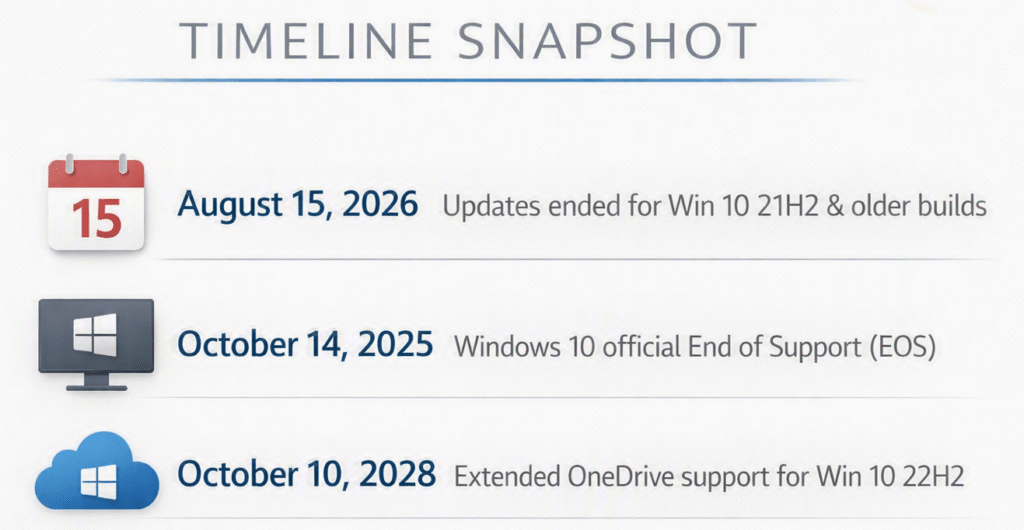
Microsoft is officially winding down maintenance for its standalone desktop client on older Windows releases. Specifically, devices running Windows 10 version 21H2 or earlier will no longer receive the latest Microsoft OneDrive update releases. The client will remain installed on your local drive, but its underlying code will remain frozen in place.
The underlying sync platform requires active engineering support to handle evolving cloud APIs. Because Microsoft continually upgrades its cloud backend, unpatched desktop clients will eventually suffer from communication drops. Over time, these legacy apps will fail to upload local modifications cleanly.
⚠️ Warning: Ignoring client software retirement risks silent sync errors. Your desktop client might display a green checkmark, yet your newest local files might fail to upload to the server.
Furthermore, maintaining backwards compatibility across dozens of legacy builds slows down product innovation. By narrowing their focus, engineering teams can deliver better performance to active environments. You can review complete technical requirements on the official Microsoft OneDrive System Requirements page.
Affected Windows 10 Versions and Timelines
To properly assess your deployment, you must identify your exact system build. Microsoft has established clear servicing boundaries across different servicing channels.
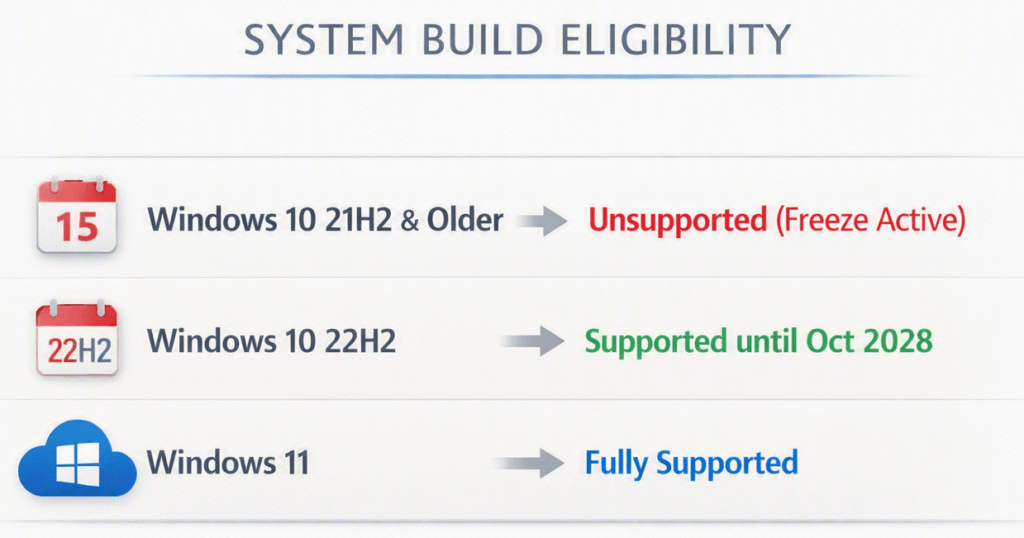
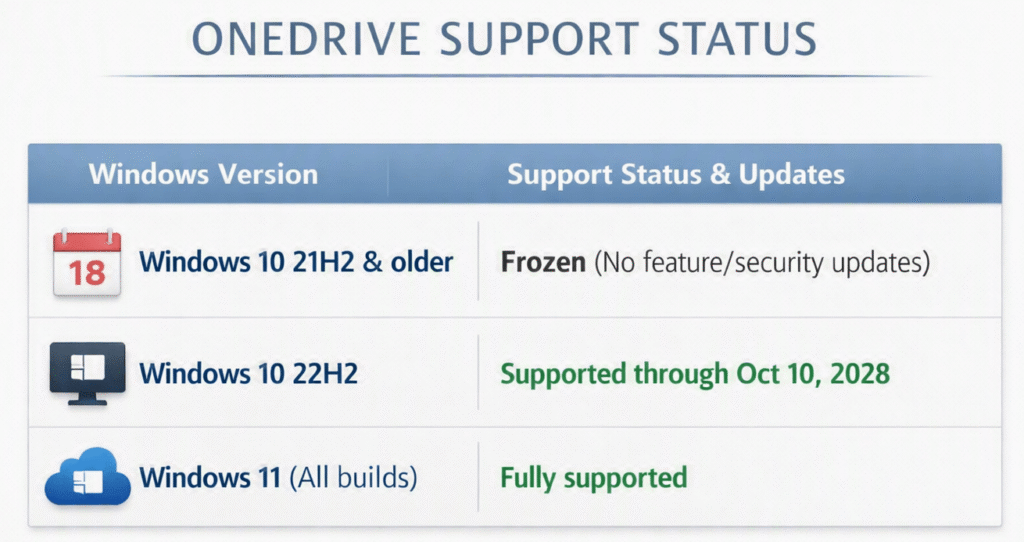
- Windows 10 Versions 21H2 and Earlier: Support for the sync client on these builds has officially ended. Devices on these releases stay permanently on their current build version.
- Windows 10 Version 22H2: This specific build remains fully supported. Microsoft will deliver sync updates on version 22H2 through October 10, 2028.
- Windows 11 (All Builds): These environments receive full maintenance and immediate access to brand-new cloud client features.
For enterprise customers using Windows 10 Enterprise LTSC releases, servicing follows specific lifecycle agreements. However, administrators should audit all workstations to avoid abrupt operational downtime. Read the official announcement on the Microsoft Lifecycle Services Page for deeper policy insights.
Security and Functional Risks of Running Outdated Clients
Running an unsupported application exposes your workstation to zero-day vulnerabilities and data corruptions. Cloud connectivity requires strict authentication protocols, robust encryption pipelines, and adaptive API wrappers. When those components stop receiving maintenance, significant security risks emerge.
1. Security Vulnerabilities
Outdated desktop software creates prime entry points for malicious actors. Cybercriminals continuously reverse-engineer unpatched sync utilities to find local privilege escalation vectors. Without regular security patches, your local system environment becomes vulnerable to exploit kits. Maintaining enterprise cloud storage security demands actively supported client endpoints across every department.
2. Silent Sync Failures
Software updates do not merely tweak visual elements; they resolve critical edge-case bugs. If a network drop interrupts your client, an outdated app might fail to retry the transfer properly. Consequently, users end up working on mismatched file versions across different office computers.
3. API Incompatibility
Microsoft continuously upgrades its web service APIs to boost cloud throughput and compliance. Over time, these server-side adjustments will break older sync handshakes completely. Eventually, your standalone app will fail to log in or process file changes entirely.
   [Legacy Client] ------(Outdated API)------X [Modern Cloud Server]
                                              |
   [Updated Client] ======(Modern API)=======> [Sync Successful]
💡 Pro-Tip: Check your current client version anytime by right-clicking the cloud tray icon, selecting Settings, and clicking the About tab. Compare your version number with official patch notes.
Step-by-Step Guide: How to Upgrade and Stay Protected
Upgrading your system keeps your client fully secure, functional, and up to date. You can upgrade your legacy build by following this structured process:
1. Check System Build:Prerequisite Verification.
Press Win + R, type winver, and press Enter. A dialog window will appear displaying your current version number. If it displays 21H2 or lower, proceed immediately to the next update step.
2. Back Up Critical Files:Data Loss Prevention.
Before installing system updates, copy your local files to an external storage drive or create a complete system restore point.
3. Update to Windows 10 22H2:OS Patching.
Navigate to Settings > Update & Security > Windows Update. Click Check for updates and install the feature update for version 22H2.
4. Verify Desktop Sync Status:Client Validation.
Once your computer reboots, launch your cloud tray app. Check that your status reads “Up to date” and confirm that all background sync processes execute without errors.
If your system hardware meets necessary prerequisites, consider migrating directly to a newer platform. Check out the Windows Update Official Portal to troubleshoot common update errors smoothly.
Options for Systems That Cannot Upgrade
Some enterprise workstations and legacy desktop systems cannot update due to strict hardware limitations. If your hardware cannot run newer system builds, you can still manage your files using alternative workflows:
- OneDrive Web Portal: Access your files directly using any modern web browser. Simply navigate to the cloud portal, sign in, and upload or download your files manually.
- Mobile Companion Apps: Install official mobile apps on iOS or Android devices. These mobile platforms receive continuous updates and handle file transfers reliably.
- Third-Party Backup Utilities: Network administrators can implement network-attached storage (NAS) backup software to synchronize local directories directly to cloud targets over secure protocols.
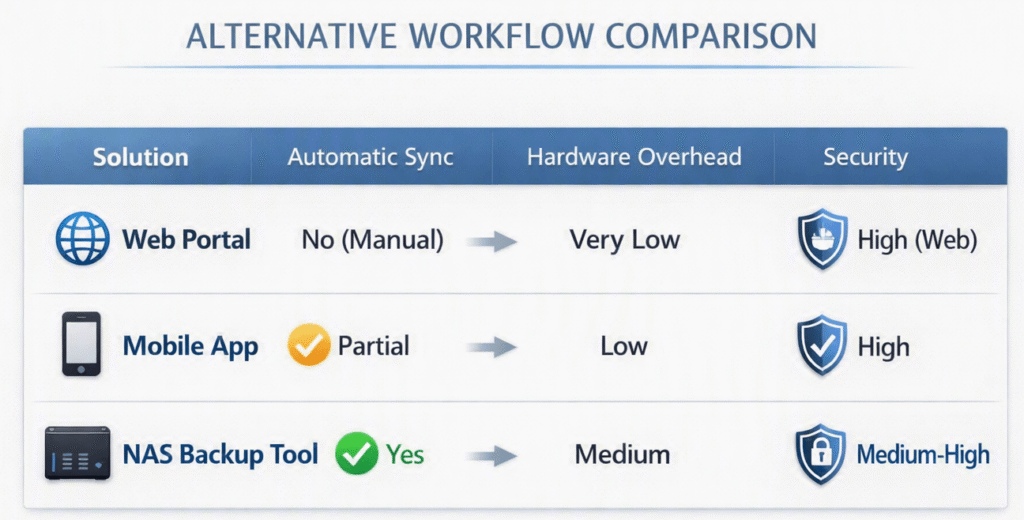
You can review complete details about browser compatibility on the official SharePoint & OneDrive Release Documentation.
What IT Administrators Need to Do Now
System administrators managing corporate environments must proactively update company endpoints. Allowing unpatched cloud clients to persist across your organization increases ticket volume and compromises data security policies.
[Audit Endpoints] ---> [Deploy Group Policy] ---> [Update Software]
- Audit Endpoint Inventory: Run hardware audit scripts through Microsoft Intune or your endpoint management tool to identify machines running legacy software.
- Deploy Group Policy Restrictions: Block unsupported sync builds from logging into corporate tenants to prevent data corruption risks.
- Stagger OS Upgrades: Schedule automated rollout packages during off-hours to update machines to version 22H2 or newer platforms smoothly.
Refer to the official Microsoft Admin Center Guidance for enterprise deployment tools and centralized client controls.
Final Thoughts
Software retirements feel disruptive, but they serve a crucial purpose in modern computing. Microsoft’s decision to drop sync support on older Windows builds forces essential maintenance that protects users from security flaws and sync failures. Updating your system ensures uninterrupted cloud access and preserves long-term stability.
Are you still maintaining legacy workstations across your home network or business setup? Tell us how you plan to manage this transition in the comments below! Share this article with fellow IT pros and colleagues to help them stay ahead of these deprecation deadlines!