
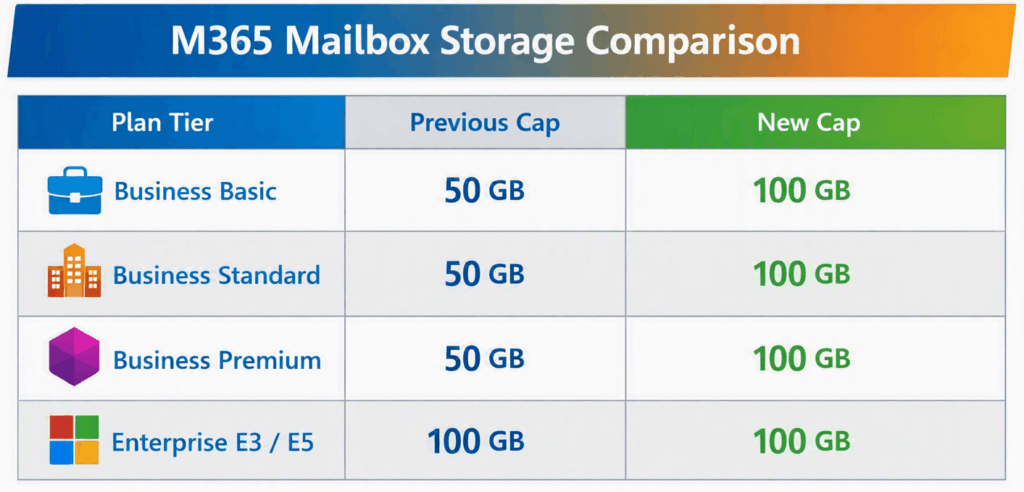
IT administrators across the globe can finally take a deep breath. Microsoft has officially rolled out a massive Microsoft 365 mailbox storage boost for small and medium-sized enterprise tenants. Consequently, millions of users will see their base primary cloud email storage instantly double. Microsoft is increasing standard allocations from 50GB to a massive 100GB limit. Best of all, this huge infrastructure update arrives completely free of charge for qualifying subscriptions.
As digital communication expands, inbox sizes naturally grow faster than ever. Modern workflows rely heavily on massive file attachments, integrated meeting recordings, and endless email chains. Therefore, standard storage limits have choked productivity for growing organizations in recent years. Today, this unexpected M365 Business upgrade removes a significant operational hurdle for IT teams everywhere.
Why Storage Limits Matter for Modern Workplaces
Email remains the absolute backbone of modern enterprise communication. However, employees treat their inboxes as default document archives today. Workers save contract drafts, presentation decks, and high-resolution images directly in their sent folders. As a result, standard 50GB storage quotas regularly hit maximum capacity much faster than expected.
When users hit their storage ceiling, their daily workflow halts instantly. Exchange Online blocks incoming messages, which leads to missed client communications and internal friction. Furthermore, IT helpdesks waste countless hours resolving quota tickets, clearing deleted items, or managing manual archive policies.
[ User Inbox Reaches 50GB ]
             │
             ▼
[ Incoming Emails Bounce back ]
             │
             ▼
[ High Ticket Volume for IT Staff ]
             │
             ▼
[ Forced Purchasing of Expensive E3 Upgrades ]
Previously, administrators had to buy expensive standalone archiving licenses or upgrade users to Enterprise tiers. Alternatively, IT teams spent tedious afternoons exporting local PST files to free up space. By doubling the base Exchange Online capacity, Microsoft effectively solves this chronic pain point for small business owners.
Breakdown of the New 100GB Mailbox Limit
So, which specific plans benefit from this surprise storage expansion? Microsoft is applying the update broadly across its SMB catalog. Consequently, tenants on popular tier options gain immediate advantages without modifying their monthly billing contracts.
Included Subscriptions
- Microsoft 365 Business Basic: Now features a full 100GB mailbox limit alongside web apps.
- Microsoft 365 Business Standard: Combines full desktop Office applications with double the mail space.
- Microsoft 365 Business Premium: Pairs advanced Defender security features with the enlarged inbox quota.
- Exchange Online Plan 1: Standalone mail subscriptions also receive the full 100GB expansion.
⚠️ Warning: Do not confuse primary mailbox storage with archive storage quotas. This update specifically applies to your active primary inbox. Furthermore, auto-expanding archiving limits remain governed by separate enterprise compliance licenses.
       Primary Inbox Cap             Auto-Expanding Archive
  ┌──────────────────────────┐    ┌──────────────────────────┐
  │     NOW 100GB BASE       │    │   Requires Add-On/E3     │
  │   (Active Emails/Files)  │    │  (Long-Term Compliance)  │
  └──────────────────────────┘    └──────────────────────────┘
This structural shift brings standard business plans into exact alignment with Enterprise E3 and E5 primary mailbox sizes. Consequently, smaller companies now enjoy true enterprise-grade capacity without paying enterprise-level pricing. You can review official feature breakdowns via the Microsoft 365 Business Plans Directory.
The Strategic Impact on Small Business IT Budgets
Managing IT infrastructure budgets requires balancing necessary software tools against overhead costs. For years, the 50GB storage limit forced IT managers into awkward purchasing decisions. When power users maxed out their inboxes, companies faced immediate financial dilemmas.
      Traditional Workaround                 New Microsoft Model
┌─────────────────────────────────┐   ┌─────────────────────────────────┐
│ Pay +$15/mo for Enterprise E3   │   │ Maintain Business Standard      │
│               OR                │   │               AND               │
│ Spend $3/mo on Archiving Add-on │   │ Enjoy Free 100GB Primary Space  │
└─────────────────────────────────┘   └─────────────────────────────────┘
First, companies could upgrade standard users to expensive Enterprise E3 licenses just for storage. Alternatively, administrators bought supplemental Exchange Online Archival add-ons. Either route added recurring monthly expenses across the department budget. Now, businesses can reallocate those saved funds toward critical cybersecurity tools or cloud backup platforms.
Furthermore, this change drastically reduces complex Office 365 migration requirements. Organizations often considered migrating away from Microsoft when facing strict storage caps. By eliminating the quota barrier, Microsoft increases customer retention while keeping small businesses securely in their ecosystem. Learn more about optimizing infrastructure spending at Gartner IT Financial Management Guides.
Technical Details: How the Rollout Works
Deploying changes across hundreds of millions of global accounts takes careful orchestration. Therefore, Microsoft is implementing this backend update automatically using a staged global wave deployment model.
[ Phase 1: Automated Script Runs ] ──► [ Phase 2: Tenant Quotas Updated ] ──► [ Phase 3: PowerShell Reflects 100GB ]
System administrators do not need to log into the admin portal to request the change manually. However, backend changes propagate gradually across regions. Thus, some user accounts might show the expanded capacity before others within the same tenant.
Deployment Timeline Overview
- First Wave: Targeted Release tenants and early-adopter organizations receive updates first.
- Second Wave: Standard global business tenants undergo automatic backend script updates.
- Final Wave: Legacy accounts with customized PowerShell quotas get adjusted automatically.
💡 Pro-Tip: If your users do not see the updated 100GB limit immediately, do not submit support tickets yet. You can force a mailbox configuration update via Remote PowerShell using the Set-Mailbox command.
PowerShell
# Verify current mailbox statistics
Get-MailboxStatistics -Identity user@yourdomain.com | Select DisplayName, TotalItemSize, StorageLimitStatus

# Force Update Mailbox ProhibitSendReceiveQuota
Set-Mailbox -Identity user@yourdomain.com -IssueWarningQuota 98GB -ProhibitSendQuota 99GB -ProhibitSendReceiveQuota 100GB
Administrators seeking command syntax details can consult the Microsoft Graph & PowerShell Documentation.
Step-by-Step: How Admins Can Verify Their New Storage Cap
System administrators should verify that their tenant has received the expanded allocation. Fortunately, checking mailbox quotas takes only a few minutes using standard management dashboards.
- Log into the main Microsoft 365 Admin Center using global admin credentials.
- Navigate to the Users menu item on the left pane and select Active Users.
- Click on any specific user account from the populated list to open their details blade.
- Select the Mail tab located inside the pop-out side panel.
- Review the visual indicator bar under the Email storage section header.
+-------------------------------------------------------------+
| Active Users > John Doe > Mail Tab                          |
+-------------------------------------------------------------+
| Email Storage Usage:                                        |
| [██████████████░░░░░░░░░░░░░░░░░░░░░░░░░░░░░░░] 32GB / 100GB|
+-------------------------------------------------------------+
Alternatively, administrators handling large environments can run bulk audit scripts. PowerShell allows you to query every inbox across your domain simultaneously. If you discover specific mailboxes still stuck at 50GB, double-check that their assigned license tier qualifies. For advanced PowerShell script templates, check the resources available on GitHub PowerShell Community Repositories.
Best Practices for Managing Large 100GB Mailboxes
While 100GB provides immense breathing room, unlimited storage space can breed sloppy data habits. Consequently, IT teams must implement smart policies to keep inboxes organized, secure, and searchable.
                 Recommended Mailbox Health Routine
┌───────────────────────┐   ┌───────────────────────┐   ┌───────────────────────┐
│ Enable Retention Rules│──►│ Audit Outlook Sync    │──►│ Enforce Modern Search │
│ (Auto-archive 2+ yrs) │   │ (Limit Cache to 1 yr) │   │ (Use Web/Cloud Index) │
└───────────────────────┘   └───────────────────────┘   └───────────────────────┘
1. Implement Retention & Deletion Policies
Do not let expanded storage turn your tenant into an unstructured data dump. Instead, configure automatic retention tags in the Purview Compliance Portal. Automatically move items older than two years into archive folders to maintain clean primary views.
2. Monitor Outlook OST File Sizes
Large online mailboxes can destabilize local desktop Outlook clients. When users sync a massive 100GB inbox locally, their offline OST file grows dramatically. Consequently, local search performance slows down, and file corruption risks increase significantly.
  [ Heavy Local OST File (100GB) ] ──► [ Slow Search & Potential File Corruption ]
                                 VS
  [ Cached Mode Set to 1 Year ]    ──► [ Fast Performance & Cloud-Based Search ]
To prevent performance bottlenecks, enforce Cached Exchange Mode policies through Group Policy (GPO) or Intune. Set Outlook to cache only 3 to 12 months of email locally. Users can still access older messages seamlessly via online search requests.
3. Educate Users on File Sharing Standards
Encourage your staff to share OneDrive links rather than sending heavy file attachments. Sending large attachments repeatedly eats up storage space unnecessarily across multiple user accounts.
To review identity management strategies and cloud storage standards, visit the CISA Cybersecurity Best Practices.
Comparing M365 Storage Limits Against Competitors
This aggressive storage update places significant pressure on competing cloud productivity platforms. Google Workspace, for example, shares storage across Gmail, Google Drive, and Photos combined.
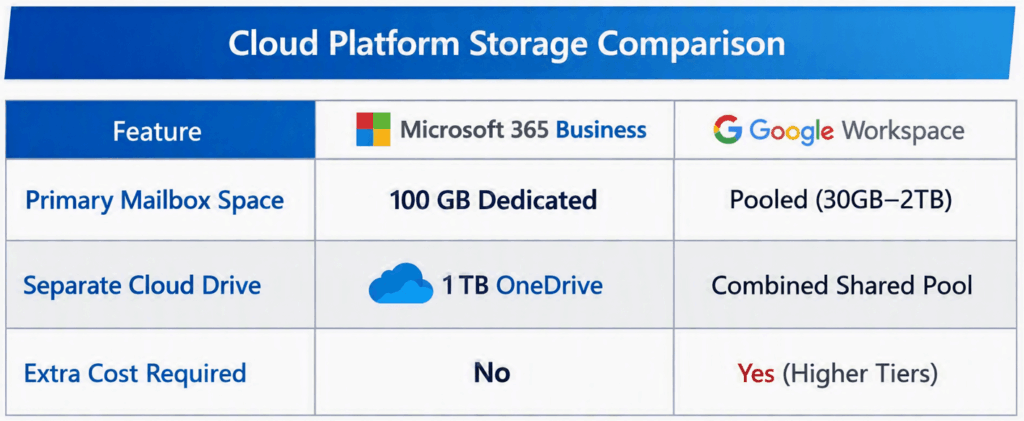
Consequently, a Google Workspace Business Starter plan offers only 30GB total storage across all services. In contrast, Microsoft now provides 100GB specifically dedicated to email, plus a completely separate 1TB OneDrive cloud drive.
   Google Workspace (Starter)              Microsoft 365 (Business)
┌──────────────────────────────┐       ┌──────────────┐  ┌──────────────┐
│  30GB TOTAL SHARED STORAGE   │       │ 100GB MAILBOX│  │  1TB ONEDRIVE│
│  (Gmail + Drive + Photos)    │       │  (Dedicated) │  │  (Dedicated) │
└──────────────────────────────┘       └──────────────┘  └──────────────┘
This clear separation gives Microsoft a major competitive edge for data-heavy business workloads. Companies handling large media assets or extensive PDF documentation gain substantial value without spending more money.
Frequently Asked Questions (FAQs)
Does this update require any price increases on renewal?
No, Microsoft is rolling out this storage upgrade completely free of charge. Your subscription costs will remain unchanged during your standard renewal cycle.
What happens if my account still shows 50GB storage?
Backend scripts update millions of global accounts in rolling waves. Please allow a few weeks for changes to process across your regional data center.
Do shared mailboxes also receive the 100GB limit?
Unlicensed shared mailboxes remain capped at 50GB by default. However, assigning a standard Business license to a shared mailbox instantly upgrades its limit to 100GB.
Final Thoughts & Next Steps
Microsoft’s decision to double business mailbox capacity is a massive win for modern IT operations. By expanding email archiving limits and primary inbox boundaries, Microsoft eliminates everyday storage friction. Consequently, small businesses gain enterprise-grade capabilities without stretching their operational budgets.
As the rollout continues globally, IT administrators should verify their account quotas promptly. Furthermore, use this opportunity to review local caching policies and update retention rules across your organization.
Over to You! Has your tenant received the 100GB mailbox upgrade yet? How will this extra space change your team’s archiving and management strategy? Let us know in the comments below! If you found this update helpful, please share this article with your fellow IT administrators and network engineers.