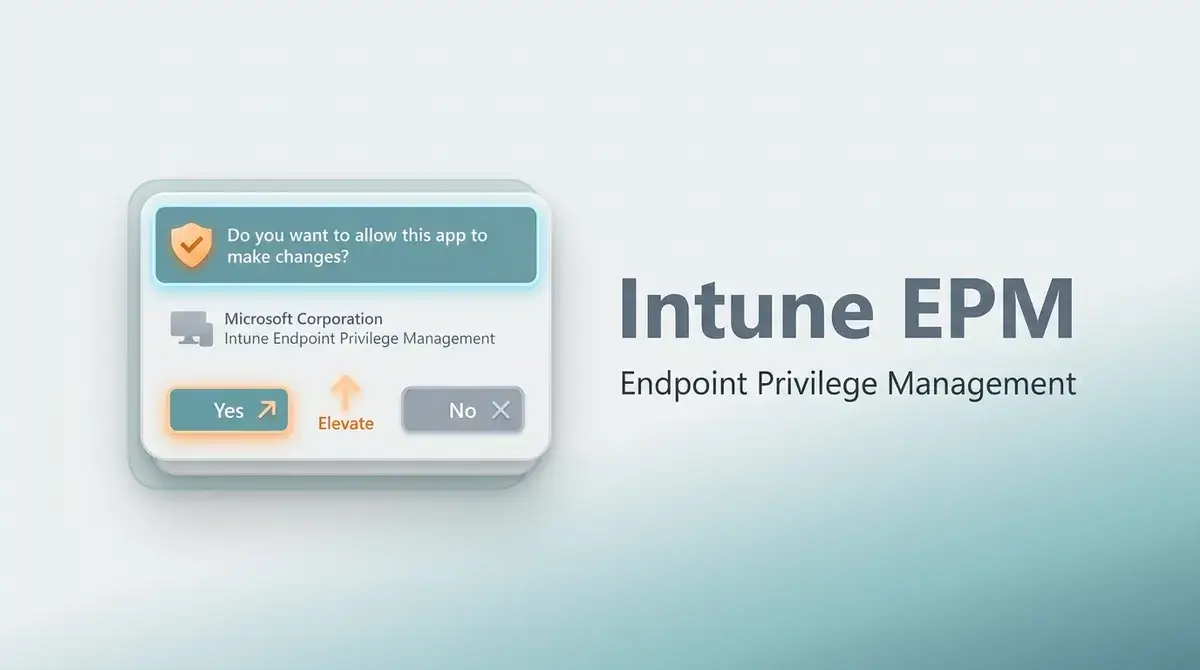
Managing enterprise Windows endpoints requires balancing strict security controls with daily user productivity. Operating with Intune EPM local admin rights strategies allows IT organizations to enforce least privilege access Windows environments cleanly. Historically, revoking local administrative privileges triggered endless helpdesk tickets. End users frequently needed admin rights to update developer tools, run specialized software, or alter system configurations. Consequently, many system administrators delayed removing local admin rights entirely.
Modern cyber threats exploit local administrative credentials to spread malware lateral movement across internal corporate networks. Operating endpoints without local admin rights drastically reduces overall organizational attack surfaces. Microsoft Intune Endpoint Privilege Management (EPM) addresses this challenge directly. EPM allows standard non-admin accounts to run specific approved applications with elevated administrative privileges dynamically. In this detailed article, we explain how to configure EPM policies to remove broad local admin rights safely.
Understanding Intune Endpoint Privilege Management Architecture
Microsoft Intune Endpoint Privilege Management acts as a core extension inside the Microsoft Intune Suite and standalone add-on ecosystems. Rather than granting full permanent local administrator access to standard accounts, EPM uses a client-side agent. This agent intercepts elevation attempts on targeted Windows endpoints in real time. The process runs within an isolated context while keeping standard user access restricted elsewhere.
                        [ User Execution Attempt ]
                                    │
                                    ▼
                     [ Right-Click: Run with Elevated Access ]
                                    │
                                    ▼
                    ┌────────────────────────────────┐
                    │  Intune EPM Agent Intercepts   │
                    └───────────────┬────────────────┘
                                    │
                         Is App Rule Configured?
                         ├─── YES ──► [ Process Allowed / Elevated ]
                         │
                         └─── NO ───► [ Apply Default Response ]
                                      ├─ Automatic Deny
                                      └─ Support Approval Request
When an enterprise removes standard local administrative rights, EPM proxies required rights to approved executables. The system verifies the target application against rule sets stored in Intune. These rules evaluate attributes like file hashes, digital signatures, and binary file paths. Consequently, organizations adopt robust Zero Trust endpoint security principles without destroying end-user efficiency.
Core Prerequisites and Licensing
- Supported OS: Windows 10 (21H2 or later) and Windows 11 Enterprise/Pro.
- Licensing: Requires Intune Plan 1 plus the Intune Endpoint Privilege Management add-on license or the comprehensive Microsoft Intune Suite bundle.
- Management State: Devices must be Microsoft Entra ID joined or Microsoft Entra hybrid joined and enrolled under Intune MDM.
💡 Pro-Tip: Check your current license allocation inside the Microsoft 365 Admin Center under Billing before planning deployment schedules. Standalone add-on licenses can be assigned directly to specific target user groups.
Step 1: Deploy the Intune Elevation Settings Policy
Before defining application-specific elevation rules, you must deploy an Intune elevation settings policy. This policy activates the EPM client on Windows devices and configures baseline behaviors for unmapped elevation requests.
First, log into the Microsoft Intune Admin Center. Navigate directly to Endpoint security > Endpoint Privilege Management. Select the Policies tab, then click Create Policy. Choose Windows 10 and later as the platform, select Elevation settings policy as the profile type, and click Create.
   Microsoft Intune Admin Center
   └── Endpoint security
       └── Endpoint Privilege Management
           └── Policies
               ├── Profile: Elevation Settings Policy
               └── Profile: Elevation Rules Policy
Inside the configuration settings, locate the Privilege management elevation client settings section. Set Endpoint Privilege Management to Enabled. Set the Default elevation response setting based on your current deployment phase. When beginning your transition, setting this option to Not Configured or Audit All allows diagnostic monitoring. Once fully operational, set it to Deny all requests to enforce strict security controls.
Finally, turn on the option to Send elevation data for reporting. Scope this data to gather comprehensive diagnostic details across all managed devices. Assign this settings policy to a targeted test security group containing your pilot Windows workstations.
⚠️ Warning: Selecting “Deny all requests” as the default elevation response before building application rules will block all unapproved elevations immediately. Always test your baseline policies in audit mode first.
Step 2: Create Application-Specific EPM Elevation Rules
Once the EPM agent activates on managed client endpoints, you must define granular EPM elevation rules. These rules specify exactly which software binaries can elevate, under what criteria, and with what level of user interaction.
Return to the Endpoint Privilege Management blade within Intune. Select Create Policy, but choose Elevation rules policy this time. Give your rule policy a distinct name, such as Developer Tools Elevation Policy.
Inside the policy properties, click Edit rules to add custom elevation logic. EPM supports three primary elevation types:
| Elevation Type | Description | Primary Use Case |
| Automatic | Elevates the app instantly in the background without user prompts. | Background administrative updates, silent installers, system scripts. |
| User Confirmed | Requires users to right-click and select “Run with elevated access”. | Interactive admin tools, approved developer utilities. |
| Support Approved | Prompts users to submit an elevation request that admins review. | One-off app installations, rare operational overrides. |
Select the appropriate file detection method when configuring individual rule attributes. Intune allows verification based on exact File Hash, Certificate Payload, or File Path matching. Utilizing a cryptographic file hash offers the maximum level of security against file tampering. Alternatively, using vendor certificate signatures simplifies rule maintenance when managing frequently updated software.
For detailed configuration instructions on certificate-based rule creation, review the official Microsoft EPM Rules Documentation.
Step 3: Safely Remove Local Admin Rights Using Account Protection Policies
With your EPM settings and elevation rules properly configured, you can now remove local admin rights Intune configurations safely. Microsoft Intune uses Account Protection policies to manage local group memberships systematically across Windows endpoints.
Navigate to Endpoint security > Account protection inside the Intune Admin Center. Click Create Policy, select Windows 10 and later as the platform, and choose Local user group membership as the profile type.
   Account Protection Policy
   ├── Target Local Group: Administrators
   ├── Action: Add (Replace)
   └── Retained Standard SIDs:
       ├── Global Administrator SID
       └── Entra Joined Device Local Administrator SID
Within the configuration settings, set the Local group dropdown to Administrators. Change the Group and user action setting to Add (Replace). Selecting Replace ensures that any user previously added to the local Administrators group gets removed automatically when the policy processes.
However, you must preserve critical built-in administrative identifiers. Add the Security Identifiers (SIDs) for your Global Administrator role and Microsoft Entra Joined Device Local Administrator accounts. You can reference Microsoft’s security guidance on Managing Local Administrators on Entra Joined Devices to verify proper SID structures.
Assign this Account Protection policy to your target user or device groups. Once Windows syncs the policy, standard user accounts lose permanent local administrative rights. They must now use EPM controls to execute approved administrative tasks.
Step 4: Audit, Monitor, and Refine Elevation Reports
Deploying privilege management policies requires continuous operational refinement. Microsoft Intune includes built-in reporting tools designed to help administrators track user elevations across managed endpoints.
Access these insights by navigating to Endpoint security > Endpoint Privilege Management > Reports. The Elevation report displays every application elevation attempt, showing the target binary, requesting user, host machine, and elevation outcome.
   Intune EPM Elevation Report
   │
   ├── Review Application Elevations
   │   ├── Executable Name
   │   ├── File Hash / Publisher Signature
   │   └── Requesting User & Device ID
   │
   └── Action Items
       ├── Create Rule for Unmanaged Valid App
       └── Investigate Suspicious Elevation Request
Reviewing audit logs allows you to spot unmanaged applications that users frequently try to run as administrator. Instead of granting those users full administrative rights again, you can generate a new EPM elevation rule directly from the report entry. Conversely, if you observe suspicious software requesting administrative elevation, you can deploy a specific Deny rule to block execution firm-wide.
For deeper compliance visibility, export these logs directly to an Azure Log Analytics workspace. Consult the official guide on Monitoring Intune Data with Azure Monitor to configure automated alerting schedules.
Final Thoughts & Conclusion
Transitioning end users away from permanent local administrative rights used to present severe operational challenges for enterprise IT teams. Endpoint Privilege Management transforms this process into a seamless, manageable workflow. By combining standard baseline settings policies with granular application rules, organizations successfully implement least-privilege security models without reducing employee productivity.
Enforcing Zero Trust on modern Windows endpoints requires continuous evaluation and rule refinement. Start by deploying EPM policies in audit mode to identify common app elevation patterns across your fleet. Once you build rule coverage for trusted administrative binaries, utilize Account Protection policies to strip broad local admin access safely.
How is your team handling local administrator rights removal on your Windows endpoints? Are you currently testing Intune EPM, or using third-party PAM solutions? Drop your thoughts, questions, or configuration tips in the comments section below to join the discussion!
Video Guide
To see these configurations demonstrated visually, watch this guide on setting up EPM policies and managing application elevation rules effectively:
This webinar recording provides detailed architectural overviews, live policy creation demos, and practical best practices directly applicable to enterprise Intune environments.