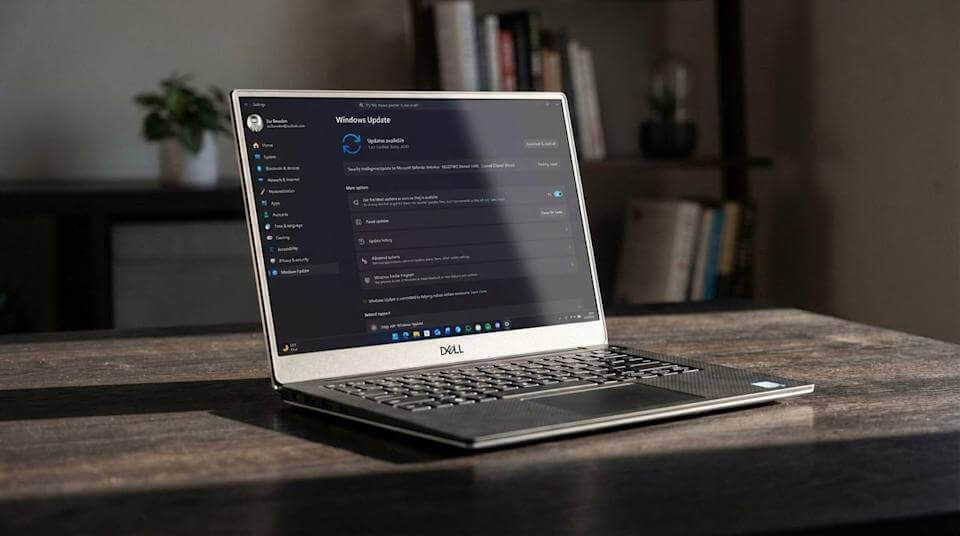
Did your laptop fans suddenly start spinning at maximum speed without any heavy workload? You might need to fix Windows 11 thermal throttling caused by recent system updates. Furthermore, thousands of users report frustrating Dell laptop sudden shutdowns during routine work sessions. Fortunately, Microsoft released an emergency out-of-band hotfix to address this exact bug. You can learn more through the official Microsoft Support Portal documentation.
In this detailed technical guide, we examine why this critical hardware conflict occurs. Additionally, we will show you how to apply the Windows 11 KB5121767 update smoothly. We will also provide alternative recovery steps if your laptop experiences persistent reboot loops. Read on to regain full system performance and thermal balance on your mobile workstation.
Understanding the Root Cause: Intel IPF vs. Windows USB-C Manager
Modern laptops rely heavily on tightly integrated driver frameworks to manage system temperatures. Specifically, Dell laptops utilize the Intel Innovation Platform Framework (IPF) to dynamically regulate power delivery and CPU clock speeds. However, a major background change in recent Windows 11 builds broken this essential hardware communication. Consequently, the operating system misinterprets thermal sensor data continuously.
According to technical analysis on BleepingComputer, the friction started with an updated USB-C Connection Manager interface. Microsoft introduced this interface component to enhance external display and dock stability. Unfortunately, the new software layer directly conflicts with Dell’s Intel IPF Processor Participant driver. As a result, the power management stack fails silently in the background.
When this conflict occurs, Windows 11 loses fine-grained control over active CPU power states. Therefore, the processor spikes to maximum voltage without throttle limits. The cooling fans respond immediately at high volume, but heat builds up far too quickly. Eventually, thermal protection circuits trigger a forced system reset to prevent permanent silicon damage.
[Windows 11 USB-C Manager] ──( Incompatibility Conflict )──> [Intel IPF Driver]
                                                                   │
                                                                   ▼
[Thermal Throttle Spikes] <── ( Lost Power State Control ) <── [Driver Failure]
          │
          ▼
[Sudden System Shutdown]
⚠️ Warning: Ignoring persistent sudden shutdowns can cause filesystem corruption or data loss. Never ignore thermal warning signs when your laptop body feels unusually hot to the touch.
Identifying the Symptoms on Your Dell Laptop
How do you know if your machine suffers from this specific software bug? First, check Device Manager on your Windows 11 laptop. Look under the System Devices tree for the Intel Innovation Platform Framework Processor Participant entry. If you see a yellow exclamation icon next to it, your system has an Intel IPF driver error.
Second, observe your laptop’s physical behavior under light tasks like web browsing. For instance, battery percentage drops at an alarming rate even with low screen brightness. Moreover, mouse cursor movement becomes stuttery while opening basic applications. Industry reporting at PCWorld confirms these performance drops across XPS and Precision laptop lineups.
Third, track the timing of your thermal shutdowns. Standard overheating usually takes hours of intensive gaming or rendering to trigger. In contrast, this Dell laptop overheating fix target addresses crashes that happen within minutes of booting. The fans run at top speed instantly, yet the keyboard deck grows rapidly hot.
Here is a list of commonly affected Dell laptop lines:
- Dell XPS Series: XPS 15 and XPS 17 modern configurations.
- Dell Precision Series: 5470, 5480, 5490, and 5770 mobile workstations.
- Dell Pro Max Series: Pro Max 14 and Pro Max 16 business laptops.
How KB5121767 Resolves the Thermal Throttling Bug
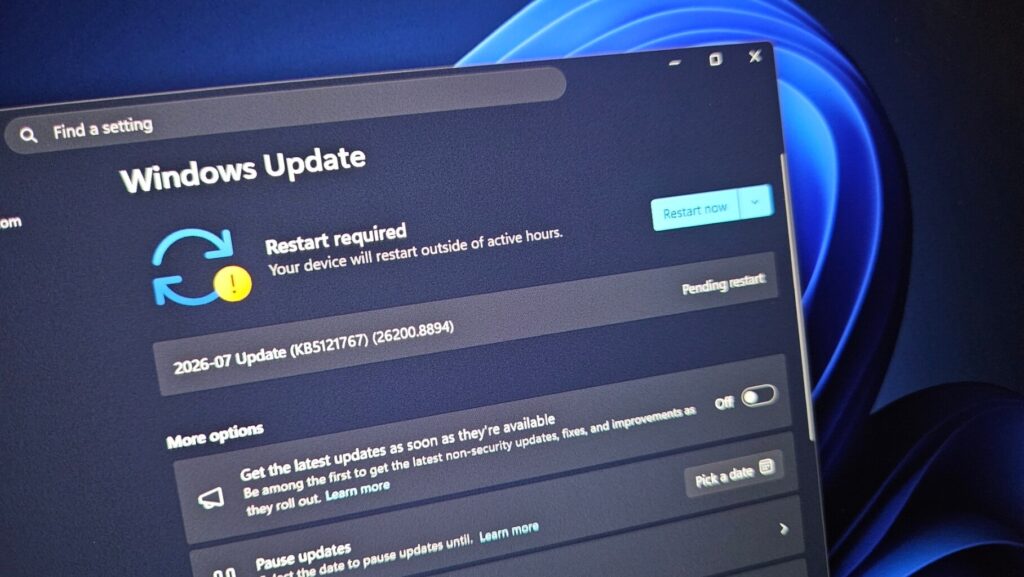
Microsoft issued emergency patch KB5121767 as an out-of-band release specifically to address this breakdown. Essentially, the update replaces faulty system binaries responsible for managing USB-C controller states. Consequently, the system removes the driver conflict without stripping useful USB functionality.
Furthermore, this hotfix restores normal operation for this dangerous Windows 11 power management bug. Once installed, the operating system properly reads low-level hardware temperature profiles again. The CPU scales down frequency naturally when temperatures rise. Thus, fan curves smooth out, and unwanted thermal shutdowns cease completely.
Coverage from Windows Latest notes that this patch bumps build numbers to 26100.8894 or 26200.8894. However, Microsoft recommends this hotfix strictly for affected Dell systems. Installing it on unaffected desktop hardware provides no additional speed benefits.
| System Metric | Before KB5121767 Patch | After KB5121767 Patch |
| Idle CPU Temp | 65°C – 80°C (High) | 38°C – 48°C (Normal) |
| Device Manager | Yellow Warning Icon on Intel IPF | Normal Device Driver Status |
| Fan Activity | Maximum RPM continuously | Dynamic variable speed |
| System Stability | Frequent abrupt shutdowns | Continuous stable operation |
Step-by-Step: Installing Update KB5121767 Correctly
Installing an out-of-band update requires a few deliberate steps. Usually, standard cumulative updates download automatically during nightly maintenance windows. However, emergency hotfixes sometimes need manual initiation if automatic toggles are disabled. Follow these straightforward directions to apply the patch safely.
[Start Menu] ──> [Settings] ──> [Windows Update] ──> [Check for Updates] ──> [Install KB5121767]
Method 1: Applying Patch via Windows Update
- Press Windows Key + I to launch the main Settings menu.
- Select Windows Update from the left navigation pane.
- Toggle ON the option reading “Get the latest updates as soon as they’re available”.
- Click the prominent Check for updates button.
- Locate 2026-07 Update (KB5121767) in the list.
- Click Download & Install, then restart your system when prompted.
💡 Pro-Tip: Connect your Dell laptop directly to wall power before applying KB5121767. A thermal shutdown during firmware or system driver updates can corrupt system boot files.
Method 2: Manual Download via Microsoft Update Catalog
- Open your web browser and navigate to the official Microsoft Update Catalog.
- Search explicitly for KB5121767 in the top right search bar.
- Select the package matching your specific Windows 11 architecture (e.g., x64 for 24H2/25H2).
- Download the standalone .msu installer file to your downloads folder.
- Double-click the installer file and follow on-screen prompts to complete installation.
Alternative Fixes and Driver Rollback Procedures
What if your laptop freezes before you can complete the Windows Update process? Do not panic, because you can bypass the USB-C Connection Manager conflict temporarily. You simply need to uninstall the problematic cumulative update or rollback the Intel driver.
First, boot your computer into Windows Safe Mode. Hold the Shift key while clicking Restart in the Start Menu. Once in Safe Mode, navigate to Control Panel > Programs > Installed Updates. Find the recent July cumulative package and click Uninstall. This stops the crash loop, allowing you to install KB5121767 cleanly upon normal reboot.
Second, you can manually reinstall the Intel Innovation Platform Framework driver. Visit the official Dell Support Portal and enter your laptop’s unique Service Tag. Download the latest Intel IPF driver package directly from Dell’s factory repository. Installing Dell’s verified driver package clears yellow exclamation mark errors in Device Manager.
Long-Term Hardware Thermal Management Guidelines
Fixing software conflicts handles half the cooling equation. Meanwhile, proper physical maintenance ensures your laptop runs quiet and cool for years. Dust buildup on heat sinks accentuates software bugs by restricting airflow. Consequently, hardware maintenance plays a huge role in overall performance.
First, clear intake vents regularly using compressed air. Hold the fan blades stationary with a thin plastic toothpick while blowing air. This prevents over-spinning damage to delicate fan bearings. Second, avoid placing powerful laptops on soft bedding or plush couches during heavy usage. Soft fabrics block bottom intake vents completely, causing rapid heat build-up.
Third, adjust Dell Power Manager settings inside Windows. Choose the Optimized or Cool thermal preset instead of maximum performance mode when running everyday software. This limits voltage spikes during basic web browsing and keeps surface temperatures comfortable.
                 ┌──────────────────────────────────────────┐
                 │    Thermal Management Best Practices     │
                 └────────────────────┬─────────────────────┘
                                      │
          ┌───────────────────────────┼───────────────────────────┐
          ▼                           ▼                           ▼
┌───────────────────┐       ┌───────────────────┐       ┌───────────────────┐
│ Clean Dust Vents  │       │  Hard Surfaces    │       │ Thermal Profiles  │
│  (Compressed Air) │       │ (Prevent Blocking)│       │ (Dell Optimizer)  │
└───────────────────┘       └───────────────────┘       └───────────────────┘
Final Thoughts & Conclusion
Software updates are designed to enhance security and stability. However, complex hardware interactions can occasionally cause unexpected thermal throttling or stability bugs. Fortunately, Microsoft and Dell acted swiftly to deliver out-of-band hotfix KB5121767. Installing this patch resolves Intel IPF conflicts and stops sudden shutdowns immediately.
Did this hotfix resolve overheating on your laptop? Let us know your model and results in the comments below! Share this guide with fellow Dell users to help them fix their systems quickly.