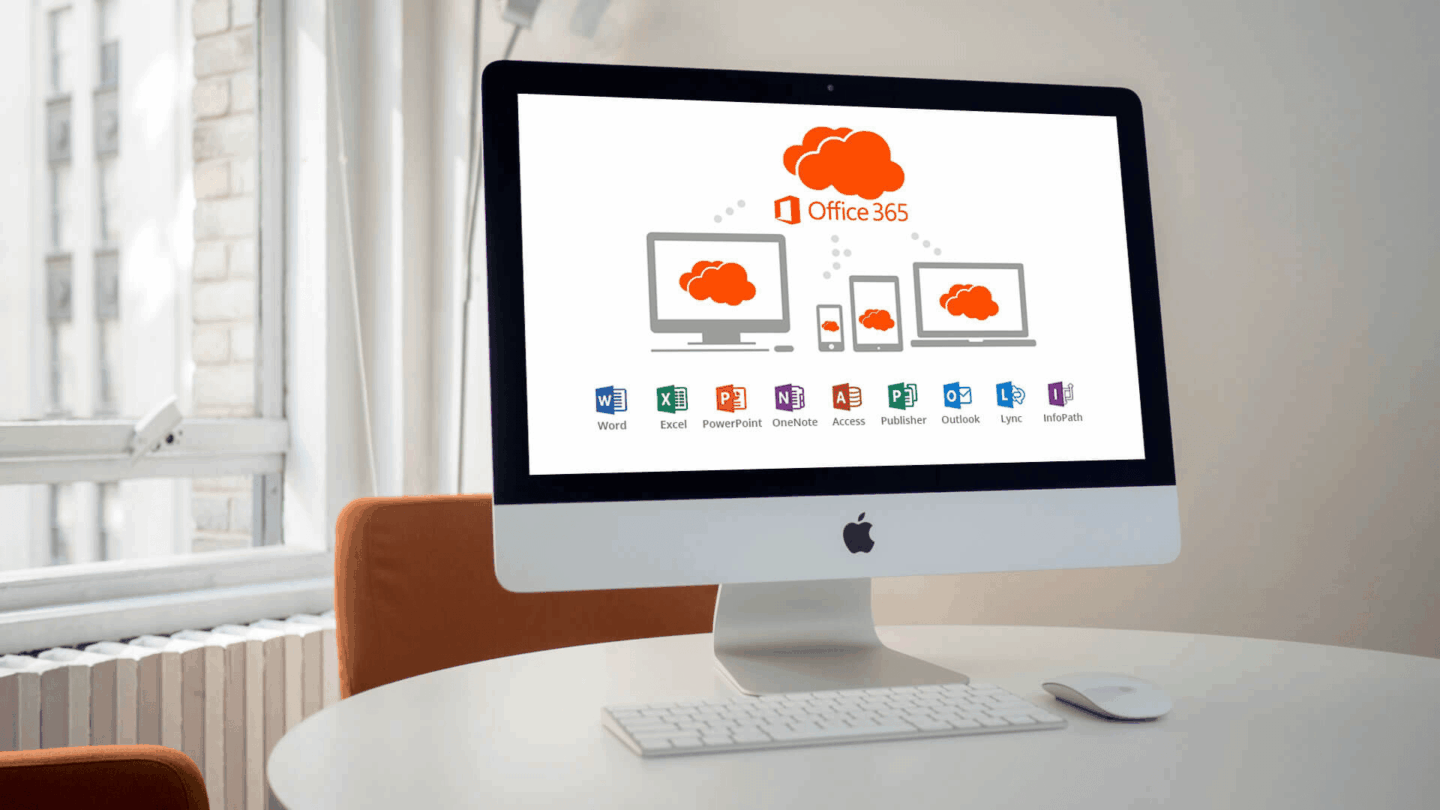
Legacy hardware users often face sudden software compatibility barriers. Recently, a frustrating issue has gripped the Apple community. Users of vintage hardware are trapped in a perpetual Microsoft 365 loop on older Macs. This issue locks your productivity suite into a frustrating reduced functionality mode. Consequently, you can only view documents without making any edits.
This problem typically triggers after an automated software update. Suddenly, Word and Excel demand activation repeatedly. You sign in successfully, yet the application prompts you to activate again immediately. This guide delivers concrete, tested solutions to break the cycle. We will help you restore full editing capabilities on your trusted machine.
Understanding the Microsoft 365 Activation Loop
To fix the problem, we must first understand why it occurs. Microsoft enforces a strict rolling support policy for Apple operating systems. Specifically, the software giant supports only the three most recent versions of macOS. When Apple releases a new operating system, Microsoft drops support for the oldest compatible version.
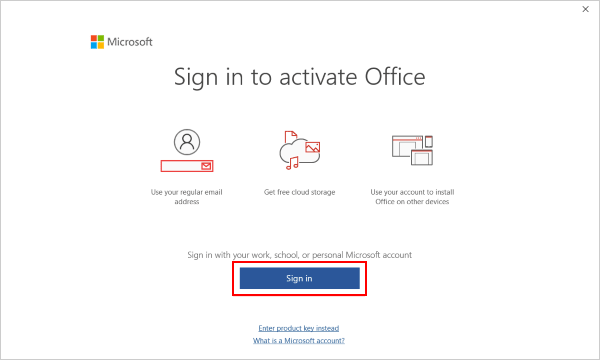
This policy creates a severe compliance gap for older machines. Your Mac might run an older operating system like macOS Big Sur or Monterey. Meanwhile, the standard Microsoft 365 installer pulls the latest application binary. This mismatched binary cannot validate licenses on outdated operating system layers.
The Role of Reduced Functionality Mode
When validation fails, the suite enters a protective state. Microsoft calls this state reduced functionality mode. The software disables all creation tools and editing features. Essentially, your premium subscription suite downgrades into a glorified document viewer.
Furthermore, the local activation daemon gets highly confused. It recognizes your active subscription in the cloud. However, the local sandbox environment rejects the modern token. This conflict causes the endless login prompt cycle.
Why Standard Reinstallation Fails
Many users immediately try reinstalling the suite from the Mac App Store. Unfortunately, this action usually worsens the situation. The App Store frequently serves the absolute newest build. This build lacks proper optimization for older operating system frameworks.
Therefore, you must clear the broken environment entirely. Then, you must target a specific historical build. We will outline this exact process in the following sections.
Step 1: Remove Existing Office License Files
First, you must purge the corrupted activation tokens from your system repository. Standard uninstallation routines leave these broken configuration files behind. Thankfully, Microsoft provides a dedicated utility to handle this cleanup process safely.
You must download the official clear Office license Mac utility. This lightweight tool removes all cached licensing data without touching your actual documents.
Tool Name: Microsoft License Removal Tool
Official Source: Microsoft Support Deployment Servers
Running the License Removal Tool
- Download the official tool from the Microsoft Support Portal.
- Open the downloaded
.pkgfile from your Downloads folder. - Click through the standard installation prompts to execute the script.
- Provide your Mac administrative password when the system asks.
- Wait for the success confirmation window to appear.
Manual Keychain Cleanup
Sometimes, stubborn token fragments persist inside the system storage. Therefore, you should manually inspect your system security database. Open the Keychain Access application using Spotlight search. Type “Microsoft” into the top-right search filter box.
Delete all entries referencing “Office,” “Adal,” or “Identity.” This step ensures a completely blank slate for your next activation attempt. Afterward, restart your computer to apply these deep system changes.
⚠️ Warning: Do not delete unrelated system keychain items during this manual purge. Removing critical system certificates can destabilize your macOS user profile. Focus exclusively on entries explicitly labeled with Microsoft branding.
Step 2: Identify and Download the Correct Legacy Installer
Next, you must avoid the standard upgrade paths completely. You need a specific historical build matching your exact operating system version. Installing the wrong version immediately triggers the macOS compatibility Office roadblock again.
Microsoft maintains a repository of historical packages. You can access these stand-alone packages directly via the Office Package Updates Index.
| macOS Version | Highest Supported Office Build | Release Date Reference |
| macOS Catalina (10.15) | Version 16.66 | October 2022 |
| macOS Big Sur (11) | Version 16.77 | September 2023 |
| macOS Monterey (12) | Version 16.88 | August 2024 |
Locating the Legacy Installer
- Review the compatibility table above to find your operating system version.
- Visit the official Microsoft release history web page.
- Locate the specific version number matching your target hardware.
- Download the full suite installer package instead of individual app updates.
- Save the large installer file directly to your local desktop directory.
Installing the Legacy Suite
Disconnect your internet connection before running the installer package. This precaution prevents the installer from checking for online updates during setup. Launch the package and follow the standard on-screen installation path.
Once finished, do not open any Office applications immediately. We must first block the automated update daemon from ruining our progress.
Step 3: Disable Microsoft AutoUpdate permanently
By default, Microsoft includes a background utility named AutoUpdate. This utility constantly scans for newer application versions online. If left unchecked, it will immediately overwrite your functional legacy installation. Therefore, disabling this tool is critical to preventing another Office for Mac activation error.
Modifying AutoUpdate Preferences
Open the Finder application and navigate to your main Applications directory. Launch the Microsoft AutoUpdate application manually. Uncheck the box labeled “Automatically keep Microsoft Apps up to date.”
Path: /Library/Application Support/Microsoft/MAU2.0/Microsoft AutoUpdate.app
Deep Disabling via Terminal
Sometimes, the graphical user interface ignores your preferences. You can enforce this restriction permanently using the system terminal. Open the Terminal application from your Utilities folder. Enter the following management command precisely:
defaults write com.microsoft.autoupdate2 HowToCheck Manual
Press enter to execute the configuration change. This command forces the update engine into strict manual mode. Consequently, the system will never pull damaging new updates automatically.
💡 Pro-Tip: You can completely lock the AutoUpdate application file permissions. Change the folder privileges to “Read Only” for the system group. This strict restriction prevents the app from launching silently in the background.
Step 4: Re-Activate the Legacy Installation
Now, you can safely connect your machine back to the internet. Open Microsoft Word from your Applications directory. The software will prompt you with a standard product activation screen.
Sign in using your active Microsoft 365 credentials. The system will contact the licensing servers to validate your account status. Because you are using a compatible legacy build, the validation process should succeed smoothly.
Verifying Account Status
Click on the “Word” menu item in the top menu bar. Select “About Microsoft Word” from the drop-down menu options. Inspect the licensing field listed inside the information window.
It should display your active subscription type clearly. Furthermore, the reduced functionality mode warning banner should disappear entirely. You now possess full editing rights on your document creation workstation.
Troubleshooting Activation Hangs
If the login screen spins infinitely, check your local security software. Virtual Private Networks often disrupt the localized activation handshake process. Therefore, disable all active proxies before attempting the initial sign-in.
Additionally, ensure your system clock matches your current geographic timezone perfectly. Mismatched system time causes immediate cryptography errors during authentication. You can verify this setting easily inside the System Preferences panel.
Long-Term Maintenance and Alternatives
Remaining on a legacy software build requires conscious maintenance choices. You cannot click the update prompts inside the applications anymore. Treat your Office suite as a frozen environment to preserve long-term stability.
Eventually, cloud protocol updates might break older versions permanently. Therefore, you should plan a sustainable long-term data migration strategy.
Exploring Alternative Productivity Options
If your hardware cannot run a supported suite, consider cloud-based tools. The browser-based version of Microsoft 365 Web Apps works beautifully. These web applications bypass local operating system limitations entirely.
Alternatively, you can transition to the native Apple iWork suite. Pages and Numbers import standard Office formats with impressive accuracy. Apple provides these tools completely free of charge to all hardware owners.
Upgrading Hardware Safely
Eventually, aging computer components require modern upgrades. If budget constraints prevent buying new retail models, look at certified refurbished options. Independent remarketers offer excellent deals on supported hardware.
Check out verified inventory listings on reputable platforms like BackMarket. Upgrading to a slightly newer model restores full access to the modern software ecosystem.
Final Thoughts
Encountering an unexpected older Mac Office fix hurdle frustrates busy professionals immensely. However, you do not need to scrap your functional computer hardware today. By managing your software versions carefully, you can bypass these artificial limitations easily.
Follow the steps outlined above to restore order to your digital workflow. Keep your update settings locked down tight to protect your working configuration.
Have you successfully resolved the activation loop on your vintage Mac? Which specific operating system version are you currently running to maintain your workflow? Please leave a comment below with your hardware experiences, share this guide with fellow legacy users, and join the technicalforum.org community conversation today!