Many users encounter Microsoft Office activation errors today. Consequently, these persistent issues disrupt your daily workflow. Windows 11 offers a sleek interface. However, the Office activation wizard sometimes fails unexpectedly. You might see frustrating red banners. Therefore, you need a reliable solution. This guide provides clear, actionable steps. We will restore your productivity quickly.
Actually, technology should empower your creativity. Instead, licensing glitches often create unnecessary stress. You might feel overwhelmed by cryptic error codes. Fortunately, most activation problems follow predictable patterns. We will explore every solution today. Follow these steps carefully to regain access. Your software will work perfectly soon.
Managing Frequent Office 365 Login Issues
First, check your account status. Many Office 365 login issues stem from credential mismatches. Therefore, log out of all Microsoft apps. Then, restart your computer immediately. Afterward, sign back in with your primary email. Microsoft requires a consistent identity across services. This simple step often fixes many common glitches.
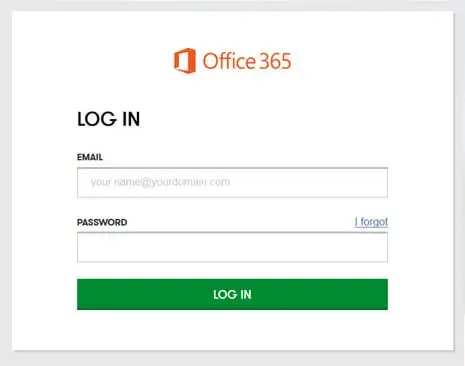
Moreover, double-check your subscription status. Visit the Microsoft Account Portal to verify your billing. Ensure your payment method remains active. Sometimes, an expired credit card triggers an immediate lockout. Consequently, updating your details resolves the error instantly. Specifically, look for any “Action Required” notifications in your profile.
Furthermore, clear your browser cache. Stored cookies often interfere with the login handshake. Use a private browsing window to test the connection. If the private window works, your main browser has issues. Therefore, reset your browser settings to default. This action removes conflicting data packets. It ensures a clean communication path to Microsoft servers.
Pro-Tip: Always use the exact email associated with your original purchase. Even a minor typo in the domain name prevents successful activation.
Resolving the Unlicensed Product Error Message
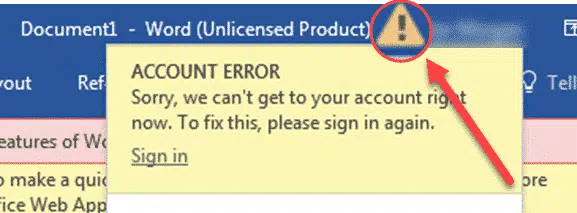
Perhaps you see the unlicensed product error frequently. This warning usually indicates a local license conflict. Alternatively, it might mean the local cache is corrupt. You should try running Office as an administrator. Right-click the Word icon. Then, select “Run as administrator.” This gives the app elevated permissions. Often, the license syncs correctly after this action.
Additionally, check your system time. Windows 11 relies on accurate timestamps for security. If your clock is wrong, activation will fail. Therefore, go to your date and time settings. Enable the “Set time automatically” toggle. Sync your clock with the official Windows server. Subsequently, try to activate your Office suite again.
If the error persists, check for multiple installations. Sometimes, a trial version conflicts with your paid suite. Therefore, open the Control Panel. Search for “Programs and Features.” Look for duplicate Office entries. Uninstall any version you do not use. Afterward, reboot your machine to finalize the changes.
How to Repair Office Installation Files
Occasionally, software files become corrupted during updates. You should Repair Office installation via the Settings menu. First, navigate to “Apps” in Windows 11. Locate Microsoft Office in the list. Select “Modify” to see repair options. Choose “Online Repair” for the best results. This process downloads fresh files from the cloud.
Consequently, the online repair takes more time. However, it is much more effective than a “Quick Repair.” The system replaces every damaged component. Meanwhile, keep your internet connection stable. Do not close the window until the process finishes. Typically, this fixes deep-seated registry errors. You will see a success message upon completion.
Furthermore, consider your internet connection type. Some public Wi-Fi networks block activation pings. Thus, switch to a private connection if possible. A stable ethernet cable provides the best results. If you use a VPN, disable it temporarily. VPNs often mask your location incorrectly. This confusion triggers security alerts within the activation server.
Warning: Online Repair might reset some of your custom UI preferences. Back up your Outlook signatures before starting this process.
Advanced Product Key Troubleshooting Steps
Manual Product key troubleshooting helps when digital licenses fail. Sometimes, the registry holds outdated keys. You can use the Command Prompt for this task. Run the Command Prompt as an administrator. Then, type specific scripts to clear old tokens. Microsoft Support provides these exact commands for your version.
Specifically, you must find the ospp.vbs file location. This script manages Office licensing locally. Type the command to display the last five digits of your key. If you see multiple keys, delete the old ones. This forces the system to recognize your new license. Be very careful with these commands. Typing the wrong string can affect other system functions.
Moreover, consult professional resources for specific error codes. Sites like PCMag offer deep dives into software bugs. They often explain the logic behind activation scripts. Understanding the “why” helps you troubleshoot the “how.” Knowledge empowers you to fix things without tech support. You become the expert for your own device.
Implementing a Windows 11 Activation Fix
A broad Windows 11 activation fix involves system updates. Microsoft releases patches frequently to resolve bugs. Thus, check your Windows Update settings. Install all pending cumulative updates. Furthermore, ensure your operating system is genuine. An unactivated version of Windows 11 limits Office functionality. You must license the OS before the apps.
Actually, system integrity affects every application. Run the System File Checker tool. Type sfc /scannow in an elevated Command Prompt. This utility repairs broken system files. If Windows 11 is healthy, Office will behave better. Therefore, prioritize OS maintenance for long-term stability. Clean systems rarely face activation hurdles.
Additionally, check your firewall settings. Sometimes, security software blocks the activation ping. Therefore, temporarily disable your third-party antivirus. Try activating the software again. Afterward, remember to re-enable your protection. You can also consult The Verge for general tech news regarding Windows bugs. Secure connections remain vital for licensing.
Using the Support and Recovery Assistant
Microsoft provides a specialized tool for these problems. Download the Microsoft Support and Recovery Assistant (SaRA). This app automates the diagnostic process. It identifies specific activation blocks effectively. Moreover, it suggests tailored fixes for your hardware. Many IT professionals recommend this utility.
Specifically, SaRA runs a series of tests on your credentials. It checks for server reachability and local file health. Then, it generates a comprehensive report. If it finds an error, it offers a “Fix it for me” button. This automation reduces the risk of human error. Consequently, you save significant time and effort. Most users find success within ten minutes.
Furthermore, keep the tool updated. Microsoft frequently adds new error signatures to the database. An outdated version of SaRA might miss recent bugs. Therefore, download a fresh copy from the official site. This ensures you have the latest diagnostic logic. Technology changes fast, so your tools must keep pace.
Final Thoughts on Activation Stability
Troubleshooting requires patience and a methodical approach. Usually, the simplest solution works the best. Start with account checks before editing the registry. Windows 11 is a robust platform for productivity. However, it requires a healthy handshake with Microsoft servers. Follow the steps above to maintain that connection.
Clearly, you deserve software that works when you need it. By mastering these tools, you take control of your digital environment. You no longer need to fear the “unlicensed” banner. Instead, you can focus on your creative projects. Stay updated on the latest tech trends to avoid future issues. Your computer is a powerful tool when properly configured.
We hope this guide resolved your Office issues. Activation errors are annoying but solvable. Do you have a specific error code we didn’t cover? Maybe you found a unique trick that worked for you? Please share your experiences in the comments below! Your feedback helps our entire community stay productive and informed.