Your phone suddenly overheats, drains its battery overnight, or displays strange notifications. Naturally, you start wondering whether someone has hacked it. Before assuming the worst, you need to understand the signs your phone is hacked. Some symptoms indicate genuine security problems, while others have ordinary explanations.
Smartphones contain considerably more personal information than most people realize. Your device stores passwords, banking credentials, private conversations, photographs, and access to important online accounts. Consequently, a successful phone hacking attempt could expose far more than your contact list. Attackers may steal personal information, intercept messages, or gain unauthorized access to connected services.
However, not every unusual phone behavior indicates a security breach. Background applications, aging batteries, software bugs, and operating system updates can produce similar symptoms. For example, excessive battery consumption often results from poorly optimized applications rather than spyware. Therefore, identifying a genuine compromise requires examining several indicators together.

Another important distinction involves device hacking versus account hacking. Someone might access your Google, Apple, or Facebook account without installing malicious software on your smartphone. Likewise, phishing attacks can steal passwords while leaving the device itself unaffected. Understanding these differences helps you choose the correct troubleshooting approach.
This guide explains how to tell if your phone has been hacked, whether you use Android or iPhone. You’ll learn which warning signs deserve attention and how to investigate suspicious activity. More importantly, you’ll discover practical ways to identify spyware, secure compromised accounts, and remove potential threats.
1. Signs Your Phone Is Hacked: 10 Warning Signals
Recognizing suspicious phone behavior provides a starting point for investigating possible security problems. However, individual symptoms rarely provide conclusive evidence of hacking. Instead, look for unusual changes that occur together or appear without a reasonable explanation. Here are ten warning signs worth investigating.
1. Your Battery Drains Much Faster Than Normal
A sudden decrease in battery life can indicate excessive background activity. Certain malicious applications continuously collect information, communicate with remote servers, or monitor device activity. Consequently, these processes may consume more battery power than expected.
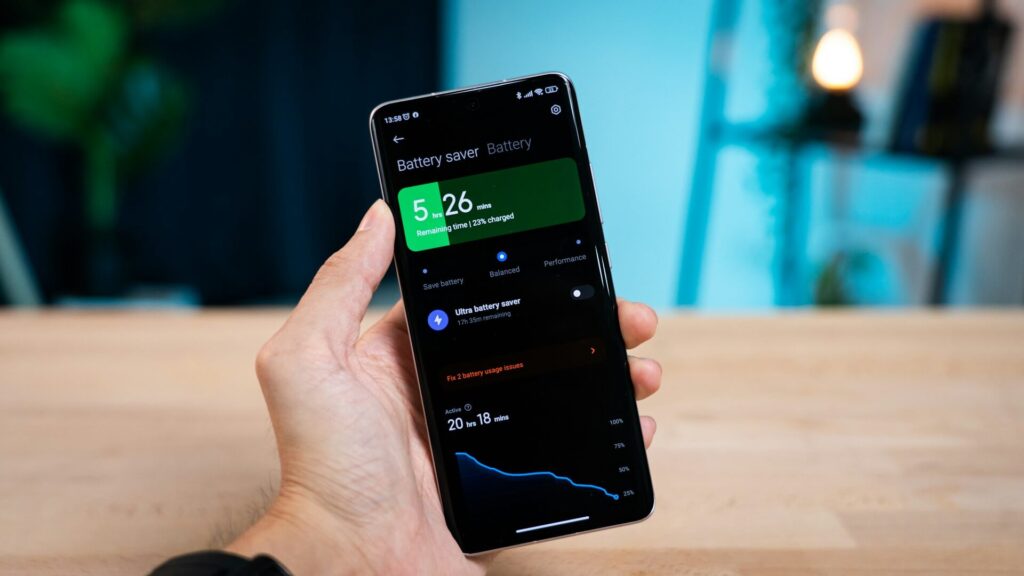
However, battery deterioration, poor cellular reception, and application updates can produce identical symptoms. Check your battery usage statistics before drawing conclusions. On Android, look under Settings > Battery > Battery usage, although menu names vary by manufacturer. On iPhone, open Settings > Battery to review application consumption.
2. Your Phone Overheats Without Heavy Usage
Smartphones generate heat when their processors perform demanding tasks. Gaming, video recording, charging, and software updates commonly increase operating temperatures. However, persistent overheating while your phone remains idle deserves further investigation.
Malicious background processes could contribute to excessive processor activity. Nevertheless, environmental heat, defective batteries, and poorly optimized applications remain more common explanations. Check which applications consume significant battery resources during idle periods. Also, pay attention to unusual heat when your phone isn’t charging.
3. Your Mobile Data Usage Suddenly Increases
Some malicious applications transmit collected information to external servers. These transmissions can increase mobile data consumption without obvious user activity. Therefore, unexplained data spikes may justify a closer examination of installed applications.
Android users can usually inspect consumption under Settings > Network & Internet > Data usage or similar menus. Meanwhile, iPhone users can check Settings > Cellular or Mobile Data. Compare individual application usage against your normal habits. Remember that cloud backups, video streaming, and automatic downloads can also consume substantial data.
4. You See Unexpected Pop-Ups and Browser Redirects
Frequent advertising pop-ups may indicate adware or unwanted browser behavior. Some malicious websites display fake security warnings to frighten users into installing questionable applications. Others redirect browsers toward fraudulent websites or suspicious downloads.
However, an alarming browser message doesn’t automatically mean someone hacked your phone. Many websites display deceptive advertisements designed to resemble legitimate system alerts. Avoid tapping unfamiliar warnings that demand immediate payment or software installation. Instead, close the suspicious page and review your browser settings.
5. Unknown Applications Appear on Your Phone
Finding an unfamiliar application deserves attention, particularly when it requests sensitive permissions. Attackers sometimes disguise malicious software as utilities, security applications, or system maintenance tools. Someone with physical access might also install unwanted monitoring software.
Nevertheless, manufacturers and legitimate application updates occasionally introduce unfamiliar applications. First, investigate the application’s publisher, installation history, and purpose. Then review its permissions and determine whether it belongs on your device. Avoid deleting unfamiliar system components without verifying their function.
6. Applications Request Unusual Permissions
Applications need permissions to access features such as your camera, microphone, contacts, and location. However, these requests should match the application’s actual purpose. For example, a simple calculator rarely needs continuous location access or microphone permissions.
Suspicious applications may request broader access than their advertised features require. More concerning permissions include accessibility access, notification access, and device administration privileges. These capabilities can expose sensitive information or influence device behavior when misused. Therefore, regularly review which applications hold sensitive permissions.
7. Your Phone Suddenly Becomes Unusually Slow
Unexpected performance problems can occasionally accompany malicious background activity. Certain unwanted applications consume memory, processor resources, or storage while running continuously. As a result, opening applications or switching between screens may become noticeably slower.
However, insufficient storage and outdated software commonly cause similar problems. Start by restarting your phone and checking available storage space. Next, review recently installed applications and unusual battery consumption. Persistent slowdowns alongside other suspicious indicators deserve further investigation.
8. Your Contacts Receive Messages You Never Sent
Unexpected messages from your phone number or messaging accounts represent a more serious warning. Attackers sometimes compromise messaging accounts and distribute phishing links to saved contacts. Additionally, certain malicious applications can misuse messaging permissions or accessibility features.
However, attackers can also impersonate your identity without controlling your actual phone. Check your messaging application’s sent history and linked devices before assuming device compromise. Ask affected contacts to provide screenshots of suspicious messages. These details can help identify whether someone accessed your account or merely impersonated you.
9. You Discover Unauthorized Financial Transactions
Unknown purchases, banking transactions, or payment notifications require immediate attention. Attackers may steal credentials through phishing, malicious applications, or compromised online accounts. Consequently, financial fraud can occur even when your phone contains no malware.
Check your banking and payment applications for unfamiliar transactions or account changes. If you discover unauthorized activity, contact your financial institution through its official support channels. Avoid opening suspicious links inside transaction alerts. Use a trusted device when updating passwords after a suspected compromise.
10. You Receive Unfamiliar Login Alerts or Verification Codes
Unexpected security notifications can indicate attempted unauthorized account access. Examples include password reset requests, unfamiliar sign-in alerts, and verification codes you never requested. These warnings become more concerning when they accompany actual account changes.
However, receiving an unsolicited verification code doesn’t prove an attacker successfully entered your account. Someone might simply know your email address or phone number. Review your account’s recent security activity to identify unfamiliar devices or sessions. Never share verification codes, even with someone claiming to represent technical support.
Pro-Tip: Focus on Stronger Evidence
Treat unfamiliar account sessions, unauthorized transactions, and unapproved configuration changes as higher-priority warning signs. Battery drain and overheating alone provide much weaker evidence. Investigating several indicators together helps you avoid unnecessary factory resets and expensive security services.
2. How to Check if Your Android Phone Has Been Hacked
Android provides several built-in tools for examining device security and application activity. Fortunately, you don’t need expensive antivirus software to perform basic checks. Google’s security features can identify many harmful applications and highlight suspicious permissions. However, no security scanner can guarantee detection of every threat.
Run a Google Play Protect Security Scan
Google Play Protect helps detect potentially harmful Android applications. It scans installed applications and checks for suspicious behavior. Depending on the threat, it may warn you, disable an application, or remove detected malware.
To perform a manual scan:
- Open the Google Play Store.
- Tap your profile picture.
- Select Play Protect.
- Tap Scan to check installed applications.
- Review any warnings and follow Google’s recommended actions.
Google recommends keeping Play Protect enabled for continuous protection. You can review its settings through the Play Protect screen. For additional guidance, consult Google’s official Play Protect documentation.
Remember that a clean scan doesn’t guarantee your device has no security problems. Sophisticated threats may evade detection, particularly on compromised or heavily modified devices. Additionally, account theft often occurs without installing malicious applications.
Review Installed Applications and Sensitive Permissions
Next, inspect your complete application list rather than relying on home-screen icons. Some applications operate without placing obvious shortcuts on your home screen. Others use generic names that resemble legitimate system utilities.
Open Settings > Apps > See all apps on supported Android devices. Review unfamiliar applications, especially those installed around the time suspicious behavior started. Examine their permissions and verify whether their publishers are legitimate.
Pay particular attention to applications requesting:
- Accessibility access: May allow extensive interaction with screen content and controls.
- Device administrator privileges: Can grant certain device-management capabilities.
- Notification access: May expose sensitive notification contents, including security messages.
- Microphone and camera access: Allows applications to use recording hardware when permissions permit.
- Location permissions: May allow applications to track your approximate or precise location.
You can inspect ordinary permissions through Android’s Permission manager. Google’s Android application permissions guide explains how to review and change these settings. Exact navigation differs across Samsung, Google Pixel, Xiaomi, and other manufacturers.
Accessibility services and device administrator settings usually appear in separate system menus. Search your phone’s Settings for these features if you cannot locate them. Don’t disable legitimate management services on employer-owned or school-managed devices without authorization.
Check Battery Consumption and Mobile Data Activity
Battery and mobile data statistics can help identify applications running excessively in the background. For example, an unfamiliar utility consuming significant resources while unused deserves investigation. However, resource consumption doesn’t automatically prove malicious behavior.
Open your phone’s battery settings and identify applications with unusually high consumption. Then inspect mobile data statistics for unexpected background transfers. Compare these figures against recent software updates, cloud synchronization, and normal application activity.
Focus on applications showing several unusual patterns simultaneously. An unfamiliar application with excessive battery consumption and questionable permissions deserves closer examination. Conversely, a familiar navigation application consuming location services may behave entirely normally.
Review Google Account Security Activity
Your Android phone might remain secure while someone accesses your Google Account elsewhere. Therefore, account verification should accompany local device checks. Google provides a dedicated page showing devices and recent account sessions.
Visit Google Account device activity using a trusted device. Review unfamiliar devices, sessions, and account activity. If you identify suspicious access, follow Google’s security recovery guidance.
Google also provides instructions for reviewing devices with account access. Unfamiliar location information isn’t always reliable evidence because network routing can affect estimates. Nevertheless, an unknown device or session warrants attention.
Finally, check your phone’s security settings for available system updates. Install legitimate updates through your manufacturer’s supported update process. Security patches address vulnerabilities that attackers might otherwise exploit.
3. How to Tell if Your iPhone Has Been Hacked
Apple designs iOS with application isolation, permission controls, and strict code-signing requirements. These protections make many common malware techniques harder to execute. However, iPhones aren’t completely immune to spyware, account compromise, or sophisticated exploitation.
Most ordinary users face greater exposure to phishing and stolen credentials than advanced device exploits. Therefore, checking Apple Account security should come before assuming someone installed sophisticated spyware. You should also inspect application permissions and unfamiliar configuration profiles. These checks help distinguish compromised accounts from potentially compromised devices.
Check for Unknown Applications and Configuration Profiles
Start by reviewing installed applications through the App Library and iPhone Storage settings. Open Settings > General > iPhone Storage to inspect applications and their storage consumption. Investigate unfamiliar entries before removing anything.
Next, examine installed configuration profiles through Settings > General > VPN & Device Management. Organizations commonly use these profiles to configure corporate networks, security policies, and managed devices. However, unauthorized profiles may introduce unwanted configurations or management capabilities.
Apple explains how to review profiles in its configuration profile documentation. A profile isn’t inherently malicious, especially on employer-managed devices. Nevertheless, an unfamiliar management profile on your personal iPhone deserves immediate investigation.
Also check whether your iPhone uses an unfamiliar VPN configuration. A VPN routes selected network traffic through another service. Unknown VPN configurations can create privacy concerns, although their presence doesn’t automatically establish hacking.
Review Your Apple Account and Connected Devices
Someone accessing your Apple Account could potentially view synchronized information or interact with connected services. Consequently, account security matters even when your iPhone functions normally. Unfamiliar trusted devices or unexpected account changes provide important clues.
Open Settings > your name and review the devices associated with your Apple Account. Look for equipment you don’t recognize or no longer own. If you discover unauthorized access, secure your account using a trusted device.
Pay attention to unexpected password changes, unfamiliar verification prompts, and unusual account notifications. However, legitimate account activity may occasionally generate unfamiliar-looking location information. Verify the device and sign-in details before drawing conclusions.
Use Apple’s Built-In Safety Check Feature
Apple offers Safety Check to help users review information sharing and access permissions. This feature supports iPhones running iOS 16 or later, subject to Apple’s account requirements. It provides a practical starting point when unauthorized information sharing concerns you.
To access Safety Check:
- Open Settings.
- Tap Privacy & Security.
- Select Safety Check.
- Choose Manage Sharing & Access.
- Review connected people, applications, devices, and available security settings.
Safety Check also provides an Emergency Reset option for situations requiring broad access changes. However, changing sharing settings may alert someone who previously received your information. Consider your personal safety before making changes involving someone you know.
Apple documents these features in its official Safety Check guide. Importantly, Safety Check doesn’t perform a complete malware scan. Instead, it helps manage information sharing, application permissions, and account access.
Inspect Camera, Microphone, and Location Permissions
iOS displays privacy indicators when applications access certain hardware features. An orange indicator generally signals microphone use, while a green indicator signals camera activity. These indicators help identify unexpected recording activity.
You can also review permissions through Settings > Privacy & Security. Examine which applications can access your microphone, camera, contacts, and location. Remove permissions that don’t match each application’s purpose.
Regular permission reviews can reduce unnecessary access to sensitive information. However, privacy indicators cannot reveal every form of unauthorized data access. You should also review connected accounts and information-sharing settings.
Finally, check Settings > General > Software Update for available iOS security updates. Installing current security patches helps protect against known vulnerabilities. However, software updates alone cannot resolve stolen passwords or compromised online accounts.
4. How to Detect Spyware and Suspicious Phone Activity
Spyware represents one of the more concerning smartphone security threats. Unlike ordinary advertising malware, spyware focuses on collecting information about device activity or users. Depending on its capabilities, it may target messages, location history, photographs, or other sensitive information.
However, spyware varies considerably in sophistication and installation methods. Some unwanted monitoring applications require physical access or extensive user-granted permissions. More advanced attacks may exploit software vulnerabilities without obvious user interaction. Therefore, detection methods that work against ordinary applications may miss sophisticated threats.
Understand How Smartphone Spyware Operates
Certain monitoring applications disguise themselves as legitimate utilities or parental control software. After installation, they may request permissions that expose sensitive device information. Some rely on accessibility services, notification access, or background location permissions.
On Android, these permissions can create serious privacy risks when users grant them carelessly. Accessibility access, for instance, can enable extensive interaction with application interfaces. Meanwhile, notification access may reveal messages that appear in notifications.
iPhone monitoring threats may operate differently. Some involve compromised Apple Accounts, unwanted information sharing, or unauthorized device management. Others involve advanced exploits that ordinary settings reviews cannot reliably detect.
Importantly, stalkerware frequently involves someone who knows the device owner. That person may have previously accessed the phone, account credentials, or device passcode. Consequently, identifying unwanted monitoring sometimes requires investigating both device settings and personal account access.
Check Microphone, Camera, and Location Activity
Modern smartphones provide indicators and permission histories that help expose unusual application behavior. These features don’t automatically identify spyware, but they offer useful investigative clues. Start by reviewing which applications access sensitive hardware and information.
On supported Android devices, open Settings > Security & Privacy > Privacy dashboard, or the manufacturer’s equivalent. Examine recent microphone, camera, and location access. Google’s Privacy Dashboard documentation explains how the feature records permission activity.
On iPhone, inspect application permissions through Settings > Privacy & Security. Review camera and microphone access alongside Location Services. Privacy indicators and available application reports can provide additional context.
Consider each application’s legitimate requirements before changing permissions. For example, navigation software normally accesses location information during navigation. However, an unfamiliar utility repeatedly accessing sensitive services deserves investigation.
Investigate Unusual Background Applications
Suspicious background activity can reveal unwanted software, although legitimate applications also operate continuously. Messaging services, cloud storage clients, and navigation applications routinely perform background tasks. Therefore, resource usage alone rarely confirms spyware.
Instead, look for combinations of unusual behavior:
- An unfamiliar application consumes significant battery power.
- The application holds sensitive permissions unrelated to its apparent purpose.
- Background data consumption increases without an obvious explanation.
- You discover unexpected accessibility or device-management privileges.
- Privacy indicators activate without a reasonable application-related cause.
These findings justify additional investigation rather than immediate assumptions. Check application publishers, installation sources, and available security warnings. If possible, document suspicious activity before modifying the device.
Recognize the Limits of Mobile Antivirus Applications
Security applications can detect many known threats, particularly on Android devices. However, they cannot reliably identify every spyware variant or advanced exploitation technique. Attackers constantly modify malicious software to avoid detection.
Likewise, antivirus applications cannot determine whether someone stole your password through an unrelated phishing website. They also cannot automatically correct unauthorized sharing permissions across every connected service. Therefore, comprehensive investigation must include account security and device configuration.
Be especially cautious with applications promising instant hacker detection. Some products exaggerate ordinary battery or performance problems to sell unnecessary subscriptions. Others request sensitive permissions while claiming to protect your privacy.
Choose reputable security products when additional scanning makes sense. Nevertheless, prioritize built-in security features, official updates, and account verification first. These measures address many common security risks without introducing unnecessary software.
Take Extra Care When You Suspect Someone Is Monitoring You
Unwanted monitoring may involve someone with physical access to your device. In these situations, immediately removing suspicious software isn’t always the safest approach. Changes to device settings or information sharing may become noticeable to the person monitoring you.
If personal safety concerns exist, consider using another trusted device to research assistance. Avoid discussing sensitive plans through accounts or devices that someone else might access. Preserve relevant evidence when doing so doesn’t increase your risk.
The FTC’s consumer advice on stalkerware explains important precautions when someone may monitor a personal device.
Most importantly, distinguish ordinary technical problems from credible evidence of surveillance. Suspicious permissions, unfamiliar account access, and documented unauthorized activity deserve attention. However, overheating or poor battery life alone cannot establish that someone is spying on you.
5. How to Check Whether Your Accounts Have Been Compromised
Your smartphone might be perfectly secure while someone secretly accesses your online accounts. In fact, account hacking often happens without attackers installing malware on your phone. Phishing websites, stolen passwords, and compromised login sessions can expose sensitive information remotely. Therefore, checking account security is just as important as examining your device.
A compromised Google or Apple Account can create serious privacy problems. Depending on your settings, attackers might access synchronized contacts, photographs, emails, or other connected services. They could also change recovery information and prevent you from signing in. Fortunately, both platforms provide tools for reviewing suspicious account activity.
Check Your Google Account for Unauthorized Access
Google maintains a record of devices and sessions associated with your account. Reviewing this information helps identify unfamiliar computers, smartphones, and browser sessions. However, unfamiliar locations don’t always indicate hacking because network routing can affect location estimates.
To review your Google Account security:
- Visit Google Account Security using a trusted device.
- Find the Your devices section.
- Select Manage all devices.
- Review unfamiliar devices and recent sessions.
- Sign out of sessions you don’t recognize.
- Review recent security activity and recovery information.
If you discover unauthorized access, change your Google Account password immediately. Use a unique password that you haven’t used elsewhere. Then inspect your recovery email address, recovery phone number, and verification methods.
Review Your Apple Account and Trusted Devices
Apple users should examine devices associated with their Apple Account. Someone with unauthorized account access might reach synchronized information or connected Apple services. Additionally, attackers sometimes change account recovery details to maintain access.
On your iPhone, open Settings > your name. Scroll through the list of devices associated with your Apple Account. If you find an unfamiliar device, select it and review its information.
You can also visit Apple Account management from a trusted browser. Review account details, trusted devices, phone numbers, and security settings. Remove devices you don’t recognize and change your password when necessary.
Apple identifies unfamiliar sign-ins, unexpected verification codes, and unauthorized purchases as potential warning signs. Its compromised Apple Account guide explains how to regain control.
Look for Suspicious Email and Social Media Activity
Email accounts deserve special attention because they frequently control password recovery for other services. An attacker who accesses your primary email could reset passwords across multiple accounts. Consequently, securing email should remain a top priority.
Check Gmail, Outlook, Yahoo, Facebook, and other important services for unusual activity. Look for password reset messages, unfamiliar login notifications, and conversations you never initiated. Also inspect deleted messages, forwarding rules, and account recovery settings.
Pay attention to these warning signs:
- Unknown login sessions: Devices or browsers you don’t recognize.
- Unexpected password resets: Requests you never initiated.
- Unfamiliar recovery details: Email addresses or phone numbers you never added.
- Suspicious forwarding rules: Emails automatically redirected to unknown addresses.
- Unauthorized messages: Emails or chats appearing under your account without your knowledge.
- Unfamiliar connected applications: Third-party services with unexpected account permissions.
Remember that attackers sometimes maintain access through existing sessions. Therefore, changing your password might not terminate every unauthorized connection. Review active sessions and revoke suspicious third-party application access.
Understand Phishing, Session Theft, and SIM Swapping
Not every account compromise involves sophisticated hacking tools. Many attackers rely on convincing people to reveal passwords or verification codes. Phishing messages often imitate banks, delivery services, social networks, and technology companies.
Session hijacking presents another concern. Attackers may steal authentication tokens that maintain signed-in sessions. Depending on the service, these tokens can sometimes allow access without entering passwords again.
Meanwhile, SIM swapping targets your mobile phone number rather than your device’s operating system. An attacker may convince a mobile carrier to transfer your number to another SIM or eSIM. Consequently, the attacker could receive certain SMS verification codes and password recovery messages.
Unexpected mobile service loss deserves attention, particularly alongside account security alerts. Contact your mobile carrier immediately if you suspect an unauthorized SIM transfer. Ask about account protection options, unauthorized number transfers, and suspicious account changes.
6. What to Do Immediately if You Suspect Your Phone Was Hacked
Discovering suspicious activity can be unsettling, especially when banking or personal information might be involved. However, randomly deleting applications or resetting everything can complicate the investigation. You need a practical response that addresses the most serious risks first.
Start by identifying whether the problem involves your phone, an online account, or both. Then prioritize financial security, account access, and possible data exposure. The following actions can help contain common smartphone security incidents.
Stop Using the Suspected Device for Sensitive Transactions
Avoid entering banking credentials or changing important passwords on a device you strongly suspect contains spyware. Malicious software might capture sensitive information through screen monitoring or other surveillance capabilities. Instead, use another trusted smartphone or computer when possible.
If you suspect active malware communication, consider temporarily disconnecting the phone from Wi-Fi and mobile data. You can enable Airplane Mode and verify that wireless connections are disabled. This may interrupt network communication, but it won’t necessarily stop every malicious process.
However, disconnecting your phone isn’t always appropriate. Someone using stalkerware might notice changes in your device’s activity or location reporting. If personal safety concerns exist, prioritize a safe communication method before changing device settings.
Change Important Passwords Using a Trusted Device
Protect your primary email, Google Account, Apple Account, banking services, and messaging applications first. These accounts often provide access to other sensitive services. Therefore, recovering them can prevent additional unauthorized activity.
Follow this order:
- Secure your primary email account.
- Change your Google or Apple Account password.
- Update banking and payment account credentials.
- Change passwords for important messaging and social media accounts.
- Review account recovery information.
- Sign out unfamiliar sessions and revoke suspicious connections.
Create a different password for every important account. Reusing passwords allows one successful compromise to affect several unrelated services. A reputable password manager can simplify managing unique credentials.
Enable Two-Factor Authentication and Passkeys
Two-factor authentication (2FA) adds another verification requirement during sign-in. Even if someone steals your password, additional authentication can block many unauthorized attempts. However, not every authentication method offers equal protection.
Passkeys and supported hardware security keys provide strong resistance against phishing. Authenticator applications also offer useful protection for many services. SMS verification remains better than password-only authentication, although SIM swapping creates additional risks.
Whenever possible, enable passkeys or phishing-resistant authentication on your most important accounts. Store recovery codes somewhere secure and separate from your phone. Also remove verification methods or trusted devices you don’t recognize.
Contact Your Bank or Mobile Carrier When Necessary
If you notice unauthorized financial activity, contact your bank immediately through an official channel. Explain the suspicious transactions and request appropriate account protection. Depending on the circumstances, the bank may recommend freezing cards or restricting transactions.
Likewise, contact your mobile carrier if your SIM unexpectedly loses service. Request verification of recent SIM replacements, number transfers, and account modifications. Ask about additional safeguards against unauthorized SIM changes.
Avoid calling telephone numbers included in suspicious text messages. Instead, obtain contact information from official applications, bank cards, or verified websites. This precaution prevents attackers from directing you toward fraudulent support representatives.
Preserve Evidence Before Removing Suspicious Software
If you encounter unusual applications, threatening messages, or unauthorized account activity, document what you find. Screenshots and transaction records may help security specialists or financial institutions investigate. However, avoid interacting unnecessarily with suspicious applications.
Useful evidence includes:
- Screenshots of unknown applications and unusual permissions.
- Dates and times of suspicious account activity.
- Copies of unauthorized transaction notifications.
- Unfamiliar login alerts and associated device information.
- Messages containing phishing links or threats.
Keep copies somewhere secure, preferably outside the suspected device. Never send sensitive evidence to unknown individuals offering hacking recovery services. If personal safety is involved, preserve evidence only when doing so won’t increase your risk.
7. How to Remove Hackers, Malware, and Spyware From Your Phone
Once you’ve identified suspicious activity, the next priority is removing the actual threat. However, the correct solution depends on what caused the problem. An unwanted Android application requires different treatment from a stolen Apple Account password.
Moreover, deleting suspicious software doesn’t automatically restore compromised accounts. Attackers may retain access through active sessions, connected applications, or stolen credentials. Therefore, combine device cleanup with the account security measures discussed earlier.
Remove Suspicious Applications From Android
Android users should begin by identifying unfamiliar applications and checking their permissions. Focus on applications installed shortly before suspicious behavior appeared. However, verify an application’s purpose before removing it.
To uninstall a suspicious application:
- Open Settings > Apps.
- Select See all apps or your manufacturer’s equivalent.
- Find the suspicious application.
- Tap the application name.
- Select Uninstall, if available.
- Restart your phone and monitor its behavior.
Some unwanted applications may hold device administrator or accessibility privileges. These permissions can complicate removal or enable additional unwanted behavior. Review sensitive permissions carefully before attempting further cleanup.
If necessary, search Settings for Device admin apps or device administration. Menu names vary across Android versions and manufacturers. Revoke unauthorized privileges when safe, then attempt removal again.
Use Android Safe Mode to Investigate Problem Applications
Android Safe Mode temporarily disables most downloaded applications. Consequently, it can help determine whether a third-party application causes unusual device behavior. However, Safe Mode doesn’t identify malware automatically.
The exact startup procedure differs between manufacturers. Some devices offer Safe Mode through the power menu, while others require startup button combinations. Consult your manufacturer’s instructions before proceeding.
Once Safe Mode starts, examine whether the original problem continues. If suspicious behavior disappears, a downloaded application becomes a possible cause. Restart normally and investigate recently installed applications one at a time.
Google explains this process in its Android Safe Mode troubleshooting guide. Remember that improvement in Safe Mode suggests an application problem, not necessarily malicious software.
Remove Unwanted iPhone Profiles and Review Account Access
iPhones require a different cleanup approach because iOS restricts application behavior more extensively. Start by reviewing unfamiliar applications, configuration profiles, and account connections. Pay special attention to changes you never authorized.
Open Settings > General > VPN & Device Management. Review unfamiliar profiles and management configurations. If you identify an unauthorized profile on your personal device, investigate its origin before removal.
Don’t remove legitimate employer or school management profiles without authorization. Doing so could disrupt required services or violate device management policies. Apple’s profile removal instructions explain what happens when you delete these configurations.
Also review Settings > Privacy & Security > Safety Check on supported iPhones. Apple’s Safety Check helps manage information sharing, application access, and connected account devices. It doesn’t replace malware analysis, but it can expose unwanted sharing arrangements.
Install Security Updates and Run Reputable Scans
Operating system updates often include fixes for publicly known security vulnerabilities. Therefore, installing supported updates remains an important part of device recovery. However, updates cannot automatically reverse every account compromise or remove every sophisticated threat.
On Android, check Settings > System > Software updates, or your manufacturer’s equivalent. Then run Google Play Protect to examine installed applications. Remove applications that Play Protect identifies as harmful.
On iPhone, open Settings > General > Software Update. Install available security updates through Apple’s official update process. Avoid websites claiming that your iPhone requires special third-party virus removal software.
Some Android security applications provide additional malware detection capabilities. Nevertheless, choose established vendors and avoid granting unnecessary permissions. No mobile security application can guarantee complete detection of advanced spyware.
Consider a Factory Reset When Problems Persist
A factory reset can remove many unwanted applications and restore standard device settings. However, it also deletes local data, applications, and personalized configurations. Therefore, treat it as a significant recovery measure rather than your first troubleshooting step.
Before resetting, identify which information you need to preserve. Save essential photographs, contacts, and documents through trusted backup methods. Avoid blindly restoring complete application backups when you suspect persistent malware.
For Android, the reset option usually appears under Settings > System > Reset options. On iPhone, open Settings > General > Transfer or Reset iPhone. Follow the manufacturer’s instructions and confirm that you understand the deletion process.
If you suspect spyware, reinstall applications individually from trusted sources after resetting. Avoid restoring unknown management profiles or suspicious configuration settings. Consider professional assistance before resetting if the device may contain important forensic evidence.
Pro-Tip: A Factory Reset Is Not a Complete Account Recovery
A factory reset can clean many device-level threats, but it doesn’t automatically secure your online accounts. Change compromised passwords, revoke unfamiliar sessions, and review recovery settings separately. Otherwise, attackers may continue accessing your information from another device.
For severe or targeted attacks, consult a qualified mobile security specialist. Sophisticated exploitation may require professional forensic analysis and stronger remediation measures. Likewise, persistent unauthorized account activity needs investigation beyond ordinary phone troubleshooting.
8. How to Protect Your Phone From Future Hacking Attempts
Recovering from a security incident is important, but preventing another compromise deserves equal attention. Fortunately, most smartphone security improvements require little technical knowledge. A few consistent habits can significantly reduce exposure to common threats.
You don’t need expensive applications or complicated settings to improve your phone’s protection. Instead, focus on software updates, account security, application permissions, and safe browsing practices. These measures address many attack methods that criminals regularly exploit.
Keep Your Phone and Applications Updated
Software vulnerabilities provide attackers with opportunities to compromise devices. Manufacturers regularly release updates that correct security weaknesses and improve system stability. Consequently, delaying important updates can leave known vulnerabilities unpatched.
Enable automatic updates whenever your device supports them. Check for Android or iOS updates periodically, especially after major security announcements. Update installed applications through Google Play or Apple’s App Store.
Also consider whether your smartphone still receives official security updates. Older devices eventually lose manufacturer support, leaving newly discovered vulnerabilities unresolved. If your phone no longer receives critical patches, consider upgrading to a supported model.
Use a Strong Screen Lock and Protect Physical Access
A strong screen lock prevents casual access to your private information. Without proper protection, someone holding your phone might inspect messages, access applications, or modify security settings. Physical access becomes particularly concerning when dealing with unwanted monitoring software.
Choose a strong passcode, preferably longer than six digits. Avoid predictable combinations such as birthdays, repeated numbers, or simple sequences. Biometric authentication offers convenient access, although a strong passcode remains essential.
Configure your phone to lock automatically after a short period of inactivity. Also review which notifications appear on your lock screen. Hiding sensitive message previews can reduce accidental exposure of private information.
The Federal Trade Commission recommends strong screen locks, software updates, and regular backups. These basic practices provide meaningful protection without additional security applications.
Download Applications Only From Trusted Sources
Malicious applications sometimes imitate legitimate tools, utilities, or security products. Attackers distribute them through fraudulent websites, misleading advertisements, and unofficial application stores. Therefore, application installation deserves particular attention.
For everyday users, Google Play and Apple’s App Store provide safer starting points. However, legitimate marketplaces occasionally encounter harmful applications despite their screening processes. Always review the developer, permissions, and application purpose before installation.
Avoid modified applications promising premium features without payment. These unofficial versions may contain unwanted software or altered security mechanisms. Likewise, never install applications simply because a website displays an alarming virus warning.
Learn to Recognize Phishing Messages and Fraudulent QR Codes
Phishing remains one of the most practical methods attackers use to steal account credentials. Fraudulent messages often create urgency by claiming that your account faces suspension. Others imitate delivery notifications, banking alerts, or technical support representatives.
Before opening a suspicious link, examine the sender and destination carefully. Don’t assume a familiar company logo guarantees legitimacy. Instead, open the company’s official application or enter its website address yourself.
QR codes deserve similar caution because they can direct users toward fraudulent websites. A malicious QR code might lead to a convincing login page requesting your credentials. Preview the destination when possible and avoid unexpected authentication requests.
Remember that a website using HTTPS isn’t automatically trustworthy. Encryption protects information during transmission, but criminals can also operate encrypted websites. Therefore, verify the website’s identity before entering sensitive information.
Secure Public Wi-Fi and Avoid Unknown USB Connections
Public Wi-Fi networks can expose users to fraudulent access points and misleading login pages. However, modern HTTPS encryption protects much ordinary web traffic. Therefore, public Wi-Fi isn’t automatically dangerous when websites and applications use proper encryption.
Avoid joining networks with suspicious names or unexpected authentication requirements. Verify the correct network name with the establishment when necessary. Consider using mobile data for sensitive transactions if you distrust the available connection.
Public USB charging stations also deserve reasonable caution. Although charging-related attacks aren’t established as a common everyday threat, untrusted data connections create unnecessary exposure. Use your own charger and electrical outlet when possible.
If a computer or charging accessory requests access to your phone’s data, decline unless necessary. You can also use a charge-only cable or suitable USB data blocker. These precautions reduce unnecessary connections to unfamiliar equipment.
Perform a Monthly Smartphone Security Check
Regular security reviews help identify suspicious changes before they become serious problems. Fortunately, most checks take only a few minutes. Set aside time each month to review your phone’s security settings.
Use this practical checklist:
- Install available Android or iOS security updates.
- Update applications through trusted marketplaces.
- Remove applications you no longer use.
- Review camera, microphone, and location permissions.
- Check Google or Apple Account sessions and connected devices.
- Examine unfamiliar account recovery methods.
- Confirm that two-factor authentication or passkeys remain enabled.
- Review recent financial account activity.
- Verify that important files have reliable backups.
- Confirm that device-finding and remote-lock features remain enabled.
You should also review your security settings after losing your phone or receiving an unfamiliar login alert. These situations warrant immediate investigation rather than waiting for your next scheduled review.
Ultimately, phone security depends on consistent maintenance and careful account management. A single security application cannot replace these habits. Combining preventive measures offers stronger protection against common hacking attempts.
Final Thoughts: Take Control of Your Phone’s Security
Learning how to tell if your phone has been hacked helps you respond intelligently when something unusual happens. However, suspicious behavior doesn’t always mean someone gained unauthorized access. Battery problems, background applications, and software errors frequently imitate common hacking symptoms.
The key is identifying stronger evidence before taking drastic action. Unknown account sessions, unauthorized transactions, suspicious applications, and unexpected security changes deserve immediate attention. Meanwhile, isolated performance problems usually require ordinary troubleshooting before malware investigation.
If you discover genuine signs of compromise, prioritize your accounts and personal information. Use a trusted device to change affected passwords and revoke suspicious sessions. Then investigate unwanted applications, permissions, and device configurations.
For persistent problems, consider professional technical assistance or a carefully planned factory reset. Remember that resetting your phone doesn’t automatically eliminate unauthorized account access. You must address both device security and account security to complete recovery.
Most importantly, don’t wait for a security incident before protecting your smartphone. Keep your software updated, use strong authentication, and review application permissions regularly. Small preventive steps can prevent considerably larger problems.
Have you noticed suspicious activity on your Android phone or iPhone? Share the warning signs you encountered in the comments below. Your experience might help another reader identify a security problem before it becomes serious.
If this guide helped you, share it with your friends and family. You might help someone secure their phone before a hacker reaches their personal information or banking accounts.