
Artificial intelligence has become a practical part of everyday computing. The best free AI tools can help you write emails, research technical problems, summarize documents, and create professional graphics. Better yet, many applications provide useful features without requiring a monthly subscription. You just need to know which ones deserve your attention.
In 2026, free AI apps offer capabilities that once required expensive software or specialized knowledge. Students can organize research materials, while office workers can prepare documents more efficiently. Meanwhile, content creators can develop visuals, presentations, and video scripts. Even small businesses can reduce repetitive administrative work without increasing their software budgets.
However, not every free AI application delivers the same value. Some providers restrict advanced features behind paid subscriptions or impose strict usage limits. Others offer generous free plans but introduce privacy, accuracy, or licensing concerns. Therefore, choosing the right tool matters more than signing up for every available service.

This guide examines 15 useful AI tools in 2026 across writing, research, graphic design, coding, and productivity. We’ll explain their practical strengths, free-plan limitations, and ideal applications. Whether you’re a beginner or an experienced computer user, these recommendations will help you make informed choices.
1. How to Choose the Best Free AI Tools in 2026
Before installing another AI application, identify the task you want to simplify. Many people create multiple accounts without understanding which features they actually need. Consequently, they spend more time switching applications than completing their work. A simple evaluation process can prevent that problem.
Match the AI Tool to Your Actual Work
Start by reviewing your regular computer activities. Do you frequently write reports, troubleshoot Windows problems, create presentations, or summarize lengthy documents? These tasks provide useful starting points when selecting AI productivity tools. Prioritize applications that address your most time-consuming activities.
For example, an office employee might benefit from grammar checking and meeting transcription. Meanwhile, a technology blogger may prioritize research, writing assistance, and graphic design. A developer needs different capabilities, including code completion and debugging assistance. Selecting specialized tools usually produces better results than following popularity rankings.
Understand What Free Really Means
AI companies use different pricing models. Some offer permanently available free plans, while others provide temporary trials or limited introductory credits. Additionally, certain applications restrict their most useful capabilities to paid subscribers. Always inspect the official pricing page before relying on a tool.
Watch for these common restrictions:
- Daily request limits: Maximum AI operations within a specified period.
- Monthly credits: Allowances for text, images, audio, or other generations.
- Model restrictions: Limited access to advanced AI systems.
- Document limits: Restrictions on file size, quantity, or supported formats.
- Export limitations: Watermarks, restricted formats, or reduced output quality.
- Commercial licensing: Rules governing business use of AI-generated material.
These limitations don’t automatically make an application unsuitable. However, they determine whether the software can handle your workload. A tool offering a few daily requests might suit occasional users but frustrate busy professionals.
Check Accuracy, Security, and Compatibility
Accuracy should remain a priority when evaluating AI software. Generative systems sometimes produce convincing answers containing incorrect facts, outdated instructions, or nonexistent references. Therefore, verify important recommendations against trusted documentation. This becomes especially important when troubleshooting computers or handling business information.
Privacy deserves equal attention. Avoid uploading passwords, confidential contracts, customer records, or sensitive company documents into unapproved AI services. Review each provider’s data policies and available privacy controls. Also, confirm compatibility with your operating system, browser, and existing applications.
💡 PRO-TIP: Test Before You Commit
Give every AI tool three real assignments before adopting it. Compare completion time, accuracy, editing effort, and free-tier restrictions. Keep the applications that consistently save time without introducing unnecessary corrections.
2. Best Free AI Chatbots for Work and Everyday Questions
AI chatbots offer one of the easiest ways to begin using artificial intelligence. You enter a question or instruction, and the assistant generates a response. Unlike traditional search engines, chatbots support follow-up questions that refine their answers. However, their accuracy depends heavily on the instructions and information you provide.
Several leading AI assistants offer free access in 2026. Although they perform similar tasks, their integrations, usage restrictions, and capabilities differ. Here are four applications worth considering.
ChatGPT: Best for Everyday Productivity and Technical Assistance
Official website: ChatGPT

ChatGPT, developed by OpenAI, provides assistance with writing, brainstorming, troubleshooting, learning, and document preparation. Its conversational interface makes unfamiliar tasks easier to approach. You can request explanations, organize ideas, and refine existing material through follow-up questions. Additionally, its broad capabilities make it suitable for different professional and personal activities.
For IT troubleshooting, ChatGPT can explain Windows errors and suggest diagnostic procedures. Describe the problem, provide the exact error message, and identify your operating system. The assistant can then recommend appropriate troubleshooting steps. However, verify system commands before applying changes.
The free version includes core conversational features and selected tools, subject to usage limits. Depending on availability, these can include web search, file analysis, and image-related functions. Advanced model access and higher allowances may require paid plans. Review OpenAI’s ChatGPT Free Tier FAQ for current restrictions.
Best for: General productivity, technical troubleshooting, writing assistance, brainstorming, and learning.
Google Gemini: Best for Google-Oriented Productivity
Official website: Google Gemini
Google Gemini offers conversational assistance for research, planning, writing, and document analysis. It particularly appeals to people familiar with Google’s services. Depending on account permissions, Gemini can support workflows involving connected Google applications. However, individual integrations may require specific plans or configurations.

For example, you can ask Gemini to explain technical concepts or organize information from uploaded content. It can also help prepare outlines, compare ideas, and summarize supported materials. Its multimodal features extend beyond ordinary text-based conversations. These capabilities make it useful for students and office workers.
Google offers free Gemini access with defined model and usage restrictions. Higher subscription tiers provide expanded capabilities and larger allowances. Some integrations also depend on account eligibility. Check Google’s Gemini usage limits documentation before adopting it for demanding workloads.
Best for: Everyday research, document explanations, Google-related workflows, and general productivity.
Claude: Best for Long-Form Writing and Document Review
Official website: Claude
Claude, developed by Anthropic, supports writing, reasoning, editing, and document analysis. It works well when users provide detailed instructions and structured information. For example, you can request improvements to a business proposal or technical explanation. Claude can then suggest clearer wording and better organization.
Its document-handling capabilities also help users review longer passages. You can request summaries, comparisons, and explanations of unfamiliar material. However, always inspect the original documents before accepting important conclusions. AI-generated summaries may omit details that affect their meaning.
Claude offers an ongoing free plan with usage restrictions. Message length, conversation history, and feature consumption can affect available capacity. Consequently, lengthy document analysis may exhaust free allowances faster than simple questions. Anthropic explains these restrictions in its usage limit guidance.
Best for: Long-form drafting, document review, structured explanations, and detailed editing.
Microsoft Copilot: Best for Windows and Microsoft Users
Official website: Microsoft Copilot
Microsoft Copilot provides AI assistance through supported browsers, devices, and Microsoft services. Windows users may find its interface particularly familiar. You can ask questions, draft emails, summarize information, and generate ideas. Additionally, Copilot can help explain unfamiliar Windows features.
For example, you might request troubleshooting guidance for a printer problem. Copilot can outline diagnostic steps and explain relevant Windows settings. It can also help organize information for reports or presentations. However, you should confirm important instructions through official Microsoft documentation.
Microsoft offers a free consumer version of Copilot. However, advanced integrations inside Word, Excel, Outlook, and other Microsoft 365 applications may require eligible subscriptions. Do not confuse free conversational access with full Microsoft 365 Copilot functionality. Review Microsoft’s Copilot plan comparison before upgrading.
Best for: Windows assistance, general questions, Microsoft-related productivity, and content drafting.
Which Free AI Chatbot Should You Choose?
| AI Chatbot | Main Strength | Free-Plan Consideration |
|---|---|---|
| ChatGPT | General productivity and technical assistance | Tool and model usage limits |
| Gemini | Google-oriented workflows | Feature and model restrictions |
| Claude | Writing and document analysis | Usage limits |
| Microsoft Copilot | Windows and web assistance | Microsoft 365 integrations may require payment |
For beginners, ChatGPT or Gemini provides a reasonable starting point. Meanwhile, Claude deserves attention when writing and document analysis dominate your workload. Microsoft Copilot makes sense for users already comfortable with Microsoft’s ecosystem.
Rather than maintaining four active accounts, begin with one assistant. Add another only when it offers a genuinely useful capability your existing tool lacks.
3. Best Free AI Research Tool for Finding Reliable Information
Research involves more than entering questions into a search engine. You must locate relevant sources, compare information, and identify outdated or misleading claims. Traditional search engines provide useful links, but reviewing those results takes time. AI-assisted research tools can simplify the initial investigation process.
Perplexity AI: Research With Linked Sources
Official website: Perplexity AI
Perplexity AI combines conversational answers with web-based information retrieval. Instead of providing only search results, it generates summaries accompanied by source references. This makes it useful for investigating unfamiliar subjects and discovering relevant documentation. However, citations do not automatically guarantee accuracy.
Suppose you’re researching whether an SSD upgrade improves an older laptop’s performance. Perplexity can locate technical explanations, comparisons, and relevant articles. You can then open the referenced sources to confirm their claims. This approach reduces preliminary research effort while preserving source verification.
Perplexity also supports follow-up questions that narrow the research topic. For example, you might compare SATA and NVMe drives or investigate motherboard compatibility. Each question helps refine the investigation. Nevertheless, manufacturers remain the preferred source for exact hardware specifications.
What Does Perplexity Offer for Free?
Perplexity provides practically unlimited basic searches through its Standard plan. Its September 2026 plan comparison also lists three Pro searches daily and one Research query monthly. More demanding features require higher subscriptions. Free users also receive limited file-upload capabilities.
These allowances make Perplexity useful for occasional research. However, extensive professional investigations may encounter restrictions. Review the official Perplexity subscription comparison for current details.
How to Verify AI Research Results
AI-generated research can contain outdated information or misunderstand cited material. Consequently, every important claim deserves verification.
Follow these practices:
- Open original sources: Confirm that the reference supports the statement.
- Check publication dates: Software features and technical recommendations change frequently.
- Prefer primary documentation: Manufacturer manuals and official support articles carry greater technical authority.
- Compare independent sources: Look for agreement across reputable publications.
- Verify numerical claims: Check benchmarks, prices, specifications, and statistics.
For technical blogging, these precautions are particularly important. Publishing incorrect troubleshooting instructions can damage readers’ systems and undermine credibility. Therefore, AI should assist your research process rather than replace fact-checking.
Best for: Technical research, source discovery, product comparisons, and investigating unfamiliar topics.
4. Best Free AI Writing Tools for Emails, Reports, and Grammar
Writing consumes considerable time in professional and personal activities. Business emails require clear wording, while reports demand logical organization and consistent terminology. Even experienced writers occasionally overlook grammar mistakes or awkward sentences. Fortunately, free AI writing tools can reduce routine editing work.
Unlike general-purpose chatbots, specialized writing assistants focus on particular improvements. Some identify grammatical mistakes, while others rewrite sentences or suggest alternative wording. Understanding these differences helps you choose appropriately.
Grammarly: Best for Grammar and Professional Writing
Official website: Grammarly
Grammarly helps users correct spelling, grammar, punctuation, and writing clarity. It works across supported browsers and applications, making routine proofreading more convenient. Additionally, AI-assisted features provide selected writing suggestions. This makes the application useful for professional correspondence and everyday documents.
For example, imagine preparing an email explaining a delayed project. Grammarly can highlight grammatical problems and suggest clearer phrasing. You can then decide whether each revision matches your intended tone. This process improves readability without surrendering control over the message.
Grammarly Free provides core writing assistance and limited generative AI capabilities. Its published plan includes 100 AI prompts for text generation. Advanced rewriting and other premium functions require paid access. Check Grammarly’s official pricing page for current details.
Best for: Proofreading, business emails, grammar correction, and improving writing clarity.
QuillBot: Best for Paraphrasing and Sentence Rewriting
Official website: QuillBot
QuillBot specializes in paraphrasing and rewriting existing content. Instead of generating entire documents, it suggests alternative wording and sentence structures. This makes it useful when a paragraph sounds repetitive or unnecessarily complicated. However, users must verify that revisions preserve the original meaning.
For example, a technical writer might need to simplify an explanation about network protocols. QuillBot can suggest different sentence structures while retaining the general message. The writer can then select the clearest version. This approach works best when the original information is already accurate.
QuillBot offers free access to selected paraphrasing capabilities. However, advanced modes, larger inputs, and additional features may require Premium. Review QuillBot’s official website for current allowances before processing lengthy documents.
Important Limitations of AI Paraphrasing
AI paraphrasing can occasionally change technical meaning. For example, replacing “may improve performance” with “will improve performance” creates an unsupported guarantee. Such revisions can weaken the accuracy of a technical article. Therefore, inspect important wording changes carefully.
Additionally, rewriting copyrighted material does not automatically make it original work. Writers must respect attribution requirements and applicable copyright rules. Students should also follow their institution’s academic integrity policies. Responsible editing involves understanding information rather than disguising its source.
Best for: Sentence rewriting, reducing repetition, improving readability, and editing existing drafts.
Grammarly vs. QuillBot: Which Should You Choose?
| Feature | Grammarly | QuillBot |
|---|---|---|
| Grammar correction | Primary strength | Available |
| Sentence paraphrasing | Available through selected features | Primary strength |
| Professional proofreading | Strong choice | Useful |
| Alternative writing styles | Plan-dependent | Mode-dependent |
| Recommended use | Correcting errors | Improving wording |
Choose Grammarly when grammar and clarity matter most. Meanwhile, QuillBot makes sense when you frequently restructure existing paragraphs. Both applications can complement each other, provided their free allowances meet your needs.
For professional publishing, neither tool should replace manual editing. Always verify technical terminology, factual accuracy, and intended meaning.
5. Best Free AI Tool for Summarizing PDFs and Research Documents
Long documents create a familiar productivity problem. You might need information from a lengthy report but lack time to review every page immediately. Manually locating relevant passages can consume hours. AI document assistants can help organize that information more efficiently.
However, general-purpose chatbots sometimes confuse source material with their existing knowledge. This becomes problematic when users need answers based strictly on specific documents. Source-focused research tools address that requirement more directly.
Google NotebookLM: Best for Source-Based Document Analysis
Official website: Google NotebookLM
Google NotebookLM, also associated with Google’s Gemini Notebook offerings, helps users work with collections of research materials. You add sources to a notebook and ask questions about their contents. The system can produce summaries, comparisons, and explanations based on those materials. This approach simplifies working with multiple related documents.
For example, an IT consultant could upload equipment manuals and configuration guides. NotebookLM can help identify relevant procedures and compare documented requirements. Similarly, students can organize lecture materials and research papers. These workflows become easier when sources remain available within one notebook.
Google supports several document and content formats. Depending on the offering, users can work with PDFs, documents, supported URLs, and other source types. Google’s documentation lists up to 50 sources per notebook for free users. Individual sources can contain up to 500,000 words or reach 200MB for uploaded files.
For the latest formats and restrictions, consult Google’s Notebook source documentation.
How Source-Based AI Answers Work
NotebookLM draws contextual answers from the materials associated with your notebook. When supported, its responses include references to relevant passages. This allows users to inspect the underlying evidence. Nevertheless, important conclusions still require manual verification.
Suppose you’re comparing different versions of a software installation manual. You could ask NotebookLM to identify differences in system requirements. It may highlight relevant passages across the uploaded documents. However, its conclusions depend on the accuracy and currency of those sources.
Therefore, source selection directly affects output reliability. Outdated manuals can produce outdated recommendations. Always check document versions, publication dates, and applicability before uploading them.
Practical Example: Summarizing a Technical PDF
Consider a network equipment manual containing installation instructions and troubleshooting procedures. Instead of reading every page immediately, organize it inside NotebookLM.
A practical workflow looks like this:
- Open NotebookLM and create a notebook.
- Upload the supported PDF document.
- Request a summary of installation requirements.
- Ask for common configuration errors.
- Identify sections covering connectivity troubleshooting.
- Open source references and verify important procedures.
This process helps you find relevant information before conducting detailed analysis. However, never execute configuration commands solely because an AI assistant recommends them. Confirm equipment models, firmware versions, and official instructions first.
💡 PRO-TIP: Ask for Source References
When reviewing technical documents, ask NotebookLM to identify the passages supporting each recommendation. Then inspect those passages yourself. This reduces the risk of trusting incomplete summaries.
Is NotebookLM Better Than a Regular AI Chatbot for PDFs?
NotebookLM offers advantages when your task involves a defined collection of documents. Its source-focused structure helps keep research materials organized. By comparison, general-purpose chatbots provide greater flexibility across unrelated tasks. Neither approach guarantees perfect accuracy.
Choose NotebookLM when reviewing manuals, research papers, policies, and technical reports. Use a conversational assistant when you need broader brainstorming or general troubleshooting. Combining both approaches can improve productivity without sacrificing verification.
Best for: PDF summaries, technical documentation, academic research, and source comparison.
6. Best Free AI Tools for Graphic Design and Image Generation
Creating professional graphics once required expensive software or advanced editing skills. Today, free AI apps make basic design tasks considerably easier. Bloggers, students, and small businesses can create attractive visuals with limited technical experience. However, graphic design and AI image generation serve different purposes.
Graphic design combines photographs, text, colors, and layouts into finished materials. Meanwhile, image generation creates new visuals from written descriptions. Understanding this difference helps you select the right application.
Canva: Best for Social Media Graphics and Blog Images
Official website: Canva
Canva combines a visual editor with templates and selected AI features. Its drag-and-drop interface makes design approachable for beginners. You can create featured images, promotional graphics, presentations, and social media posts. Additionally, reusable templates help maintain consistent branding.
For example, a blogger might prepare a featured image for a Windows troubleshooting article. They can select a template, replace its photograph, and add a relevant headline. Canva also supports selected AI-assisted design tasks. However, availability depends on the user’s plan and remaining allowances.
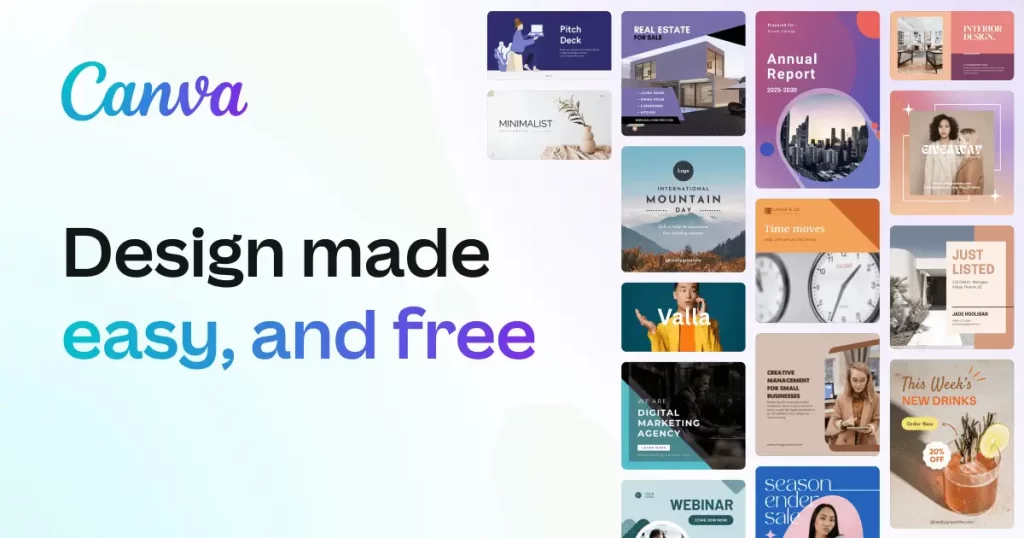
Canva Free provides basic editing tools, free templates, and limited AI access. Its current pricing indicates shared monthly allowances for eligible AI tools. Free users may receive up to 20 estimated AI uses, depending on task complexity. More advanced capabilities and premium elements require payment.
Review the official Canva pricing comparison before depending on specific AI features.
Best for: Blog graphics, promotional materials, presentations, and social media content.
Bing Image Creator: Best for Original AI Illustrations
Official website: Bing Image Creator
Bing Image Creator generates images from written descriptions. Instead of arranging existing design elements, users describe the visual they want. Microsoft’s system then produces images based on those instructions. This approach helps when suitable stock photography is difficult to find.
For example, you could request an illustration showing a laptop protected by a cybersecurity shield. Alternatively, you might generate conceptual artwork for cloud computing or computer maintenance. These images can support technical explanations and blog articles. However, generated visuals should not substitute for accurate product photographs or technical diagrams.
Better prompts usually produce more relevant results. Specify the subject, visual style, background, composition, and intended aspect ratio. Avoid vague instructions that leave important details undefined. Also, examine the output for distorted objects and inaccurate text.
Microsoft’s current interface advertises 10 free creations in Fast mode and unlimited Standard-mode creations. Processing speeds, access, and regional availability may vary. Check the Bing Image Creator FAQ for current restrictions.
Best for: Concept artwork, original illustrations, blog visuals, and creative experimentation.
Canva vs. Bing Image Creator
| Feature | Canva | Bing Image Creator |
|---|---|---|
| Main purpose | Graphic design | Original image generation |
| Templates | Extensive | Not the primary feature |
| Layout editing | Strong | Limited |
| Text-based image generation | Selected AI capabilities | Core function |
| Best use | Finished promotional graphics | Creative image concepts |
These applications work well together. Generate artwork with Bing Image Creator, then use Canva to add typography and branding. However, review the applicable image rights before commercial publication.
💡 Pro-Tip: Generate artwork without embedded headlines whenever possible. Add titles inside Canva afterward for clearer typography and easier editing.
7. Best Free AI Presentation Maker for Students and Professionals
Preparing presentations can consume several hours. You must organize information, design slides, and maintain consistent formatting. Additionally, each slide needs enough detail without overwhelming its audience. AI presentation tools can simplify the initial preparation process.
However, automatically generated slides still require editorial review. Attractive layouts cannot correct inaccurate information or weak explanations. Treat AI-generated presentations as editable drafts rather than finished work.
Gamma: Best for Generating Presentations From Outlines
Official website: Gamma
Gamma generates presentations, documents, and other visual materials from written instructions. Instead of arranging every slide manually, you begin with a topic or outline. Gamma then proposes a structured presentation with formatted sections. You can subsequently revise its content and design.

For example, a teacher could create a presentation explaining basic internet security. They might specify the intended audience, learning objectives, and presentation length. Gamma can then organize those requirements into an initial slide deck. This reduces the time spent developing the first draft.
Business professionals can use Gamma for project updates and internal training. Instead of starting with an empty PowerPoint file, they can generate a presentation structure. However, they must still verify technical details and numerical claims. The presenter remains responsible for the final material.
How to Create a Presentation With Gamma
Follow these steps:
- Open Gamma and register for a free account.
- Choose the presentation generation option.
- Enter your topic or paste an existing outline.
- Specify the audience and desired presentation style.
- Review the proposed content structure.
- Generate the slides and make necessary corrections.
- Export the presentation using an available format.
For better results, provide detailed instructions. Include learning objectives, key topics, presentation duration, and intended audience. These details help the application organize content more effectively.
Gamma’s free plan currently includes 400 credits at signup. Users can create up to 10 slides per prompt and export supported formats. Available exports include PDF, PPTX, PNG, and Google Slides. However, removing Gamma branding requires an eligible paid plan.
Review the official Gamma pricing page for current details.
Should You Use Gamma Instead of PowerPoint?
Gamma works particularly well for rapidly creating an initial presentation structure. However, PowerPoint provides detailed controls for complex editing and corporate templates. Users who require precise animations may prefer completing their work there.
A practical workflow combines both applications. Generate the initial slides in Gamma, then export them to PowerPoint. Finally, refine formatting, verify information, and inspect the layout.
Best for: Classroom presentations, business proposals, training materials, and project briefings.
8. Best Free AI Meeting Assistant for Transcription and Notes
Taking notes during meetings presents a familiar challenge. While writing, you may miss important questions or comments. This becomes more difficult when several participants discuss technical subjects. AI transcription tools can help capture conversations for later review.
However, transcription introduces privacy and accuracy concerns. Participants should understand when recording takes place. Additionally, automated systems may misinterpret names, technical terminology, and unfamiliar accents. Therefore, reviewing the resulting transcript remains essential.
Otter.ai: Best for Meeting Transcription
Official website: Otter.ai
Otter.ai provides automated transcription and meeting-related productivity features. It converts supported spoken conversations into searchable text. The platform also offers speaker identification and related review tools. These capabilities reduce manual note-taking during supported meetings.
For example, an IT consultant might attend a meeting about a network upgrade. Participants could discuss equipment requirements, schedules, and implementation risks. Otter can help capture the discussion for subsequent review. However, the consultant should confirm important technical details before documenting final decisions.
Searchable transcripts also help users locate earlier discussions. Instead of replaying entire meetings, they can search for relevant terms. This becomes useful when reviewing project decisions or clarifying instructions.
What Does Otter.ai Offer for Free?
Otter’s Basic plan includes 300 transcription minutes monthly. However, individual transcriptions have a 30-minute accessible duration limit. Users also receive three lifetime audio or video file imports. Older conversations may become archived as account limits apply.
These restrictions matter when recording longer meetings. A 60-minute session may exceed the accessible transcript duration under the free plan. Therefore, confirm the limits before relying on Otter for important discussions.
See Otter’s official Basic plan limitations.
How to Improve AI Meeting Transcripts
Speech recognition works better when recording conditions are consistent. Poor microphones, background noise, and overlapping conversations can reduce accuracy.
Follow these practical recommendations:
- Use a reliable microphone: Clear audio improves transcription quality.
- Reduce background noise: Avoid unnecessary sounds during discussions.
- Limit interruptions: Overlapping speakers make recognition more difficult.
- Verify technical terminology: Check acronyms, product names, and configuration details.
- Review decisions: Confirm responsibilities, deadlines, and action items.
- Obtain authorization: Follow applicable recording laws and company policies.
AI meeting summaries cannot reliably distinguish every suggestion from an approved decision. After important meetings, review the transcript and identify confirmed outcomes. Separate unresolved questions from actual commitments. This produces more dependable documentation.
Best for: Meeting transcription, discussion reviews, interviews, and short collaborative sessions.
9. Best Free AI Tools for Video Editing and Voiceovers
Video content supports education, marketing, and technical tutorials. However, producing videos involves several separate activities. You must edit footage, improve audio, add captions, and sometimes record narration. AI-assisted applications can simplify parts of that process.
Two applications deserve attention for different reasons. CapCut focuses on video editing and visual presentation. Meanwhile, ElevenLabs specializes in AI-generated speech and related audio capabilities. Together, they can support content production when licensing conditions permit.
CapCut: Best for Editing Short Videos
Official website: CapCut
CapCut offers video editing tools for desktop, mobile, and supported web environments. Users can trim footage, arrange clips, insert text, and apply transitions. The application also provides selected AI-assisted functions. However, many advanced AI capabilities require paid access.
For example, a technology blogger could create a short Windows troubleshooting tutorial. They might record the screen, remove unnecessary footage, and insert explanatory captions. The finished video could accompany an article or social media post. This workflow requires relatively little editing experience.
CapCut’s free plan includes basic editing tools and free templates. However, Pro-only elements can prevent unrestricted export. These elements may include premium effects, templates, and advanced AI features. Therefore, inspect your project before finalizing it.
CapCut explains these restrictions in its official export guidance.
Best for: Short tutorials, social media videos, basic editing, and visual demonstrations.
ElevenLabs: Best for AI Voiceover Generation
Official website: ElevenLabs
ElevenLabs generates synthetic speech from written text. Users enter a script, select an available voice, and create spoken audio. This makes it useful for testing narration without recording everything manually. However, voice quality and licensing permissions vary across plans.
For example, you could prepare narration for a computer maintenance tutorial. After generating an initial recording, listen for pronunciation and pacing problems. You can then revise unclear phrases before completing the video. This helps improve the script during production.
ElevenLabs supports multiple voices and languages. However, unusual technical terms sometimes require pronunciation adjustments. Always listen carefully before publishing generated speech.
Understanding ElevenLabs’ Free Credits and Licensing
ElevenLabs currently lists 10,000 monthly credits under its free plan. These credits support selected generation capabilities, including text-to-speech. However, actual consumption depends on the feature and model.
Importantly, the free offering does not include the standard commercial license. Commercial licensing appears among paid-plan benefits. Therefore, review usage rights before adding generated voices to monetized videos or client projects.
Check the official ElevenLabs pricing page for current allowances and licensing conditions.
How to Combine CapCut and ElevenLabs
A practical workflow involves:
- Write a concise video script.
- Generate a voiceover using an appropriately licensed ElevenLabs plan.
- Check pronunciation, pacing, and audio quality.
- Import the narration and footage into CapCut.
- Synchronize the audio with relevant visual elements.
- Add captions and verify their accuracy.
- Export using eligible features and settings.
For commercial content, confirm narration licensing before production. You may need a paid license or your own recorded voice. Also, avoid imitating real people’s voices without appropriate permission.
💡 Pro-Tip: Write narration for listeners rather than readers. Short sentences and familiar terminology usually sound more natural in voiceovers.
Best for: Video tutorials, narration experiments, educational videos, and social media production.
10. Best Free AI Coding Assistant and How to Build Your AI Toolkit
Programming often involves repetitive tasks, unfamiliar syntax, and extensive debugging. Even experienced developers spend considerable time reviewing code and consulting documentation. AI coding assistants can reduce some of that effort through contextual suggestions. However, generated code still requires careful inspection and testing.
For beginners, these applications can also explain programming concepts. They may demonstrate functions, clarify errors, or suggest alternative implementations. Nevertheless, copying generated code without understanding it creates unnecessary risks.
GitHub Copilot: Best for AI-Assisted Programming
Official website: GitHub Copilot
GitHub Copilot assists developers through supported code editors and development environments. It suggests code completions while users write or modify programs. Additional features can help explain programming concepts and investigate errors. This assistance reduces repetitive typing during routine development.
For example, a WordPress developer might write a custom PHP function. Copilot could suggest syntax or explain a confusing error. Similarly, a Python beginner could request examples involving files or data processing. However, developers must validate every suggested solution.
GitHub Copilot integrates with supported development tools, including Visual Studio Code. This makes it accessible to many programmers. However, feature availability varies across plans and environments.
What Does GitHub Copilot Free Include?
GitHub currently provides 2,000 code completions monthly through Copilot Free. The offering also includes limited access to other AI capabilities. Advanced models, additional usage, and certain agent features require eligible paid plans.
Developers should review the official GitHub Copilot plan comparison before adopting it for intensive projects. Usage rules may change as GitHub introduces additional capabilities.
Why AI-Generated Code Still Needs Testing
AI coding assistants can suggest outdated libraries, insecure procedures, or incorrect programming logic. Some problems remain hidden until the application encounters unusual conditions. Therefore, always review generated code before deploying it.
Check dependencies, error handling, input validation, and compatibility. Never insert API keys or passwords directly into source files. Also, avoid uploading confidential repositories into unapproved services.
Use version control and test changes in isolated environments. Automated tests can identify many problems before deployment. However, they cannot guarantee complete security or correctness.
Best for: Code completion, debugging assistance, programming explanations, and routine development tasks.
How to Build Your Own Free AI Productivity Toolkit
After reviewing these applications, you might feel tempted to register for all 15. However, managing too many accounts can reduce productivity. Each application introduces another interface, login, and set of restrictions. Therefore, begin with a smaller collection.
Start with a general-purpose chatbot for everyday tasks. Then add specialized applications when your workload requires them. This reduces unnecessary switching and simplifies usage tracking.
The following combinations provide practical starting points.
| User Type | Recommended AI Toolkit | Primary Purpose |
|---|---|---|
| Office workers | ChatGPT, Grammarly, Copilot | Writing and daily assistance |
| Students | Gemini, NotebookLM, Gamma | Research and presentations |
| Content creators | ChatGPT, Canva, CapCut | Planning and visual content |
| Researchers | Perplexity, NotebookLM, Claude | Source discovery and analysis |
| Developers | GitHub Copilot, ChatGPT | Coding and troubleshooting |
| Small business owners | Gemini, Canva, Grammarly | Communications and marketing |
These combinations represent suggestions rather than strict requirements. Some users may prefer alternatives because of platform compatibility or language support. Additionally, free-plan restrictions can affect individual workflows.
Measure Productivity Before Paying
A paid subscription makes sense only when its benefits justify the cost. Track how often you use each application. Record the time saved, editing effort, and recurring restrictions. These observations provide a better basis for subscription decisions.
For example, an AI assistant might save 30 minutes across several weekly tasks. That benefit could justify continued use without requiring an immediate upgrade. However, occasional convenience may not justify another monthly expense.
Accuracy also affects productivity. An AI-generated report requiring extensive corrections may provide little practical benefit. Similarly, debugging incorrect generated code can take longer than writing it manually.
Finally, review your toolkit periodically. Providers frequently change features, prices, and usage allowances. Maintaining flexibility prevents unnecessary dependence on one service.
Final Thoughts: Start Using Free AI Tools to Work Smarter in 2026
The best free AI tools in 2026 can improve everyday productivity without demanding expensive subscriptions. From writing emails to generating illustrations, these applications address practical needs across different professions. However, no single application performs every task equally well. Choosing software according to your workload remains the most sensible approach.
If you’re new to artificial intelligence, begin with one general-purpose assistant and one specialized application. Test both against familiar tasks before expanding your collection. Pay attention to accuracy, privacy, licensing, and usage restrictions. These factors matter more than impressive marketing demonstrations.
For professionals, AI should support technical judgment rather than replace it. Verify research findings, inspect generated code, and review important documents. Additionally, protect confidential information and respect intellectual property rights. Responsible usage helps prevent mistakes that outweigh the time saved.
You also don’t need to adopt every new application immediately. A carefully selected toolkit often provides better results with fewer distractions. Start small, measure the benefits, and upgrade only when necessary.
Now it’s your turn! Which free AI tool has made the biggest difference in your daily work? Have you discovered another useful application that deserves a place on this list?
Share your experience in the comments below. Your recommendation might help another reader discover a valuable tool.
If this guide helped you, share it with your friends, colleagues, and fellow tech enthusiasts! Someone you know might be spending hours on a task that a free AI application could simplify.