Most people use Windows 11 much like they used Windows 10. They open applications, browse websites, organize files, and occasionally change system settings. However, Microsoft has introduced several AI-powered features that can make everyday computing easier. Surprisingly, many users haven’t explored them or even realized they exist.
The Windows 11 AI features available in 2026 extend far beyond the familiar Microsoft Copilot assistant. Some help locate forgotten documents, translate conversations, or improve gaming performance. Others simplify troubleshooting, enhance photographs, and reduce repetitive tasks. You might already have access to several without installing additional software.
However, there’s one important distinction every Windows user should understand. Not every AI feature works on every Windows 11 computer. Microsoft reserves many advanced capabilities for Copilot+ PCs, which include dedicated hardware for accelerating AI workloads. Consequently, your computer’s processor and software version determine which tools you can use.
These computers feature a Neural Processing Unit (NPU) capable of at least 40 trillion operations per second. Manufacturers describe this processing capacity as 40 TOPS. An NPU efficiently handles specific AI calculations without relying entirely on the CPU or GPU. This allows compatible computers to process certain AI tasks locally.
Fortunately, that doesn’t mean your existing Windows 11 laptop has become obsolete. Standard computers can still access Microsoft Copilot, Snipping Tool OCR, and other useful features. Meanwhile, Copilot+ systems provide additional capabilities through specialized hardware. The sensible approach involves checking compatibility before considering an upgrade.
In this guide, we’ll examine 15 Windows 11 AI features worth understanding in 2026. We’ll explain what they do, where to find them, and which requirements matter. More importantly, we’ll focus on practical uses rather than marketing promises. And if you enjoy PC gaming, pay particular attention to feature number seven.
1. Microsoft Copilot: Your Everyday AI Assistant
AI Feature #1 — Microsoft Copilot
Microsoft Copilot is probably the most recognizable AI addition to Windows 11. However, many users still treat it as nothing more than a chatbot. In practice, Microsoft Copilot can assist with research, writing, troubleshooting, and everyday productivity tasks. Its usefulness depends on the information you provide.
Suppose you’re troubleshooting a printer that suddenly refuses to connect. Instead of searching through multiple discussions, describe the symptoms directly to Copilot. Include your printer model, connection type, and exact error messages. Copilot can suggest a structured troubleshooting process based on those details.
The same approach works for less technical assignments. You can ask Copilot to summarize explanations, improve emails, or organize project notes. It can also explain unfamiliar terminology and help draft simple instructions. These smaller tasks often deliver more practical value than complicated requests.
How to Access Microsoft Copilot
First, open the Start menu and search for Copilot. Select the application if Windows already includes it. Otherwise, check the Microsoft Store for the official Windows application. You can also visit Microsoft Copilot through your browser.
Supported computers may provide a dedicated Copilot keyboard key or configurable shortcut. However, the behavior differs between keyboard models and Windows configurations. Some systems allow you to choose which application opens through the Copilot key. Therefore, check your keyboard settings before relying on a particular shortcut.
Basic Copilot functionality doesn’t require a Copilot+ PC. However, specific capabilities, account requirements, and usage limits can differ. Microsoft also separates consumer Copilot experiences from licensed Microsoft 365 Copilot services. These distinctions become important when handling workplace documents.
Copilot Vision Helps Explain What’s on Your Screen
One useful capability is Copilot Vision, which can examine screen content you explicitly share. Instead of describing an unfamiliar application, you can ask questions about its visible interface. Copilot can explain available controls and suggest appropriate next steps. This becomes particularly convenient when navigating unfamiliar software.
Imagine opening a complicated Windows networking panel. You understand the problem but don’t recognize several configuration options. Copilot Vision can help explain what those controls mean. However, its ability to guide or perform actions depends on the supported application and permissions.
Screen awareness doesn’t mean Copilot automatically monitors every activity. You control supported screen-sharing sessions and decide which information to expose. Nevertheless, avoid sharing passwords, confidential records, or sensitive client information. Review Microsoft’s Copilot for Windows documentation for current features and controls.
Where Copilot Actually Saves Time
From an IT consultant’s perspective, Copilot works best as a first-pass research assistant. It can help identify possible causes before you change important settings. However, AI-generated troubleshooting instructions aren’t always accurate or current. Always verify commands and configuration procedures against official documentation.
For better results, provide specific details about your computer and the problem. Include your Windows version, hardware specifications, and previous troubleshooting attempts. Explain what happened after each step. This context usually produces more relevant recommendations.
💡 Pro-Tip: Ask Copilot to explain a Windows setting before changing it. This is especially useful when handling networking, security, privacy, or startup configurations.
2. Recall and Click to Do: Rediscover and Act on Information
AI Features #2 and #3 — Recall and Click to Do
Have you ever remembered seeing important information but forgotten where you found it? Perhaps it appeared inside a PDF, browser tab, or presentation several days earlier. Traditional Windows Search struggles when you cannot remember the filename or exact wording. Microsoft’s Recall feature attempts to solve this frustrating problem.
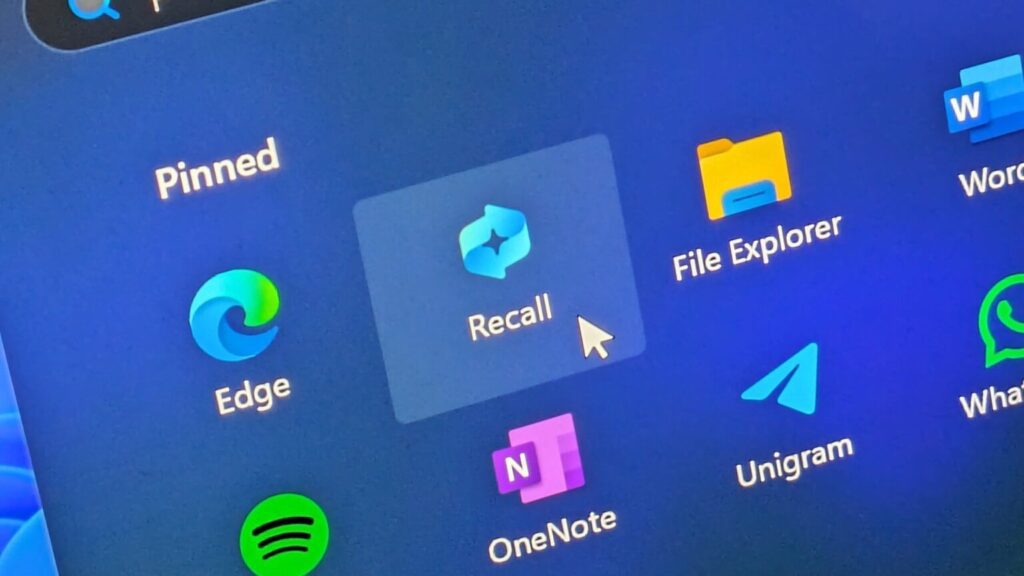
Recall creates a searchable history through periodic screen snapshots. Instead of searching exclusively through filenames, you describe something you remember seeing. For example, you might search for a spreadsheet containing quarterly expenses. Recall can identify relevant snapshots and help you return to their original context.
Unlike conventional screenshot utilities, Recall uses AI to interpret information within saved snapshots. You can also browse an interactive timeline of previous activity. However, the feature only searches periods when you allowed snapshot collection. It cannot recover screen activity that Windows never captured.
How Windows Recall Works
Recall requires a compatible Copilot+ PC meeting Microsoft’s hardware and security requirements. These include a 40 TOPS NPU, at least 16GB RAM, and sufficient storage. Microsoft also requires device encryption and supported Windows Hello authentication. The feature remains subject to Microsoft’s rollout and preview policies.
Importantly, Recall doesn’t automatically begin saving snapshots simply because your PC supports it. Windows requires you to opt in before capturing screen activity. You can pause collection, exclude supported applications, and delete saved snapshots. These controls matter when handling confidential business or personal information.
Microsoft stores Recall snapshots locally and protects them through encryption. Windows Hello authentication adds protection when accessing previously saved information. Nevertheless, local storage doesn’t eliminate every privacy concern. Users should still examine which applications and websites Recall can capture.
To review the controls, open Settings > Privacy & security > Recall & snapshots. If the section isn’t available, check hardware eligibility and Windows updates. Microsoft explains the security requirements in its Windows Recall documentation.
Click to Do Turns Screen Content Into Actions
While Recall helps rediscover information, Click to Do helps you act on visible content. It recognizes text and images on your screen and offers relevant actions. For instance, you can copy text, search selected information, or open supported links. Some configurations also provide intelligent summarization and rewriting actions.
Imagine finding a product specification inside a webpage or document. Instead of manually transferring the information, activate Click to Do. Select the relevant content and choose an available action. Windows can then help copy, search, or process the selected information.
On supported systems, press Windows + Q to open Click to Do. You can also hold the Windows key while clicking relevant screen content. The available commands depend on your hardware, language, account, and installed applications. Microsoft details these options in its Click to Do guide.
Why Recall and Click to Do Work Well Together
These features address different parts of an information-management workflow. Recall helps locate something you previously encountered. Click to Do helps perform actions using visible information. Together, they can reduce the effort involved in recovering and reusing content.
However, remember that some Click to Do actions connect with external services. Initial screen analysis may happen locally, while certain follow-up actions transmit selected information. Therefore, inspect each operation before processing confidential material. That precaution matters especially on computers handling client records.
💡 Pro-Tip: Exclude sensitive applications from Recall when appropriate. Review your organization’s privacy policies before enabling screen-history features on business computers.
3. AI-Powered Windows Search and the Settings Agent
AI Features #4 and #5 — Improved Windows Search and Agent in Settings
Windows Search has improved considerably, but traditional searching still has limitations. Usually, you need to remember a filename, keyword, or recognizable phrase. That becomes inconvenient when your computer contains thousands of documents and photographs. Fortunately, AI-powered Windows Search offers a more natural approach.
On compatible Copilot+ PCs, improved search combines traditional indexing with semantic indexing. Windows considers the meaning behind your query rather than relying exclusively on matching words. Searching for a beach vacation might identify related photographs without those words appearing in filenames. Similarly, conceptually related documents can appear in search results.
However, semantic search doesn’t guarantee perfect results. Accuracy depends on indexed locations, supported file formats, and language compatibility. Files outside the configured indexing scope may not appear. Therefore, correct search configuration remains important.
How Semantic Search Works
Traditional indexing records filenames, properties, and searchable document text. Semantic indexing adds representations that help Windows identify related meanings. This allows searches using concepts rather than exclusively matching literal phrases. The result can feel more natural when searching through large file collections.
Microsoft supports common document formats, including PDF, DOCX, PPTX, XLSX, and TXT. Supported image types include JPEG, PNG, GIF, and BMP. Windows stores semantic indexing information locally on your computer. However, supported processing languages and search experiences vary.
To review your configuration, open Settings > Privacy & security > Searching Windows. Examine indexed locations and folders that Windows excludes. You can also review advanced indexing controls. Microsoft explains these options in its Windows Search indexing guide.
The Settings Agent Helps Find Configuration Options
The Agent in Settings addresses another familiar Windows frustration. Finding the correct setting sometimes takes longer than changing it. Microsoft frequently reorganizes configuration options between Windows releases. Consequently, older tutorials may reference menus that no longer look familiar.
The Settings Agent lets you describe a problem instead of knowing the exact control. For example, type, “My mouse pointer is too small.” Windows can identify related accessibility settings and suggest adjustments. This approach makes configuration easier for people unfamiliar with Windows terminology.
Microsoft uses an on-device language model called Settings Mu for this experience. It interprets your request and identifies relevant controls. When appropriate, it presents an option for applying a recommended change. However, you must confirm the action before Windows changes the setting.
How to Use AI Search in Settings
Press Windows + I to open Settings. Enter a natural-language description into the search field. Try something practical, such as “Make my screen easier to read.” On supported computers, Windows may recommend relevant controls.
You can also describe common problems rather than naming individual settings. For example, explain that your mouse pointer disappears against bright backgrounds. The agent may suggest options that improve visibility. However, it can return ordinary search results when it cannot interpret your request confidently.
These features require compatible Copilot+ hardware. Language support has also expanded through Windows updates, although availability varies by configuration. Microsoft explains the agent and search capabilities in its Windows Settings guide.
💡 Pro-Tip: Search using the actual problem instead of guessing a setting’s name. A phrase like “Text is difficult to read” provides more useful context than “display.”
4. Live Captions: AI Translation for Calls and Videos
AI Feature #6 — Live Captions
Video meetings have become routine for remote workers, freelancers, and IT professionals. However, unfamiliar accents, background noise, and language differences can make conversations difficult. Windows 11 includes an accessibility feature that helps address these problems. It’s called Live Captions, and it also supports real-time translation on qualifying hardware.
Live Captions converts supported spoken audio into readable text. It can process audio from videos, meetings, and other Windows applications. The captions appear while you continue using your computer. This makes the feature useful beyond traditional accessibility requirements.
Standard Live Captions works on supported Windows 11 version 22H2 systems and later. However, real-time translation requires a Copilot+ PC running Windows 11 version 24H2 or later. That distinction matters because captioning and translation aren’t identical capabilities. Your hardware determines which experience Windows provides.
How AI Translation Works
On supported Copilot+ PCs, Live Captions translates speech from more than 40 languages into English. Microsoft also supports translation from 27 languages into Simplified Chinese. This allows users to follow foreign-language conversations through on-screen subtitles. However, the feature doesn’t replace the original audio with translated speech.
Imagine attending an international technical webinar. The presenter speaks another supported language, while Windows displays translated captions. You can follow the discussion without constantly switching between applications. This becomes especially useful when the original video lacks reliable subtitles.
Microsoft processes Live Captions audio locally. Once you install the necessary language files, supported processing can work offline. Windows doesn’t send the captioning audio to Microsoft’s cloud for transcription. Nevertheless, you need internet connectivity for initial language downloads.
How to Enable Live Captions
Getting started takes only a few steps:
- Press Windows + Ctrl + L to open Live Captions.
- Alternatively, select Settings > Accessibility > Captions.
- Enable Live Captions and download the required speech components.
- Play a video or join a meeting with supported audio.
- Adjust caption position, appearance, and language settings.
On qualifying Copilot+ PCs, select a supported translation output language. Windows can then translate recognized speech into the chosen language. Available options depend on installed language components. Microsoft’s Live Captions documentation explains supported languages and setup requirements.
Where Live Captions Works Best
Live Captions makes particular sense for international meetings and technical training. It can also help when speakers have unfamiliar accents. Additionally, captions provide another way to follow instructions when audio quality deteriorates. However, accuracy still depends on clear speech and reasonable recording conditions.
Technical discussions introduce another challenge: specialized terminology. Product names, networking abbreviations, and commands may appear incorrectly. Therefore, never assume every captioned instruction is accurate. Verify important technical details through official documentation.
💡 Pro-Tip: Enable Live Captions during webinars and online training. Use the text to follow complex discussions, but verify commands before executing them.
5. Hidden Gem #7: Auto Super Resolution for Gaming
AI Feature #7 — Automatic Super Resolution (Auto SR)
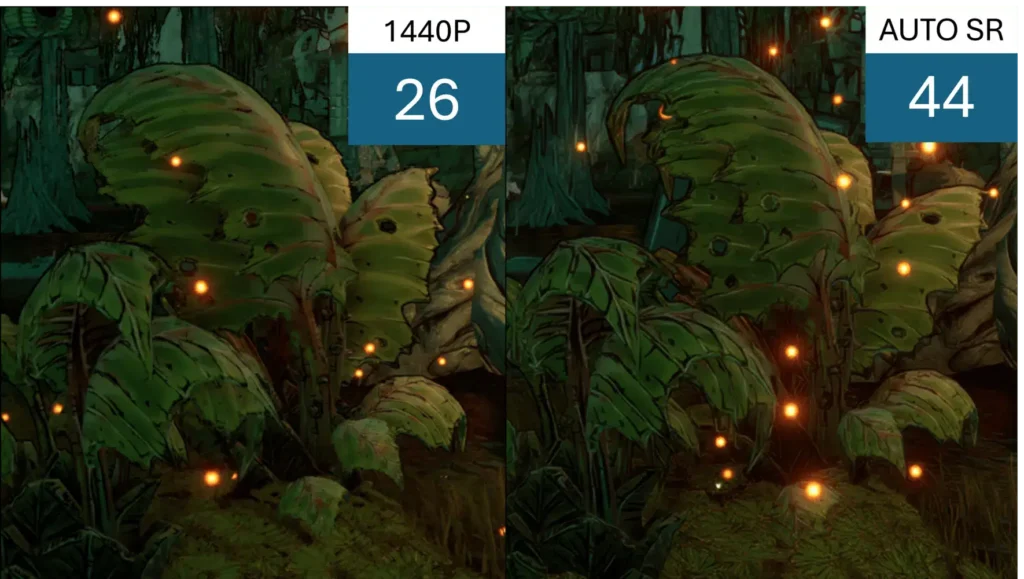
Now we reach a feature that deserves more attention from PC gamers. Microsoft’s Automatic Super Resolution, or Auto SR, uses AI-assisted upscaling to improve supported gaming experiences. Unlike Copilot, it doesn’t help with writing or document management. Instead, it targets the familiar compromise between rendering quality and frame rate.
Traditionally, higher gaming resolutions place greater demands on graphics hardware. Lower resolutions can improve performance, but images often appear softer. Auto SR attempts to address this problem through intelligent upscaling. It allows compatible games to render at lower resolutions before enhancing the displayed image.
The goal is to reduce rendering demands while maintaining acceptable visual quality. However, Auto SR doesn’t guarantee higher frame rates in every game. Results depend on the title, hardware, graphics settings, and workload. Some games may benefit more than others.
How Auto SR Differs From DLSS and FSR
Gamers may already recognize NVIDIA DLSS and AMD FidelityFX Super Resolution. These technologies also improve performance through resolution scaling and image reconstruction. However, their implementation methods and hardware requirements differ. Auto SR provides another approach through supported Windows configurations.
NVIDIA DLSS generally relies on compatible NVIDIA hardware and game-level integration. AMD FSR offers several techniques with varying support requirements. By comparison, Auto SR can work with certain existing games through Windows-level integration. Developers don’t necessarily need to implement it individually.
However, Auto SR isn’t a universal replacement for either technology. Different solutions use different reconstruction methods and image information. Visual quality can vary considerably between titles. Consequently, gamers should compare actual results before choosing a preferred approach.
Which Computers Support Auto SR?
Auto SR doesn’t work on every Windows 11 gaming PC. Even a powerful dedicated GPU doesn’t automatically guarantee compatibility. Microsoft restricts the feature to supported processors, operating system versions, and gaming configurations. Specific NPU capabilities also matter.
Microsoft documents support for qualifying Copilot+ PCs using Snapdragon X or X2 processors. Certain Intel Core Ultra Series 3 configurations also qualify. Additionally, Microsoft describes support for specific ROG Xbox Ally X configurations. Device and graphics requirements remain subject to Microsoft’s compatibility documentation.
Supported systems also require Windows 11 version 24H2 or later and appropriate drivers. Microsoft specifies a display resolution of at least 1080p. Compatible games generally use supported DirectX configurations. However, older graphics APIs and unsupported titles may not qualify.
Before purchasing new hardware, review Microsoft’s Automatic Super Resolution requirements. A recent gaming laptop doesn’t automatically meet every requirement. Likewise, an expensive graphics card cannot independently provide compatibility. Verify the entire platform before expecting Auto SR support.
How to Enable Automatic Super Resolution
Microsoft provides Auto SR controls through supported Windows graphics settings and Xbox Game Bar experiences. The exact interface depends on your hardware and software version. Therefore, first confirm eligibility rather than searching for a missing option. Unsupported systems may not display these controls.
On compatible systems, try these steps:
- Launch a game that meets Microsoft’s compatibility requirements.
- Press Windows + G to open Xbox Game Bar.
- Locate the available Auto SR controls.
- Enable the feature for the supported game.
- Adjust the rendering resolution when necessary.
- Restart the game if Windows requests it.
Some configurations also provide per-application options through Windows graphics settings. Use Microsoft’s recommended resolution for your particular processor. Different supported platforms may require different rendering settings. Consequently, don’t assume one universal resolution works best.
Does Auto SR Actually Improve Gaming Performance?
The potential improvement comes from reducing the GPU’s rendering workload. A lower internal resolution can sometimes increase frame production. Auto SR then attempts to reconstruct the image at a higher displayed resolution. However, the processing introduces its own workload and visual trade-offs.
A GPU-limited game may benefit more than a CPU-limited title. Meanwhile, fine textures and rapid movement can expose upscaling artifacts. Interface text may also look different under certain conditions. These variations explain why performance testing remains necessary.
Use a consistent scene when comparing results. Measure average FPS, frame-time consistency, and visual quality. Then repeat the comparison with Auto SR disabled. A modest performance increase may not justify noticeable image degradation.
Why Gamers Should Pay Attention
Auto SR represents another possible performance optimization for supported Windows gaming systems. It brings AI-assisted upscaling into selected operating system configurations. That can benefit games without dedicated support for other reconstruction technologies. However, compatibility remains much narrower than general Windows 11 availability.
Don’t expect Auto SR to transform an ordinary office laptop into a powerful gaming computer. It cannot compensate for every limitation involving graphics hardware, memory, or cooling. Treat it as a targeted optimization feature. Actual results matter more than theoretical performance claims.
💡 Pro-Tip: Compare Auto SR using identical game scenes, resolutions, and graphics presets. Examine frame-time consistency alongside FPS to determine whether gameplay genuinely feels smoother.
6. Windows Studio Effects: Smarter Video Meetings
AI Feature #8 — Windows Studio Effects
Video meetings have become essential for remote work, online consultations, and business communication. However, poor lighting, distracting backgrounds, and inconsistent audio can affect meeting quality. Microsoft addresses these problems through Windows Studio Effects, a collection of AI-powered camera and microphone enhancements. These tools help improve calls without expensive equipment.
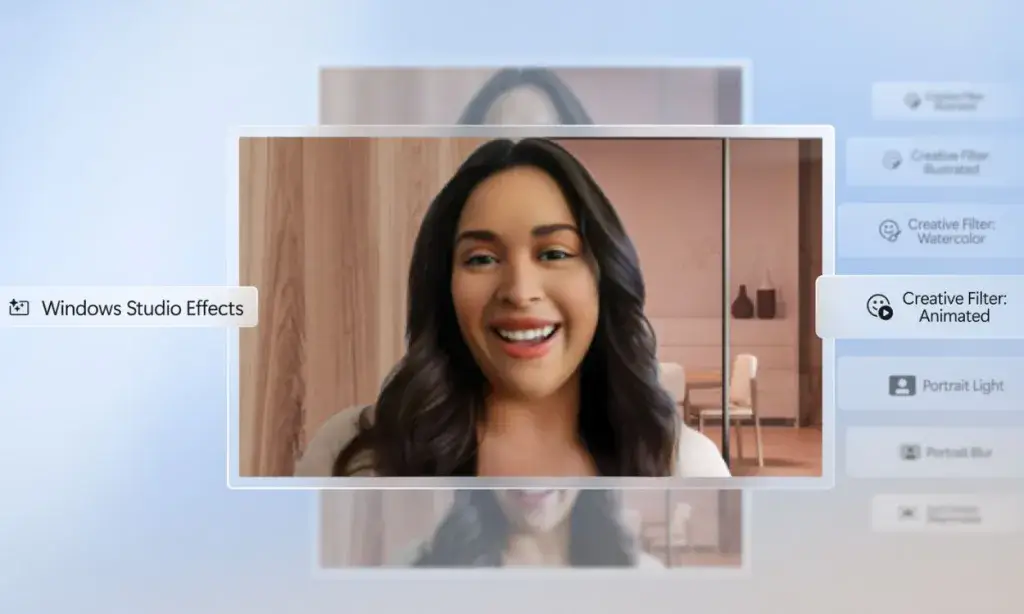
Unlike ordinary video filters, Windows Studio Effects uses dedicated AI processing. Available capabilities include automatic framing, eye contact correction, background blur, portrait lighting, and voice focus. Some enhancements work across multiple compatible conferencing applications. Consequently, you don’t always need separate configurations for each meeting platform.
How Windows Studio Effects Improves Video Calls
Automatic Framing helps keep your face centered during video meetings. If you change position, supported systems adjust the framing around you. This works particularly well during demonstrations or presentations. However, camera quality and hardware support influence the results.
Another useful feature is Eye Contact Correction. It adjusts your apparent gaze while you’re looking toward the screen. This can make video conversations feel more natural. Nevertheless, excessive correction may produce unnatural results.
Windows Studio Effects also provides background enhancement options. Background Blur reduces distracting details, while Portrait Blur provides stronger separation. Portrait Light can improve facial illumination in difficult conditions. Available effects vary depending on your NPU and device.
Voice Focus Reduces Background Distractions
Poor audio often causes more meeting problems than mediocre video quality. Fortunately, Voice Focus can reduce unwanted sounds while emphasizing speech. This helps when working near fans, traffic, or household activity. The system processes supported microphone input before conferencing applications receive it.
However, Voice Focus cannot eliminate every distracting sound. Loud conversations and overlapping voices may still interfere. Aggressive suppression can occasionally affect natural voice quality. A reliable headset remains valuable for important meetings.
How to Enable Windows Studio Effects
First, confirm that your computer supports the relevant enhancements. Windows Studio Effects requires compatible NPU hardware. However, available options differ between older NPU-equipped systems and newer Copilot+ PCs. Microsoft’s Windows Studio Effects guide explains these requirements.
To configure available enhancements:
- Open Settings > Bluetooth & devices > Cameras.
- Select your compatible camera.
- Review the available Studio Effects controls.
- Enable supported features such as Background Blur or Automatic Framing.
- Open Quick Settings using Windows + A for additional controls.
- Test the results inside your preferred conferencing application.
Depending on your hardware, Windows may display the controls differently. Some supported external cameras also provide Studio Effects integration. However, not every USB camera or microphone supports every enhancement. Always test your settings before an important meeting.
💡 Pro-Tip: Enable Eye Contact and Background Blur separately before combining them. Compare the results in a test meeting to avoid unnatural-looking video.
7. Paint and Photos: AI Image Generation and Restyling
AI Features #9–11 — Paint Cocreator, Photos Restyle Image, and Photos Image Creator
Microsoft Paint has changed considerably from the simple drawing program many users remember. Traditional brushes, shapes, and color tools remain available. However, Microsoft has added AI-assisted creative features for producing more elaborate artwork. Meanwhile, Photos offers tools for transforming existing pictures.
These Windows AI tools can help bloggers, educators, and small business owners. You can create conceptual illustrations, experiment with visual styles, or prepare presentation artwork. However, availability depends on your computer, application version, and account. Several advanced features require a Copilot+ PC.
Paint Cocreator Combines Sketches With AI
Paint Cocreator combines written instructions with artwork you draw on the canvas. Instead of generating an image entirely from text, it considers your sketch as guidance. This provides more control over the composition. You don’t need professional illustration skills to experiment.
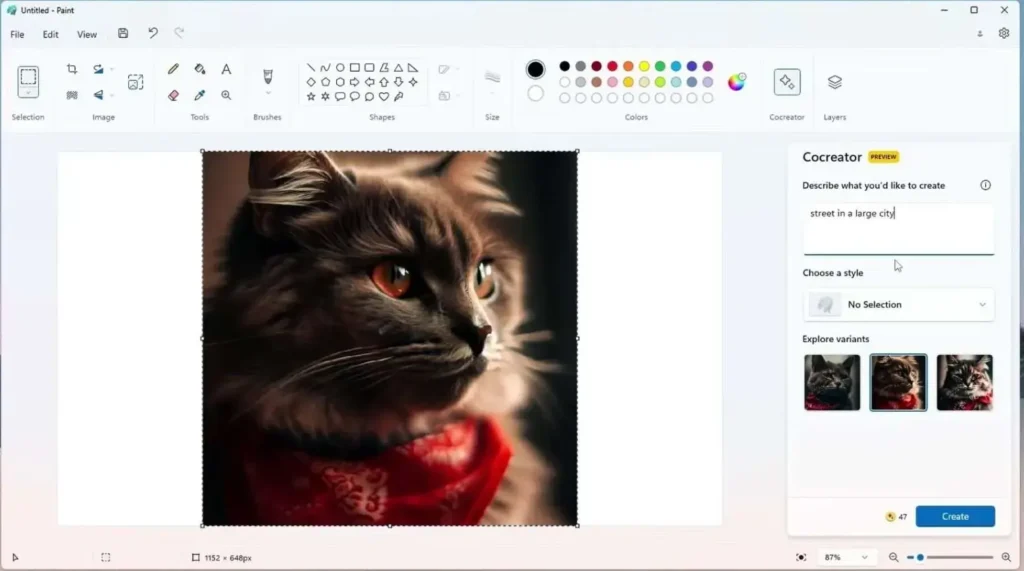
Suppose you need an illustration showing a laptop beside a wireless router. Sketch the basic objects and their positions inside Paint. Then describe the scene using a short text prompt. Cocreator interprets both inputs to generate artwork.
You can also select styles such as watercolor or oil painting. A creativity slider controls how freely AI interprets your drawing. Lower settings generally preserve more of the original composition. Higher settings allow more variation.
How to Use Paint Cocreator
Open Microsoft Paint on a compatible Copilot+ PC. Select Cocreator from the toolbar and enter your description. Start drawing with your mouse or stylus. The generated result updates as you modify the sketch.
Keep prompts specific and practical. Describe the subject, composition, background, and preferred artistic style. For example, request a clean technical illustration with clearly separated objects. This provides better guidance than vague instructions.
Microsoft recommends English prompts for consistent results. You also need an updated Paint application and eligible hardware. Review Microsoft’s Paint Cocreator documentation for current requirements.
Photos Restyle Image Changes a Picture’s Appearance
Photos Restyle Image approaches editing differently. Instead of creating an entirely new composition, it transforms an existing photograph using artistic styles. You can select predefined options or describe your preferred appearance. This makes creative experimentation easier without mastering advanced editing software.
For example, you might transform a landscape photograph into watercolor-style artwork. Alternatively, restyle an ordinary photograph for a presentation background. The tool can preserve important characteristics while changing the overall appearance. However, generated results may not represent the original scene precisely.
Open your photograph in Microsoft Photos and select Edit image. Choose Restyle Image if your device supports it. Then select a style or enter a description. Adjust the creativity setting before saving your preferred result.
Photos Image Creator Generates Images From Text
Photos Image Creator creates new imagery from written descriptions. Unlike Restyle Image, it doesn’t require an existing photograph. You simply describe the scene you want. The application generates visual interpretations of your instructions.
A technology blogger might request a modern home-office illustration. The prompt could describe dual monitors, a compact PC, and soft lighting. Photos Image Creator can generate different variations of that concept. You can review and save a suitable result.
Open Microsoft Photos and locate Image Creator in the navigation panel. Enter a descriptive prompt and review the output. Both Image Creator and Restyle Image depend on qualifying hardware and supported cloud services. Microsoft explains these requirements in its Photos AI documentation.
When Should You Use These Tools?
For content creators, these tools provide convenient starting points. Paint Cocreator works well when you have a rough composition. Restyle Image helps transform existing pictures. Image Creator suits projects beginning with written descriptions.
However, AI-generated artwork doesn’t guarantee technical accuracy. Computer illustrations may contain unrealistic ports, connectors, or hardware layouts. Avoid using these images as authoritative repair references. Genuine photographs remain preferable when identifying actual components.
💡 Pro-Tip: Use AI-generated images for conceptual artwork rather than hardware identification. Verify technical details before publishing illustrations that resemble real equipment.
8. AI Photo Upscaling and Snipping Tool Text Recognition
AI Features #12–13 — Photos Super Resolution and Snipping Tool Text Actions
Not every useful AI capability needs to generate entirely new content. Sometimes, the biggest improvement comes from enhancing existing images or extracting information. Windows 11 includes tools that handle both tasks. Two examples are Photos Super Resolution and Snipping Tool Text Actions.
These features solve different problems. Super Resolution improves the appearance of low-resolution photographs. Meanwhile, Snipping Tool extracts text from captured images. Their hardware requirements also differ considerably.
Photos Super Resolution Improves Small Images
Have you ever enlarged a photograph and ended up with blurry results? Traditional resizing increases image dimensions without necessarily improving detail. Consequently, edges become softer and small objects lose definition. Photos Super Resolution uses AI-assisted processing to improve enlargement quality.
The feature increases image resolution while enhancing perceived sharpness. Microsoft provides several enhancement levels, including 2x, 4x, and 8x. This helps when preparing older photographs for presentations or larger displays. However, higher settings don’t always guarantee better results.
Super Resolution estimates missing image details using surrounding information. It cannot perfectly reconstruct information absent from the original photograph. Therefore, enhanced images may look sharper without being completely faithful. Avoid relying on them as evidence of fine visual details.
How to Use Super Resolution
Open Microsoft Photos and select the image you want to improve. Click Edit, then choose Super resolution. Select an enhancement level and review the comparison. Save the result after inspecting important details.
Start with a modest enlargement before trying more aggressive settings. A 2x improvement may provide sufficient quality for ordinary presentations. Larger factors can introduce artificial-looking details. Compare the final image at its intended display size.
Super Resolution runs locally on qualifying Copilot+ PCs. Microsoft doesn’t send images to external services for this particular enhancement. The feature currently supports still images rather than video. See Microsoft’s Photos Super Resolution guide for additional instructions.
Snipping Tool Extracts Text From Screenshots
Now consider a different problem. A client sends a screenshot containing an error message or configuration instruction. Normally, you might manually retype the information. That becomes tedious when the screenshot contains several paragraphs.
Snipping Tool Text Actions solves much of this problem through Optical Character Recognition, or OCR. The tool identifies readable text inside captured images. You can copy selected words or entire text sections. This makes screenshots more useful for troubleshooting and documentation.
Unlike Photos Super Resolution, basic Snipping Tool OCR doesn’t require Copilot+ hardware. It works on supported Windows 11 systems with an updated application. Microsoft also processes its text recognition locally. Consequently, the OCR operation doesn’t require uploading images to a cloud service.
How to Extract Text Using Snipping Tool
Follow these steps:
- Press Windows + Shift + S.
- Capture the screen area containing the required text.
- Open the screenshot in Snipping Tool.
- Select Text actions from the toolbar.
- Choose specific text or select Copy all text.
- Paste the extracted content into Notepad or another application.
Snipping Tool also supports Quick redact for recognized email addresses and phone numbers. This helps prepare screenshots for public support discussions. However, automated redaction may miss other sensitive details. Always inspect the image before sharing it.
Microsoft describes OCR and redaction in its Snipping Tool documentation.
Why IT Professionals Should Pay Attention
Screenshot text recognition offers immediate value during technical support. Clients frequently send screenshots instead of copying error messages. OCR allows you to extract those messages for searching and documentation. This reduces manual typing and potential transcription mistakes.
The same approach works with printed instructions, photographed labels, and scanned notes. However, recognition accuracy depends on image clarity and text orientation. Always verify commands, IP addresses, and serial numbers. One incorrect character can change a technical instruction completely.
💡 Pro-Tip: Use Snipping Tool OCR to extract Windows error messages before researching them. Verify exact error codes and technical values before taking corrective action.
9. File Explorer AI Actions: Work Smarter With Files
AI Feature #14 — File Explorer AI Actions
File Explorer remains one of Windows 11’s most frequently used applications. Most users rely on it for browsing folders, renaming files, and organizing documents. However, Microsoft has introduced AI Actions in File Explorer to simplify certain image and document tasks. These operations appear through the familiar right-click menu.
The main advantage is convenience rather than replacing specialized software. You can begin supported operations without opening an application first. Windows then launches the relevant tool or connected service. This reduces unnecessary steps during routine file management.
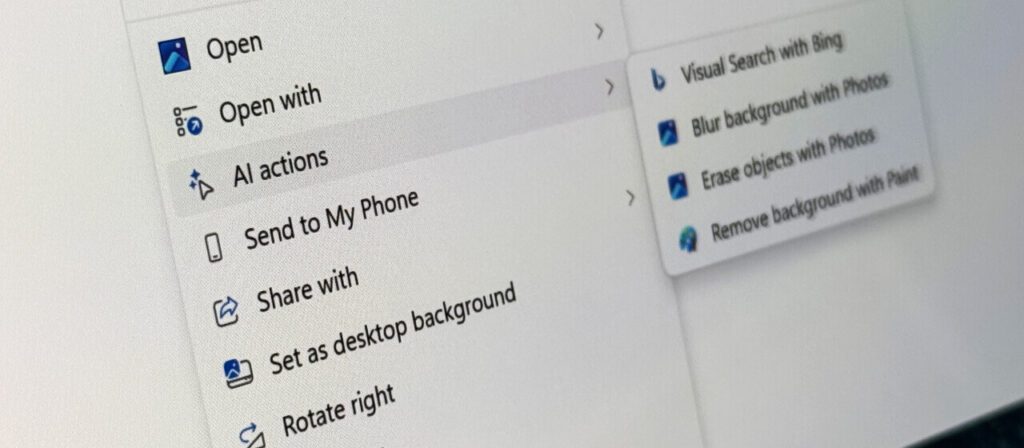
However, available actions depend on your Windows version, installed applications, and region. Some features also require additional Microsoft services or subscriptions. Therefore, your context menu may differ from another user’s configuration. Microsoft continues distributing these capabilities through Windows updates.
AI Image Actions in File Explorer
File Explorer supports several actions for common JPEG and PNG images. These include Visual Search, Blur Background, Erase Objects, and Remove Background. Each targets a specific editing or research task. However, Windows often delegates the operation to another application.
Blur Background uses Microsoft Photos to emphasize a subject. Remove Background launches supported functionality in Paint. Erase Objects helps remove unwanted elements from photographs. Meanwhile, Visual Search searches the web using an image.
Visual Search deserves additional privacy consideration. Web-based image searching may transmit visual information to an external service. Avoid using it with confidential photographs or sensitive documents. Always consider where an action processes your information.
How to Access File Explorer AI Actions
Open File Explorer using Windows + E. Navigate to a supported file and right-click it. Look for the AI actions submenu. Select an available operation to begin.
For example, right-click a JPEG photograph and open AI actions. You may see options for removing or blurring its background. Selecting an action launches the appropriate editing workflow. Review the result before saving changes.
If AI actions don’t appear, check your Windows version. Install available Windows and Microsoft Store application updates. Also confirm regional availability and file compatibility. Microsoft introduced these capabilities in its Windows 11 update documentation.
Summarize Documents Through Microsoft 365 Copilot
File Explorer also offers document summarization through eligible Microsoft 365 Copilot integrations. This can help users review long business documents without opening each file manually. However, the feature has specific cloud storage and licensing requirements. It doesn’t automatically summarize every document stored locally.
Microsoft primarily targets supported files in OneDrive and SharePoint. An eligible Microsoft 365 subscription and Copilot license are required. Consequently, users shouldn’t assume a standard Windows installation includes this capability. Business administrators should verify licensing before deployment.
Imagine reviewing several project status reports stored in SharePoint. Summarization can help identify key points before deeper reading. However, AI summaries may overlook numerical details or important qualifications. Always consult the original document before making significant decisions.
Are File Explorer AI Actions Useful?
For ordinary users, image actions provide an obvious benefit. They make common editing tasks easier to start. Meanwhile, business users may appreciate document summarization through connected services. The actual value depends on how frequently you perform these tasks.
Remember that File Explorer doesn’t independently perform every AI operation. It often launches another application or cloud workflow. That affects processing location, account requirements, and privacy. Understanding those differences helps prevent unexpected results.
💡 Pro-Tip: Test File Explorer AI Actions using duplicate files. For business documents, confirm subscription and data-handling requirements before enabling connected services.
10. AI in Notepad: Rewrite, Summarize, and Draft Text
AI Feature #15 — Notepad AI Writing Tools
Notepad has traditionally served as a simple plain-text editor. IT professionals regularly use it for configuration notes, logs, scripts, and quick documentation. However, Microsoft has expanded the application with optional AI writing capabilities. These include Rewrite, Summarize, and Write.
The idea is to improve text without switching applications. You can refine existing explanations, shorten lengthy notes, or create drafts. However, these tools differ from Notepad’s traditional offline functionality. Microsoft’s GPT-powered writing features use cloud services.
Availability also depends on your Notepad version, account, region, and rollout status. Some capabilities first appeared through Windows Insider releases. Consequently, not every stable Windows installation necessarily displays the same controls. Check your application version before following specific instructions.
Rewrite Improves Existing Text
Rewrite helps refine content you’ve already written. It can adjust clarity, tone, and length while preserving the general subject. This works particularly well when preparing instructions for nontechnical readers. However, you should review every suggestion before accepting it.
Suppose you’ve written a complicated explanation about router configuration. The details are correct, but the wording feels unnecessarily dense. Rewrite can suggest a clearer alternative. You can then compare the versions and keep the most accurate one.
Highlight the relevant text inside Notepad. Right-click the selection and choose an available Rewrite option. Supported versions may also provide Ctrl + D. Review the generated alternatives before applying changes.
Never assume Rewrite preserves every technical detail. AI editing may alter command syntax, paths, or configuration values. Therefore, use it cautiously with executable instructions. Ordinary explanatory text is usually a safer starting point.
Summarize Condenses Lengthy Notes
Technical documentation often contains more information than you need immediately. Meeting records, troubleshooting notes, and project explanations can become difficult to scan. Summarize condenses selected text into shorter versions. This provides a convenient starting point for quick reference.
Imagine collecting several paragraphs about a recurring network problem. Your notes include symptoms, previous troubleshooting steps, and suspected causes. Summarize can prepare a shorter overview. You can then use that overview when organizing a support ticket.
Select the relevant text and choose Summarize from the context menu. Supported versions may also provide Ctrl + M. Choose a suitable summary length. Review the result before sharing or saving it.
Important diagnostic details can disappear during summarization. Therefore, preserve your original notes. This becomes particularly important when documenting technical incidents. A summary should support the original record rather than replace it.
Write Creates Drafts From Instructions
Write generates new text from prompts. You can start with a blank document or reference existing content. Notepad then prepares a draft using your instructions. This makes it useful for short explanations and routine documentation.
For example, request a simple explanation of two-factor authentication. Specify that the intended readers are beginners. Alternatively, ask for a basic checklist about slow Wi-Fi connections. These assignments suit Notepad’s straightforward interface.
Place your cursor where the new content should appear. Select Write from the available Copilot or context menu. Supported versions may provide Ctrl + Q. Enter your instructions and review the result.
For better results, describe the audience and required format. Specify whether you need a checklist, explanation, or reference note. However, verify technical statements against trusted documentation. Generated drafts can contain outdated or incorrect instructions.
Notepad AI Requires Account Access
Unlike ordinary plain-text editing, these AI features use cloud-based GPT processing. Therefore, they require internet access and appropriate Microsoft account authentication. Usage may also depend on subscription benefits or AI credit allowances. Available limits differ by account and service.
This matters when handling sensitive information. Avoid submitting passwords, private client records, or confidential configuration details. Remove unnecessary personal information before requesting assistance. Follow organizational data-protection policies when working on managed computers.
You can disable Notepad’s AI features through supported application settings. This preserves a simpler editing experience when needed. Microsoft explains the controls in its Notepad AI writing guide.
Should You Replace Your Existing Text Editor?
For quick writing tasks, Notepad’s AI tools offer convenience. They can improve explanations or summarize notes without opening another application. However, developers and administrators may prefer dedicated code editors. Specialized tools provide more advanced controls for scripts and project management.
Furthermore, generated text isn’t suitable for blindly modifying configuration files. Small syntax changes can cause major problems. Use AI assistance primarily for documentation and explanatory writing. Preserve exact commands and verify changes before applying them.
💡 Pro-Tip: Keep Notepad’s AI writing tools separate from your scripting workflow. Use them for explanations, but preserve original commands and configuration values exactly.
Final Thoughts: Which Windows 11 AI Features Should You Try First?
Windows 11 has evolved beyond the traditional desktop operating system many users remember. Microsoft’s expanding AI capabilities can simplify research, accessibility, creativity, and routine computer tasks. However, their value depends on practical results rather than impressive demonstrations. Not every feature deserves a permanent place in your workflow.
If you’re using a standard Windows 11 PC, start with Microsoft Copilot and Snipping Tool Text Actions. Copilot helps with explanations, research, and everyday writing. Meanwhile, Snipping Tool makes extracting text from screenshots remarkably convenient. Neither requires purchasing a Copilot+ PC for these basic tasks.
Remote workers should investigate Windows Studio Effects when compatible hardware is available. Background Blur and Voice Focus can improve everyday video calls. File Explorer AI Actions may also simplify repetitive image editing. However, review compatibility and licensing before expecting every capability.
Owners of Copilot+ PCs have additional features worth exploring. Recall can help rediscover previously viewed information. Improved Windows Search and the Settings Agent can make navigation easier. Meanwhile, Photos Super Resolution provides another option for enhancing low-resolution pictures.
For gamers, Automatic Super Resolution deserves particular attention. It may improve performance in supported games under suitable conditions. However, compatibility and image quality determine whether the feature is worthwhile. Test results rather than relying exclusively on performance claims.
Do You Really Need a Copilot+ PC?
That depends on your computing requirements. If you mainly browse websites, write documents, and manage email, existing hardware may remain sufficient. Several useful AI tools already work without a 40 TOPS NPU. Consequently, upgrading solely for AI features may provide limited value.
However, compatible hardware becomes more attractive when you regularly use supported local AI workloads. Features such as Recall, improved Windows Search, and Photos Super Resolution provide additional reasons to consider it. Even then, compare the entire computer rather than focusing exclusively on its NPU. CPU performance, RAM, storage, battery life, and software compatibility still matter.
Before upgrading, open Settings > System > About to review your hardware and Windows edition. Next, check Windows Update and install supported application updates. Confirm feature eligibility through official Microsoft documentation. Finally, evaluate whether those features genuinely address your daily computing needs.
Start With One Feature and Build From There
You don’t need to activate all 15 features immediately. Choose one tool that solves a recurring problem. Test it with a familiar task and examine the result. Then explore another capability when you understand its limitations.
Remember that AI remains an assistant rather than a replacement for technical judgment. Verify generated instructions, protect sensitive information, and review proposed changes. The most useful technology doesn’t always need dramatic demonstrations. Sometimes, saving several minutes on a repetitive task makes the biggest difference.
Now it’s your turn! Which Windows 11 AI feature surprised you the most? Have you tried Auto SR, Recall, or AI image generation? Tell us which features work on your computer and which ones you want to explore.
Drop your experience in the comments and share this guide with another Windows 11 user. Your feedback could help someone discover a useful feature they’ve overlooked.
For more practical Windows tutorials, troubleshooting advice, and computer optimization guides, visit Technical Forum.