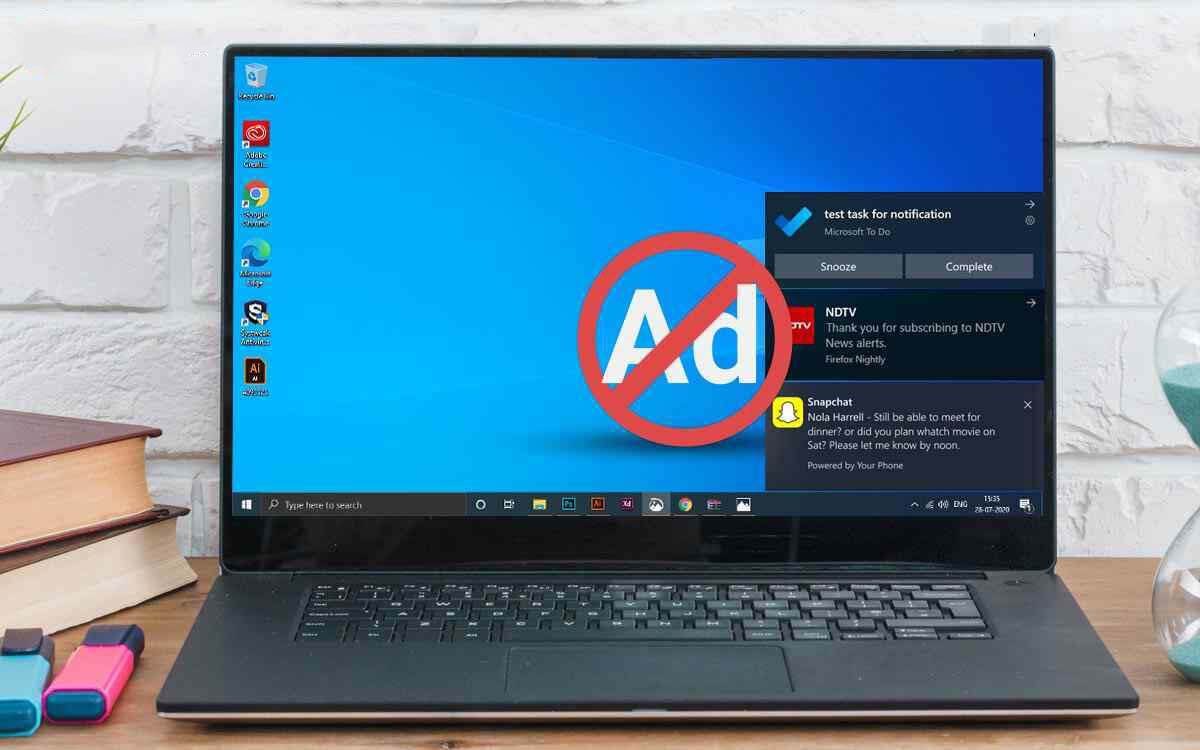
Connecting a brand-new high-end monitor to your desktop should feel exciting. Instead, thousands of PC owners recently encountered unexpected Windows Update pop-up ads on their desktops. Consequently, public outrage erupted as users discovered invasive display monitor bloatware arriving through official system updates. As sole maintainer of technicalforum.org, I closely follow hardware ecosystem developments. Therefore, this alarming incident demands our immediate technical analysis today.
Previously, users expected peripheral connections to download simple display drivers. However, hardware manufacturers quietly exploited OS features to deliver third-party promotional software. Specifically, plugging in a display triggered background app downloads without explicit consent. Furthermore, these utilities immediately began displaying commercial trial promotions upon system startup. Fortunately, Microsoft finally intervened following massive community backlash across social platforms.
The Anatomy of a Peripheral Adware Vector
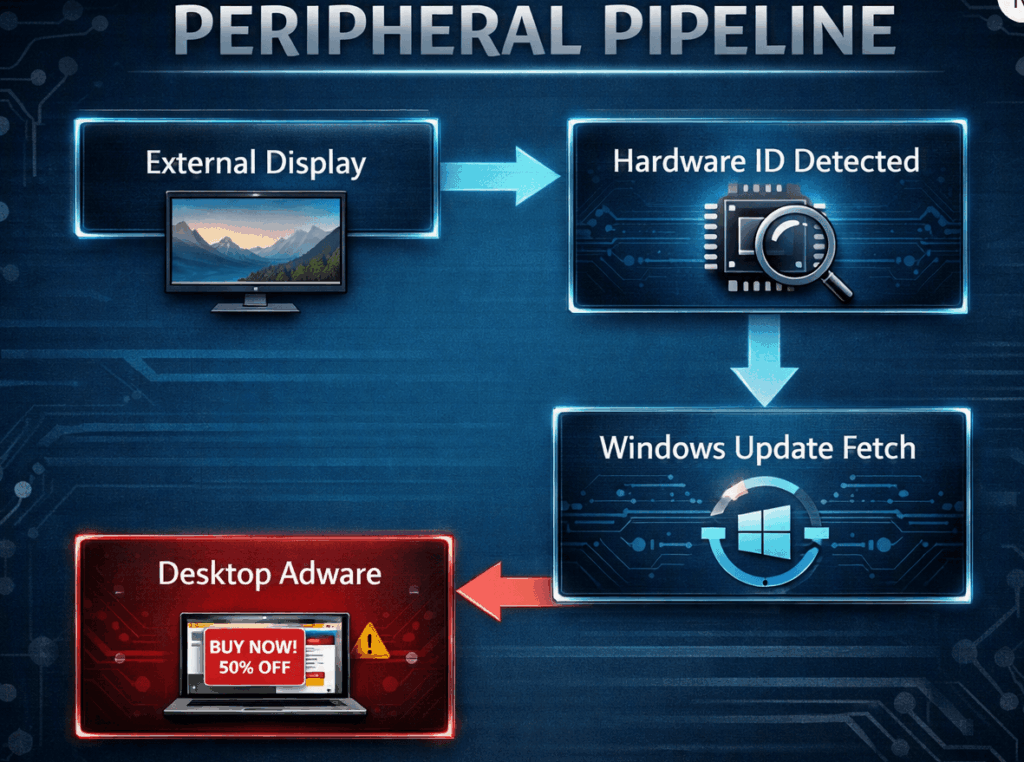
Modern operating systems automate hardware configuration to simplify the setup experience. Consequently, connecting an external display triggers an immediate background search for matching drivers. Furthermore, Windows identifies hardware using unique device identification strings. However, manufacturers expanded this convenience pipeline into a aggressive promotional delivery vehicle. Therefore, routine hardware connections suddenly became unexpected entry points for sponsored desktop software.
For example, connecting a desktop display initiated an automated background installer. Subsequently, the operating system silently fetched companion applications directly from Microsoft Store repositories. Meanwhile, users remained entirely unaware of these background background installation processes. Furthermore, these background utilities immediately launched unwanted promotional pop-ups during initial system boots. As a result, consumers rightly voiced deep frustration over this compromised desktop experience.
The LG Monitor McAfee Ad Controversy
Specifically, the controversy peaked when premium display owners reported intrusive software behavior. For instance, plugging in an expensive display triggered an automatic software download. Subsequently, the installed utility pushed an annoying LG monitor McAfee ad across user screens. Notably, buyers spending over a thousand dollars on hardware expected clean performance. Instead, they received unwanted security trial promotions on pristine operating systems.
Consequently, prominent tech executives and community leaders publicly criticized this practice online. For example, Epic Games CEO Tim Sweeney tagged Microsoft leadership directly on social media. Furthermore, independent hardware testers verified that these utilities repeatedly served promotional pop-ups. Naturally, users felt betrayed by both display manufacturers and the operating system. Therefore, the controversy quickly forced an official corporate response from Redmond.
Unpacking Windows 11 Device Metadata
To understand this vulnerability, we must examine Windows 11 device metadata mechanics. Historically, Windows Update fetched basic device drivers to ensure hardware compatibility. However, Microsoft later introduced feature hooks linking physical hardware to Store companion apps. Consequently, peripheral vendors gained permission to associate custom software with specific hardware identifiers.
- Hardware identification tags trigger automatic background web queries.
- Microsoft Update servers match hardware tags with vendor software manifests.
- System background services download associated app installers silently.
- Companion utilities execute during startup and display commercial promotions.
Therefore, peripheral manufacturers possessed unprecedented access to user desktop environments. Furthermore, alternative platforms like macOS and Linux strictly restrict such background installations. In contrast, Windows permitted automatic companion app deployments without requiring explicit approval. As a result, this design flaw created an ideal environment for commercial abuse.
⚠️ Warning: Automatically installed companion apps often run with elevated background permissions. Consequently, they can launch startup services and display notifications without explicit user confirmation.
Why Windows Update Automatic App Install Needs Strict Boundaries
Clearly, Windows Update automatic app install features were originally designed to improve user convenience. For instance, dedicated software allows users to adjust display settings directly from their desktops. However, thin profit margins prompted hardware vendors to monetize these software channels. Consequently, vendors transformed essential management tools into lucrative advertising networks.
Moreover, this practice severely damages user trust in official system updates. When updates deliver third-party advertisements, security-conscious users inevitably lose confidence in system maintenance. Furthermore, unwanted background processes consume valuable system memory and CPU cycles. Therefore, tech outlets like PCMag and TechRadar quickly highlighted the growing risks. Clearly, Microsoft needed to establish strict enforcement guidelines immediately.
Executive Action From Redmond
Fortunately, Microsoft leadership responded rapidly once the issue gained widespread public attention. Specifically, Pavan Davuluri, Executive Vice President of Windows and Devices, addressed the situation directly. He confirmed active discussions with hardware executives to resolve the problem promptly. Subsequently, LG agreed to disable the offending promotional pop-ups within their companion software.
┌────────────────────────────────────────────────────────┐
│                   MICROSOFT INTERVENTION               │
│                                                        │
│  [ Public Outcry ] ──> [ Executive Engagement ]        │
│                                 │                      │
│                                 ▼                      │
│  [ Safer Ecosystem ] <── [ Partner Compliance ]        │
└────────────────────────────────────────────────────────┘
Furthermore, Microsoft publicly declared that bloatware-style promotions conflict with their desktop vision. Tech publications including Thurrott and PCWorld documented this welcome policy intervention. Nevertheless, disabling a single ad campaign does not fully solve the underlying structural issue. Therefore, industry analysts at How-To Geek urged permanent architectural changes.
Immediate Fixes vs. Long-Term Ecosystem Policy
Currently, display vendors have paused active promotional pop-ups inside their utilities. However, the automatic app installation mechanism remains active inside the operating system. Consequently, future partner updates could theoretically reintroduce similar monetization tactics later. Therefore, Microsoft must implement stricter certification criteria for peripheral companion software.
Additionally, security news portals like Cybersecurity News emphasize the necessity of user consent. Operating systems should always request explicit permission before installing non-essential utilities. Furthermore, hardware drivers must remain entirely separate from commercial companion applications. Ultimately, establishing clear boundaries protects both consumer privacy and system stability.
Step-by-Step Defense Guide
Fortunately, power users can take proactive steps to block peripheral adware on their machines. By adjusting system policies, you can easily prevent monitor pop-ups from appearing. Below, I have outlined the exact steps to secure your Windows desktop environment.
- Open the Start Menu, type
gpedit.msc, and press Enter to launch the Local Group Policy Editor. - Navigate to
Computer Configuration>Administrative Templates>System>Device Installation. - Locate the policy titled Prevent automatic download of apps associated with metadata.
- Double-click the policy setting, select Enabled, and click Apply.
- Open Installed Apps in Settings, locate unwanted display utilities, and click Uninstall.
💡 Pro-Tip: If your edition lacks the Group Policy Editor, you can achieve identical protection through Registry Editor tweaks. Specifically, navigate to HKLM\SOFTWARE\Policies\Microsoft\Windows\DeviceInstall and set PreventImportingMetadata to 1.
| Protection Strategy | Method | Target Scope |
| Group Policy Tweak | gpedit.msc adjustment | System-wide automatic installs |
| Manual App Cleanup | Windows Settings Menu | Existing companion utilities |
| Registry Modification | regedit policy key | Home Edition installations |
Furthermore, regularly reviewing your background startup apps prevents unwanted software from running continuously. Additionally, disabling automatic app installs does not prevent essential hardware driver updates. Therefore, your displays and peripherals will continue functioning perfectly without extra bloatware.
Reclaiming the OS User Experience
Ultimately, this incident highlights a critical turning point for the desktop computing ecosystem. Consumers pay significant money for premium computer monitors and PC hardware. Consequently, they expect clean, advertisement-free environments upon plugging in their devices. When peripheral vendors treat desktop screens as ad space, user satisfaction plunges rapidly.
┌────────────────────────────────────────────────────────┐
│                   FUTURE ECOSYSTEM VISION              │
│                                                        │
│  [ Clean Drivers Only ] ──> [ User Consent Prompts ]   │
│                                      │                 │
│                                      ▼                 │
│  [ Pure OS Stability ]  <── [ Strict Store Rules ]     │
└────────────────────────────────────────────────────────┘
Fortunately, swift community feedback proved that organized user pushback yields real results. By coordinating directly with hardware partners, Microsoft demonstrated genuine commitment to ecosystem quality. However, maintaining desktop integrity requires constant vigilance from both developers and users alike.
Final Thoughts
In conclusion, peripheral manufacturers overstepped reasonable boundaries by pushing promotional pop-ups through Windows Update. Fortunately, Microsoft intervened quickly to halt this specific ad campaign across user systems. Nevertheless, users must remain proactive in securing their personal operating systems. Applying policy restrictions ensures your desktop remains fast, clean, and entirely ad-free.
At technicalforum.org, I will continue tracking hardware management policies and operating system security updates. Now, I want to hear directly from you! Have you encountered unexpected pop-ups after plugging in new hardware? Drop your thoughts, experiences, and questions in the comments below, share this article with fellow PC builders, and join our tech community discussion today!