Your Gmail inbox can give an attacker a foothold in your digital life. It holds password reset links for social media and online services, banking alerts, and sensitive work messages. The same Google Account may also give access to Drive files, photos, and cloud backups. For a small business, a compromised inbox can make a fake payment request look like it came from a trusted colleague.
Credential stuffing takes advantage of password reuse. Attackers automatically test email addresses and passwords exposed in breaches on other websites. Targeted phishing relies on a convincing message, such as a fake Google security alert or an unexpected client invoice. If a message asks you to sign in, open your Google Account directly and check for the alert there.
Session hijacking can let an attacker take over a browser session you already authenticated. Stronger sign-in methods help protect the login itself. Keeping your browser updated, removing unneeded extensions, and signing out suspicious sessions help protect what happens afterward.
1. Set up the essential security baseline
Run Google Security Checkup
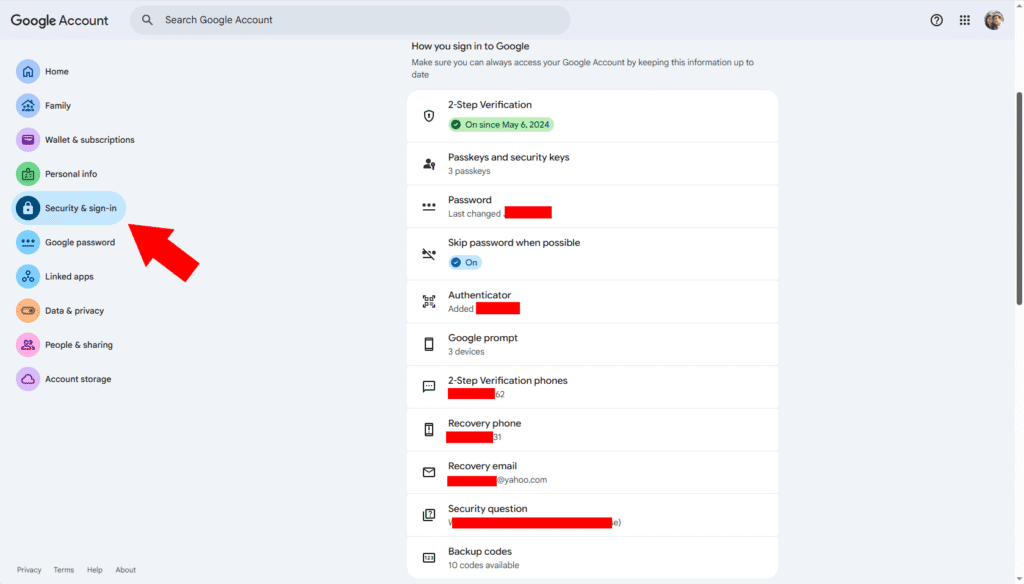
Open Gmail, select your profile picture, and choose Manage your Google Account → Security & sign-in. Confirm you’re reviewing the correct account, especially if you switch between personal and work inboxes. Then open Google Security Checkup and work through the recommendations for your devices, sign-in methods, and recovery options.
Under Recent security events → Review security events, look for unfamiliar sign-ins or changes to your account. If you confirm that an event was unauthorized, select No, it wasn’t me and follow Google’s prompts. If you see an unknown recovery address or messages you never sent, go straight to the emergency steps in Section 4.
Replace reused or exposed passwords
Go to Security & sign-in → How you sign in to Google → Password. Use a reputable password manager to generate and store a long, random password exclusively for your Google Account. If you reused the old password, replace it on the other accounts too. Start with your recovery email and any work accounts that shared it. See Google’s guide to making your account more secure for additional password and sign-in guidance.
Consider Advanced Protection if you face targeted attacks
The Google Advanced Protection Program is worth considering if you handle sensitive information or regularly face targeted phishing. Select Get started to enroll with a passkey or compatible security key. Before enrolling, register a spare key and check whether your essential apps will work with the program’s stricter access rules. Keep the spare somewhere separate from your primary device or key.
2. Upgrade your multi-factor authentication
Open Security & sign-in → How you sign in to Google → 2-Step Verification and turn it on if needed. If you currently receive codes by text, set up a stronger sign-in method and test it before removing SMS where available. Keep a backup method you can reach if your phone or security key goes missing.
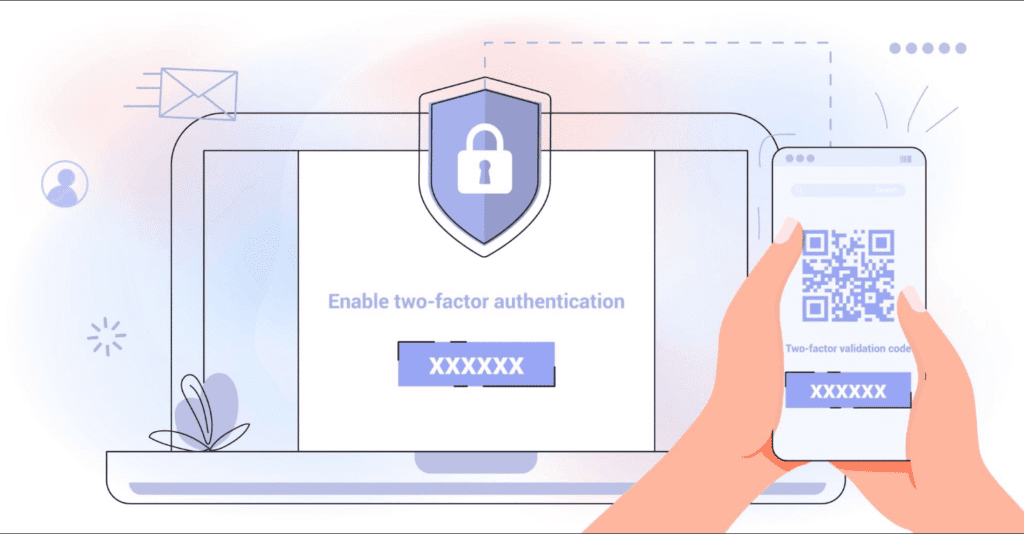
⚠️ Warning: A SIM swap can transfer your phone number to a SIM an attacker controls. Weaknesses in SS7, a signaling system used by mobile networks, can also expose text messages to interception. Use a FIDO2 hardware security key whenever practical, or switch to an authenticator app if you can’t use a key. App codes avoid SMS delivery, but a fake sign-in page can still capture a code you type. See CISA’s guidance on secure multi-factor authentication.
Set up a security key or Google Authenticator
- Hardware security key. Open Security & sign-in → Passkeys and security keys → Create a passkey → Use another device. Follow the prompts to register a FIDO2 key, such as a compatible YubiKey. Register a spare and store it separately from the one you carry.
- Google Authenticator. Open 2-Step Verification → Authenticator → Set up authenticator and follow the prompts. Keep the setup QR code private. Once configured, the app can generate verification codes without mobile service.
💡 Pro-Tip: For quick, phishing-resistant sign-ins, create a passkey on a phone or computer you own. Open Security & sign-in → Passkeys and security keys → Create a passkey. You can use your fingerprint, face scan, or device PIN in place of typing a password. A passkey is tied to the legitimate site, so a look-alike page can’t use it to sign you in. Keep passkeys off shared devices because anyone who can unlock the device may be able to access your account. Learn more in the FIDO Alliance’s passkey overview.
3. Audit third-party apps and signed-in devices
Revoke unfamiliar OAuth permissions
A malicious app can read your Gmail if you approve a request that includes permission to read messages. OAuth gives the app access to the data you authorize without requiring your password. While that permission remains active, the app can access new mail without asking you to sign in again. That makes the permission screen worth reading, even if you recognize the app’s name.
Google revokes certain Gmail app tokens when you change your password. Other account permissions can remain active, and neither a reset nor revocation can recover data the app already copied. Check connected apps after a suspected compromise and explicitly remove anything suspicious.
- Open
myaccount.google.com/permissionsin your browser and verify the email address shown in your account profile. - On the Third-party connections page, select Access to your Google Account.
- Select an app and open See details. Start with apps that have access to Gmail or Google Drive.
- Select Remove access → Confirm for unfamiliar or unused apps. For a work integration you still need, verify its publisher and requested permissions before reconnecting it.
Sign out unfamiliar devices and sessions
Go to Google Account → Security & sign-in → Your devices → Manage all devices. Open any unfamiliar entry and check the browser, activity time, and approximate location. Background syncing can explain activity at unexpected times. Select Sign out for each session you can’t account for, including repeated entries under the same device name.
💡 Pro-Tip: On desktop Gmail, open Settings → See all settings → Forwarding and POP/IMAP and remove unfamiliar forwarding addresses. Then open Filters and Blocked Addresses and delete unauthorized rules that forward, archive, or delete messages. Check both tabs. A filter can silently forward selected messages, such as invoices or password resets, even when general forwarding is off.
4. Prepare for lockout and recover a compromised account
Generate and store backup codes offline
Google provides 10 backup codes, each eight digits long. Each code works once as a second verification step. They can help you sign in if you lose your phone or hardware key.
- Open Security & sign-in → 2-Step Verification → Backup codes → Continue → Get backup codes.
- Print a copy and keep it with important documents in a locked drawer or safe. Store it separately from the phone or key you carry.
- At sign-in, select Try another way and enter an unused code. Generate a new set if the printout goes missing. Google invalidates the entire previous set.
If you use Advanced Protection, keep a registered spare security key in a separate, secure location. Google backup codes are unavailable under the program.
Check your recovery details before you need them
Under Security & sign-in → How you sign in to Google, open Recovery phone and Recovery email. Keep a number you control and a separate inbox you can access independently. Use Edit or Delete to remove unfamiliar entries. Google may still offer to send codes to previous recovery details for up to seven days after a change.
Act immediately if you suspect a compromise
- If you can still sign in, switch to a trusted device and change your password. Review security events, sign out suspicious sessions, and remove unauthorized apps, passkeys, and recovery details. Check Gmail forwarding, filters, and Accounts and Import → Grant access to your account for unknown delegates.
- If you’re locked out, start with Google Account Recovery. Use a familiar device, browser, and location when it’s safe to do so. For a managed work account, contact your Google Workspace administrator. Keep passwords, backup codes, and verification codes private.
- If someone sent messages from your account, check Sent and Trash for signs of misuse. Warn affected contacts through a separate channel. If a suspicious message involved a payment, contact your bank or payment provider promptly.
Gmail security checklist
| Security setting | Recommended action | Risk level if skipped |
|---|---|---|
| Password | Generate a unique password with a password manager. | High if the password is reused |
| 2FA method | Prefer a passkey or FIDO2 security key. Use an authenticator app if needed. | High with password-only sign-in or SMS as the sole second step |
| Recovery info | Verify your recovery phone and separate email address. | High risk of lockout |
| Backup access | Store backup codes offline or register a spare key for Advanced Protection. | High if you lose your primary sign-in method |
| App permissions | Revoke unfamiliar or unused apps with account access. | High for apps that can read email |
| Devices and mailbox rules | Sign out suspicious sessions and remove unauthorized forwarding rules, filters, and delegates. | High after a suspected compromise |
Conclusion
Run Google Security Checkup today, set up a passkey or security key, and make sure you can use your backup method. The next time you receive an unexpected security alert, check active sessions, app permissions, and mailbox rules alongside your password. Share this checklist with anyone who relies on Gmail for work, banking alerts, or password resets.