
System administrators running hybrid environments face a critical infrastructure deadline. Microsoft is officially sunsetting legacy Microsoft Entra Connect builds. Consequently, any synchronization engine running a build version below 2.5.79.0 faces an abrupt service hard stop.
Because legacy identity protocol security requires constant modern authentication enhancements, Microsoft implemented essential back-end architectural changes. Therefore, older client binaries will no longer communicate with cloud endpoints effectively.
Executing a timely Entra Connect Build Upgrade ensures your organization avoids unexpected identity synchronization failures. Moreover, staying updated protects your hybrid identity security standard across all managed domain controllers.
In this comprehensive guide, we examine why Microsoft enforced this deprecation. Furthermore, we break down the operational risks of staying on legacy builds. Finally, we provide actionable upgrade pathways to keep your directory infrastructure running smoothly.
Understanding the Entra Connect Build Retirement
Microsoft maintains a clear 12-month lifecycle policy for its identity synchronization tools. However, this latest announcement introduces a strict service enforcement boundary rather than a simple support expiration.
The Engine Hard-Stop Explained
Historically, running an out-of-support synchronization engine meant losing access to customer support and security patches. Conversely, this new retirement baseline actively blocks legacy transport calls at the cloud boundary.
- The Mandatory Baseline: You must run at least version 2.5.79.0 to maintain operational directory sync.
- The Back-End Change: Microsoft updated the cloud identity endpoints to mandate hardened communications.
- The Operational Impact: Outdated clients encounter instant connection drops during scheduled synchronization cycles.
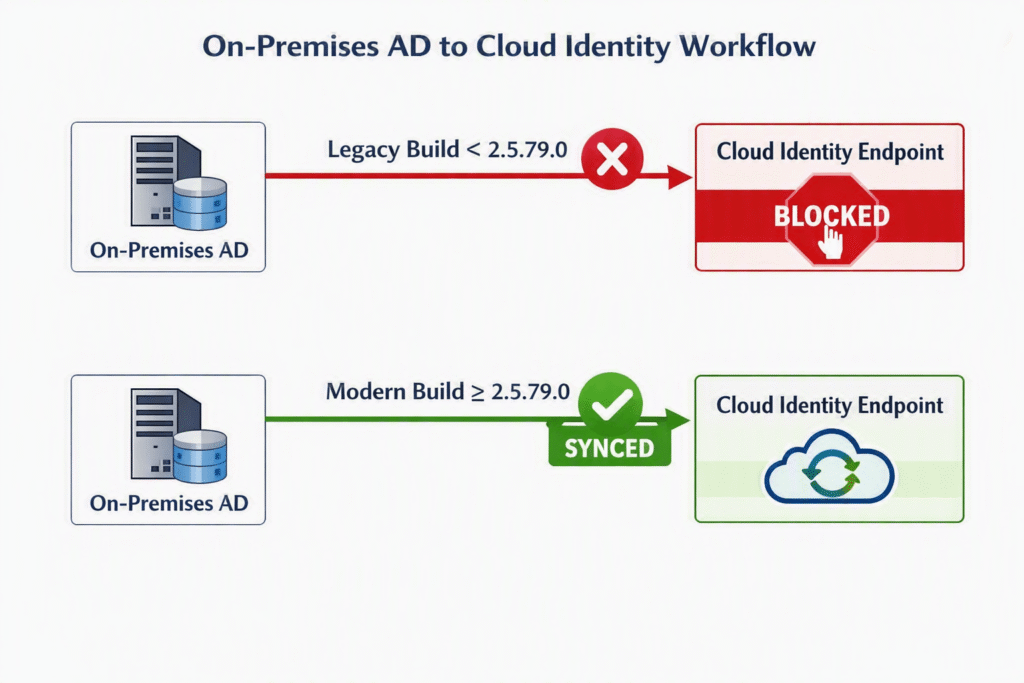
Furthermore, organizations relying on old Azure AD Connect deprecation pathways must realize that V1 builds have long been fully retired. Transitioning to modern releases of Microsoft Entra Connect V2 is mandatory for enterprise compliance.
⚠️ WARNING: Landing on version 2.5.79.0 satisfies the absolute minimum cutoff. However, since version 2.5.79.0 itself reaches end-of-support shortly thereafter, targeting the newest stable build is strongly recommended to avoid repeating this task in a few weeks.
Operational Consequences of a Directory Synchronization Hard Stop
When your sync engine stops working, the impact spreads across your entire enterprise rapidly. A directory synchronization hard stop creates immediate administrative headaches and opens severe security vulnerabilities.
1. Broken Password Hash Synchronization (PHS)
Users who change their passwords in Active Directory will find that their new credentials do not sync to the cloud. Consequently, help desk queues spike as employees get locked out of Microsoft 365 services.
2. Stalled User Onboarding
HR creates new employee accounts in local domain controllers, but those identities never reach the cloud tenant. Therefore, new hires cannot access email, Teams, or corporate SaaS platforms without manual intervention.
3. Critical Security Gaps in Offboarding
This failure represents the largest threat to your hybrid identity security model. When IT disables a terminated employee in local Active Directory, that revocation fails to propagate to cloud apps. As a result, former staff retain active cloud access indefinitely.
| Impacted Service | Status on Legacy Builds | Business Risk Level |
| Password Updates | Fails silently on-premises | High (Help Desk Overload) |
| New Account Sync | Halts at directory boundary | Medium (Productivity Loss) |
| Account Disablement | Fails to revoke cloud tokens | Critical (Data Exfiltration) |
| Group Membership | Freezes existing states | Medium (Access Control Mismatch) |
Evaluating Your Upgrade Strategy: In-Place vs. Swing Migration
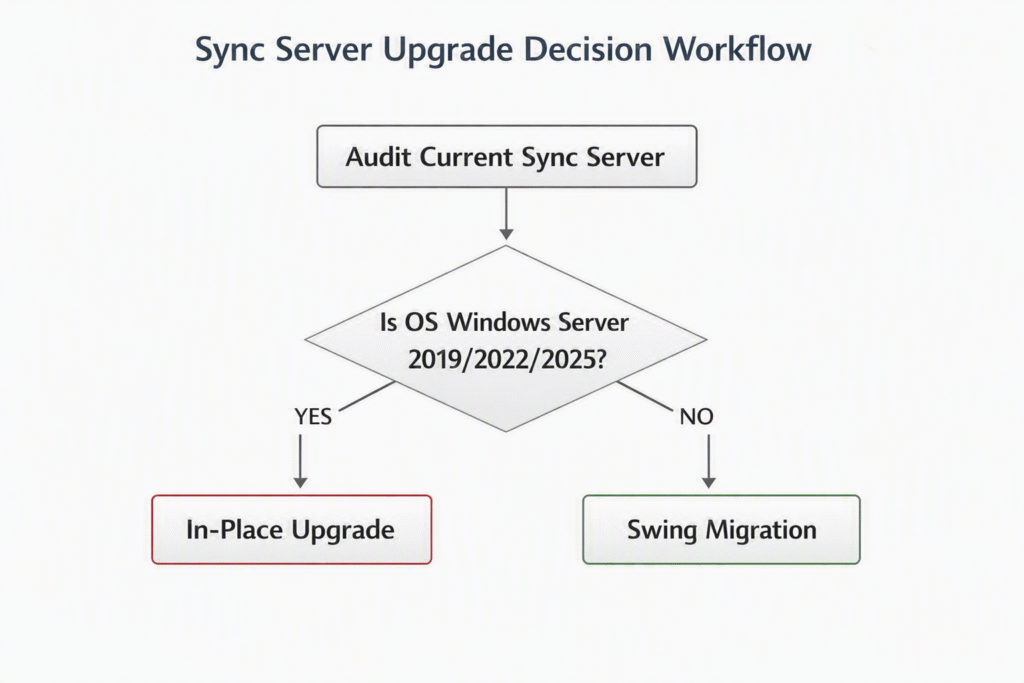
Choosing the right deployment path depends entirely on your server operating system and uptime requirements. Administrators have two primary methods to execute their Entra Connect Build Upgrade.
In-Place Upgrades
If your current sync engine runs on a modern operating system like Windows Server 2019, 2022, or 2025, an in-place upgrade offers the fastest path.
- Speed: The setup wizard updates existing binaries while retaining custom sync rules automatically.
- Downtime: Synchronization pauses briefly during the setup process.
- Risk Factor: If the installer fails midway, rollback options are limited without full server backups.
Swing Migrations
For systems running on older operating systems, performing a swing migration guide procedure is the gold standard.
- Zero Downtime: You stand up a secondary server running the latest build alongside your active sync server.
- Staging Mode: The new server imports objects and evaluates custom rules without exporting changes to the cloud tenant.
- Fail-Safe Switchover: Once verified, you put the old server into Staging Mode and promote the new server to Active.
💡 PRO-TIP: Always export your existing server configuration using the Microsoft Entra Connect Admin Tool before launching any installation routine. You can import this JSON file directly into your new installation to instantly clone custom attributes, OU filtering, and optional features.
Step-by-Step Execution Guide for Upgrading Entra Connect
Follow this ordered execution process to update your identity sync engine cleanly without disrupting business operations.
1. Inventory Active Servers:Prerequisite Phase.
Log into your current synchronization host. Open the Synchronization Service Manager, navigate to Help, and select About. Verify your exact version number. If it reads lower than 2.5.79.0, schedule your maintenance window immediately.
2. Verify Host Prerequisites:System Readiness.
Ensure your server host meets modern software requirements. The installation requires .NET Framework 4.6.2 or higher, along with TLS 1.2 explicitly enabled in the registry. Check out Microsoft’s official guide on Entra Connect Prerequisites for full firewall port specs.
3. Download Latest Client:Binaries Procurement.
Download the newest release directly from the official portal. Review the full build release logs on Microsoft’s Entra Connect Version History page to inspect all included security fixes and SQL updates.
4. Deploy on Staging Host:Swing Deployment Path.
Run the installer on your newly provisioned Windows Server. During setup, select your exported JSON configuration file. Crucially, make sure you check the box marked Enable Staging Mode before completing the wizard.
5. Validate Sync Engine & Cut Over:Production Switch.
Compare the sync results between active and staging nodes using the Synchronization Rules Editor. Once verified, switch the original server into Staging Mode, remove Staging Mode from the new server, and trigger a full export.
Modernizing Beyond Agent Sync: Considering Cloud Sync
While upgrading Entra Connect solves your immediate issue, modern enterprise architecture is shifting toward lighter cloud-managed models. Administrators should evaluate whether Cloud Sync Alternatives fit their infrastructure goals better than local sync servers.
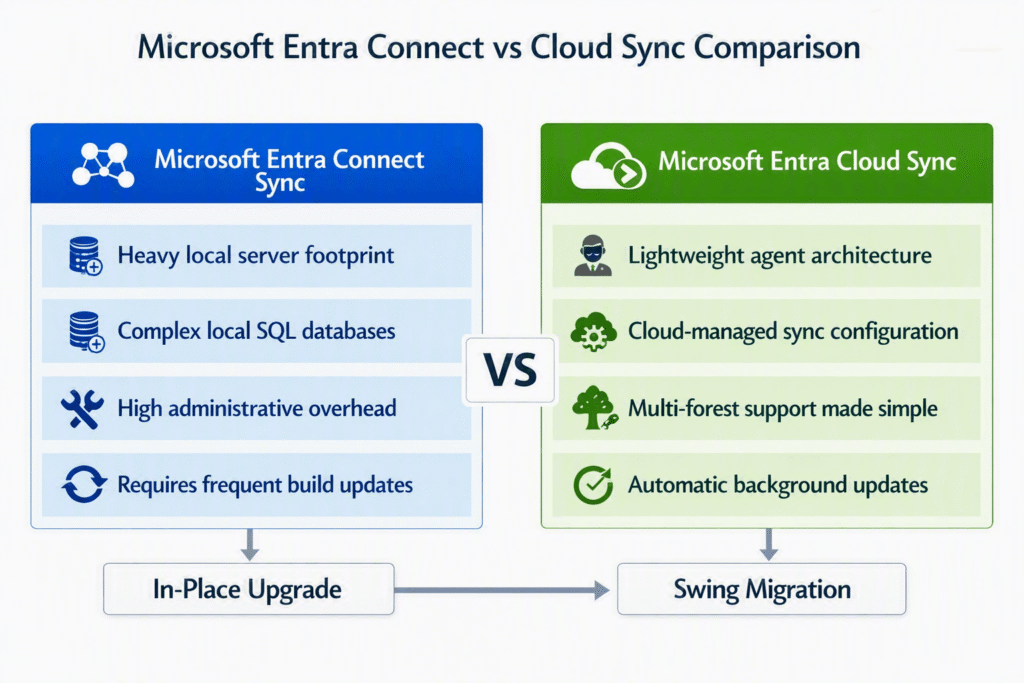
Transitioning to Active Directory cloud sync eliminates local database maintenance completely. Furthermore, lightweight agents update automatically in the background, freeing your engineering staff from manually monitoring client deprecation dates.
Final Thoughts & Next Steps
Neglecting your identity synchronization infrastructure introduces unnecessary security risks and administrative overhead. Because Microsoft is enforcing this hard sunset on legacy client versions, proactive system administrators must act now. Inspect your environment today, plan your migration path, and upgrade your servers well ahead of enforcement deadlines.
Have you audited your synchronization servers yet? Are you planning an in-place upgrade or moving to Cloud Sync altogether? Drop your thoughts, questions, or migration challenges in the comments section below! Don’t forget to share this article with your networking and sysadmin peers to keep their hybrid identity systems safe!