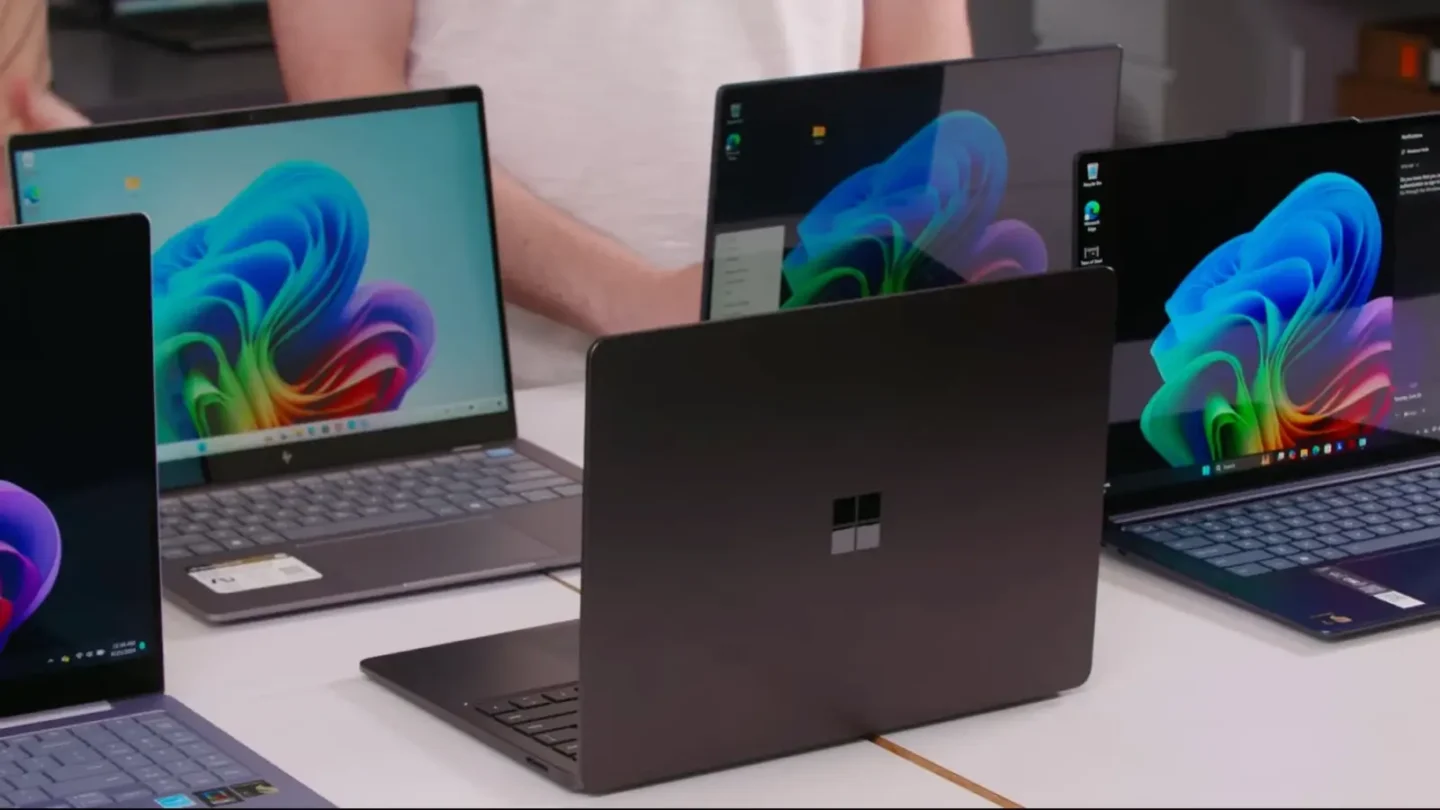
The tech landscape is shifting rapidly toward efficient silicon architecture. Consequently, ARM64 Windows PCs are becoming highly popular among everyday users and enterprise professionals alike. These machines deliver exceptional battery life alongside remarkable processing efficiency. However, many users still rely heavily on legacy software built for traditional Intel or AMD processors. To bridge this gap, Microsoft introduced a powerful translation engine called Microsoft Prism Emulation inside the latest operating system updates.
This innovative translation layer allows you to run legacy x86 apps seamlessly on modern hardware. Specifically, the technology targets x86 and x64 binaries, converting them instantly into optimized ARM instructions. Without this feature, your favorite older productivity tools simply would not open. Therefore, understanding this translation layer is crucial for maintaining an efficient workflow on new devices. You can read the official Windows on ARM documentation to explore the framework deeply. This comprehensive guide will show you exactly how to optimize your environment for maximum stability.
Deep Dive Into the Prism Translation Engine
To fully appreciate this feature, you must understand its core operational mechanics. Unlike older emulation attempts, Prism utilizes an advanced Just-In-Time (JIT) compilation mechanism. Therefore, it translates blocks of Intel code into ARM64 instructions dynamically during runtime. Furthermore, the system caches these translated blocks securely on your storage drive. As a result, subsequent application launches feel incredibly fast and responsive.
Historically, Windows on ARM struggled with heavy computational instruction sets. However, recent system updates introduced vital support for AVX and AVX2 extensions. This addition represents a massive milestone for Windows on ARM performance metrics. Consequently, you can now run complex creative suites and modern software utilities that previously crashed instantly. For more details on these historical updates, review the Windows Insider Blog.
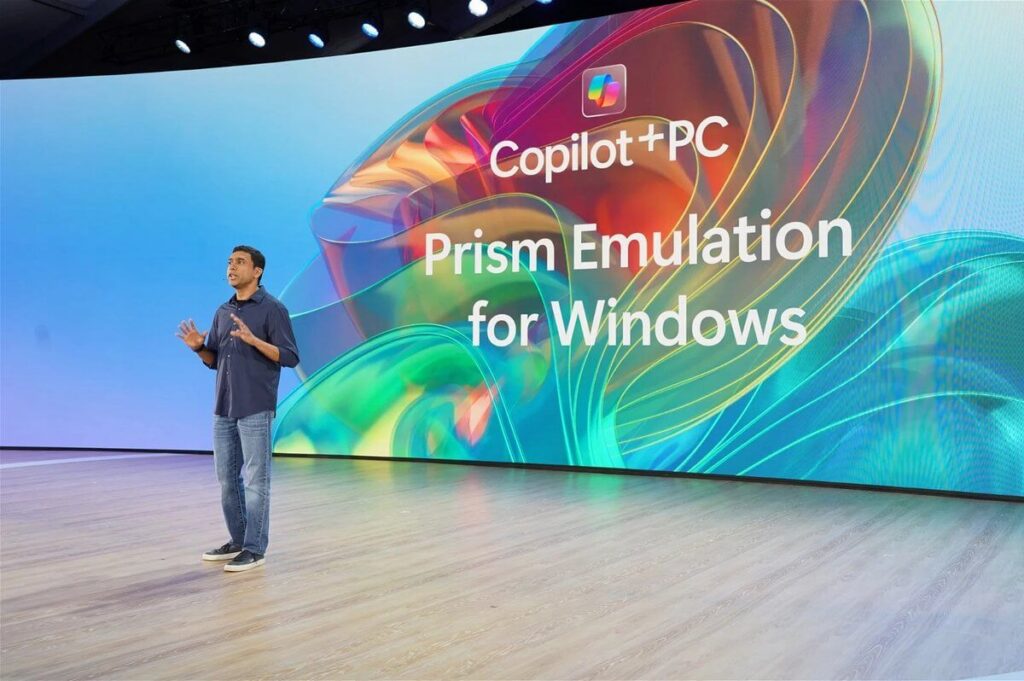
Nevertheless, emulation naturally consumes more system resources than native code execution. For example, emulated applications demand higher CPU cycles and additional RAM overhead. Consequently, your device might experience slightly increased thermal output during intense workloads. You can track these resource variations directly through system monitoring utilities. Alternatively, choosing native ARM64 software variants will always yield the absolute best efficiency.
Checking App Compatibility on Your Device
Before modifying any hidden settings, you should determine the architecture of your running programs. Fortunately, Windows 11 provides a transparent view of active processes.
- First, right-click the Start menu button and launch the Task Manager.
- Next, navigate immediately to the Details tab on the left sidebar.
- Then, right-click any column header and choose Select columns.
- Finally, check the box next to Architecture and click OK.
Now, look closely at the newly added column next to your active applications. If an application lists x64 or x86, the system is using Prism automatically. Conversely, native applications will explicitly display ARM64 in that field. If you notice poor performance in an emulated app, you must adjust the Prism emulator settings. Check out community verification projects like the Works on WOA tracker for user-contributed compatibility reports.
Step-by-Step: Adjusting Basic Emulation Profiles
If an older application stutters or fails to launch, you can easily alter its default translation behavior. Microsoft provides a hidden compatibility troubleshooter built directly into the file properties dialog. Follow these precise instructions to unlock these advanced configurations.
First, locate the primary executable file or desktop shortcut of the problematic application. Next, right-click the icon and choose Properties from the contextual menu. Subsequently, click on the Compatibility tab located at the top of the window.
⚠️ WARNING: Never modify these properties for native ARM64 applications. Doing so can cause immediate system instability and application crashes.
Once inside the compatibility menu, click the button labeled Change emulation settings. A new configuration panel will immediately appear on your screen. Here, you can select pre-configured compatibility architectures to stabilize the application framework. For instance, you can force a problematic program to run in a strict x86 limited environment. After selecting your desired profile, click Apply to save the changes instantly.
Configuring Advanced Emulation Toggles
Sometimes basic adjustments do not resolve deep application instability. Therefore, you must unlock the advanced settings hidden inside the emulation sub-panel. To do this, check the box labeled Use advanced settings within the emulation menu. This action exposes several technical toggles that alter the JIT compiler behavior.
Disable Hybrid Execution Mode
By default, the operating system attempts to optimize performance via hybrid execution structures. However, certain legacy programs misinterpret these optimization attempts and crash. Therefore, disabling hybrid execution forces the system to run the app entirely through pure emulation. This setting greatly stabilizes older enterprise management software.
Strict Self-Modifying Code Support
Many older security applications and digital rights management (DRM) tools modify their own code dynamically. Unfortunately, standard optimization caches cannot easily track these sudden code changes. Consequently, enabling strict self-modifying code support ensures the emulator frequently verifies the application code. While this reduces execution speed slightly, it prevents constant application crashes.
Disable RWX Page Optimization
For safety, modern operating systems carefully regulate Read, Write, and Execute (RWX) memory allocations. Nevertheless, older software frequently utilizes non-standard memory allocation techniques. Consequently, disabling RWX page optimization creates a relaxed memory environment for legacy binaries. This step often solves immediate startup failures for software designed a decade ago. Learn more about memory models on the Microsoft Learn Prism Page.
Maximizing Performance for Demanding Software
Achieving excellent x64 app compatibility requires more than just stability tweaks. Specifically, you must configure your graphical architecture to handle translated execution pathways efficiently. Modern processors contain powerful graphics components that you can leverage manually.
First, open the main Windows Settings application and navigate to the System section. Next, click on Display and select the Graphics options menu. From there, locate your specific emulated software executable within the provided list. Then, click Options and explicitly set the preference to High performance. This forces the dedicated graphics clusters to manage the emulated rendering workloads directly.
Furthermore, you should investigate specialized hardware acceleration features like Auto Super Resolution (Auto SR). This artificial intelligence tool upscales resolution dynamically without taxing the main CPU clusters. Consequently, you receive higher framerates in legacy software environments. To maximize throughput further, check the hardware specifications on the Qualcomm Snapdragon X Series page. Finally, always connect your laptop to wall power when running heavy emulated operations.
Troubleshooting Common Emulation Failures
Despite the excellence of modern software translation, certain architectural limitations remain absolute. Therefore, you will occasionally encounter applications that simply refuse to function. Understanding these boundaries will save you hours of futile troubleshooting.
- Kernel-Mode Driver Restrictions: Prism only translates user-mode code frameworks. Therefore, applications requiring custom kernel-mode drivers cannot load under emulation.
- Virtual Private Networks (VPNs): Legacy VPN clients utilize unique network virtualization drivers. Consequently, you must download native ARM64 versions for these tools to secure your connection.
- Deep System Anti-Cheat Software: Many competitive multiplayer video games deploy intrusive kernel anti-cheat systems. As a result, these specific titles will block execution on ARM hardware entirely.
- Legacy Hardware Installers: Older printer configuration tools often contain embedded x86 drivers. Instead of running the installer, extract the raw files manually via zip utilities.
💡 PRO-TIP: If an installer fails, extract the contents using an archive utility. Then, run the bare executable using advanced emulation settings to bypass installer restrictions.
If you hit a roadblock with a specific corporate tool, contact your IT department immediately. They can often deploy specialized configuration packages to accommodate your machine. Alternatively, you can search for open-source alternatives that offer native compilation profiles.
Final Thoughts on the ARM Transition
Emulation technology has clearly reached a remarkable level of maturity. Consequently, users no longer face the severe software droughts of the past. Through the power of the modern JIT compiler, legacy applications run with shocking fluidness. By mastering these compatibility configurations, you unlock the full capabilities of your hardware.
Ultimately, native software optimization remains the definitive end goal for the industry. However, these robust translation tools provide an excellent bridge during this transitional era. Keep your operating system updated regularly to receive continuous stability enhancements automatically.
What Is Your Experience?
Have you successfully configured an older application using these advanced settings? Tell us which legacy programs you run on your modern machine. Leave a comment below, share this guide with fellow tech enthusiasts, and subscribe to our newsletter for more technical insights!