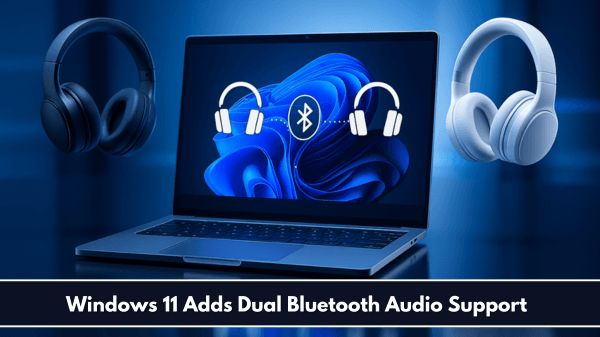
Windows 11 handles wireless audio efficiently, but natively streaming audio to two Bluetooth devices simultaneously remains a notorious challenge. Many users want to share a movie during a flight or listen to a podcast with a friend. Unfortunately, the operating system typically forces you to select just one default playback device. Because of this limitation, users often think they need expensive hardware splitters to achieve dual audio streaming.
Fortunately, you can bypass this restriction using clever software workarounds and specific hardware features. This comprehensive guide will show you how to connect and sync two Bluetooth earbuds in Windows 11. We will explore native settings, third-party applications, and hardware alternatives to get your dual-stream setup working perfectly.
The Core Challenge of Dual Bluetooth Audio in Windows 11
To understand the solution, you must first understand how Windows manages your wireless connections. The operating system utilizes the Advanced Audio Distribution Profile (A2DP) to transmit high-quality stereo sound over Bluetooth. Under standard conditions, this protocol establishes a strict one-to-one relationship between your computer and the playback device. Consequently, Windows disables the first audio stream the moment you select a second media device.
Furthermore, Bluetooth latency introduces a significant hurdle when you attempt to sync two distinct wireless receivers. Different earbud models process wireless signals at varying speeds due to their internal chipsets. Because of these hardware discrepancies, you will often notice a frustrating echo effect or a complete loss of lip-sync while watching videos. Addressing these timing differences requires specialized software that can artificially align the audio packets before they leave your PC.
Method 1: Utilizing the Stereo Mix Native Workaround
Before downloading third-party software, you should test the built-in Windows Stereo Mix feature. This legacy tool records the output of your primary audio device and mirrors it directly to a secondary channel. While Microsoft has buried this option deep within the control panel, it remains highly effective for basic dual-streaming setups.
Step 1: Connect Both Earbuds to Your PC
First, pair and connect both pairs of Bluetooth earbuds to your Windows 11 machine through the standard Settings menu. Navigate to Settings > Bluetooth & devices and ensure both units show a “Connected audio” status.
Step 2: Configure Your Default Playback Device
Next, open the classic Control Panel to access advanced sound paths. Type “Control Panel” into your Windows search bar, press enter, and select Sound. Inside the Playback tab, choose your first pair of earbuds and click Set as Default Device.
Step 3: Enable and Configure Stereo Mix
Now, switch over to the Recording tab within the same Sound window. Right-click on any empty space inside the list and verify that Show Disabled Devices is checked. Look for Stereo Mix, right-click it, and select Enable.
Once enabled, right-click Stereo Mix again and select Properties. Open the Listen tab, check the box labeled Listen to this device, and select your second pair of earbuds from the drop-down menu. Click Apply and then OK to save your configurations.
⚠️ Warning: The Stereo Mix workaround often introduces a noticeable audio delay between the two earbuds. Because Windows processes the second audio stream as a recording, it cannot guarantee perfect synchronization. If you experience a severe echo effect, you should proceed to the third-party software methods detailed below.
Method 2: Achieving Perfect Sync with Voicemeeter Banana
When native Windows tools fall short, professional-grade virtual audio mixers provide the ultimate solution. Voicemeeter Banana is a free, highly reliable advanced audio mixer that excels at routing sound to multiple physical hardware outputs simultaneously.
Step 1: Install Voicemeeter Banana
First, download the application from the official VB-Audio website. Install the software on your PC and restart your system to ensure the virtual audio drivers register correctly.
Step 2: Set Voicemeeter as Your Default Windows Output
Click on the sound icon in your Windows 11 taskbar tray to open the quick settings menu. Click the volume management arrow and select Voicemeeter Input (VB-Audio VoiceMeeter VAIO) as your primary playback device. Consequently, all system audio will now route directly into the virtual mixer rather than your physical speakers.
Step 3: Route Audio to Both Bluetooth Earbuds
Open the Voicemeeter Banana application from your desktop. In the top-right corner, locate the physical output hardware buttons labeled A1 and A2. Click A1 and choose your first pair of Bluetooth earbuds from the list, preferably selecting the WDM driver option for lower latency. Next, click A2 and select your second pair of earbuds using the same driver format.
[System Audio] ──> [Voicemeeter Virtual Input] ──┬──> [Output A1: Earbuds 1 (WDM)]
                                                 └──> [Output A2: Earbuds 2 (WDM)]
Step 4: Eliminate Latency and Echo
If you detect an audio offset between the devices, Voicemeeter allows you to apply a custom delay to individual hardware channels. Navigate to the Menu button in the top-right corner and select System Settings / Options. Locate the Monitoring Delay section at the bottom of the window, and adjust the buffering milliseconds for your faster earbuds until the sound matches the slower pair perfectly.
💡 Pro-Tip: Always choose the WDM (Windows Driver Model) or KS (Kernel Streaming) driver variants inside Voicemeeter for wireless devices. These frameworks bypass the standard Windows audio engine layers, effectively slashing latency and reducing synchronization issues.
Method 3: Streamlining the Setup via Audio Router
If Voicemeeter Banana feels too complex for your daily needs, Audio Router offers a lightweight alternative. This open-source utility features a clean, intuitive visual layout that simplifies application-specific audio routing across multiple hardware outputs.
Step 1: Download and Launch Audio Router
Visit the official Audio Router GitHub repository to download the latest stable release package. Extract the ZIP archive to a dedicated folder on your local drive and run the executable file as an administrator.
Step 2: Duplicate Your Audio Streams
The main interface displays all active Windows applications alongside their currently assigned playback devices. Locate the specific application you want to share, such as Spotify or your preferred web browser. Click the dropdown arrow beneath the application icon and select the Route option.
Step 3: Establish the Dual Connection
Select your first pair of Bluetooth earbuds from the initial prompt to route the primary stream. Afterward, click the dropdown menu again, select Duplicate, and choose your second pair of earbuds from the pop-up list. Audio Router will instantly clone the software’s audio feed and push it to both hardware destinations simultaneously.
Alternative Solutions: Hardware and Bluetooth 5.3 LE Audio
Software configurations can sometimes fail after major Windows updates or suffer from physical hardware bottlenecks. If you require an absolutely flawless, hassle-free dual-streaming experience, investing in modern hardware alternatives is highly recommended.
Dedicated Bluetooth Audio Transmitters
External USB Bluetooth transmitters, such as those manufactured by Avantree or Creative, feature native hardware-level multi-stream capabilities. These compact dongles handle the dual-device connection logic entirely on their own internal chipsets, bypassing the software limitations of Windows 11 completely. You simply plug the transmitter into an open USB port, pair both earbuds directly to the dongle button, and select the single transmitter as your default Windows audio output device.
The Future of Wireless Sound: Bluetooth LE Audio and Auracast
The latest evolution in wireless connectivity, Bluetooth 5.3, introduces LE Audio alongside a groundbreaking broadcasting feature called Auracast. This technology allows a single host computer to broadcast an unlimited number of synchronized audio streams to nearby compatible receivers. As Microsoft continues to roll out comprehensive native support for LE Audio in Windows 11 updates, purchasing Auracast-compliant earbuds will soon eliminate the need for complex software workarounds entirely.
Final Thoughts
Streaming synchronized audio to two Bluetooth earbuds simultaneously in Windows 11 is entirely achievable with the right approach. While the native Stereo Mix tool offers a quick fix for casual listening, advanced applications like Voicemeeter Banana provide the precise timing controls needed for perfect movie synchronization. Alternatively, hardware transmitters offer a plug-and-play solution that saves you from constant software troubleshooting. Try out these methods today to enjoy a seamless, shared wireless listening experience directly from your PC.
What is your preferred method for sharing audio on Windows 11? Have you successfully eliminated latency using virtual mixers? Share your experiences, tips, or questions in the comments section below, and do not forget to share this guide with your fellow tech enthusiasts!