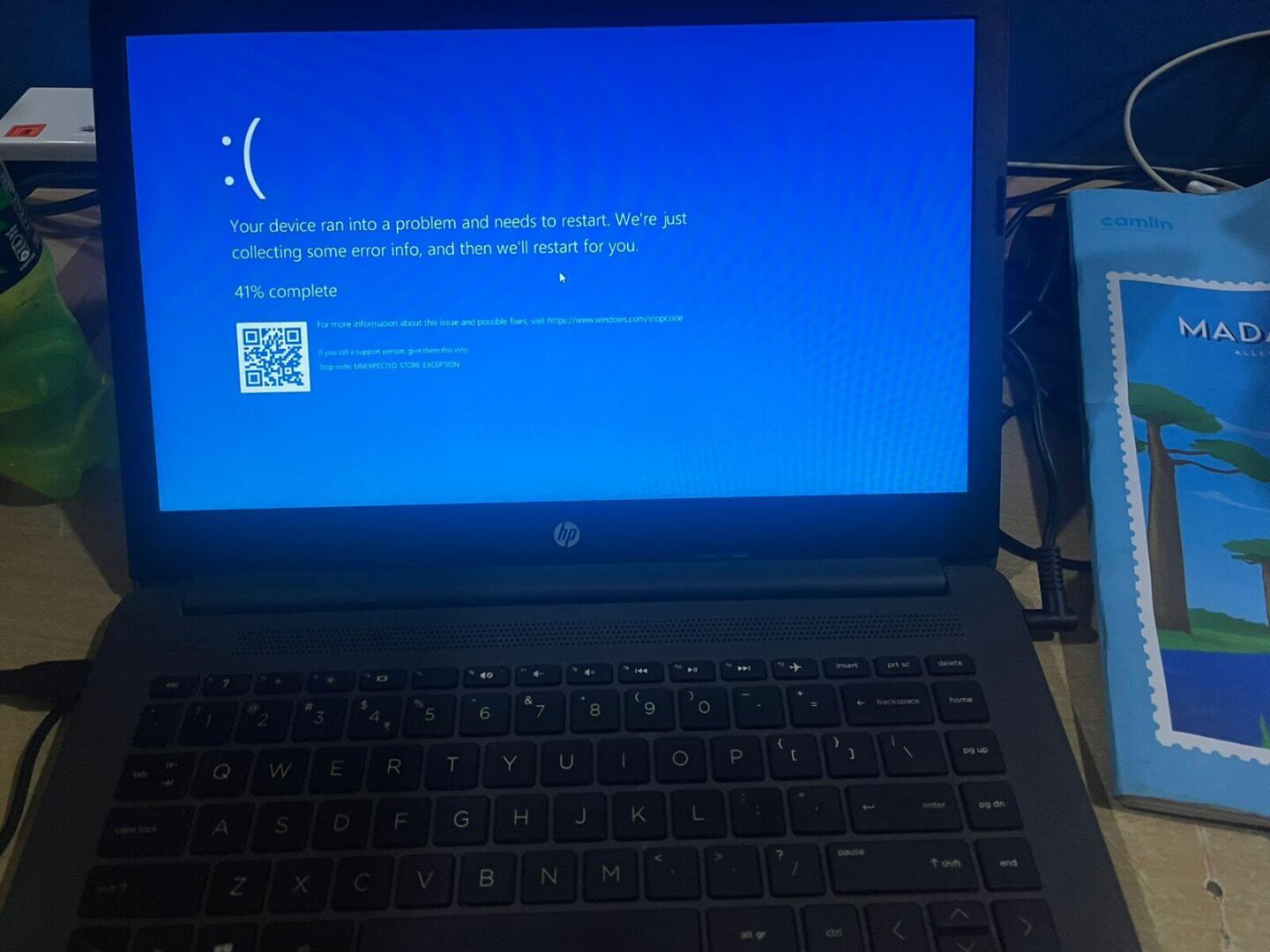
IT administrators face constant deployment challenges daily. Recently, a critical blue screen error disrupted countless corporate environments. Windows devices suddenly refuse to boot normally. Instead, they trap users in a frustrating, endless loop. This guide provides the definitive solution for this complex infrastructure glitch.
Have you encountered the dreaded 0xc0430001 BSOD on your fleet? This specific error code typically points to a major cryptographic or boot configuration failure. Furthermore, it completely locks users out of their secure operating systems. HP enterprise machines seem particularly vulnerable to this nasty sequence.
Understanding the Root Cause of the Boot Failure
This issue usually stems from a corrupted boot configuration or a mismatched security catalog. Specifically, a recent Windows cumulative update triggered a conflict with older HP device drivers. The operating system detects a sudden integrity violation during the early launch antimalware phase. Consequently, Windows halts the boot process instantly to protect sensitive user data.
The system then flags the boot path as untrusted. Because of this, the Unified Extensible Firmware Interface (UEFI) triggers BitLocker recovery mode. Security protocols assume an unauthorized party modified the core system files. Therefore, you must present the full 48-digit numerical recovery key to proceed.
Step 1: Retrieve and Input Your BitLocker Recovery Key
You must find your encryption key before attempting any command-line repairs. For corporate devices, administrators usually store these keys within Microsoft Entra ID. Alternatively, check your organization’s active directory database or your personal Microsoft account. You cannot bypass this security screen without the valid key.
Once you locate the key, type the numbers into the recovery field. The system will briefly attempt to read the drive sectors. However, the BitLocker recovery loop will likely send you back to the same screen upon reboot. This repetition confirms that the underlying Windows system files remain severely damaged.
Step 2: Access the Windows Recovery Environment (WinRE)
To fix the boot files, you must access the command prompt outside the operating system. First, allow the machine to fail the boot process three consecutive times. Windows will then automatically launch the Advanced Startup menu screen. Alternatively, boot the machine using a verified Microsoft Windows Installation Media USB drive.
Click on the Troubleshoot option once the blue menu appears. Next, select Advanced Options from the secondary menu. Choose Command Prompt from the available administrative tools. The system will now open a black terminal window targeting the recovery drive letter.
Step 3: Decrypt or Unlock the Storage Drive via CLI
The command prompt defaults to a temporary RAM disk, usually designated as drive X. Your actual Windows installation resides on a locked partition. Therefore, you must manually unlock the drive using the deployment tool. Run the following management command to check the encryption status:
manage-bde -statusIdentify the drive letter assigned to your main operating system partition. Next, unlock the drive by executing this precise command:
manage-bde -unlock C: -RecoveryPassword YOUR-48-DIGIT-KEYReplace “C:” with your actual system drive letter if it differs. Also, substitute “YOUR-48-DIGIT-KEY” with your actual numerical security sequence. The terminal will display a success message once the volume unlocks.
Step 4: Rebuild the Boot Configuration Data (BCD)
Corrupted boot elements directly cause the 0xc0430001 BSOD error. Now that the drive is accessible, you can execute repairing commands safely. First, clear the broken master boot records by typing:
bootrec /fixmbrNext, repair the specific boot sector code on the target partition:
bootrec /fixbootIf the system denies access, run bootsect /nt60 sys to refresh the code. Finally, rebuild the entire storage catalog by executing:
bootrec /rebuildbcdThe utility will scan the storage drive for active Windows installations. Type “Y” to add the discovered installation to the boot list.
Step 5: Revert Corrupted Windows Updates and Drivers
If the BCD rebuild fails, a corrupted system update might be the culprit. You can use the Deployment Image Servicing and Management tool to remove pending packages. Run this command to view recently installed components:
dism /Image:C:\ /Get-PackagesLocate the package that matches the date when the blue screen loop started. Remove the problematic update package by executing:
dism /Image:C:\ /Remove-Package /PackageName:PACKAGE_NAMEAdditionally, out-of-date security software can trigger this exact loop. Navigate to the HP support page to find verified enterprise patches. For detailed driver deployment strategies, consult the official HP Enterprise Support Portal.
Step 6: Verify System File Integrity
You should always verify system file integrity before restarting the machine. Run the system file checker to replace missing framework elements:
sfc /scannow /offbootdir=C:\ /offwindir=C:\windowsThis tool scans all critical protected files on the target drive. It automatically replaces corrupted variants with fresh cached versions. The verification process usually takes several minutes to finish completely.
⚠️ Warning: Do not interrupt the verification scan midway. Powering off the machine during this phase can permanently damage the operating system.
Step 7: Update HP BIOS and Security Settings
Many enterprise laptops require a firmware update to resolve cryptographic bugs entirely. Visit the HP Firmware Downloads page to grab the latest release. Flash the BIOS using a bootable thumb drive immediately. Updated firmware ensures proper communication with the Windows Trusted Platform Module (TPM).
Furthermore, clear the TPM keys inside the BIOS menu if the loop persists. Ensure that Secure Boot remains active within the advanced firmware settings. These steps sync the physical hardware keys with the software encryption protocols.
Pro-Tip for IT Administrators
💡 Pro-Tip: You can automate this recovery sequence for large deployments. Use Microsoft Endpoint Configuration Manager to push a remote script. This script temporarily suspends protection before applying major quality updates. For advanced automation scripts, review the documentation on theMicrosoft Learn Platform.
Final Thoughts
Resolving enterprise boot errors requires a systematic approach to system security. By unlocking the drive, rebuilding the BCD, and updating firmware, you can rescue your machines. These steps eliminate the need for a costly, time-consuming operating system reinstallation.
Did this guide help you fix your corporate fleet? Please leave a comment below with your specific hardware model. Share this article on social media to help other stranded IT professionals today!