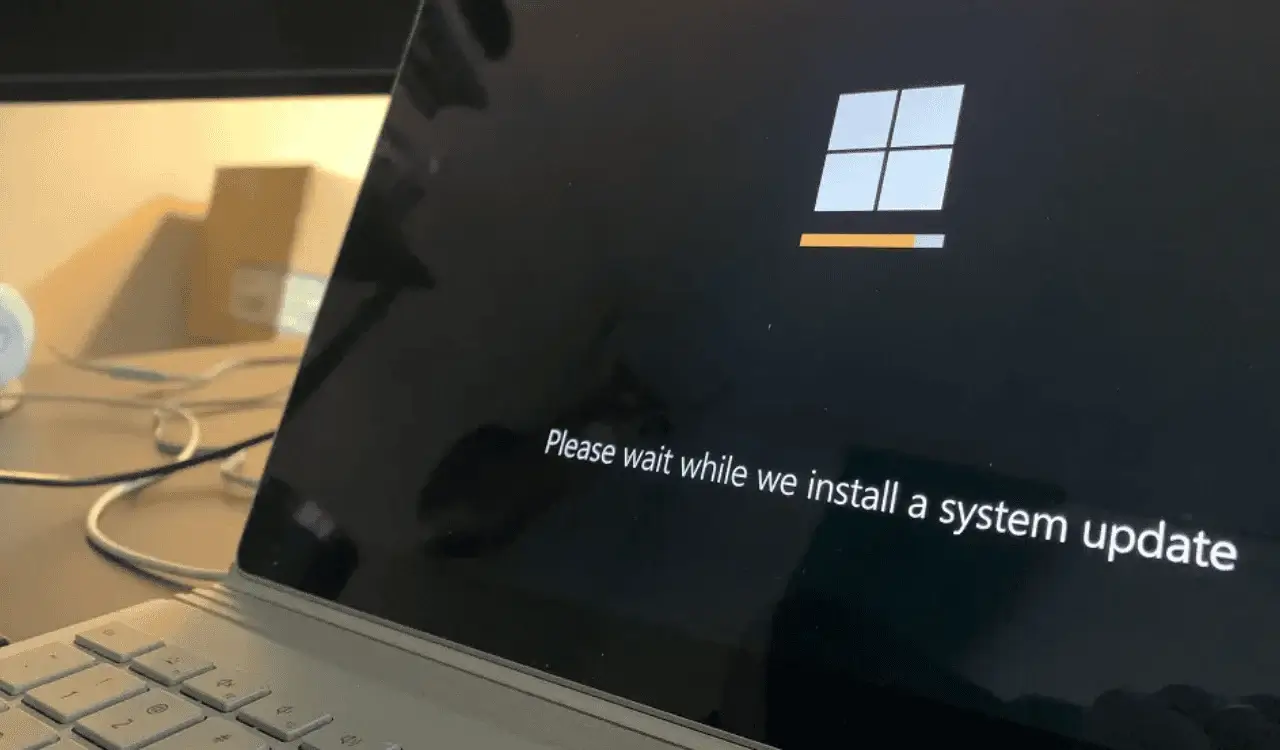
Have you ever encountered a frustrating moment when your monthly cumulative update or a critical security patch suddenly halts mid-way, triggers a rollback screen, and displays a generic failure alert? Operating system updates are vital for your computer’s health, but deployment snags can disrupt your entire workflow. One of the most prevalent issues that tech enthusiasts face today is when a Windows 11 update fails to install. This specific problem frequently manifests alongside an enigmatic message, leaving standard users completely puzzled about why their machine refuses to apply essential Microsoft patches.
When you notice that a crucial security patch or preview cumulative update fails to cross the finish line, the culprit is often a specific system bottleneck. The system usually rolls back all changes automatically, which consumes valuable time and reboots your device repeatedly without providing a straightforward solution. Understanding how to handle these deployment hiccups is essential for anyone who wants to maintain peak performance and solid security on their desktop or laptop. This comprehensive troubleshooting guide will break down the precise solutions to overcome this block so you can successfully get your operating system up to date.
What is the 0x800f0922 Error Code?
To successfully resolve this headache, you must first understand what the code actually means from a technical standpoint. In the Windows ecosystem, the precise error designation points to a failure during the advanced installer phase of a deployment task. It officially means that your machine encountered a fatal issue right at the final stage of configuring the files, which forces the Component-Based Servicing architecture to reverse the entire process. This specific breakdown frequently surfaces during the installation of cumulative upgrades like KB5077181 or monthly security rollouts.
There are a few primary reasons why this roadblock occurs on modern hardware configurations. Firstly, your system partition or the crucial System Reserved partition might lack the necessary free space to manage the temporary installation files. Secondly, an active virtual private network tunnel can interfere with the essential handshake verification between your machine and Microsoft servers. Additionally, corrupted internal task logs or malfunctioning framework components will instantly stop the update engine from finishing its work.
Fix the .NET Framework Integration
A very frequent cause behind this update failure relates directly to an issue with your system features configuration. The installation process often requires a healthy framework background to execute advanced system scripts smoothly. If your current installation of this framework is corrupted or stuck in an incomplete state, the update client will immediately drop the task and trigger the rollback sequence.
You can fix this easily by manually cycling the feature inside your Control Panel parameters. Open your Run dialog box by pressing the Windows Key and R together, then type optionalfeatures.exe and press Enter. When the list populates on your screen, uncheck the box for .NET Framework 3.5, click OK, and let the wizard apply changes before restarting your computer. After the reboot, reopen that exact same window, check the box to re-enable the feature completely, and click OK to fetch a fresh set of system files from Microsoft.
Repair System Files via DISM and SFC
If your system files are missing or broken, the update client cannot modify the core operating system files. To address this structural issue, you must utilize the deployment tools built right into your administrative command terminal. Running an image repair task will replace broken update files with clean copies directly from the official web repository.
DOS
DISM.exe /Online /Cleanup-Image /RestoreHealthOpen an elevated Command Prompt by searching for cmd in your Start menu, right-clicking the application, and choosing to run it with administrative privileges. First, type the exact command listed above and press Enter to allow the deployment image utility to scan and fix your local image state. Once that task finishes completely, type sfc /scannow into the terminal and hit Enter to let the tool replace any broken internal system files.
Clean Up Staged Packages and Tasks
Sometimes, older update tasks get permanently stuck inside the component store, which prevents fresh security patches from deploying properly. Specifically, a corrupted scheduled task known as SecureBootEncodeUEFI often triggers the installation breakdown during the final boot phase. To resolve this deep system conflict, you must remove the stuck packages and clear out the bad registry references using administrative tools.
Open an elevated PowerShell window or Command Prompt, then type Dism /english /online /get-packages /format:table | findstr /i "Staged" to identify any stale entries lingering in your background directory. If you spot a stuck package, remove it manually by typing Dism /online /remove-package /PackageName: followed by the specific package identity string. Furthermore, you can open your Registry Editor, look into the TaskCache tree paths, and carefully delete the corresponding GUID values linked to the broken boot task log.
Temporarily Disable Active Firewalls and VPNs
Network-level disruptions are a leading reason why a crucial security patch or monthly Windows 11 update fails to install. If you run an active virtual private network connection when clicking the update button, the system may fail its security handshake during the reboot phase. The update engine requires a transparent, direct connection to verify file signatures before finalizing the installation layout.
⚠️ Warning: Never leave your built-in firewall turned off indefinitely after you finish updating your computer. Disabling protection leaves your local network vulnerable to external security threats, so always turn it back on immediately after the system successfully installs the patch.
To rule this out, fully disconnect your active virtual private network software before you attempt to download or apply any new operating system changes. If the issue continues, press the Windows Key, type firewall.cpl into the search box, and select the option to adjust your Windows Defender Firewall settings. Temporarily turn off the shield for both your private and public network profiles, run your update cycle, and re-enable your security settings right after the installation completes.
Check Your System Reserved Partition Space
Modern feature updates require a sufficient amount of free storage space within the hidden boot partition to modify critical startup files. If you originally upgraded from an older operating system, your System Reserved partition or EFI System Partition might be too small to handle the new files. Ideally, this hidden partition needs at least 500 MB of total capacity to handle monthly deployment configurations without throwing an out-of-space exception.
You can verify these disk parameters by right-clicking your Start menu button and choosing Disk Management from the administrative list. Examine the small, unlettered partitions at the front of your primary system drive to see if they are completely full. If the partition shows less than 50 MB of available breathing room, you will need to utilize a reputable third-party partition manager tool to safely expand its boundaries.
Turn On the App Readiness Service
The operating system utilizes a background utility called the App Readiness service to configure application states when finalizing a cumulative upgrade. If this specific background process is disabled or blocked by optimization software, your monthly patch will fail right at the final 98% mark. Ensuring that this process runs automatically will allow the advanced installer phase to complete without throwing a rollback error.
To configure this setting, open your Run box again, type services.msc, and hit Enter to launch the main background services control window. Scroll down through the alphabetical list until you find the entry labeled App Readiness, then right-click it and open its Properties window. Change its startup type dropdown menu from Manual or Disabled to Automatic, click the Start button to activate it immediately, and hit Apply to save your changes.
Conclusion
Resolving a stubborn update failure does not require you to completely reinstall your operating system from scratch. By systematic troubleshooting—like fixing your framework configuration, clearing stuck installation packages, or checking your system partition limits—you can easily get past the 0x800f0922 block. Keeping your machine current is the absolute best way to ensure your hardware runs smoothly and remains safe from evolving security vulnerabilities.
Did one of these methods finally get your monthly cumulative patch to install correctly on your computer? Let us know which step worked for your system, or drop a comment below if you run into any other strange errors during the process! Don’t forget to share this guide with your colleagues and friends on social media to help them save time on their tech support tasks.