System administrators around the world encountered severe disruptions following the release of the September Patch Tuesday security updates. Essential enterprise tools failed across multiple environments after administrators applied these mandatory cumulative patches. Specifically, organizations deploying Windows Server 2012 through Windows Server 2025 reported immediate connectivity issues. Remote Desktop Services (RDS) environments began crashing or hanging without clear warning signs. You might notice that servers work normally for a few hours before active user sessions freeze entirely. Furthermore, new connection attempts linger indefinitely on loading screens and eventually fail completely.
To fix Windows RDS instability, network managers need immediate actionable solutions that preserve critical infrastructure security. Rolling back cumulative updates restores remote access, yet it leaves systems vulnerable to critical zero-day exploits. In this guide, we walk you through the root causes behind these system crashes. We also outline permanent fixes, emergency workarounds, and Group Policy configurations to keep your business running smoothly.
Root Cause Analysis: Why the September Patch Breaks RDS
The trouble began immediately following the rollout of updates like KB5122882 (Server 2022) and KB5122876 (Server 2019). Deep technical analysis indicates that the issue triggers a deadlocking mechanism within the operating system core. When users attempt to log off, the Remote Desktop Server Base service fails to execute timeout routines properly. Consequently, a mutual lockup occurs between RDPSERVERBASE and the Local Session Manager (LSM).
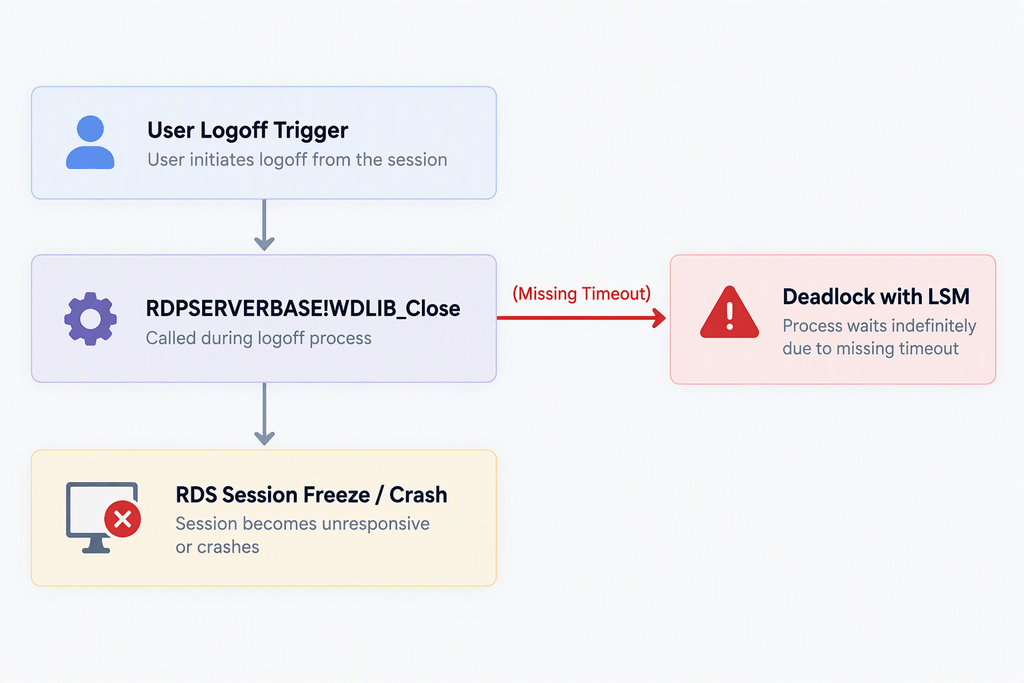
Because of this deadlock, the server stops processing active session terminations. Subsequently, administrative consoles such as Microsoft Management Console (MMC) and File Explorer freeze entirely. Additionally, the Windows Update service panel stops responding and displays an endless loading ring. In most environments, only a forced hard reset restores temporary operational functionality.
⚠️ Warning: Performing forced hard reboots on active database hosts or domain controllers can cause severe database corruption. Always attempt remote PowerShell management or out-of-band console access before cutting server power directly.
Method 1: Deploy Emergency Out-of-Band (OOB) Patches
Microsoft acknowledged the Windows Server RDP crash and released emergency Out-of-Band updates. Installing these specific emergency updates addresses the deadlock without requiring you to remove security features.
Before deploying, verify your exact operating system version to select the matching KB package:
| Windows Server Edition | Original September Update | Fixed Out-of-Band (OOB) Patch |
| Windows Server 2025 | KB5122871 | KB5129235 |
| Windows Server 2022 | KB5122882 | KB5129237 |
| Windows Server 2019 | KB5122876 | KB5129238 |
| Windows Server 2016 | KB5123099 | KB5129239 |
Step-by-Step Patch Installation
- Navigate to the official Microsoft Update Catalog website.
- Search for your server’s corresponding Out-of-Band KB number listed in the table above.
- Download the matching
.msustandalone installer package to your target server or deployment share. - Open an elevated Command Prompt or PowerShell terminal as an Administrator.
- Execute the installation command silently using the following syntax:
PowerShell
wusa.exe C:\Patches\Windows10.0-KB5129237-x64.msu /quiet /norestart- Reboot the target host during an approved maintenance window to finalize system changes.
Method 2: Apply Known Issue Rollback (KIR) via Group Policy
If you cannot immediately install the emergency OOB patch, Microsoft provides a Known Issue Rollback RDS policy. This Group Policy configuration disables the specific broken code path while leaving critical security patches intact.
Group Policy Deployment Steps
- Download the Package: Fetch the official KIR Group Policy MSI package for your OS version.
- Install the Template: Run the MSI installer on your Active Directory Domain Controller or administrative workstation.
- Copy Definition Files: Move the generated
.admxand.admlfiles into your Domain SYSVOL Central Store directory:\\YourDomain.com\SYSVOL\YourDomain.com\policies\PolicyDefinitions - Configure the GPO: Open the Group Policy Management Console (
gpmc.msc) and create a new GPO. - Disable Vulnerable Setting: Navigate to the newly imported Group Policy folder under Computer Configuration. Set the rollback configuration state to Disabled.
- Enforce Policy: Link the GPO to your Remote Desktop Session Host Organizational Unit (OU). Run
gpupdate /forceon target machines.
💡 Pro-Tip: Always verify ADMX file replication across all domain controllers before enforcing new KIR policy settings enterprise-wide.
Method 3: Roll Back Buggy September Cumulative Updates
When emergency patches and KIR policies are not options, rolling back the Windows Server cumulative update bug remains your last resort. Remember that removing cumulative updates exposes your infrastructure to unpatched CVEs.
You can execute a remote uninstall command via PowerShell without touching the local GUI. Run the following script against affected hosts:
PowerShell
# Execute remote package removal via DISM
Invoke-Command -ComputerName "RDS-Server01" -ScriptBlock {
    $PackageName = (dism /online /get-packages | Select-String "Package_for_RollupFix").Line
    dism /online /remove-package /packagename:$PackageName /quiet /norestart
}
For official guidance on handling update rollbacks safely, consult the Microsoft Learn Documentation hub. Additionally, monitor the Windows Release Health Dashboard for real-time status announcements from Microsoft engineering teams. Security teams can cross-reference patch vulnerabilities on the NIST National Vulnerability Database to evaluate risk exposure. For broader community discussions and script sharing, visit the Reddit System Administration Community forums.
Best Practices for Post-Patch Stability
Preventing future server crashes requires proactive monitoring and structured deployment strategies.
- Maintain Staged Deployment Rings: Never deploy Monthly Patch Tuesday updates to production terminal servers on day one. Test patches in non-production environments for at least four days.
- Monitor Session Metrics: Track active session logoff events using Performance Monitor or PowerShell scripts. Set up alert thresholds for stuck
TermSrvprocesses. - Automate Server Restarts: Configure weekly automated reboots during non-peak hours to clear stale session handles and keep memory clean.
- Document Emergency Playbooks: Maintain updated rollback scripts and out-of-band management tools (iDRAC, ILO) ready for rapid incident response.
Final Thoughts
Dealing with infrastructure disruptions after mandatory updates is frustrating for every IT department. Fortunately, deploying Microsoft’s Out-of-Band updates or enforcing Group Policy KIR fixes resolves the Remote Desktop Services freeze effectively. Ensure your organization implements proper patch staging to minimize future operational downtime.
Was your server fleet hit by this month’s RDS update bug? Leave a comment below sharing your experience or your team’s fix strategies! Don’t forget to share this article with fellow sysadmins on social media to spread the word.