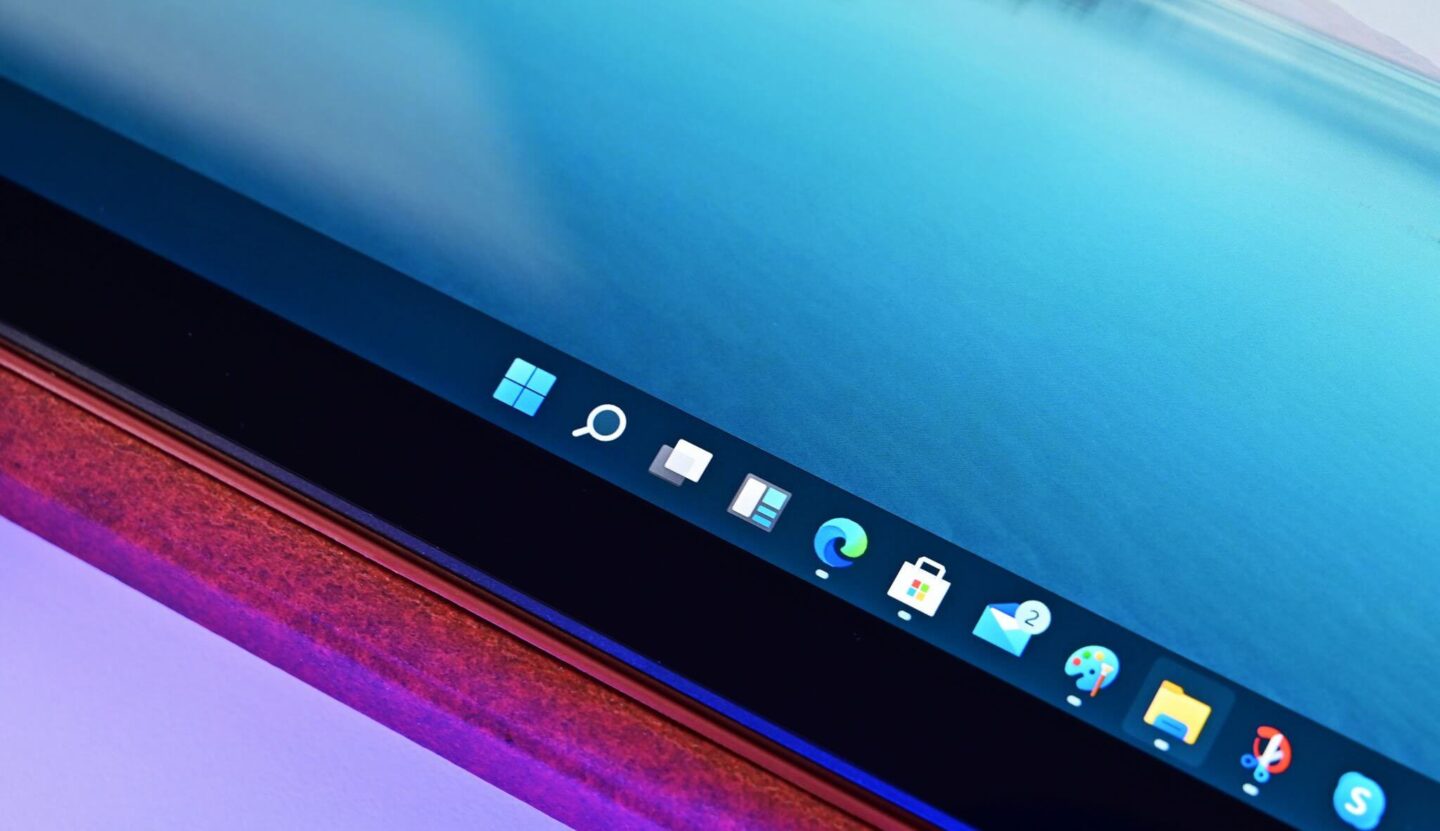
Few things disrupt a smooth desktop session faster than a frozen Windows 11 taskbar. You wake up your computer from sleep mode, ready to jump back into work. Suddenly, you notice that your pinned app icons have vanished entirely. Alternatively, the icons remain visible on your screen, but clicking them yields absolutely no response.
This frustrating issue ranks among the most common post-sleep glitches in modern systems. Microsoft regularly updates the operating system, yet persistent power state bugs continue to affect desktop users worldwide. Fortunately, you do not have to accept a broken interface or restart your entire computer every time this happens. In this guide, we will examine why Windows 11 taskbar icons freezing occurs and how you can fix Windows 11 taskbar glitches permanently.
Why Does the Windows 11 Taskbar Freeze After Sleep Mode?
Understanding the underlying causes helps you select the correct troubleshooting steps. Sleep mode places your computer into a low-power state while saving your open applications to system memory. However, the wake process requires seamless communication between your graphics driver, system memory, and display desktop services. When this handoff fails, the taskbar interface frequently crashes or loses responsiveness.
+-----------------------------------------------------------------------------------+
|                            Windows 11 Sleep Wake Cycle                            |
+-----------------------------------------------------------------------------------+
|                                                                                   |
|  [ Sleep Mode ]  --->  [ System Wake Event ]  --->  [ Graphics / Shell Reload ]   |
|                                                                    |              |
|                                                                    v              |
|                                                          [ Handshake Failure ]    |
|                                                                    |              |
|                                                                    v              |
|                                                       ( Taskbar Freezes/Hides )   |
|                                                                                   |
+-----------------------------------------------------------------------------------+
Several primary factors trigger this specific post-sleep behavior:
- Corrupted File Explorer Shell: The
explorer.exeprocess manages both your file directory and the taskbar interface. Power state transitions can easily freeze or corrupt this process. - Outdated Graphics Drivers: Display adapters often fail to re-initialize core visual elements properly after waking up.
- Fast Startup Conflicts: Fast Startup saves system state memory to a hibernation file, which frequently imports legacy state errors back into fresh sessions.
- Corrupted Cache Files: Accumulated temporary files in the IconCache database cause rendering failures when loading pinned applications.
- Conflicting Third-Party Utilities: Legacy desktop customizers and overlay software regularly interfere with core shell processes.
Quick Workarounds to Unfreeze Your Taskbar Instantly
When you face an unresponsive taskbar, you need a quick way to restore functionality without losing open work. Before executing permanent system repairs, try these fast recovery shortcuts to immediately unfreeze your desktop session.
1. Restart the Windows Explorer Process
Restarting the Windows Explorer shell forces the operating system to rebuild the desktop interface from scratch. Consequently, this simple command solves most temporary visual glitches without requiring a system reboot.
- Press Ctrl + Shift + Esc simultaneously to launch Task Manager.
- Locate Windows Explorer under the Processes tab.
- Right-click Windows Explorer and select Restart.
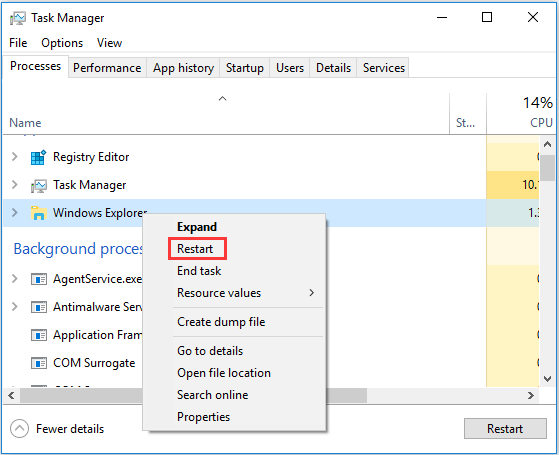
Alternatively, you can restart the shell via Command Prompt. Press Win + R, type cmd, and execute the command below.
taskkill /f /im explorer.exe && start explorer.exeThis action instantly terminates and reloads the desktop environment.
2. Trigger the Windows Graphics Driver Reset
Graphics adapter driver timeouts frequently freeze desktop elements upon waking. Microsoft includes a built-in keyboard shortcut specifically designed to restart your display drivers dynamically.
- Press Win + Ctrl + Shift + B simultaneously on your keyboard.
- Your display will flash black briefly while you hear a short beep.
- Wait two seconds for your graphics stack to fully re-initialize.
This shortcut directly addresses the Windows 11 sleep mode taskbar bug without closing your active applications or interrupting ongoing background processes.
Permanent Solutions for Windows 11 Taskbar Sleeping Bugs
While quick workarounds solve immediate freezes, resolving the root cause requires systematic troubleshooting. Follow these proven methods step-by-step to eliminate post-sleep taskbar failures permanently.
+-----------------------------------------------------------------------------------+
|                        Recommended Repair Sequence Matrix                         |
+-----------------------------------------------------------------------------------+
| Repair Phase        | Target Component                | Primary Command / Action  |
| --------------------------------------------------------------------------------- |
| Phase 1: System     | File Integrity Check            | sfc /scannow              |
| Phase 2: Component  | Windows Image Health            | DISM /Online /Cleanup...  |
| Phase 3: Cache      | Shell Icon Database             | Delete IconCache.db       |
| Phase 4: Power      | Fast Startup Settings           | Disable Hibernation       |
+-----------------------------------------------------------------------------------+
Method 1: Repair Corrupted System Files
Corrupted core system files directly prevent the desktop shell from waking cleanly. Fortunately, built-in command-line tools can automatically detect and repair Windows 11 system files.
- Open your Start Menu, type
cmd, and click Run as administrator. - Type
sfc /scannowand press Enter to scan core system files. - Allow the process to complete fully before issuing further commands.
- Next, run
DISM /Online /Cleanup-Image /RestoreHealthto repair the underlying system component store.
+-----------------------------------------------------------------------------------+
|                     Administrator: Command Prompt Console                         |
+-----------------------------------------------------------------------------------+
| C:\Windows\System32> sfc /scannow                                                 |
|                                                                                   |
| Beginning system scan. This process will take some time.                          |
| Processing 100% complete.                                                         |
| Windows Resource Protection found corrupt files and successfully repaired them.   |
|                                                                                   |
| C:\Windows\System32> DISM /Online /Cleanup-Image /RestoreHealth                   |
|                                                                                   |
| Deployment Image Servicing and Management tool                                    |
| Version: 10.0.22621.1                                                             |
| Image Version: 10.0.22621.2428                                                    |
| [==========================100.0%==========================]                      |
| The restore operation completed successfully.                                      |
+-----------------------------------------------------------------------------------+
💡 Pro-Tip: Always execute the DISM command after running SFC. While SFC repairs local system files using the component store, DISM ensures that your local component store matches Microsoft’s official cloud image updates.
For a deeper dive into shell file health, consult the official Microsoft System File Checker Guide.
Method 2: Clear and Rebuild the Windows Icon Cache
Windows stores application icons in a local cache database to speed up desktop rendering. However, when this database becomes corrupted, you will experience a Windows 11 taskbar disappearing phenomenon after waking your system.
- Press Win + R to open the Run dialog box.
- Type
%localappdata%and hit Enter to open your local folder directory. - Click View in the top menu, select Show, and check Hidden items.
- Locate the file named
IconCache.dband delete it permanently. - Navigate to the
Microsoft\Windows\Explorersubfolder. - Delete all files starting with
iconcachewithin this directory. - Restart your computer to force Windows to rebuild a fresh icon cache.
+-----------------------------------------------------------------------------------+
|                        Local AppData Directory Structure                          |
+-----------------------------------------------------------------------------------+
| C:\Users\<Username>\AppData\Local\                                                |
|  │                                                                                |
|  ├── IconCache.db  <-- [ Delete This File ]                                       |
|  └── Microsoft\                                                                   |
|       └── Windows\                                                                |
|            └── Explorer\                                                          |
|                 ├── iconcache_16.db    <-- [ Delete All Cache Files ]           |
|                 ├── iconcache_32.db                                               |
|                 └── iconcache_idx.db                                              |
+-----------------------------------------------------------------------------------+
Method 3: Disable Fast Startup Power Option
Windows 11 enables Fast Startup by default to decrease cold boot times. Unfortunately, this feature hibernates kernel session data instead of closing processes cleanly. Consequently, stale state files regularly trigger post-sleep taskbar errors.
- Press Win + R, type
control, and press Enter to open the classic Control Panel. - Set your view mode to Large icons and select Power Options.
- Click Choose what the power buttons do on the left sidebar menu.
- Select Change settings that are currently unavailable at the top.
- Uncheck the box next to Turn on fast startup (recommended).
- Click Save changes to apply your new power configuration.
+-----------------------------------------------------------------------------------+
|                               Power Options Settings                              |
+-----------------------------------------------------------------------------------+
| Shutdown settings                                                                 |
|                                                                                   |
|   [ ] Turn on fast startup (recommended)  <-- Uncheck this box                    |
|       Helps start your PC faster after shutdown.                                  |
|                                                                                   |
|   [x] Sleep                                                                       |
|       Shows in Power menu.                                                        |
|                                                                                   |
|   [x] Hibernate                                                                   |
|       Shows in Power menu.                                                        |
+-----------------------------------------------------------------------------------+
⚠️ Warning: Disabling Fast Startup slightly increases total boot duration on conventional Hard Disk Drives (HDDs). However, modern Solid State Drives (SSDs) experience virtually zero performance impact while gaining vastly superior system stability.
To learn more about power configuration states, check the Microsoft Power Management Documentation.
Method 4: Perform a Clean Graphics Driver Installation
Corrupted GPU driver components frequently cause taskbar rendering freezes when restoring display states. Therefore, executing a Windows 11 graphics driver reset or perform a clean driver reinstallation solves deep-seated display errors.
- Right-click the Start button and launch Device Manager.
- Expand the Display adapters section to view your installed graphics card.
- Right-click your primary GPU (NVIDIA, AMD, or Intel) and select Properties.
- Switch to the Driver tab and note your current driver version.
+-----------------------------------------------------------------------------------+
|                               Device Manager Window                               |
+-----------------------------------------------------------------------------------+
| > Batteries                                                                       |
| v Display adapters                                                                |
|   [ Nvidia GeForce RTX 3060 ]                                                     |
|     +-----------------------------------------------------------------------+     |
|     |  Update driver                                                        |     |
|     |  Disable device                                                       |     |
|     |  [ Uninstall device ]  <-- Check "Attempt to remove driver"           |     |
|     +-----------------------------------------------------------------------+     |
| > Firmware                                                                        |
+-----------------------------------------------------------------------------------+
Download the latest official package directly from your hardware manufacturer:
- For NVIDIA GPUs, download fresh drivers from the Official NVIDIA Driver Repository.
- For AMD graphics cards, access updates via the AMD Support Center.
- For Intel graphics processors, use the Intel Driver & Support Assistant.
During installation, select Custom Installation and check the option for Perform a Clean Installation. This option completely wipes previous driver files before writing new binaries to your system drive.
Method 5: Re-register the Windows Taskbar via PowerShell
If core system files are healthy but the taskbar remains unresponsive, re-registering system packages restores original package bindings. You can execute this advanced repair quickly using Windows PowerShell.
- Press Win + X and select Terminal (Admin) or PowerShell (Admin).
- Copy and paste the following command into your terminal window:
PowerShell
Get-AppXPackage -AllUsers | Foreach {Add-AppxPackage -DisableDevelopmentMode -Register "$($_.InstallLocation)\AppXManifest.xml"}- Press Enter to execute the script across all installed system packages.
- Ignore any non-fatal red deployment warnings that appear during processing.
- Restart your computer once the execution prompt returns to normal.
Final Thoughts & Conclusion
Experiencing an unresponsive taskbar after waking your computer can bring productivity to a grinding halt. However, following systematic repair steps resolves even stubborn power state bugs effectively. By clearing your icon cache, disabling fast startup, and maintaining clean graphics drivers, you ensure a stable desktop environment every time your PC wakes up.
Did one of these fixes solve your post-sleep taskbar issues? Share your experience in the comments below to help fellow readers! Don’t forget to share this article with colleagues who might be struggling with Windows 11 bugs!