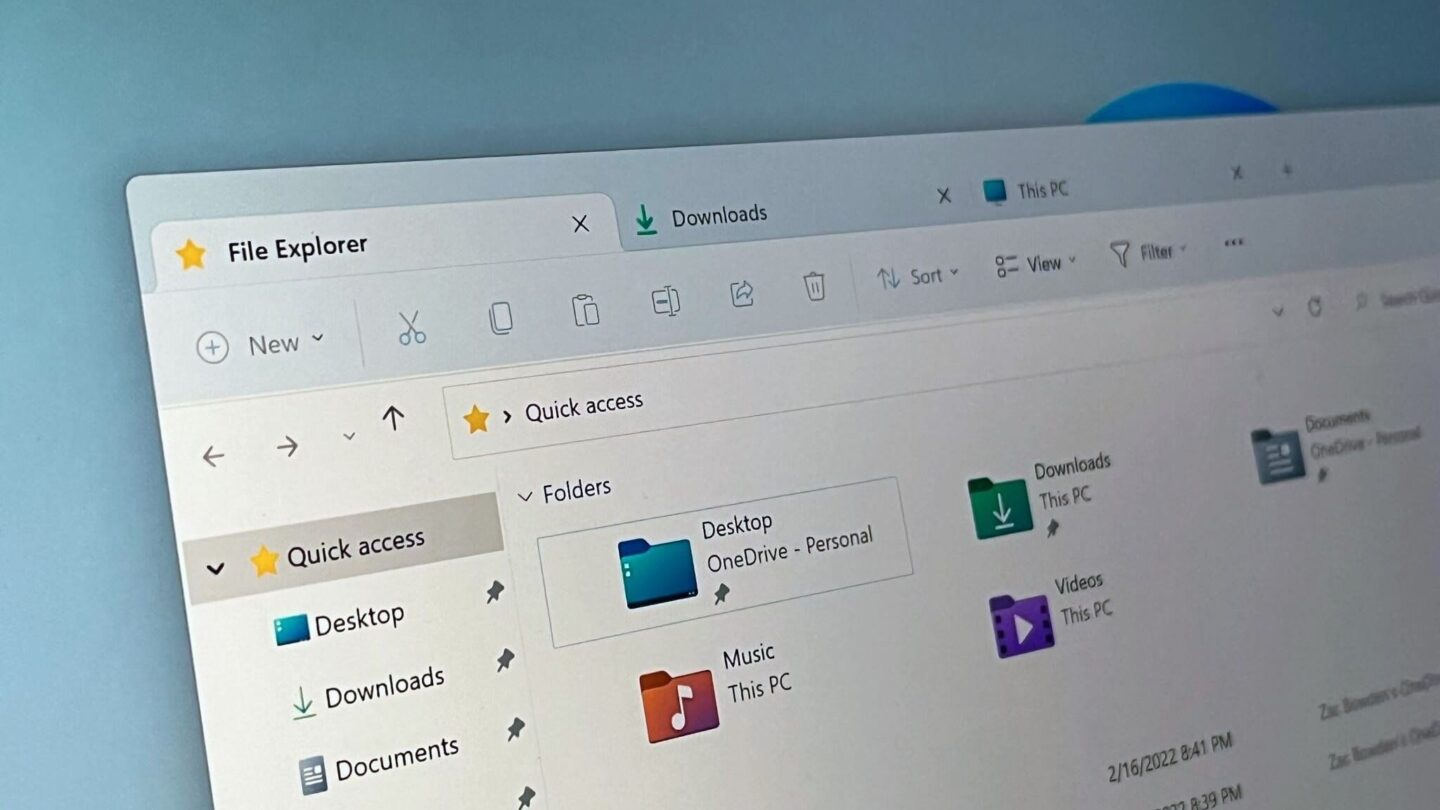
Windows power users know the frustrating pain of system shell sluggishness. For years, the Windows 11 File Explorer has drawn heavy criticism due to noticeable hesitation during boot. Users frequently complained about clunky animations, spinning wheels, and delayed folder rendering. Microsoft initially attempted to mask this latency by using a controversial memory trick. Consequently, the operating system would silently load shell components into RAM prior to actual user invocation. That artificial workaround merely hid the underlying structural flaws instead of resolving them directly.
Fortunately, a true architectural solution has finally arrived to optimize your File Explorer launch speed. The engineering team changed their strategy by rewriting how the core interface handles file asset indexing. This native optimization replaces the old background tricks with real, efficient rendering code. Instead of burning background CPU cycles, the system now processes active directory threads on demand. Therefore, directory trees open instantly without draining precious system resources or causing erratic memory spikes. This guide breaks down the technical mechanics behind this massive framework overhaul.
How the KB5095093 performance update fixes the shell core
The turning point for desktop productivity arrives via the recent cumulative operating system refinements. Officially designated as KB5095093, this particular release completely revamps internal shell behavior. Previously, every single instance of a folder window required an extensive cryptographic handshake with system subsystems. This bad architecture routinely blocked the primary user interface thread during heavy storage workloads. Now, the new update decouples these critical rendering tasks from secondary system verification protocols.
Furthermore, Microsoft modified the internal Win32 drawing pipelines to bypass legacy desktop window restrictions. As a direct result, the user interface displays local directories before checking external network states. The application process allocation scheme now prioritizes immediate visual layout drawing above secondary metadata fetching. Because of this adjustment, you will notice an immediate snap when launching your local workspace directories. You can track deployment details and download configurations directly on the official Microsoft Support Portal.
💡 Pro-Tip: If your system has not received this patch automatically, navigate directly to your Windows Update panel. Manually trigger a check for updates to pull down the optional June preview release immediately.
Deconstructing the Windows 11 Home tab lag problem
Most desktop lag issues actually originated from a single source within the modern user interface layout. Specifically, the notorious Windows 11 Home tab lag was caused by cluttered cloud storage integration. The default landing page continuously attempted to poll active network shares, pinned directories, and recent cloud assets. If OneDrive experienced a temporary sync hitch, the entire local directory structure froze completely. This terrible behavior forced the local operating system to wait for remote cloud timeouts.
Thankfully, the new architectural revision completely alters how the home ecosystem gathers data. The modern interface now segregates local disk paths from volatile cloud monitoring services. Now, local pinned folders populate instantly without waiting for external web servers to authenticate. If you use deep cloud integration, the system populates those specific folders asynchronously using separate low-priority threads. Hardware analysis experts at TechPowerUp verified that this structural isolation dramatically reduces initial rendering delays.
⚠️ Warning: Third-party shell modification utilities like ExplorerPatcher might conflict with these deep native adjustments. Disable these cosmetic tools before applying the update to prevent sudden shell crash loops.
The end of slow File Explorer fix workarounds
Before this native patch, IT administrators relied on highly frustrating maintenance routines to maintain responsiveness. Users frequently spent hours clearing history caches or modifying deeply buried registry values. Some enthusiasts even discovered a strange glitch involving double-pressing the fullscreen shortcut key. Ironically, forcing the application into fullscreen mode bypassed the broken modern command ribbon entirely. Everyone knew that these temporary tricks highlighted a severely flawed operating system foundation.
Happily, you can finally forget about these complex, temporary slow File Explorer fix methods. The upgrade natively addresses the address bar reliability issues that forced users to restart their systems. It also remedies long-standing unresponsiveness bugs encountered when mounting large ISO disk images. According to independent lab tests published by Windows Latest, startup speeds have improved by over forty percent. Deep-dive technical analyses on TweakTown show that structural WinUI 3 revisions cut unnecessary code execution paths completely. The entire file management experience now matches the snappy performance characteristics seen in classic desktop environments.
Additional shell optimizations bundled in the patch
Beyond the headline startup speed improvements, this operating system release includes several significant quality-of-life adjustments. For instance, the file renaming engine no longer randomly drops your current text selection. Microsoft also resolved an annoying bug where case-only modifications failed to display inside active folder panes. These small fixes drastically lower user frustration during extensive file organization tasks. The address bar now populates relevant directory path recommendations much faster during manual typing.
Additionally, advanced context menus now benefit from optimized asynchronous layout pre-rendering. Right-clicking a folder will soon display all system options instantly without annoying layout stuttering. Microsoft intends to introduce further customization options for this menu in the coming weeks. For now, the elimination of basic folder launch lag marks a monumental win for the user community. This release successfully transforms a bloated interface back into an efficient enterprise productivity tool. You can review manual deployment instructions in the Microsoft Update Catalog if automated servicing fails.
Final Thoughts
Microsoft has finally delivered the performance optimization that Windows users have demanded for years. By addressing core code efficiency rather than relying on preloading tricks, they have restored baseline desktop responsiveness. This patch effectively proves that clean code optimization always beats resource-heavy background workarounds. If you value a fast workflow, installing this system package should be your top priority.
What are your thoughts on this new performance patch? Has your folder loading speed visibly improved after applying the update? Let us know your experiences in the comments section below, and do not forget to share this article with fellow tech enthusiasts!