
In today’s digital world, your data is more valuable than ever. A single crash, ransomware attack, or accidental deletion can cost you precious files. That’s why setting up automatic PC backups is no longer optional—it’s essential.
Many Windows 11 users still rely on manual saving or cloud sync for select folders. However, these methods are not enough. To truly protect your system, you must back up the entire PC regularly and automatically. In this guide, we’ll explore simple, effective, and beginner-friendly solutions for safeguarding your files and system settings.
Why You Should Back Up Your Entire PC
Backups are your first line of defense against hardware failure, malware, or data loss. And with increasing threats like ransomware, you can’t afford to delay.
Automatic backups ensure your data is always saved—without needing to remember anything. With just a one-time setup, your Windows PC will handle everything in the background. This gives you peace of mind and a recovery plan in case of emergencies.
Whether you’re a student, business owner, or gamer, everyone benefits from setting up full PC backups.
Built-In Windows Backup Options
File History for Personal Files
File History backs up files in libraries, desktop, documents, and more. It runs automatically and stores older versions of files.
To set up File History:
- Go to Settings > Update & Security > Backup
- Click “Add a drive” and select your external storage
- Turn on “Automatically back up my files”
You can learn more on Microsoft’s support page.
Windows Backup (Full System Image)
Windows also offers full system image backups. This option creates a snapshot of your entire system—files, settings, and OS.

To create one:
- Open Control Panel > Backup and Restore (Windows 7)
- Click “Create a system image”
- Choose where to save it (external drive or network)
Although it’s labeled “Windows 7,” it works perfectly in Windows 10 and 11. This is best for full recovery in case of total system failure.
Using Third-Party Backup Tools
Macrium Reflect Free
Macrium Reflect Free is one of the most reliable free backup tools in 2025. It allows automatic full or incremental backups and easy recovery.
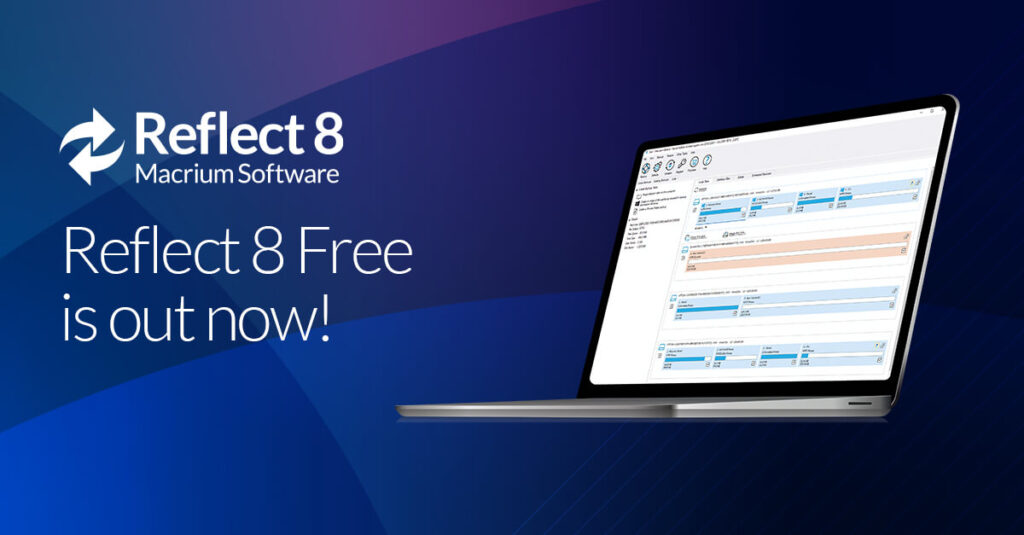
You can schedule daily or weekly backups and even create bootable rescue media. The interface is user-friendly and trusted by IT professionals.
EaseUS Todo Backup Free
EaseUS Todo Backup offers cloud, local, and disk cloning backups. It’s ideal for beginners with its simple design and wizard-driven process.
You can back up your entire PC, including the OS, apps, and settings. Scheduling is flexible, and restoring data is quick and intuitive.
AOMEI Backupper
Another strong option is AOMEI Backupper. This tool supports full system, disk, and file backups, along with automatic scheduling.
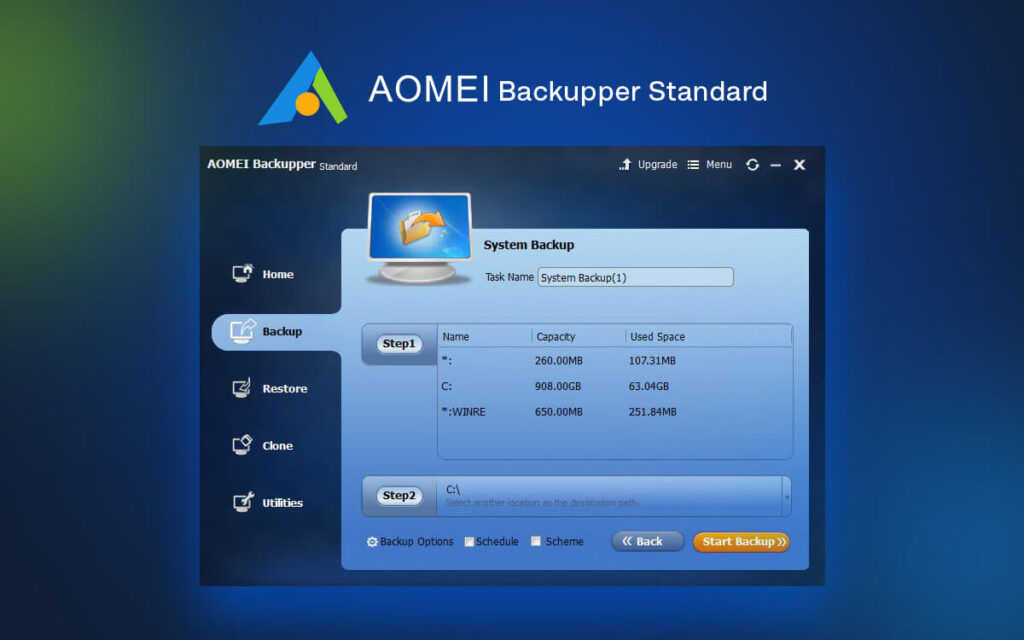
AOMEI also allows syncing files between drives and supports restoring your entire system with one click.
Backing Up to the Cloud Automatically
OneDrive for File Sync
OneDrive is built into Windows. You can enable automatic backup for Documents, Desktop, and Pictures.
To activate:
- Right-click the OneDrive icon > Settings
- Go to Backup > Manage backup
- Choose folders to sync
This won’t back up your full system but is great for documents and photos.
IDrive or Backblaze for Full Cloud Backup
Services like IDrive and Backblaze offer full system cloud backups. They automatically back up everything, including OS and app data.
Backblaze offers unlimited storage, while IDrive supports multiple device backups. Both services have excellent restore tools in case you need your data fast.
Set a Backup Schedule That Works for You
Backing up once a month isn’t enough. Most tools allow daily, weekly, or even real-time backups.
- Daily: Ideal for work PCs with frequent changes
- Weekly: Best for personal or gaming PCs
- Real-time: Useful for cloud sync and critical data
Always keep at least one local and one cloud backup for full protection.
Tips to Keep Your Backups Safe and Reliable
- Test your backups regularly by restoring a file
- Keep your external drive disconnected after backup to avoid ransomware infection
- Use encryption for sensitive data
- Store recovery media like bootable USBs in a safe place
- Monitor storage usage and upgrade when needed
Regular backups mean you’re always prepared for accidents, failures, or attacks.
Final Thoughts
Setting up automatic backups might take 15 minutes—but it can save years of files. Don’t wait until disaster strikes. Choose a method today, test it, and let your system work quietly in the background to protect what matters most.
Have a preferred backup method or tool? Share it in the comments! Or let us know if you need help setting one up—we’re here to assist.