
Wi-Fi problems in Windows 11 are frustrating but often easy to fix. From dropped signals to no connection, these issues can disrupt work, gaming, or streaming. But with the right steps, you can resolve most network errors in minutes—no advanced skills required.
This guide is perfect for beginners. It walks you through the most common issues and their solutions. Whether you’re facing Wi-Fi not working or slow internet speed, the fixes below are proven and straightforward. Plus, we’ve included trusted tools and links to help you get back online faster.
1. Restart Your Router and PC
Although it may sound basic, restarting is a powerful fix. A simple reboot often resets connections and clears temporary glitches.
First, unplug your router for 30 seconds. Then restart your PC. Once both are back on, reconnect to your Wi-Fi. If issues continue, move to the next step.
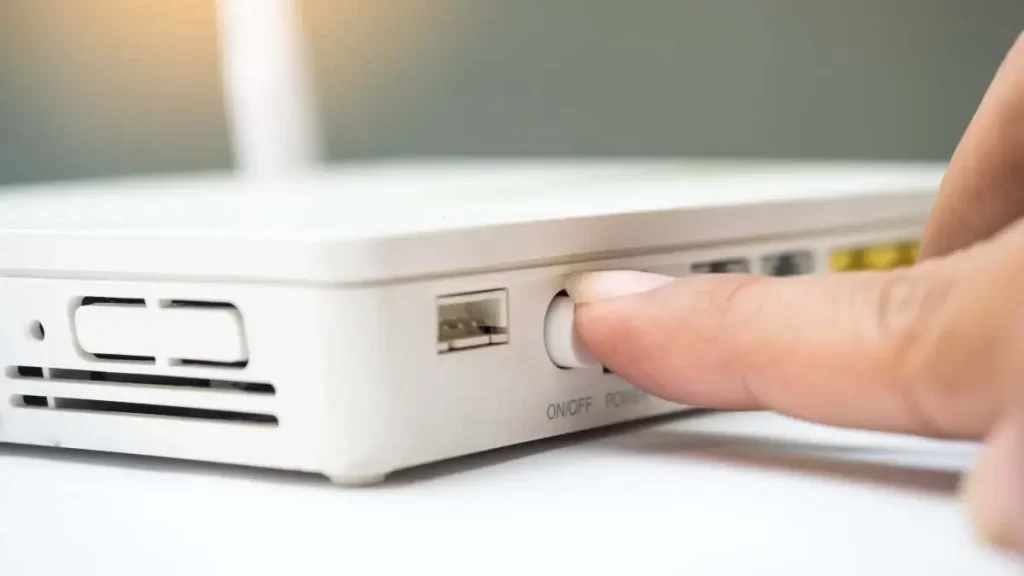
If you’re unsure how to access your router settings, check your router’s model guide on TP-Link.
2. Update Your Network Adapter Driver
An outdated driver can cause connection errors. Fortunately, Windows 11 makes updating drivers easy.
Go to Device Manager, click Network Adapters, right-click your Wi-Fi adapter, and select Update driver. Choose Search automatically for drivers. You can also find official drivers from Intel or your PC manufacturer’s website.
3. Run the Windows Network Troubleshooter
The built-in troubleshooter is often overlooked, but it’s effective. It detects and fixes many networking problems automatically.
To use it, go to Settings > System > Troubleshoot > Other troubleshooters. Find Network Adapter, then click Run. Follow the steps and check your Wi-Fi again. More help is available at Microsoft Support.
4. Forget and Reconnect to Your Network
Sometimes, removing your Wi-Fi profile and reconnecting helps resolve unstable connections or wrong configurations.
Go to Settings > Network & Internet > Wi-Fi > Manage known networks. Click on your current network, then select Forget. Reconnect using your password. If you’re still unsure, Netgear has step-by-step visuals.
5. Reset TCP/IP and DNS Settings
Corrupt IP settings can block Wi-Fi access. Resetting TCP/IP and DNS clears up most of these issues.
Open Command Prompt as Administrator. Type the following commands one at a time and press Enter after each:
bashCopyEditnetsh int ip reset
ipconfig /release
ipconfig /renew
ipconfig /flushdns
Restart your PC after completing all commands. If you’re not confident using CMD, this Windows command guide may help.
6. Disable Power Saving on Wi-Fi Adapter
Windows sometimes disables devices to save power, which can lead to network drops.
To fix this, open Device Manager, right-click your Wi-Fi adapter, then go to Properties > Power Management. Uncheck Allow the computer to turn off this device to save power. Click OK to apply changes.
7. Check for Software Conflicts or VPN Issues
Sometimes, antivirus programs or VPNs block Wi-Fi. Temporarily disable them to test your connection.
If Wi-Fi works with them off, consider adjusting their settings or switching to trusted software like Malwarebytes or Proton VPN.

8. Change Wi-Fi Frequency Band
Modern routers support both 2.4GHz and 5GHz bands. Switching bands can resolve congestion and signal issues.
Go to Device Manager > Network Adapter > Advanced tab, then select Preferred Band. Change it to 5GHz or Auto. Alternatively, access your router dashboard through a browser and adjust the band settings. Refer to your router brand’s site like Asus for guidance.
Final Thoughts
Wi-Fi problems are annoying but almost always solvable. From outdated drivers to power settings, each fix helps improve your connection in Windows 11.
Which of these solutions worked for you? Got a tip or question we didn’t cover? Drop it in the comments below—we’d love to hear from you!